When the white light on your Verizon router starts blinking, it can quickly turn a normal day into a frustrating one. A blinking white light often means your router is having trouble connecting to the internet, but the exact cause can be unclear. Many people worry that the problem is serious or that they need a new router. In reality, this issue is common and usually fixable at home. Understanding what the blinking white light means, what causes it, and how to solve it can save you time and money. This guide will walk you through everything you need to know, including practical steps, expert tips, and what to do if the blinking doesn’t stop.
What Does The Verizon Router White Light Blinking Mean?
The white blinking light on a Verizon router is a status indicator. Routers use different lights to show what’s happening inside the device. When you see a white light blinking, it usually means the router is starting up, updating firmware, or trying to connect to the internet. If the blinking continues for more than a few minutes, it’s a sign that something isn’t working correctly.
Verizon routers typically use these light signals:
- Solid white: The router is working well and connected.
- Blinking white: The router is booting up, updating, or having trouble connecting.
- Red light: There’s a serious issue.
- Yellow or orange: There’s a connection problem.
If your router’s white light has been blinking for longer than five minutes, it’s time to take action.
Common Causes Of The White Light Blinking
Several things can make the white light on your Verizon router blink. Some problems are simple, while others need more attention. Here are the most common reasons:
- Startup or reboot: After a power loss or reset, the router will blink white as it starts up.
- Firmware update: The router may be installing new software to improve security or fix bugs.
- Internet outage: There could be a problem with Verizon’s service in your area.
- Loose cables: Unplugged or loose cables between your router and modem can cause connection issues.
- Overheating: If your router gets too hot, it might malfunction.
- Hardware problems: Rarely, the router itself may be damaged.
A non-obvious insight: Sometimes, a scheduled firmware update by Verizon can start late at night or early in the morning. If you notice blinking during these times, give the router a few extra minutes before taking further steps.
Quick Steps To Fix The Blinking White Light
Most of the time, you can fix the blinking white light problem with a few simple actions. Try these steps in order:
- Wait for a few minutes: If you just restarted the router, give it 3-5 minutes to fully boot up.
- Check all cables: Make sure every cable is secure. Focus on the Ethernet cable between your modem and router.
- Restart the router: Unplug the power, wait 30 seconds, then plug it back in.
- Check for overheating: Place your hand near the router. If it feels very hot, unplug it and let it cool for 10 minutes.
- Look for service outages: Visit Verizon’s outage map or call their support line.
- Reset to factory settings: Use a paperclip to press the small reset button on the back of the router for 10 seconds. This will erase custom settings.
Example: Restarting The Router
Let’s say your router started blinking after a storm. The power flickered, and now you have no internet. First, check that all the cables are plugged in. Next, unplug your router, wait for 30 seconds, and plug it back in.
Wait a few minutes. If the white light keeps blinking, visit Verizon’s website on your phone to see if there’s a known outage.
When Should You Contact Verizon Support?
Some problems are out of your control. If you’ve tried all the steps above and the white light still blinks, it’s time to contact Verizon. Here’s when you should reach out:
- The white light blinks for more than 20 minutes with no change.
- You see a solid red light after restarting.
- Other devices (like your TV or phone) also can’t connect.
- The router feels very hot or smells like burning plastic.
Verizon can check your line remotely, send a technician, or replace your router if needed. Many users wait too long before calling for help, hoping the problem will fix itself. Don’t wait if you see warning signs like a red light or burning smell—these can mean hardware failure.
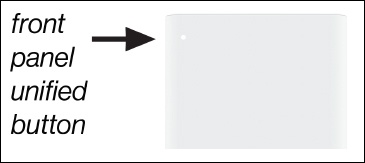
Credit: www.verizon.com
How To Prevent Future Blinking White Light Problems
Prevention is better than fixing the same problem again and again. Here are some simple ways to reduce the chances of seeing a blinking white light in the future:
- Keep your router in a cool, open spot: Avoid placing it in cabinets or near heat sources.
- Update firmware regularly: Most routers do this automatically, but you can check for updates in the settings.
- Use a surge protector: This protects your router from power spikes.
- Tidy up cables: Secure cables so they can’t be knocked loose by pets or cleaning.
- Restart your router once a month: This can help clear minor software bugs.
A non-obvious tip: Some smart devices (like Alexa or smart TVs) can overload your router if too many are connected at once. If you add new devices and the white light starts blinking, try disconnecting a few to see if stability returns.
Understanding Verizon Router Light Patterns
Knowing what each light means will help you diagnose problems quickly. Here’s a simple reference for Verizon router lights:
| Light Color | Pattern | Meaning |
|---|---|---|
| White | Solid | Normal operation |
| White | Blinking | Starting up, updating, or connecting |
| Red | Solid | Critical error (hardware or connection) |
| Yellow/Orange | Blinking or solid | Connection problem |
If you see a color or pattern not listed here, check your router’s manual or Verizon’s official support page.
Comparing Common Verizon Router Issues
Blaming the blinking white light on the wrong cause can waste time. Here’s how the white blinking light compares to other common router issues:
| Issue | Light Pattern | Possible Causes | First Step |
|---|---|---|---|
| White light blinking | Blinking white | Startup, firmware update, loose cable, outage | Wait, check cables, restart |
| No lights | All off | No power, dead router | Check power, replace outlet |
| Red light | Solid red | Hardware failure, overheating | Unplug, let cool, contact support |
| Yellow light | Blinking/solid yellow | Connection problem, loose cable | Check all cables, restart |
Troubleshooting Advanced Issues
Sometimes the white blinking light is a sign of a deeper problem. Here’s how to handle less obvious causes:
Firmware Update Problems
If your router gets stuck during an update, it may blink white for a long time. Don’t unplug it right away—this can damage the device. Wait at least 10 minutes. If it’s still blinking, try a factory reset. Afterward, you may need to re-enter your Wi-Fi settings.
Isp Outage Or Maintenance
Occasionally, Verizon will do maintenance or experience an outage. Check their official outage map or use your mobile data to visit Verizon’s service outage page. If there’s an outage, you’ll have to wait for Verizon to fix it.
Faulty Hardware
After all troubleshooting, if the blinking white light remains, your router may be failing. Hardware can degrade over time, especially after power surges or overheating. If your router is several years old, ask Verizon about a replacement.

Credit: www.reddit.com
Verizon Router Models And Their Light Behavior
Not all Verizon routers use lights in the same way. The most common models are the Verizon Fios G3100 and the Verizon CR1000A. Both use a large LED ring on the front for easy status checks, but the exact timing for startup and firmware updates can vary.
| Model | Startup (Blinking White Time) | Firmware Update (Blinking White) | Solid White |
|---|---|---|---|
| Fios G3100 | 3–5 minutes | Up to 10 minutes | Online/connected |
| CR1000A | 2–4 minutes | Up to 8 minutes | Online/connected |
If your router’s light blinks longer than these times, something is wrong.
Important Tips For Reliable Router Performance
- Label your cables: If you have multiple devices, clearly label each cable to avoid confusion.
- Document your Wi-Fi settings: Keep a note of your network name and password before doing a factory reset.
- Don’t stack devices: Stacking your router with other electronics can trap heat and cause issues.
- Schedule downtime: If you work from home, plan router resets during non-working hours to avoid interruptions.
Many users overlook the importance of ventilation. Dust buildup can cause overheating and light problems. Clean around your router every few months.

Credit: www.reddit.com
Frequently Asked Questions
Why Is My Verizon Router’s White Light Blinking After A Storm?
Power surges or outages often cause routers to restart, leading to a blinking white light. Check your cables and restart the router. If the problem continues, your hardware might be damaged by the surge.
How Long Should I Wait For The White Light To Stop Blinking?
Usually, the white light should stop blinking within 3–5 minutes after startup. During a firmware update, it may last up to 10 minutes. If it continues longer, check for loose cables or outages.
Will Factory Resetting My Router Delete My Wi-fi Settings?
Yes, a factory reset will erase custom Wi-Fi names, passwords, and any parental controls you set. Always write down your settings before resetting.
Can Too Many Devices Cause The White Light To Blink?
Yes, connecting many smart devices can overload the router and cause connection issues. Try disconnecting some devices to see if stability returns.
Is A Blinking White Light Always A Sign Of A Problem?
Not always. A blinking white light is normal during startup or updates. If it continues for more than 10 minutes, it’s likely a sign of a problem that needs fixing.
When you understand your Verizon router’s signals, you gain confidence in handling small issues and know when to call for help. Most blinking white light problems are easy to fix, and keeping your router in good shape helps prevent them.
If you ever feel unsure, Verizon support is just a call or click away.