When two domain controllers in an Active Directory environment stop syncing, the effects can be serious. User logins may fail, group policy changes won’t reach all computers, and important business operations can slow down or stop. For IT professionals, resolving sync issues is critical, but the root causes and fixes are often more complex than they seem. This article explores why domain controllers might not sync, how to identify the true problem, and what steps you can take to restore smooth, reliable replication. If you’re dealing with this issue, you’ll find practical advice, concrete examples, and hidden pitfalls most beginners overlook.
Understanding Domain Controller Sync
Domain controllers (DCs) are servers that store a copy of the Active Directory database. This database includes user accounts, computer objects, security groups, and more. In a healthy environment, changes made on one DC are quickly replicated to all others, keeping data consistent. This process is called Active Directory replication.
When two DCs stop syncing, data on each server can drift apart. Over time, this can cause serious problems, such as:
- Users unable to log in if their passwords were changed on one DC but not the other
- Computers joining the domain but not appearing everywhere
- Group policies not applying as expected
The sync process uses a multi-master model, meaning every DC can accept changes. That’s why it’s so important for replication to work smoothly.
How Domain Controllers Normally Sync
Before digging into problems, it helps to know how replication usually works. DCs replicate changes using the Knowledge Consistency Checker (KCC), which creates connection objects between servers. These connections use either:
- Intrasite replication – between DCs in the same physical site, using fast local networks.
- Intersite replication – between DCs in different locations, often across slower WAN links.
Changes are pulled from one DC to another using the Directory Replication Service (DRS). Replication happens automatically at set intervals, but some events (like password resets) are pushed more quickly.
Replication topology, schedules, and settings are stored in Active Directory itself. Usually, you don’t need to touch these unless there’s a problem.

Credit: jumpcloud.com
What Happens When Dcs Stop Syncing
When two DCs aren’t syncing, you may notice:
- Password changes not recognized by all DCs
- New user or group objects not visible everywhere
- Deleted objects “coming back” after being removed on another DC
- Event log errors such as 1311, 1865, or 2042
- Repadmin or dcdiag command errors
- Logon failures or inconsistent policy behavior
The longer this goes on, the worse the inconsistency. After 60 days (the “tombstone lifetime”), objects that haven’t replicated may be lost or cause lingering object problems.
Common Causes Of Domain Controller Sync Issues
Several factors can break replication between two DCs. Here are the most frequent causes:
1. Network Connectivity Issues
Firewalls, misconfigured routes, or broken cables can block replication traffic.
2. Dns Misconfiguration
Active Directory uses DNS to find other DCs. If DNS is wrong, DCs may “disappear” from each other.
3. Time Synchronization Problems
Kerberos authentication depends on clocks being closely matched. If time drifts, replication can fail.
4. Replication Topology Errors
Manual changes to the topology or accidental deletion of connection objects can isolate DCs.
5. Usn Rollback Or Database Corruption
Restoring a DC from an old backup, snapshot, or image can cause update sequence number (USN) rollback. This can poison replication.
6. Version Or Schema Mismatch
After an OS upgrade or schema change, DCs on different versions may not sync.
7. Authentication Or Permissions Problems
If the replication account is locked out or permissions are changed, replication stops.
8. Lingering Objects And Tombstones
If replication is broken past the tombstone lifetime, objects can become “lingering” and block further replication.
Notably, beginners often overlook DNS and time issues. These two factors cause a large percentage of sync failures but are sometimes hard to spot.
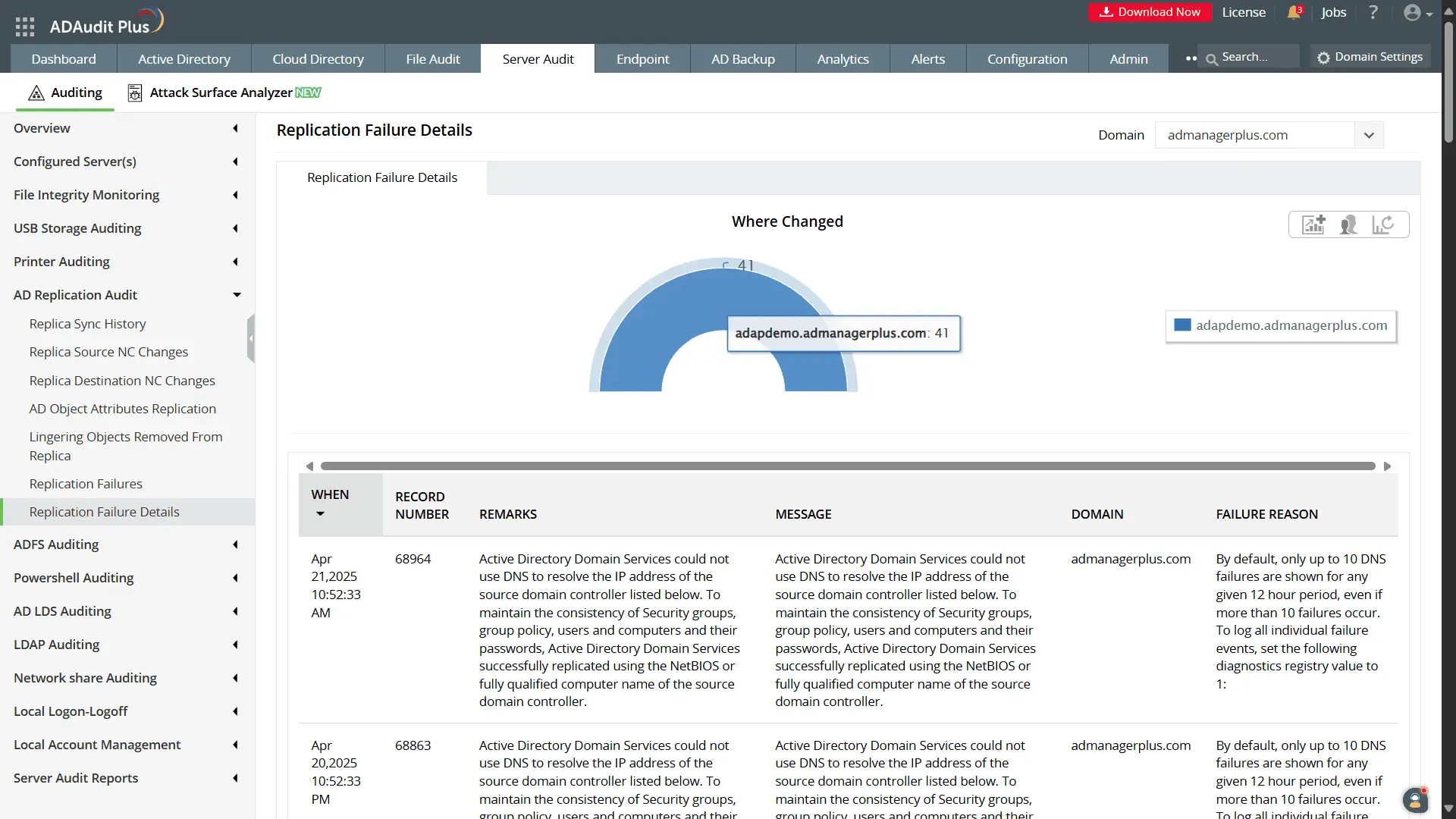
Credit: www.manageengine.com
Diagnosing Two Domain Controllers Not Syncing
Before making changes, pinpoint the cause. Here’s how to troubleshoot in a methodical way.
Step 1: Check Basic Connectivity
- Ping both DCs from each other. If ping fails, check the network.
- Use telnet or PortQry to test ports 135, 389, 445, 636, and 3268/3269 (for global catalog).
- Confirm there are no new firewall rules blocking traffic.
Step 2: Verify Dns Settings
- Ensure both DCs use only internal DNS servers (preferably themselves or other DCs).
- Run `nslookup` for both DC hostnames and the domain name.
- Check for duplicate or missing DNS records in the _msdcs zone.
Step 3: Check Time Synchronization
- Run `w32tm /query /status` to see the current time source.
- Make sure both DCs are within 5 minutes of each other.
- The PDC Emulator should sync with an external time source; all others should sync from it.
Step 4: Use Repadmin And Dcdiag
- Run `repadmin /replsummary` to see an overview of replication health.
- Run `repadmin /showrepl` on both DCs to see inbound and outbound partners.
- Use `dcdiag /v` for detailed diagnostic output.
- Look for errors such as “Last error: 1722 (The RPC server is unavailable)” or “Last error: 5 (Access is denied).”
Step 5: Review Event Logs
- Open the Directory Service, System, and DNS Server logs.
- Look for recent warnings or errors, especially those mentioning replication, KCC, or authentication.
Step 6: Analyze Replication Topology
- In Active Directory Sites and Services, check connection objects under the NTDS Settings of each DC.
- Ensure both DCs see each other as replication partners.
Step 7: Check For Usn Rollback Or Lingering Objects
- USN rollback causes replication to stop. If you see errors mentioning “USN,” investigate recent restores or snapshots.
- Lingering objects can be identified with `repadmin /removelingeringobjects`.
Step 8: Review Schema And Version Mismatch
- Check the OS version (`winver`) and schema version (`dsquery cn=schema,cn=configuration,dc=… -scope base -attr objectVersion`).
- All DCs should be on supported versions for your domain functional level.
Advanced Troubleshooting: Data Table
Here’s a quick comparison of common issues and symptoms:
| Issue | Key Symptoms | Primary Fix |
|---|---|---|
| DNS Misconfiguration | Cannot locate DCs, failed logins | Correct DNS settings, ensure AD-integrated zones |
| Time Drift | Kerberos errors, replication stalls | Sync clocks, fix time source |
| USN Rollback | Replication halts, event log errors | Remove and rebuild faulty DC |
| Network Block | Ping fails, port errors | Fix firewall, network routes |
| Lingering Objects | Replication loops, object conflicts | Clean up with repadmin tools |
Fixing Domain Controller Sync Problems
Let’s walk through practical steps to fix the most common issues.
1. Fix Dns Problems
- Configure the Preferred DNS on each DC to point to itself or another DC.
- Remove any external DNS servers from DC network settings.
- Restart the DNS Server service after changes.
- In DNS Manager, ensure all required SRV records exist in the _msdcs and domain zones.
- Use `ipconfig /registerdns` and `dcdiag /test: Dns` to validate.
2. Repair Network And Firewall Issues
- Make sure required ports are open: 135, 389, 636, 445, 3268, 3269.
- Check firewall logs for blocked traffic.
- For virtual DCs, confirm virtual switches and adapters are working.
3. Resynchronize Time
- On the PDC Emulator, set an external time source:
w32tm /config /manualpeerlist:"time.windows.com,0x9" /syncfromflags:manual /reliable:YES /update
net stop w32time && net start w32time
- On other DCs, run:
w32tm /config /syncfromflags:domhier /update
net stop w32time && net start w32time
- Confirm time sync with `w32tm /query /status`.
4. Restore Replication Topology
- In Active Directory Sites and Services, right-click NTDS Settings and select “Check Replication Topology.”
- Delete and recreate connection objects if needed.
- Force replication with `repadmin /syncall /APeD`.
5. Remove Lingering Objects
- Use `repadmin /removelingeringobjects` to clean up objects that have passed the tombstone lifetime.
- Always back up Active Directory before removing objects.
6. Resolve Usn Rollback
If a DC was restored from an unsupported backup:
- Demote the affected DC (`dcpromo /forceremoval` if needed).
- Clean up metadata using `ntdsutil`.
- Re-promote the server or introduce a new DC.
7. Address Authentication And Permissions
- Make sure replication account passwords are not expired or locked.
- Use `netdom resetpwd` to reset machine account passwords.
8. Fix Schema And Version Mismatch
- Upgrade all DCs to a supported OS and schema version.
- Run `adprep /forestprep` and `adprep /domainprep` if needed.
Real-world Example
An organization had two DCs in different cities. Replication stopped, and users in one city could not reset passwords. Troubleshooting revealed both DCs had their Preferred DNS set to an external provider, not themselves. After correcting DNS to point to internal DCs and restarting the Netlogon and DNS Server services, replication resumed within minutes.
Preventing Future Sync Issues
Prevention is always better than cure. Here are best practices to keep domain controllers syncing:
- Always use internal DNS for DCs.
- Monitor DC health with tools like System Center or Nagios.
- Schedule regular checks of event logs and replication status.
- Avoid restoring DCs from snapshots unless using supported methods.
- Test disaster recovery procedures.
- Upgrade DCs and schema before old versions go out of support.
Proactive Monitoring Table
Here’s a quick comparison of monitoring methods:
| Tool | What It Monitors | Alerting Ability |
|---|---|---|
| Repadmin | Replication health, errors | No built-in alerts |
| Event Viewer | Logs, warnings, errors | Manual review needed |
| System Center | Comprehensive AD health | Customizable alerts |
| Nagios/PRTG | Network, service, AD checks | Automated notifications |
Two Non-obvious Insights
- Time drift can cause replication to silently fail, even if everything else seems fine. Always verify time sources and never assume “it looks close enough.”
- Restoring DCs from unsupported snapshots (like those from some hypervisors) can introduce invisible USN rollback. Instead, use system state or proper Active Directory-aware backup tools.

Credit: learn.microsoft.com
When To Seek Outside Help
Some problems are too risky or complex to fix alone:
- If you see USN rollback and don’t fully understand the fix, call Microsoft Support.
- Lingering objects that survive multiple cleanups can corrupt the AD forest.
- Schema mismatches after failed upgrades may require expert intervention.
In these cases, don’t guess. Getting professional help early can prevent bigger disasters.
Frequently Asked Questions
What Is The Fastest Way To Check If Two Domain Controllers Are Syncing?
Run `repadmin /replsummary` on any DC. It will show the last sync status for all partners. If your two DCs show recent, successful syncs, they are syncing.
Can I Force Two Domain Controllers To Sync Immediately?
Yes. Use `repadmin /syncall /APeD` to trigger immediate replication. In Active Directory Sites and Services, you can also right-click a connection object and select “Replicate Now. ”
What Ports Must Be Open For Domain Controller Replication?
Core ports include TCP 135 (RPC), TCP/UDP 389 (LDAP), TCP 445 (SMB), and TCP 636/3268/3269 (LDAPS/Global Catalog). Ensure firewalls allow these between all DCs.
Is It Safe To Restore A Domain Controller From A Virtual Machine Snapshot?
Usually not. Restoring a DC from a snapshot can cause USN rollback, breaking replication. Always use system state backups or Active Directory-aware backup software. See official guidance at Microsoft Docs.
How Often Should I Check Replication Health?
Weekly checks are recommended for most organizations. For critical environments, daily automated monitoring with alerting is best.
Every IT professional dealing with Active Directory will eventually face replication issues. When two domain controllers stop syncing, it’s rarely a quick fix—but with a careful, step-by-step approach, you can usually solve the problem without downtime or data loss. Remember to check the basics (DNS, time, network) before diving into deeper troubleshooting, and always document your fixes for future reference.
With these strategies, you’ll keep your Active Directory healthy, resilient, and ready for whatever comes next.