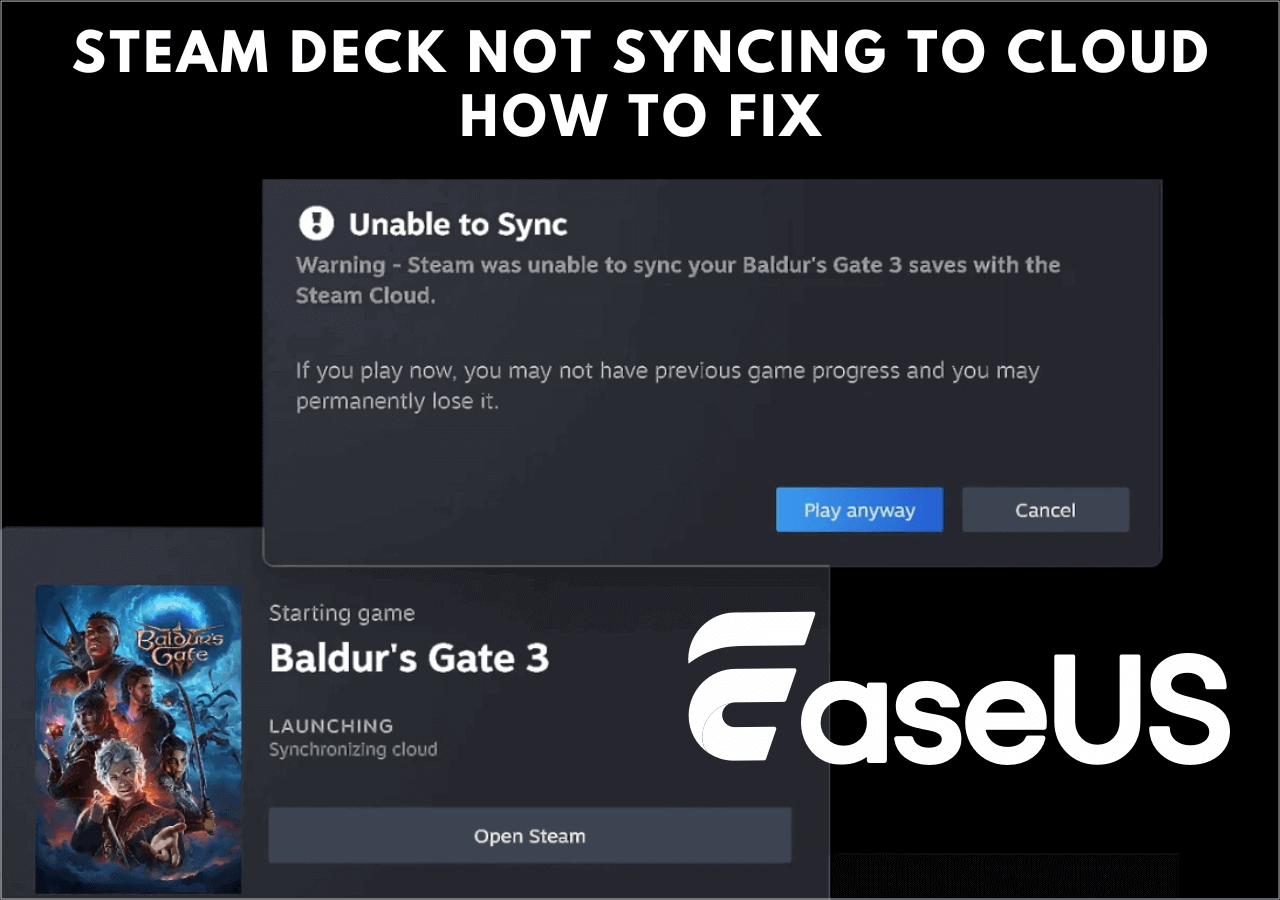
If you use Steam to play games, you probably expect your progress, achievements, and settings to sync across your devices. But sometimes, Steam does not sync games as it should. This problem can be frustrating, especially if you switch computers or reinstall your system. You might lose hours of gameplay or find your settings missing. Why does this happen, and how can you fix it? Let’s explore the reasons, solutions, and what you need to know to keep your gaming experience smooth.
Why Steam Syncs Games
Steam’s Cloud Sync feature saves your game data, like progress, settings, and achievements, on Steam’s servers. When you log in on another PC or after reinstalling a game, Steam downloads this data so you can continue where you left off. This is helpful for:
- Playing on multiple devices
- Protecting your progress from hardware failures
- Sharing games with family
But not all games use Steam Cloud. Some developers choose not to enable this feature, or they use their own cloud system.
Common Causes Of Steam Not Syncing Games
When Steam does not sync games, it’s usually because of one or more issues. Here are the most frequent causes:
- Steam Cloud disabled: Either globally or for a specific game.
- Game does not support Steam Cloud: Not all games use cloud syncing.
- Internet connection issues: Steam cannot upload/download data.
- Corrupted local files: Data cannot sync correctly.
- Steam client bugs: Problems with the Steam app itself.
- Firewall or antivirus blocks: Steam can’t access the cloud.
- Outdated Steam client: Older versions might not sync reliably.
- Server outages: Steam’s servers may be down.
Let’s look at these causes in detail and learn how to fix them.

Credit: gaming.stackexchange.com
How To Check If A Game Supports Steam Cloud
Before troubleshooting, check if your game supports Steam Cloud. Not all games do. Here’s how:
- In your Steam Library, right-click the game and select Properties.
- Look for the Steam Cloud section.
- If you see a checkmark or “Steam Cloud enabled,” the game supports syncing.
If you don’t see this option, the game does not use Steam Cloud. In this case, progress will not sync unless the game has its own cloud system.
Games With And Without Steam Cloud: Quick Comparison
Below is a comparison of two popular games regarding Steam Cloud support:
| Game | Steam Cloud Supported | Sync Type |
|---|---|---|
| The Witcher 3 | Yes | Automatic |
| Counter-Strike: Global Offensive | Yes | Manual/Automatic |
| Dark Souls III | No | N/A |
This table shows that Dark Souls III does not use Steam Cloud, so syncing progress is not possible via Steam.
How To Fix Steam Not Syncing Games
If your game supports Steam Cloud but isn’t syncing, try these steps:
1. Check Steam Cloud Settings
- Open Steam, go to Settings > Cloud.
- Make sure Enable Steam Cloud synchronization is checked.
- For the specific game, right-click in Library > Properties > General. Ensure Keep games saves in Steam Cloud for [game] is checked.
2. Verify Internet Connection
Steam Cloud needs a stable internet connection. If your Wi-Fi is weak or drops out, syncing may fail. Try:
- Restarting your router.
- Using a wired connection.
- Running a speed test.
Steam needs at least 1 Mbps upload speed for smooth syncing. If your connection is slower, uploads may time out.
3. Restart Steam Client
Sometimes, simply restarting Steam fixes syncing issues. Close Steam fully, then reopen. If this doesn’t work, try restarting your computer.
4. Update Steam Client
Outdated clients can cause problems. Click Steam > Check for Steam Client Updates. Install any available updates.
5. Check Firewall And Antivirus Settings
Some security software blocks Steam’s access to the cloud. Add Steam to your firewall and antivirus “allow” lists. Look for:
- Steam.exe
- Steamservice.exe
Make sure both can access the internet.
6. Check For Server Outages
Sometimes, Steam’s servers are down. You can check their status at Steam’s official website. If there’s a major outage, wait until it’s resolved.
7. Verify Game Files
Corrupted game files can block syncing. In Steam Library:
- Right-click your game > Properties > Local Files > Verify integrity of game files.
Steam will check and fix any issues.
8. Clear Steam Download Cache
If downloads or syncing are stuck, clearing the cache helps.
- Steam > Settings > Downloads > Clear Download Cache.
Steam will restart and may fix the problem.
9. Manually Sync Saves
Some games let you export/import saves manually. Find the game’s save folder (often in Documents or AppData) and copy files to another computer.
10. Contact Steam Support
If none of the above works, contact Steam Support with details about your issue.
Steam Cloud Sync: How It Works
Steam Cloud uses your account to upload and download game saves. When you exit a game, Steam uploads your latest save files. When you start the game on another device, Steam downloads these files. Here’s a quick look at the process:
| Step | Action |
|---|---|
| 1 | Play game and save progress |
| 2 | Exit game; Steam uploads save files |
| 3 | Log in on another device |
| 4 | Steam downloads save files |
| 5 | Continue playing with synced progress |
Non-obvious Insights About Steam Syncing
Many gamers miss these important details:
- Steam Cloud syncs only files the developer selects. Sometimes, not all settings or saves are included. For example, screenshots or custom mods are rarely synced.
- If you play the same game on two devices at the same time, syncing can fail or overwrite saves. Always exit the game on one device before starting on another.
- Steam Cloud has a storage limit (usually 100MB per game). If your save files are large, syncing may stop. Check your save file sizes in the game folder.
Games With Large Save Files
Some games, like Cities: Skylines or The Sims 4, can have save files that exceed Steam Cloud’s limit. In these cases:
- Steam will show a warning about storage.
- You may need to manually manage save files.
- Only the most recent saves might sync.
Steam Cloud Sync Vs. Local Backup
You might wonder if you should rely only on Steam Cloud or make your own backups. Here’s a comparison:
| Feature | Steam Cloud Sync | Local Backup |
|---|---|---|
| Automatic | Yes | No |
| Multi-device support | Yes | Manual |
| Storage limit | 100MB per game | No limit |
| Includes all files | No | Yes |
| Easy restore | Yes | Manual |
For important games, consider using both Steam Cloud and manual backups. This way, you protect your progress from both sync failures and local problems.
Real Examples Of Steam Not Syncing Games
Let’s look at a few real-world cases:
- Case 1: A gamer played Skyrim on two computers. Steam Cloud did not sync mods and custom settings, only basic progress.
- Case 2: With Rocket League, save files grew beyond 100MB. Steam Cloud stopped syncing, and the player had to manually copy saves.
- Case 3: During a Steam server outage, a player lost progress in Stardew Valley because saves could not upload.
In each case, knowing the limits and how syncing works helped avoid losing data.
How To Avoid Sync Issues In The Future
To minimize problems with Steam Cloud syncing, follow these practical tips:
- Always exit games cleanly so Steam can upload saves.
- Avoid playing the same game on two devices at the same time.
- Check game-specific cloud support before starting a new game.
- Make manual backups of important save files.
- Keep your Steam client updated.
- Monitor save file sizes, especially for games with lots of content.
- Use a reliable internet connection.
What To Do If Steam Cloud Conflicts
Sometimes, Steam shows a Cloud Sync Conflict message. This happens when save files on your device differ from those in the cloud. You must choose which version to keep.
- If you choose local files, Steam will upload them and overwrite the cloud.
- If you choose cloud files, Steam will download and overwrite your local files.
Be careful: choosing the wrong option can erase progress. Double-check which save is newer and has your latest achievements.
Steam Cloud Alternatives
Some games use their own cloud systems, like Ubisoft Connect or Epic Games Launcher. These often sync progress independently of Steam. If your game uses a different launcher, check its cloud sync options.
Other alternatives include:
- Using Dropbox or Google Drive to store save files.
- Third-party tools like GameSave Manager.
These options are helpful for games without Steam Cloud support.
Steam Not Syncing Games: Statistics And User Data
According to Steam’s own stats, over 60% of games on the platform now support Steam Cloud. However, in surveys, about 1 in 5 gamers report at least one sync failure per year. Most problems happen with:
- Large save files (over 100MB)
- Weak internet connections
- Playing on multiple devices quickly
Knowing these risks helps you plan ahead and protect your progress.
Troubleshooting Checklist
Here’s a quick checklist you can use if Steam is not syncing your games:
- Is Steam Cloud enabled globally and for the game?
- Does your game support Steam Cloud?
- Is your internet connection stable?
- Is your Steam client updated?
- Are firewall/antivirus settings blocking Steam?
- Are save files too large?
- Is there a Steam server outage?
- Are game files corrupted?
- Have you exited the game cleanly?
- Do you have manual backups?
If you answer “no” to any of these, fix it before trying to sync again.

Credit: www.reddit.com
How To Manually Backup Save Files
If Steam Cloud is not working, manual backup is your best option. Here’s how:
- Find the game’s save folder. Common locations:
- Documents
- AppData/Local
- AppData/Roaming
- Steam/steamapps/common/[game name]
- Copy the save files to a USB drive or cloud storage.
- On a new device, paste the files in the same folder.
This method works for all games, even those without Steam Cloud.
Steam Syncing: Pros And Cons
Here’s a quick overview of the advantages and disadvantages of Steam Cloud syncing:
Pros:
- Automatic and easy
- Works across devices
- Protects progress from hardware failure
Cons:
- Not all games supported
- Storage limits
- Sync conflicts can erase progress
- Only selected files are synced
Weigh these factors before relying fully on Steam Cloud.
Steam Not Syncing Games: The Beginner’s Mistakes
If you’re new to Steam, you might make these common mistakes:
- Assuming all games use Steam Cloud
- Forgetting to check cloud settings after reinstalling Steam
- Ignoring warnings about save file size limits
- Not making manual backups
- Playing on multiple devices at once
Avoid these mistakes to keep your gaming experience safe.
Steam Cloud Sync: Security And Privacy
Steam Cloud uses encryption to protect your saves, but you should know:
- Only files chosen by the developer are synced.
- Steam cannot access private data unrelated to games.
- If you use mods or custom files, they may not be synced.
If privacy matters to you, check which files are included in the sync.
Credit: www.easeus.com
Steam Not Syncing Games: Future Trends
Steam is working to improve cloud syncing. Newer games have larger save limits, and the platform is testing faster sync speeds. But until these features are fully available, manual backups are still important.
Frequently Asked Questions
Why Is Steam Cloud Not Syncing My Game Progress?
Most likely, Steam Cloud is disabled, the game does not support it, or your internet connection is unstable. Check settings in Steam and make sure your game supports cloud sync.
How Do I Fix Steam Cloud Sync Conflict?
When Steam shows a sync conflict, compare the local and cloud saves. Choose the newer save, then restart Steam to apply the change.
Can I Recover Lost Save Files If Steam Cloud Fails?
If Steam Cloud did not upload your latest saves, you can only recover local files from your computer. Manual backups help prevent loss.
Do All Steam Games Support Cloud Syncing?
No. About 60% of games on Steam support Steam Cloud. Check your game’s properties to see if it is enabled.
What Are The Alternatives To Steam Cloud?
Alternatives include manual backup, using Dropbox or Google Drive, or third-party tools. Some games use their own cloud services outside Steam.
Steam Cloud syncing is a great feature, but it has limits and can fail. By understanding the causes and solutions, you protect your progress and enjoy gaming without worry. Always check settings, make backups, and stay informed about your games.
If you run into problems, use the guidance above to fix Steam not syncing games quickly and confidently.