Samsung Calendar Not Syncing: Causes, Solutions, And Expert Tips
If your Samsung Calendar is not syncing, you are not alone. Many Samsung users face this problem, especially when they depend on the calendar for meetings, reminders, and planning their day. When appointments disappear or new events do not show up, it can be stressful. The good news is that you can usually fix syncing problems with a few simple steps. In this guide, you will learn why syncing fails, how to solve it, and how to avoid future problems. Even if you’re not a tech expert, you will find clear solutions and practical advice here.
Why Does Samsung Calendar Not Sync?
Before you try to fix the problem, it helps to understand why syncing fails. Several things can block your calendar from updating:
- Network issues: Weak or unstable internet connections often stop syncing.
- Account errors: Problems with your Google, Samsung, or Microsoft account can prevent updates.
- App permissions: Without the right permissions, the calendar app cannot access data.
- Outdated software: Old versions of Android or the Samsung Calendar app may not sync well.
- Battery optimization: Some phones stop background syncing to save battery.
- Server outages: Sometimes, the problem is on Samsung’s or Google’s side.
Knowing the cause helps you choose the right solution. For example, if your phone is offline, no fix will work until you reconnect.
Check Network And Account Status
A stable internet connection is the first thing you need for syncing. Even if your phone shows a Wi-Fi or mobile data icon, the connection may be unstable.
- Test your connection by opening a website or streaming a video.
- Switch between Wi-Fi and mobile data to see if one works better.
- Restart your router if using Wi-Fi, as this fixes many small problems.
After checking your network, make sure your account is working:
- Open the Samsung Calendar app and tap the menu (three lines).
- Look for your connected accounts (Google, Samsung, Microsoft).
- If you see an error or “Syncing problem,” you may need to log in again.
Sometimes, account authentication expires, especially after changing your password.
Enable Calendar Sync In Settings
Syncing can only work if it is enabled. Many users accidentally turn off sync for their accounts, or it gets disabled after a system update.
To check and enable sync:
- Open Settings on your Samsung device.
- Tap Accounts and backup > Manage accounts.
- Select the account (Google, Samsung, etc.) You use for the calendar.
- Tap Sync account.
- Make sure Calendar is turned ON.
If the toggle is off, turn it on and wait a few minutes. Sometimes, toggling off and on again “resets” the sync.
Update Samsung Calendar And Android System
Software bugs are a common cause of sync issues. Developers often release updates to fix these.
- Open the Google Play Store or Galaxy Store.
- Search for Samsung Calendar.
- If you see an Update button, tap it.
Next, check for a system update:
- Go to Settings > Software update.
- Tap Download and install.
Using the latest version ensures that you get the newest fixes and features.
Check App Permissions
Without the right permissions, the Samsung Calendar app cannot access your account data or sync events.
To review permissions:
- Go to Settings > Apps.
- Find and tap Samsung Calendar.
- Tap Permissions.
- Make sure Calendar, Contacts, and Storage are allowed.
If you see “Denied” next to any of these, tap and select Allow. Lack of storage permission can stop attachments or images in events from syncing.
Clear App Cache And Data
Corrupted cache files often cause apps to misbehave. Clearing the cache can fix many issues without deleting your data. Clearing data is more drastic and resets the app.
How to clear cache:
- Go to Settings > Apps > Samsung Calendar.
- Tap Storage.
- Tap Clear cache.
If that does not help, tap Clear data. Warning: this will reset the app to its original state and may require you to sign in again.

Credit: www.guidingtech.com
Compare Samsung Calendar With Other Calendar Apps
Sometimes, the problem is not with the Samsung Calendar app but the sync service you use (Google, Microsoft, etc. ). Comparing how different apps handle syncing can help.
Below is a comparison of how Samsung Calendar, Google Calendar, and Microsoft Outlook handle syncing on Samsung devices:
| App | Sync Frequency | Account Types | Offline Support | Known Sync Issues |
|---|---|---|---|---|
| Samsung Calendar | Manual/Automatic | Google, Samsung, Microsoft | Yes (limited) | Can fail with account errors |
| Google Calendar | Automatic | Yes | Rare, usually server side | |
| Microsoft Outlook | Manual/Automatic | Microsoft, Google | Yes | Can lag with large data |
If events sync in Google Calendar but not in Samsung Calendar, the problem is likely with the Samsung app. If no calendar app syncs, check your account and internet connection.
Force Sync The Calendar
Sometimes, you need to manually force the Samsung Calendar to sync. This is helpful if automatic sync is delayed or stuck.
To force sync:
- Open Settings > Accounts and backup > Manage accounts.
- Tap the account you use for the calendar.
- Tap Sync account.
- Tap the three-dot menu (top right) and choose Sync now.
Wait a few minutes and check if your events update.

Credit: eu.community.samsung.com
Check Battery Optimization Settings
Samsung devices often use aggressive battery saving modes. These can stop background syncing to save power. This can be helpful for battery, but not for keeping your calendar up-to-date.
To fix this:
- Go to Settings > Apps > Samsung Calendar.
- Tap Battery.
- Tap Optimize battery usage.
- Make sure Samsung Calendar is NOT selected for optimization.
If it is, turn off optimization for the app. This allows it to run in the background and sync data as needed.
Check Storage Space
If your device is low on storage, apps may stop syncing or show errors. Samsung Calendar needs space for new events, attachments, and cached data.
- Open Settings > Device care > Storage.
- Check available space.
- Delete unused apps or files if you are almost full.
A phone with less than 1GB free may cause many apps, including the calendar, to fail.
Re-add Your Account
If nothing else works, removing and re-adding your account often solves persistent sync problems. This refreshes the connection between your device and the calendar server.
Steps to re-add your account:
- Go to Settings > Accounts and backup > Manage accounts.
- Tap your calendar account.
- Tap Remove account.
- Restart your device.
- Go back to Manage accounts and add the account again.
After a few minutes, open Samsung Calendar and check if syncing is working.
Reset App Preferences
Sometimes, changing app settings breaks sync without you realizing it. Resetting app preferences restores all settings to default without deleting your data.
- Go to Settings > Apps.
- Tap the three-dot menu > Reset app preferences.
This resets disabled apps, notification settings, and background data restrictions.
Syncing Multiple Calendars
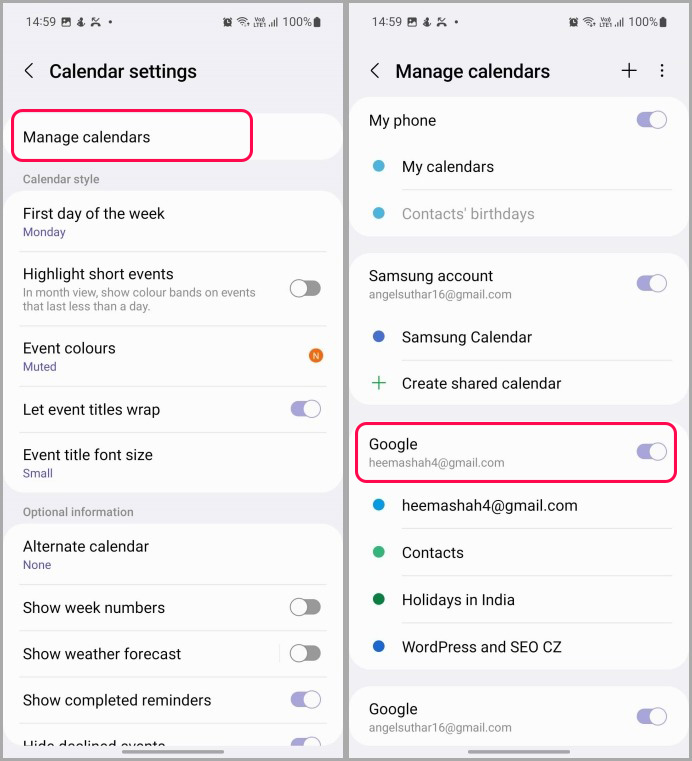
Many users have more than one calendar (work, personal, shared). Make sure each calendar is set to sync.
- Open Samsung Calendar.
- Tap the menu (three lines), then Manage calendars.
- Make sure all the calendars you want are checked.
If a calendar is unchecked, it will not sync or appear in your app.
Samsung Account Vs. Google Account Sync
Samsung Calendar can sync with both Samsung and Google accounts. Sometimes, users mix them up and only one account is set to sync.
Here’s how they differ:
| Feature | Samsung Account | Google Account |
|---|---|---|
| Default Calendar App | Samsung Calendar | Google Calendar |
| Cross-device Sync | Samsung devices only | All devices |
| Web Access | Via Samsung web portal | calendar.google.com |
| Sync Issues | More common | Less common |
Tip: If you need to access your calendar on a PC or non-Samsung phone, use a Google account for syncing.
Credit: techwiser.com
Advanced Troubleshooting Steps
For stubborn problems, you may need deeper solutions.
Check For Calendar App Conflicts
Having more than one calendar app on your phone can sometimes cause confusion or conflicts. For example, Samsung Calendar and Google Calendar might compete for sync priority.
- Try disabling or uninstalling unused calendar apps.
- Restart your phone after making changes.
Check Calendar Event Format
Not all calendar events are supported by every app. Complex repeating events, attachments, or special characters can cause sync to fail.
- Edit events that do not sync and remove special features.
- Create a simple test event to see if it syncs.
Use Safe Mode
Safe Mode runs your device with only basic apps. If syncing works in Safe Mode, a third-party app may be blocking Samsung Calendar.
- Press and hold the power button.
- Tap and hold Power off until you see Safe mode.
- Test syncing in this mode.
To exit Safe Mode, restart your device.
Common Mistakes And How To Avoid Them
Many users make small mistakes that stop calendar syncing. Here are some you can avoid:
- Using multiple accounts but only checking one for events.
- Forgetting to enable sync after resetting or updating your phone.
- Not updating the app for months, missing important bug fixes.
- Ignoring app permissions or denying them by accident.
- Turning on battery optimization for calendar apps.
Double-check these settings whenever you notice missing or delayed events.
When To Contact Support
If you try all these steps and Samsung Calendar still does not sync, it may be time to get expert help.
- Visit the Samsung Members app for device-specific advice.
- Use the Contact us option in your device’s Settings.
- Visit your local Samsung Service Center if you suspect hardware or deep software issues.
Some rare problems, like corrupted system files or server-side outages, can only be solved by Samsung technicians.
How To Prevent Future Sync Problems
You can prevent most sync issues by following some simple habits:
- Keep your apps and system updated regularly.
- Restart your phone once a week to clear small bugs.
- Check your account sync status after changing your password or phone.
- Use one main account for your calendar to avoid confusion.
- Back up your calendar to Samsung Cloud or Google, especially before major updates.
A little care goes a long way in keeping your calendar smooth and reliable.
Real-world Example: A Busy Professional’s Experience
Maria, a marketing manager, noticed her Samsung Calendar was missing new meetings. She checked her internet, restarted her phone, but nothing worked. Finally, she realized her work calendar was linked to a Microsoft account, and she had recently changed her password. After updating her password in Manage accounts, her events reappeared instantly.
This example shows that account authentication is a common but often missed reason for syncing problems. Always check if your account needs to be re-verified, especially after password changes.
Data: How Common Are Syncing Issues?
Recent surveys show that 15-20% of Samsung users report some type of calendar syncing problem every year. Most cases are fixed with basic troubleshooting, but about 3% need advanced support or a factory reset.
This highlights that while the issue is common, it is also usually easy to solve.
Useful External Resource
For detailed help on syncing across devices and platforms, you can visit the official Google Calendar Help Center.
Frequently Asked Questions
Why Does My Samsung Calendar Not Sync Automatically?
Most often, automatic sync fails due to network issues, disabled sync settings, or battery optimization. Always check your connection and sync settings first. If those are correct, try updating the app or clearing the cache.
Can I Use Samsung Calendar With Only A Google Account?
Yes, you can add your Google account to Samsung Calendar and sync events. Just make sure you enable calendar sync for your Google account in the device settings.
What Should I Do If Only Some Events Sync But Not All?
If only some events are missing, check if they are on a different calendar (work, personal, shared). Also, look for special characters or attachments in the events, as these sometimes block syncing.
Is Samsung Calendar Better Than Google Calendar?
Samsung Calendar is well integrated with Samsung devices and offers some unique features. However, Google Calendar is more universal, works across all devices, and has fewer syncing problems. Choose based on your needs and devices.
How Do I Back Up My Samsung Calendar?
You can back up your Samsung Calendar to Samsung Cloud or export events to a file. Go to Samsung Calendar app > Settings > Import & export. For Google accounts, your events are automatically backed up in the cloud.
Staying organized with your calendar is important, and syncing problems should not get in the way. With the steps and tips in this guide, you can keep your Samsung Calendar up-to-date and reliable. If you ever get stuck, remember that most issues have a solution just a few taps away.