Quickbooks Online Not Syncing With Bank Account: Troubleshooting And Solutions
Managing finances is easier with tools like QuickBooks Online. But when your bank account does not sync, it can create confusion and even lead to mistakes. Many users face this problem, but it’s not always easy to understand why. This article will help you find the reasons, fix the issues, and avoid common mistakes. If you’re dealing with sync troubles, you’ll find practical advice, examples, and step-by-step guidance here. Let’s explore how to get your QuickBooks Online and bank account working together smoothly again.
Why Quickbooks Online Bank Sync Matters
Syncing your bank account with QuickBooks Online helps keep your records up-to-date. It saves time by downloading transactions automatically. This means you don’t have to enter each transaction by hand. If the sync stops working, you might miss important payments, duplicate entries, or lose track of your cash flow. For businesses, even small errors can create big problems.
QuickBooks Online is designed to make accounting easier. According to Intuit, more than 3.5 million businesses use QuickBooks Online. Bank sync is one of the top features. But surveys show that about 14% of users experience some form of bank connection issue each year. This is not rare. Understanding the main reasons behind the issue can help you solve it faster.
Common Causes Of Bank Sync Issues
There are several reasons why QuickBooks Online may not sync with your bank account. Some are simple, others need more technical steps. Here are the most frequent causes:
- Bank Website Changes
- Banks often update their websites. When this happens, the connection between QuickBooks and your bank may break.
- Incorrect Login Credentials
- If you change your bank password and don’t update it in QuickBooks Online, the sync fails.
- Two-Factor Authentication
- Some banks require extra steps for security. QuickBooks may not handle these automatically.
- Bank Outages or Maintenance
- Banks sometimes shut down their systems for repairs. During these times, syncing is impossible.
- Account Type Restrictions
- Not all bank accounts can be connected. For example, some savings accounts or credit cards might not be supported.
- QuickBooks Online Bugs
- Software errors can block the sync. These are usually fixed in updates.
- Browser Issues
- Using an outdated browser or one with too many extensions can cause problems.
- Third-Party Security Tools
- Firewalls or antivirus programs may block QuickBooks from connecting.
Let’s look at these issues in more detail and how you can solve them.

Credit: help.getjobber.com
Step-by-step Troubleshooting Guide
When your bank account won’t sync, follow these steps. Each step solves a specific problem. Try them in order for best results.
1. Check Your Bank’s Website
Start by logging into your bank’s website directly. Can you see your accounts? If the site is down, QuickBooks won’t connect either. Banks may post alerts about maintenance or outages. If your bank is working fine, move to the next step.
2. Update Your Login Credentials
If you recently changed your bank password, update it in QuickBooks Online. Here’s how:
- Go to Banking in QuickBooks Online.
- Select your bank account.
- Click Edit and update your username and password.
- Save changes and try syncing again.
3. Handle Two-factor Authentication
Some banks require a code sent to your phone or email. QuickBooks usually asks you for this during setup. If you didn’t enter the code, the sync will stop. You may need to reconnect your account and follow all steps.
4. Review Account Type Compatibility
Check if your account type is supported by QuickBooks. You can find a list of compatible banks and account types on the QuickBooks website. If your account is not listed, you can upload transactions manually using a CSV file.
5. Clear Browser Cache And Update
A slow or cluttered browser can block connections. Clear your cache and cookies. Use the latest version of Chrome, Firefox, or Safari. Disable unnecessary browser extensions.
6. Check Security Settings
Firewalls or antivirus software might block QuickBooks. Temporarily disable these tools and try syncing. If this solves the problem, whitelist QuickBooks Online in your security software.
7. Look For Software Updates
QuickBooks Online updates often fix bugs. Check for updates by logging out and back in. If you see an update notice, follow the instructions.
8. Reconnect Your Bank Account
Sometimes the connection breaks and needs to be reset. Remove the bank account from QuickBooks Online, then add it again:
- Go to Banking.
- Click on the account you want to disconnect.
- Select Edit > Disconnect.
- Add the bank account again and follow the prompts.
9. Upload Transactions Manually
If you cannot fix the sync, download transactions from your bank in CSV format. Upload them to QuickBooks Online:
- Go to Banking > Upload transactions.
- Select your CSV file.
- Review and match transactions.
10. Contact Support
If all else fails, contact QuickBooks Support or your bank’s technical team. They may have special instructions or fixes.
Real-world Examples Of Sync Problems
To make these steps clearer, here are some examples:
- Case 1: Bank Website Update
- A user noticed that after their bank changed its login page, QuickBooks stopped syncing. The solution was to remove and re-add the bank account.
- Case 2: Two-Factor Authentication
- A business owner with a bank that uses two-factor authentication needed to enter a code each time. They solved this by reconnecting the account and completing all steps.
- Case 3: Unsupported Account Type
- Someone tried to connect a money market account but found it was not supported. They used manual CSV uploads instead.
These examples show that the solution depends on the exact cause.
Data And Statistics: Impact Of Sync Issues
Sync problems are not just an inconvenience. They can affect your business’s bottom line. Here are some important numbers:
- Lost Time: On average, fixing a sync issue takes 2–3 hours for small businesses.
- Error Rate: Manual entry increases transaction errors by up to 18%.
- Missed Transactions: 1 in 7 users report missing transactions due to sync problems.
Sync problems can also delay tax filing and increase stress for business owners.
| Issue | Frequency (%) | Average Resolution Time |
|---|---|---|
| Bank Website Changes | 24 | 1-2 hours |
| Login Credential Errors | 19 | 30 minutes |
| Account Type Restrictions | 15 | 1 hour |
| Browser/Security Issues | 12 | 45 minutes |
| Other/Unknown | 30 | Varies |
Comparing Sync Solutions: Manual Upload Vs. Automatic Connection
When sync fails, you have two main choices: manual upload or fixing the automatic connection. Here’s a comparison.
| Method | Pros | Cons |
|---|---|---|
| Automatic Sync | Fast, real-time updates, less manual work | Can fail due to technical issues, needs regular maintenance |
| Manual Upload | Works with unsupported accounts, more control | Takes more time, higher risk of errors |
Most users prefer automatic sync because it saves time. But manual upload is a reliable backup.
Preventing Sync Issues: Practical Tips
You can avoid many sync problems by following these tips:
- Check Bank Compatibility
- Before opening a new account, check if it works with QuickBooks Online.
- Update Credentials Promptly
- If you change your password, update it in QuickBooks Online right away.
- Use Supported Browsers
- Stick to Chrome, Firefox, or Safari for best results.
- Review Security Settings
- Make sure QuickBooks is allowed in your firewall and antivirus.
- Monitor Bank Notices
- Banks often warn about planned maintenance. Avoid syncing during these times.
- Regularly Download CSV Files
- Keep a backup of your bank transactions in case of sync failure.
- Stay Up-to-Date
- Use the latest version of QuickBooks Online and your browser.
These steps help you avoid the most common issues.
Hidden Problems Beginners Often Miss
Even experienced users sometimes overlook these points:
- Transaction Posting Delays: Banks may post pending transactions later. QuickBooks only downloads posted transactions. If you don’t see a payment, wait a day and try syncing again.
- Multiple Accounts at One Bank: If you have several accounts at one bank, QuickBooks may not sync all of them unless you connect each account separately.
- Bank Feed Limits: Some banks limit how many months of data QuickBooks can download. If you need older data, manual upload may be required.
These hidden issues can confuse new users. If you know about them, you can solve problems faster.
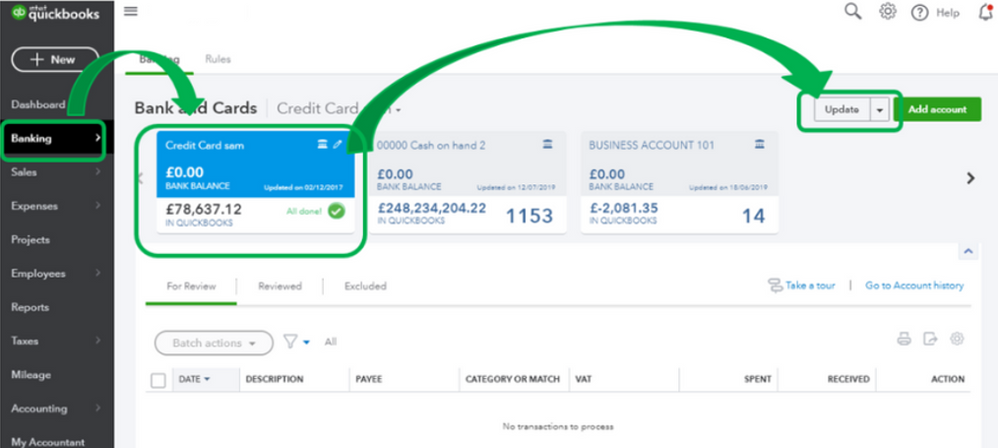
Credit: quickbooks.intuit.com
Mistakes To Avoid When Fixing Sync Issues
Many users make these mistakes:
- Repeatedly entering incorrect login details – This can lock your bank account.
- Disconnecting without saving data – If you remove your account, you may lose unmatched transactions.
- Ignoring security prompts – Not completing two-factor authentication stops the sync.
- Using unsupported browsers – Internet Explorer and some smaller browsers may not work well.
Avoid these mistakes to save time and protect your data.
When To Use Manual Transaction Upload
If automatic sync cannot be fixed, manual upload is a good option. Here’s how to do it properly:
- Download transactions from your bank in CSV format.
- Go to Banking in QuickBooks Online and choose Upload transactions.
- Review each transaction and match it to the correct account.
- Check for duplicate entries, especially if you tried syncing before.
- Save your work and reconcile your account.
Manual upload takes more time, but it ensures your books are accurate.
How Banks And Quickbooks Online Connect
Understanding the technology helps you troubleshoot. QuickBooks Online uses a secure protocol called Open Financial Exchange (OFX) or Web Connect. This lets it talk to your bank and download data. Banks must support this protocol. If they change their system, QuickBooks may not connect.
Some banks use third-party services to help connect. For example, Plaid is a service that links QuickBooks with banks. If Plaid has issues, your sync may fail. You can check the status of Plaid and other services online.
Recent Changes In Bank Sync Technology
In 2023, many banks upgraded their websites for security. This increased sync problems. QuickBooks Online has also improved its technology. Now, it can handle more two-factor authentication and supports more banks. But, users still need to follow the correct steps.
If your bank is not supported, you can ask them to join the QuickBooks network. Banks often respond to customer requests.

Credit: quickbooks.intuit.com
Getting Help: Support Channels
If you cannot solve the issue yourself, here are your options:
- QuickBooks Online Support: Use chat or phone support.
- Bank Technical Support: Ask your bank for details about their connection.
- Online Forums: Many users share solutions on forums like Reddit or the official QuickBooks Community.
- External Guides: For more technical help, see guides from trusted sources like Intuit Support.
Support teams can help with unique problems, especially if your account is unusual.
What To Do After Fixing The Sync
Once you’ve fixed the sync, check your records. Make sure all transactions are matched and categorized correctly. Reconcile your bank account to ensure your books are accurate. If you used manual upload, check for duplicates. Keeping your books clean prevents future headaches.
Advanced Troubleshooting: For Persistent Issues
If you’ve tried everything and still face problems, these advanced steps may help:
- Check for Bank Feed Errors: QuickBooks Online shows error codes. Look them up for specific fixes.
- Use Incognito Mode: Sometimes browser extensions block sync. Try connecting in incognito mode.
- Reset Your QuickBooks Cache: QuickBooks stores temporary data. Clearing this can fix odd problems.
- Test with Another Bank Account: If you can connect another account, your main account may be the issue.
- Contact Your Bank’s IT Team: Some banks have special settings for business accounts.
Advanced troubleshooting can be time-consuming but is sometimes necessary.
Syncing With International Banks
Not all international banks work with QuickBooks Online. If you run a business outside the US, check compatibility. Many large banks are supported, but smaller banks may not be. Manual upload is often the best option for international accounts.
| Bank | Country | QuickBooks Online Compatibility |
|---|---|---|
| HSBC | UK | Yes |
| Deutsche Bank | Germany | No |
| Bank of America | US | Yes |
| ANZ | Australia | Yes |
| Banco Santander | Spain | No |
This table shows that compatibility varies. Always check before opening a new account.
Frequently Asked Questions
Why Does Quickbooks Online Stop Syncing With My Bank Account?
The most common reasons are bank website changes, incorrect login details, or two-factor authentication. Sometimes your bank’s system is down or your account type is not supported.
How Do I Fix Failed Bank Sync In Quickbooks Online?
Start by logging into your bank’s website to check for problems. Update your login in QuickBooks Online, handle two-factor authentication, clear your browser cache, and check for software updates. If these do not work, reconnect your account or upload transactions manually.
Can I Use Quickbooks Online With Any Bank Account?
No. Only supported banks and account types can connect automatically. Some savings, money market, or international accounts may not work. Manual upload is the solution for unsupported accounts.
Is Manual Upload Safe And Accurate?
Yes, if you follow the steps carefully. Download your transactions in CSV format, review and match them, and check for duplicates. Manual upload is a good backup when automatic sync fails.
How Often Should I Check For Sync Issues?
Check your bank sync every week. If you run a business with many transactions, daily checks are better. Always reconcile your accounts monthly to catch errors early.
Syncing your bank account with QuickBooks Online is essential for accurate bookkeeping. Problems are common, but most can be solved with careful steps. If you follow the advice here, you can fix issues quickly and keep your finances organized. Remember, bank technology and QuickBooks are always changing, so stay updated and check compatibility often.
With patience and the right approach, you’ll get your sync working and avoid costly mistakes.