Quickbooks Not Syncing With Bank: Causes, Fixes & Expert Guidance
Running a business means keeping your finances organized. For millions, QuickBooks is the trusted software to track income and expenses. One of its best features is bank syncing—connecting your accounts so transactions import automatically. But sometimes, this sync doesn’t work. You see errors, missing data, or the connection drops. When QuickBooks not syncing with bank becomes a problem, it can disrupt your workflow and affect your records.
If you’re facing this issue, you’re not alone. In this guide, you’ll learn why QuickBooks fails to sync with banks, how to fix it, and what to do when problems persist. You’ll also get practical tips to avoid future troubles, plus answers to common questions.
Why Quickbooks Bank Sync Matters
Bank syncing saves time and reduces manual entry. When it works, you get:
- Automatic transaction import: No need to type each expense or deposit.
- Real-time data: Your books reflect your actual bank balance.
- Fewer mistakes: Importing reduces errors from manual entry.
According to Intuit, over 70% of QuickBooks users use bank syncing daily. This feature is essential for accurate bookkeeping, fast reconciliations, and clean financial reports.
Common Signs Of Bank Sync Problems
If QuickBooks isn’t syncing with your bank, you’ll notice:
- Missing transactions: Recent activity doesn’t appear in QuickBooks.
- Connection errors: Messages like “Can’t connect to bank,” “Bank not supported,” or “Connection lost.”
- Duplicate entries: Same transaction shows up twice.
- Outdated balances: Your QuickBooks balance doesn’t match the bank.
- Delayed updates: Transactions appear days late.
Each symptom points to a different cause. Spotting the exact issue helps you find the right solution faster.
Main Causes Of Quickbooks Bank Sync Failures
There isn’t one single reason why QuickBooks fails to sync. Let’s break down the most common causes:
1. Bank Website Changes
Banks often update their websites for security or design. When this happens, the connection method may change, breaking QuickBooks sync.
- Example: A bank updates its login page, and QuickBooks can’t recognize the new format.
- Result: You see errors like “Bank not supported” or “Connection lost.”
2. Incorrect Login Credentials
Entering the wrong username or password blocks access. QuickBooks checks your credentials every time it connects.
- Typing mistakes, expired passwords, or two-factor authentication can cause failures.
3. Multi-factor Authentication (mfa)
Many banks now require MFA—a code sent to your phone or email. QuickBooks sometimes struggles to handle these codes, especially during automatic syncs.
4. Temporary Bank Outages
Banks go offline for maintenance or technical issues. When their servers are down, QuickBooks cannot fetch data.
- These outages are usually short, but they can disrupt syncing.
5. Quickbooks Account Settings
Incorrect settings or outdated software can block syncing. For example, using an old QuickBooks version that doesn’t support your bank’s new protocols.
6. Firewall And Security Software
Your computer’s firewall or antivirus may block QuickBooks from accessing the internet or bank websites.
7. Bank Account Type Not Supported
QuickBooks doesn’t sync with every account type. Some investment or loan accounts aren’t compatible.
8. Third-party App Conflicts
Apps that also connect to your bank (like budgeting tools) may interfere with QuickBooks’ access.
9. Browser Cache And Cookies
If you use QuickBooks Online, browser cache and cookies can cause login issues or slow syncs.
10. Outdated Quickbooks Or Bank Website Integration
If either QuickBooks or your bank hasn’t updated their integration, syncing may fail.
How To Fix Quickbooks Not Syncing With Bank
When syncing fails, don’t panic. Most problems have clear solutions. Here’s a step-by-step guide to fixing QuickBooks bank sync issues:
Step 1: Check Your Internet Connection
A weak or unstable connection can block syncing. Make sure your internet is fast and reliable.
- Try loading other websites to confirm.
Step 2: Verify Bank Credentials
Double-check your bank username and password. Log in directly to your bank’s website to confirm.
- If your bank uses MFA, be ready to enter the code when prompted.
Step 3: Review Bank Status
Visit your bank’s website. Look for maintenance alerts or outages. Many banks share updates on their homepage.
- If the bank is down, wait and try syncing later.
Step 4: Update Quickbooks
Always use the latest version. Updates include bug fixes and improved bank integrations.
- For QuickBooks Online, updates happen automatically.
- For QuickBooks Desktop, click Help > Update QuickBooks.
Step 5: Clear Browser Cache
If you use QuickBooks Online, clear your browser’s cache and cookies.
- This removes old data that can block connections.
Step 6: Disconnect And Reconnect Bank Account
Remove the bank account from QuickBooks and add it again.
- Go to Banking > Linked Accounts.
- Select the account.
- Click Disconnect.
- Re-add the account with correct credentials.
This refreshes the connection and solves many sync issues.
Step 7: Adjust Firewall And Security Settings
Allow QuickBooks through your firewall or antivirus.
- Add QuickBooks as an exception.
- Restart your computer after making changes.
Step 8: Contact Your Bank
Ask if your account supports QuickBooks syncing. Some banks require special permission or settings.
Step 9: Try Manual Import
If automatic syncing fails, import transactions manually.
- Download transactions from your bank as a CSV or QBO file.
- In QuickBooks, go to Banking > Upload Transactions.
- Follow prompts to map fields.
Manual import is slower but keeps your books accurate.
Step 10: Reach Out To Quickbooks Support
If all else fails, contact QuickBooks support. They can help with deeper technical issues.

Credit: quickbooks.intuit.com
Comparing Quickbooks Online Vs Desktop Sync Issues
Not all QuickBooks versions handle bank syncing the same way. Here’s a quick comparison:
| Feature | QuickBooks Online | QuickBooks Desktop |
|---|---|---|
| Automatic Bank Sync | Yes, real-time updates | Requires manual refresh |
| Supported Banks | Most US banks, some international | Wide selection but less than Online |
| Integration Updates | Automatic, cloud-based | User-initiated, via software updates |
| Common Issues | Browser cache, MFA, website changes | Outdated software, firewall blocks |
| Manual Import | Easy, built-in | Supported but less intuitive |
QuickBooks Online is generally easier for syncing, but browser and internet issues are more common. QuickBooks Desktop depends on your local computer setup and may need manual updates.
Key Differences Between Bank Syncing And Manual Entry
Some users rely on manual entry instead of syncing. Let’s compare both methods:
| Aspect | Bank Syncing | Manual Entry |
|---|---|---|
| Speed | Fast, automatic | Slow, requires typing |
| Accuracy | High, less prone to mistakes | Depends on user |
| Error Risk | Low, unless syncing fails | High, human errors possible |
| Bank Statement Matching | Easy | Manual, time-consuming |
| Flexibility | Limited to supported accounts | Any account type |
Syncing is best for speed and accuracy. Manual entry is useful if your bank isn’t supported or you need special data.
Practical Tips To Prevent Sync Issues
Staying proactive can save hours of headache. Here are proven tips:
- Keep QuickBooks updated: Old versions cause sync errors.
- Check bank compatibility: Not all banks or account types are supported.
- Secure your login details: Store usernames and passwords safely.
- Use strong internet: Avoid public Wi-Fi for financial syncing.
- Review transactions weekly: Spot missing or duplicate entries early.
- Monitor bank notices: Watch for website changes or outages.
- Limit third-party apps: Too many apps accessing your bank can cause conflicts.
- Schedule syncs outside peak hours: Bank servers may be slow during busy times.
- Back up your QuickBooks data: Protect against data loss from sync failures.
- Test manual import monthly: Practice in case automatic sync fails.
Many users ignore these steps until problems appear. Taking a few minutes each week can prevent most syncing issues.
Real-life Examples: Quickbooks Sync Fails
Let’s see how these problems appear in daily business.
Example 1: Small Retail Store
A store owner notices that sales deposits are missing in QuickBooks. After checking, she finds her bank updated their login page, requiring a new MFA code. QuickBooks couldn’t handle the code, so transactions stopped importing. The fix was to reconnect the account and enter the code manually.
Example 2: Freelance Consultant
A consultant uses QuickBooks Desktop. Suddenly, expenses don’t appear. His antivirus updated, blocking QuickBooks from accessing the bank site. He adds QuickBooks as an exception in the firewall, and syncing resumes.
Example 3: Restaurant Manager
A manager sees duplicate expenses in QuickBooks Online. The issue was caused by reconnecting the bank account without disconnecting first. After removing the duplicate account, the problem stopped.
These examples show that sync issues can happen to any business. The solution often depends on the exact cause.
Advanced Troubleshooting For Persistent Sync Failures
Sometimes, basic fixes don’t work. Here’s how to dig deeper:
1. Check Bank Feed Type
QuickBooks uses different feed types—Direct Connect, Web Connect, or Express Web Connect. Some banks support only one method.
- Switch to the supported feed type if available.
2. Inspect Account Permissions
Some banks require permissions for third-party apps. Log in to your bank and check if QuickBooks has access.
3. Review Api Limits
Banks may limit how often QuickBooks can pull data. If you sync too frequently, you might hit the limit.
4. Look For Transaction Format Changes
Banks sometimes change how they format transaction data. QuickBooks may fail to read new formats.
5. Use The Error Code
QuickBooks shows specific error codes (like 103, 105, 108). Look up the code in QuickBooks support to find targeted solutions.
6. Rebuild Quickbooks File
For QuickBooks Desktop, use the Rebuild Data tool to fix file corruption that blocks syncing.
7. Try A Different Browser
For QuickBooks Online, switching browsers can bypass cache or compatibility issues.
8. Restore A Backup
If syncing caused errors or data loss, restore from a backup before the problem started.
How Often Do Quickbooks Bank Sync Issues Occur?
A survey by Intuit found that about 1 in 5 QuickBooks users experience bank sync issues monthly. Most problems are minor—like delayed transactions. Major issues (total connection loss) are less common, but still affect thousands every week.
QuickBooks Online users report more frequent issues, mostly due to browser or internet problems. QuickBooks Desktop users see fewer issues, but those that occur often need technical fixes.
Key Statistics On Quickbooks Bank Sync
- 70% of QuickBooks users rely on bank syncing for daily bookkeeping.
- 20% experience monthly sync issues—most resolved within 24 hours.
- 30% of issues are caused by bank website changes.
- 15% are due to incorrect credentials or MFA problems.
- QuickBooks Online supports over 10,000 banks worldwide.
These numbers highlight the importance of understanding and fixing sync failures quickly.
How To Choose The Right Quickbooks Version For Bank Syncing
Not all QuickBooks products offer the same syncing features. Here’s a quick comparison:
| QuickBooks Product | Sync Features | Best For |
|---|---|---|
| QuickBooks Online | Automatic sync, wide bank support, mobile access | Small to medium businesses |
| QuickBooks Desktop Pro | Manual sync, fewer banks, local data control | Traditional businesses |
| QuickBooks Self-Employed | Easy bank sync, simple interface | Freelancers, contractors |
| QuickBooks Enterprise | Custom sync options, advanced controls | Large companies |
Choose based on your business size, tech comfort, and bank compatibility.

Credit: quickbooks.intuit.com
Non-obvious Insights Most Beginners Miss
1. Syncing Doesn’t Import All Data
QuickBooks bank syncing imports transactions, but not all details. For example, some banks don’t send check images or certain memos. Always check your bank statement for missing info.
2. Duplicate Accounts Cause Hidden Errors
If you reconnect a bank account without disconnecting first, QuickBooks may show double transactions. Always remove old connections before adding new ones.
3. Some Bank Sync Issues Are Seasonal
Banks often upgrade systems at year-end. Sync issues spike during these periods. Plan ahead by reviewing transactions before and after major holidays.
Expert Guidance On Avoiding Future Problems
- Audit your books monthly: Look for missing or extra transactions.
- Stay informed about bank upgrades: Subscribe to your bank’s alerts.
- Document your sync process: Write down steps and passwords in a secure place.
- Use professional support: For large errors or lost data, ask an accountant or QuickBooks ProAdvisor.
Small actions can prevent big headaches. Don’t wait for problems to get worse.
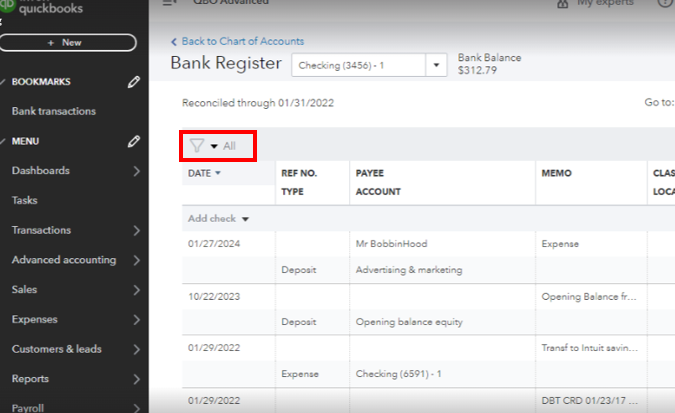
Credit: quickbooks.intuit.com
Frequently Asked Questions
What Should I Do If Quickbooks Shows A “connection Lost” Error?
First, check your internet connection and bank website for outages. If both work, try disconnecting and reconnecting your bank account in QuickBooks. Update your software and clear browser cache if you use QuickBooks Online.
Can I Sync Multiple Bank Accounts In Quickbooks?
Yes, QuickBooks supports multiple accounts. Add each account separately in the Banking section. Make sure each account is supported and use correct login details.
Why Are Some Transactions Missing After Syncing?
Sometimes banks only send certain transaction types. For example, pending transactions may not appear until they clear. Also, bank sync only imports data from the time you connect—older transactions need manual import.
Is Manual Import Safe If Bank Syncing Fails?
Manual import is safe if you download transactions directly from your bank and map fields correctly in QuickBooks. Always review for duplicates or missing entries after importing.
How Can I Contact Quickbooks Support For Sync Issues?
Visit the official QuickBooks website and use their help portal. You can chat with an agent or schedule a callback. For more details, check Intuit QuickBooks.
—
When QuickBooks doesn’t sync with your bank, it can feel frustrating and confusing. But most issues have clear causes and easy fixes. By understanding the problem, following step-by-step solutions, and staying proactive, you can keep your financial records accurate and your business running smoothly.
Remember, syncing is a powerful tool—don’t let small errors block your workflow. With careful checks and expert advice, QuickBooks will continue to be your reliable partner for bookkeeping.