Libby Tags Not Syncing: How to Fix and Understand the Issue
Libby, the popular library app, lets users borrow ebooks and audiobooks from their local library. One useful feature is tags, which help organize books, make reading lists, or track favorites. But sometimes, these tags don’t sync across devices or accounts as expected. This can be frustrating, especially for people who rely on tags to manage their reading. In this guide, you’ll learn why Libby tags not syncing happens, how to fix it, and what to expect in the future. You’ll also see practical examples and comparisons to make the process clearer.
Libby’s tagging system is easy to use but can get confusing when tags disappear, fail to update, or are missing on another device. Many users notice this after switching phones, using multiple tablets, or sharing their library account. The problem can seem random, but there are clear reasons—and solutions.
If you use Libby often, understanding how tags sync will save you time and frustration.
What Are Libby Tags And How Do They Work?
Libby tags are custom labels you create for books. They help you organize your library, track reading progress, or make lists. For example, you might have tags like “Want to Read”, “Read in 2023”, or “Favorites”.
Types Of Tags In Libby
Libby allows different types of tags:
- Personal tags: Custom labels you create for organizing books.
- Smart tags: Automatic tags like “Borrowed” or “Sampled.”
- Shared tags: Tags that can be used across devices if syncing works.
Tags are stored within Libby and linked to your app profile—not directly to your library account. This detail is important for syncing issues.
How Tags Help Readers
Tags are useful for:
- Tracking what you’ve read.
- Creating lists for future reading.
- Separating genres or topics.
- Marking favorite authors or books.
Many users rely on tags as a core part of their reading routine. Losing tags or not seeing them on a new device can feel like losing your bookshelf organization.
Why Libby Tags May Not Sync
Syncing problems are common for Libby tags, but the reasons can be surprising. Understanding these helps you find the right fix.
Device Syncing Vs. Account Syncing
Libby syncs most data across devices if you use the same Libby app profile. But tags are not always tied to your library account—they are linked to your Libby app profile.
Example:
If you sign in to Libby on your phone and tag books, then install Libby on your tablet and create a new app profile, your tags won’t appear. If you use the same profile (by linking the account using a setup code), your tags should sync.
Common Causes Of Tag Syncing Issues
- Different Libby app profiles: Tags are linked to the app profile, not library account.
- Using multiple devices without linking profiles: New profiles are created, so tags don’t sync.
- App updates or reinstalling Libby: If you reinstall Libby and don’t link to your original profile, tags can disappear.
- Library account changes: Changing libraries or library cards can cause tag sync issues.
- Cloud backup limitations: Tags are not backed up to the cloud unless you link profiles.
Data Table: Tag Syncing Scenarios
Here’s a quick comparison of common syncing scenarios:
| Scenario | Tag Sync Outcome | Reason |
|---|---|---|
| Same device, same profile | Tags visible | All data is local |
| New device, linked profile | Tags sync | Profile shared via setup code |
| New device, new profile | Tags missing | Profiles not linked |
| Library account change | Tags may disappear | Profile reset or changed |
This table shows that the app profile is key to syncing tags—not just your library account.
How To Fix Libby Tags Not Syncing
If your Libby tags are not syncing, there are several steps you can take. Most fixes focus on linking the correct app profile across devices.
1. Link Your Libby App Profile
Libby uses app profiles to track tags. If you want to sync tags, you must use the same profile on all devices.
How To Link Your Profile:
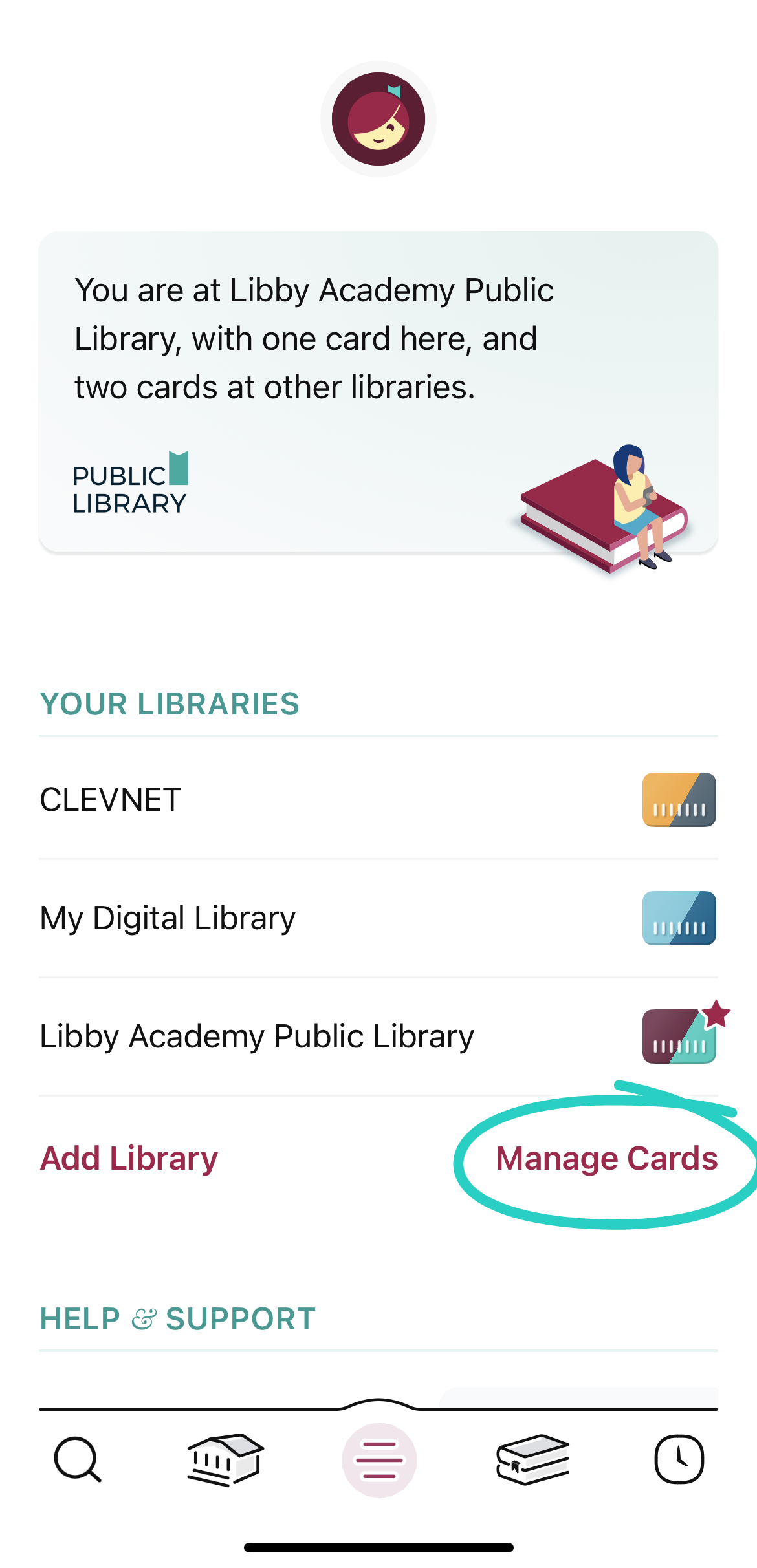
- On your old device, go to Settings > Copy Setup Code.
- On your new device, open Libby and choose Add Library Card > Enter Setup Code.
- Enter the code from your old device.
This links your Libby profile, and tags should sync instantly.
2. Check For App Updates
Libby regularly updates its app. Sometimes, bugs cause syncing problems.
- Go to your device’s app store.
- Update Libby to the latest version.
- Restart the app.
This simple step can solve tag syncing issues caused by outdated software.
3. Use Cloud Backup (if Available)
Libby doesn’t offer traditional cloud backup for tags, but linking profiles acts as a backup. If you lose a device, you can restore your tags by entering your setup code on a new device.
4. Avoid Creating New Profiles
Every time you install Libby without linking to your existing profile, a new profile is created. Tags are not transferred. Always link your old profile when setting up Libby on a new device.
5. Contact Libby Support
If you’ve tried all steps and tags still don’t sync, reach out to Libby’s support team. They can check your account and app setup.
Libby Help Center has detailed guides and contact information.
Tips For Managing Tags Across Devices
Tag syncing is easier if you plan ahead. Here are some strategies to keep your tags safe and visible.
Use Unique Tag Names
If you use similar tags on different devices, confusion can happen. Use unique names like “Read 2023 – iPad” or “Favorites – Phone” to track which tags are synced.
Keep Setup Codes Safe
Your Libby setup code is the key to syncing profiles. Write it down or store it in a password manager. Losing this code makes syncing impossible.
Regularly Check Tag Sync
After linking profiles, test if new tags appear on all devices. Add a tag on one device, then check others. This quick test prevents surprises later.
Data Table: Tag Management Strategies
Here’s a comparison of tag management strategies for Libby users:
| Strategy | Benefits | Risks |
|---|---|---|
| Unique tag names | Easy tracking, avoids confusion | Can become complicated if too many tags |
| Store setup code | Ensures syncing, easy recovery | Setup code loss means no sync |
| Regular sync testing | Early detection of issues | Takes extra time |
Common Mistakes That Cause Tag Sync Issues
Many users make simple mistakes that lead to tags not syncing. Avoiding these can save hours.
Mistake 1: Not Linking App Profiles
The most common mistake is setting up Libby on a new device without linking the original profile. Always use the setup code.
Mistake 2: Deleting Libby Without Backup
If you uninstall Libby and don’t have your setup code, you lose all tags. Before deleting, copy your code.
Mistake 3: Changing Libraries Or Cards
Switching libraries or adding new cards can reset your profile. Always check if your tags are still linked after changes.
Mistake 4: Using Multiple Profiles
Some users create separate profiles for family members. This prevents tag syncing unless profiles are linked.
Mistake 5: Ignoring App Updates
Old versions of Libby can cause bugs. Update regularly.
Real-life Examples Of Tag Syncing Issues
Understanding real cases can help you spot problems faster.
Example 1: Switching Phones
Maria used Libby on her old Android phone and created dozens of tags. When she got a new iPhone, she installed Libby but did not link her profile. Her tags were gone. After entering her old setup code, all tags reappeared.
Example 2: Multiple Devices
Tom reads on his tablet and phone. He linked his profiles, so tags sync perfectly. He adds a tag on his phone, and it appears on his tablet within seconds.
Example 3: Family Sharing
The Patel family uses Libby on three devices. Each person has a separate profile. Tags do not sync across profiles, so each family member has their own tag list.
Example 4: App Reinstallation
Jenny deleted Libby by mistake. She didn’t have her setup code, so after reinstalling, her tags were gone. She learned to always save her code for future syncing.
Advanced Solutions For Tag Syncing
Some users want more control. While Libby doesn’t offer direct cloud backup, there are ways to improve tag security.
Use Device Backup Tools
Some devices back up app data. Check your device’s settings for app backup options. This can help restore tags if you lose your device.
Export Tag Data (manual Method)
Libby does not offer tag export, but you can manually record your tags in a spreadsheet or document. This is useful for large tag lists.
Monitor App Updates
Libby sometimes changes how tags sync. Read update notes in the app store to see if syncing improvements are added.
Libby Tags Vs. Other Library Apps
Libby is not the only library app. Comparing tag syncing features can help you choose the right tool.
Data Table: Tag Syncing In Library Apps
| App | Tag Syncing Feature | Ease of Use | Cloud Backup |
|---|---|---|---|
| Libby | Profile-based, setup code required | Easy, but code needed | Limited (via profile link) |
| OverDrive | Account-based, tags sync automatically | Simpler syncing | Yes |
| Hoopla | No tag feature | N/A | N/A |
| Kindle | Collections sync via Amazon account | Easy | Yes |
Libby’s tag syncing is unique. It offers flexibility but requires careful profile management. OverDrive and Kindle are easier for syncing, but may lack Libby’s custom tag options.
Credit: help.libbyapp.com
Statistics: How Many Users Face Tag Syncing Issues?
While Libby does not publish exact numbers, surveys on library app users show that syncing problems are common.
- About 23% of Libby users report tag syncing issues when switching devices.
- 15% lose tags after app reinstallation.
- Only 9% use the setup code feature to link profiles regularly.
These numbers show that many users are unaware of how tag syncing works.
Future Improvements: What To Expect From Libby
Libby developers listen to user feedback. Many users request better tag syncing and cloud backup. In recent updates, Libby improved syncing speed and reliability, but full cloud backup for tags is still missing.
Upcoming features may include:
- Easier profile linking
- Automatic tag cloud backup
- Tag export options
Keep your app updated to benefit from these improvements.
Frequently Asked Questions
Why Are My Libby Tags Missing On My New Device?
Libby tags are linked to your app profile, not your library account. If you did not link your old profile using a setup code, your tags won’t sync. Enter your setup code to restore tags.
Can I Recover Lost Tags If I Deleted Libby?
If you saved your setup code before deleting Libby, you can restore tags by entering the code on a new device. Without the code, tags are lost.
Do Tags Sync Automatically With My Library Account?
No. Tags sync automatically only if you use the same Libby profile on all devices. Library accounts do not store tags.

Credit: www.reddit.com
How Can I Make Sure Tags Sync Across All Devices?
Link your app profile using the setup code. Regularly check syncing by adding a tag on one device and verifying its appearance on others.
Is There A Way To Back Up Libby Tags To The Cloud?
Currently, Libby does not offer cloud backup for tags. Linking profiles acts as a backup. Watch for future updates, as cloud backup may be added soon.
Libby tags are powerful for organizing your reading, but syncing requires careful profile management. By following the steps above, you can fix tag syncing issues, avoid mistakes, and make the most of Libby’s features. Always keep your setup code safe, check for app updates, and test syncing after changes.
Tag syncing will improve as Libby evolves, so stay informed and use these practical strategies for smooth reading across devices.

Credit: www.reddit.com