When your laptop’s date and time are not syncing, it can create more problems than just an incorrect clock. You may face trouble with websites, apps, and even connecting to secure servers. Many users do not realize how much their devices depend on accurate time settings for security, communication, and updates. If your laptop is always behind, ahead, or resets every time you restart, it’s a signal that something deeper may be wrong. This issue happens across Windows, macOS, and even Linux laptops, and fixing it isn’t always as simple as clicking “Sync now.”
This guide will walk you through why laptop date and time not syncing happens, how it impacts your system, and step-by-step solutions for Windows and Mac. You’ll learn the common causes, less obvious issues, and how to keep your laptop’s time accurate for good. Whether you’re a student, remote worker, or IT support, this article gives you the practical advice you need. Let’s dive into the details and get your laptop clock back on track.
Why Accurate Date And Time Matter
The date and time on your laptop do more than show you the hour. They are critical for:
- Internet security: Many websites, especially those with HTTPS, use time checks for encryption. If your clock is off, you may get errors like “Your connection is not private.”
- Software updates: Operating systems and antivirus programs check dates before installing updates. Incorrect time can block automatic updates.
- File management: The system uses timestamps to organize documents, emails, and logs. Wrong times can confuse backups and version histories.
- Scheduled tasks: Cron jobs, alarms, and reminders depend on accurate clocks.
- Email and messaging: Sending and receiving times can become mixed up, making communication harder to follow.
Even a few minutes off can cause headaches. In business environments, time drift can affect file syncing, server access, and even financial transactions.
Common Causes Of Date And Time Not Syncing
Understanding why your laptop’s date and time won’t stay correct is the first step to fixing it. Some causes are simple, but others may surprise you.
- Dead or weak CMOS battery: The small battery on your laptop’s motherboard powers the clock when the device is off. If it’s old, the clock resets every time you restart.
- Incorrect time zone settings: Even if your clock syncs, a wrong time zone will show the wrong local time.
- Disabled Windows Time service or macOS sync: If time synchronization services are off, your system clock won’t update.
- Network issues: Time sync needs an internet connection. Firewalls, proxies, or poor Wi-Fi can block it.
- Faulty hardware drivers: Problems with motherboard or chipset drivers can affect the clock.
- Malware or system corruption: Viruses and corrupted files can block or alter system services.
- Manual time settings: If you set the clock manually but don’t allow sync, it will drift over time.
- Third-party software conflicts: Some VPNs, security suites, or parental controls interfere with time sync.
- Outdated operating system: Older Windows or macOS versions can have unsolved bugs.
Non-obvious insight: Many users do not realize that even a working laptop battery does not guarantee a good CMOS battery. They are separate and serve different functions. Also, certain networks block access to time servers (NTP), especially in schools or workplaces.

Credit: www.youtube.com
How To Check If Your Laptop Date And Time Are Syncing
Before fixing, check if your clock is syncing or drifting.
On Windows:
- Right-click the clock in the taskbar.
- Choose “Adjust date/time.”
- Look for “Set time automatically” and “Synchronize your clock.” If these are off, your laptop is not syncing.
- Click “Sync now” and watch the result.
On macOS:
- Open System Settings > General > Date & Time.
- Look for “Set date and time automatically.”
- Try toggling off/on or clicking the sync button.
Tip: Note the exact time, restart your laptop, and see if it stays correct. If it changes, hardware (like the CMOS battery) could be the issue.
Fixing Date And Time Syncing On Windows Laptops
Windows laptops are the most common place to see date and time issues. Here’s a straightforward path to solve them.
1. Check And Set Time Synchronization
- Right-click the clock in the lower-right corner.
- Select “Adjust date/time.”
- Turn on “Set time automatically” and “Set time zone automatically.”
- Click “Sync now.”
If your time corrects, you’re done. If not, continue.
2. Select The Correct Time Zone
- In the same Date & Time settings, check your Time zone.
- Pick the correct zone for your location.
Example: If you live in New York, choose (UTC-05:00) Eastern Time (US & Canada).
3. Restart Windows Time Service
- Press `Win + R`, type `services.msc`, and press Enter.
- Find Windows Time in the list.
- Right-click and choose “Restart.”
- Double-click “Windows Time,” set Startup type to “Automatic,” and click OK.
4. Change Internet Time Server
- In Date & Time, scroll and click “Additional clocks” or “Date, time & regional formatting.”
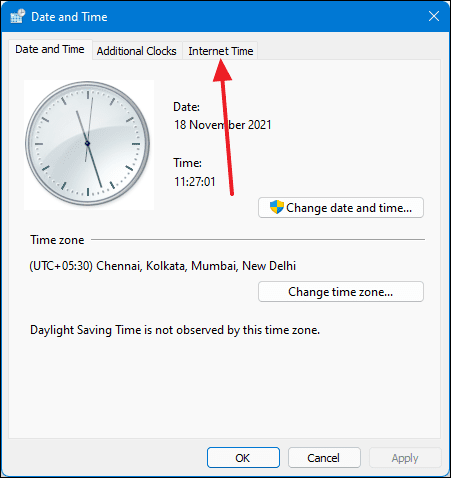
- Click “Set the time and date,” then the “Internet Time” tab.
- Click “Change settings.”
- Select a different server, like `time.windows.com` or `pool.ntp.org`.
- Click “Update now.”
5. Replace The Cmos Battery (if Date Resets After Shutdown)
If your clock resets to a default date (like 01/01/2000) every time you restart:
- The CMOS battery is probably dead.
- This is a small coin cell battery on the motherboard.
- On most laptops, replacing it requires opening the bottom cover.
- If you’re not comfortable, ask a technician.
Practical tip: CMOS batteries last 3-7 years. If your laptop is older, this is a common problem.
6. Check For Malware
- Run a full scan with Windows Defender or another trusted antivirus.
- Malware can block time sync or change system files.
7. Update Windows And Drivers
- Go to Settings > Update & Security > Windows Update.
- Click “Check for updates.”
- Update chipset and motherboard drivers from your laptop manufacturer’s website.
8. Check For Third-party Software Conflicts
- If you use VPNs, firewalls, or parental controls, try disabling them temporarily.
- Some security software blocks NTP (Network Time Protocol) traffic.
9. Advanced: Sync Using Command Prompt
If normal syncing fails:
- Search for “cmd,” right-click Command Prompt, and choose “Run as administrator.”
- Type:
w32tm /resync
And press Enter.
- If you see an error, type:
net start w32time
w32tm /resync
This forces Windows to sync time immediately.
Fixing Date And Time Syncing On Mac Laptops
MacBooks have their own time sync system, but similar problems can occur.
1. Set Date And Time Automatically
- Click the Apple menu > System Settings > General > Date & Time.
- Turn on “Set date and time automatically.”
- Enter a time server if needed: `time.apple.com`.
2. Check Time Zone
- In the same panel, make sure “Set time zone automatically using current location” is enabled.
- If you travel or use VPNs, this can sometimes set the wrong zone.
3. Restart The Ntp Service
If your time still won’t sync:
- Open Terminal (Applications > Utilities > Terminal).
- Type:
sudo sntp -sS time.apple.com
And press Enter.
- Enter your password.
This forces a sync with Apple’s time server.
4. Reset Nvram/pram
Macs store clock settings in a chip called NVRAM/PRAM. Resetting it can help:
- Shut down your Mac.
- Turn it on and immediately press and hold `Option + Command + P + R` for 20 seconds.
- Release the keys and let it boot normally.
5. Update Macos
- Go to System Settings > General > Software Update.
- Install any updates.
6. Check For Software Conflicts
- If you use security or VPN software, try disabling it.
- Some apps can block time sync.
7. Check For Hardware Issues
- If your MacBook is very old and loses time even after NVRAM reset, the internal battery may be failing.
- This is rare with modern Macs, but possible on older models.
Non-obvious insight: Macs automatically try to correct system time when they wake from sleep or connect to the internet. If you’re always offline, manual sync is necessary.
Comparing Date And Time Sync Methods
Here’s how the main sync options compare on different operating systems:
| Sync Method | Windows | Mac | Manual Needed? |
|---|---|---|---|
| Automatic (NTP) | Yes, via Windows Time service | Yes, via Apple servers | No, unless disabled |
| Manual Time Set | Possible | Possible | Yes, and may drift |
| Third-Party Apps | Yes, some exist | Yes, rare | Depends on app |
| CMOS/NVRAM Hardware | CMOS battery | NVRAM/PRAM | If battery fails |
Network And Firewall Issues
Network Time Protocol (NTP) is the standard way laptops sync time. But it can be blocked by:
- Strict firewalls (in offices, schools, or public Wi-Fi)
- VPNs that redirect or block time server traffic
- Proxy servers that filter internet requests
How To Test Network Issues
- Try to visit `time.windows.com` or `time.apple.com` in your web browser. If blocked, your sync will fail.
- Connect to a different Wi-Fi or use your phone’s hotspot.
- Ask your network admin if NTP is allowed.
Pro tip: Some organizations block NTP to prevent malware using it as a backdoor. If you’re on such a network, ask IT for help.
What To Do If Your Laptop Clock Keeps Losing Time
If you fix the sync but the clock keeps drifting, the root cause may be hardware or software:
- Replace the CMOS battery if you notice resets after shutdown (Windows laptops).
- Reset NVRAM/PRAM for older Macs.
- Update drivers and system software to fix bugs.
- Scan for malware if you see other strange system behavior.
If your laptop is old (5+ years) and loses time even after these steps, hardware replacement may be the only fix.
Syncing Multiple Devices
If you use several laptops, phones, or tablets, keeping time in sync is even more important. Use these tips:
- Always enable automatic time settings on all devices.
- Pick the same time zone.
- If possible, use the same Wi-Fi network for initial sync.
- For business, consider a network time server for all devices.
Example: If you use Google Calendar on both your laptop and phone, mismatched times can cause missed meetings.
Troubleshooting Unusual Date And Time Errors
Sometimes, you’ll see errors like “The time service is not running,” “Could not reach the server,” or “Your clock is behind.” Here’s what they mean:
- Time service not running: The background service that syncs time is off. Restart it via Services or Terminal.
- Could not reach the server: Network blocks or wrong server address. Try a different server or network.
- Your clock is behind/ahead: Manual set or hardware issue. Turn auto-sync on.
Less Obvious Fixes
- Try syncing to a public NTP server like `pool.ntp.org` instead of your OS default.
- On Windows, sometimes the system region (not just time zone) affects time. Check “Region” settings.
- On Mac, check Location Services. If off, time zone auto-detection may fail.
Comparing Laptop Clock Sync Issues: Hardware Vs Software
Which is more likely, and how do you spot the difference? Here’s a quick reference:
| Symptom | Hardware Cause | Software Cause | How to Tell |
|---|---|---|---|
| Resets after shutdown | CMOS battery dead | Rare | Time always resets to 01/01/2000 or similar |
| Drifts while running | Rare | Sync off, wrong time zone, service disabled | Time changes slowly over hours/days |
| Can’t sync online | Network chip issue | Firewall, VPN, service off | Error messages about server or network |
Preventing Date And Time Sync Problems
To avoid future issues, follow these best practices:
- Enable automatic time and time zone on all laptops.
- Replace CMOS battery every 5-7 years, or if you notice resets.
- Keep system software and drivers updated.
- Use trusted antivirus to avoid malware.
- Check network/firewall settings if you often switch Wi-Fi or use VPNs.
- Avoid manual time setting unless necessary.
Practical example: If you travel often, double-check your time zone when you land. Some laptops do not auto-switch if Location Services are off.
Credit: www.ninjaone.com
When To Seek Professional Help
If you’ve tried all the above and your clock still will not sync:
- Hardware repair may be needed (especially for CMOS battery replacement).
- If you see BIOS or firmware errors, take your laptop to a technician.
- For business laptops on company networks, ask IT staff before changing system services.
Non-obvious tip: Sometimes, a laptop that’s been exposed to moisture or physical shock can have hidden motherboard damage affecting the clock.
Additional Resources
For more technical details about time synchronization and troubleshooting, see the official Network Time Protocol (NTP) Wikipedia page.
Credit: techcommunity.microsoft.com
Frequently Asked Questions
Why Does My Laptop Time Keep Changing Even With Auto-sync On?
This usually means time sync is being blocked by a network, a VPN, or a security program. It can also happen if the CMOS battery is weak, especially if the time resets after restarting.
What Is The Cmos Battery, And How Do I Know If It’s Dead?
The CMOS battery is a small battery on the laptop’s motherboard that keeps the clock running when the laptop is off. If your date and time reset to a default value after each reboot, the battery is likely dead.
How Can I Fix Time Sync If I’m Always Offline?
If you rarely connect to the internet, set the time manually and check it every few weeks. You can also use USB GPS receivers or radio clocks for more accurate offline sync, but these are advanced options.
Does Incorrect Time Affect Internet Browsing?
Yes. Wrong time can block secure (HTTPS) websites, create errors in apps, and make email timestamps confusing. Many online services rely on accurate time for security.
Can I Use A Third-party App To Sync Time?
You can. There are apps for Windows and Mac that sync with public NTP servers. These are useful if the built-in service fails, but always download from trusted sources to avoid security risks.
Getting your laptop’s date and time to sync isn’t just about convenience. It keeps your device secure, your files organized, and your online experience smooth. With these steps, you can solve most clock problems on your own. If all else fails, don’t hesitate to ask for professional help—sometimes, a small hardware fix is all it takes to get your laptop ticking perfectly again.