If you use your kitchen every day, you know how important your microwave is. You press a button, and in seconds, your food is hot. But what if the KitchenAid microwave display stops working? Suddenly, you can’t set the timer, check the clock, or even know if the microwave is on. This isn’t just annoying—it can make your microwave almost impossible to use.
Many people face this problem, and it often feels confusing. The display might be completely blank, show random numbers, or flicker. Sometimes, the microwave still works, but you can’t see what’s happening. Other times, the whole appliance seems dead. Before you call for expensive repairs or buy a new microwave, it’s worth understanding the possible causes and fixes.
In this article, you’ll learn why the KitchenAid microwave display can stop working, what steps you can take to fix it, and when you should call a professional. We’ll cover real examples, give clear steps, and help you avoid common mistakes.
Let’s get started on making your microwave useful again.
Why The Kitchenaid Microwave Display Matters
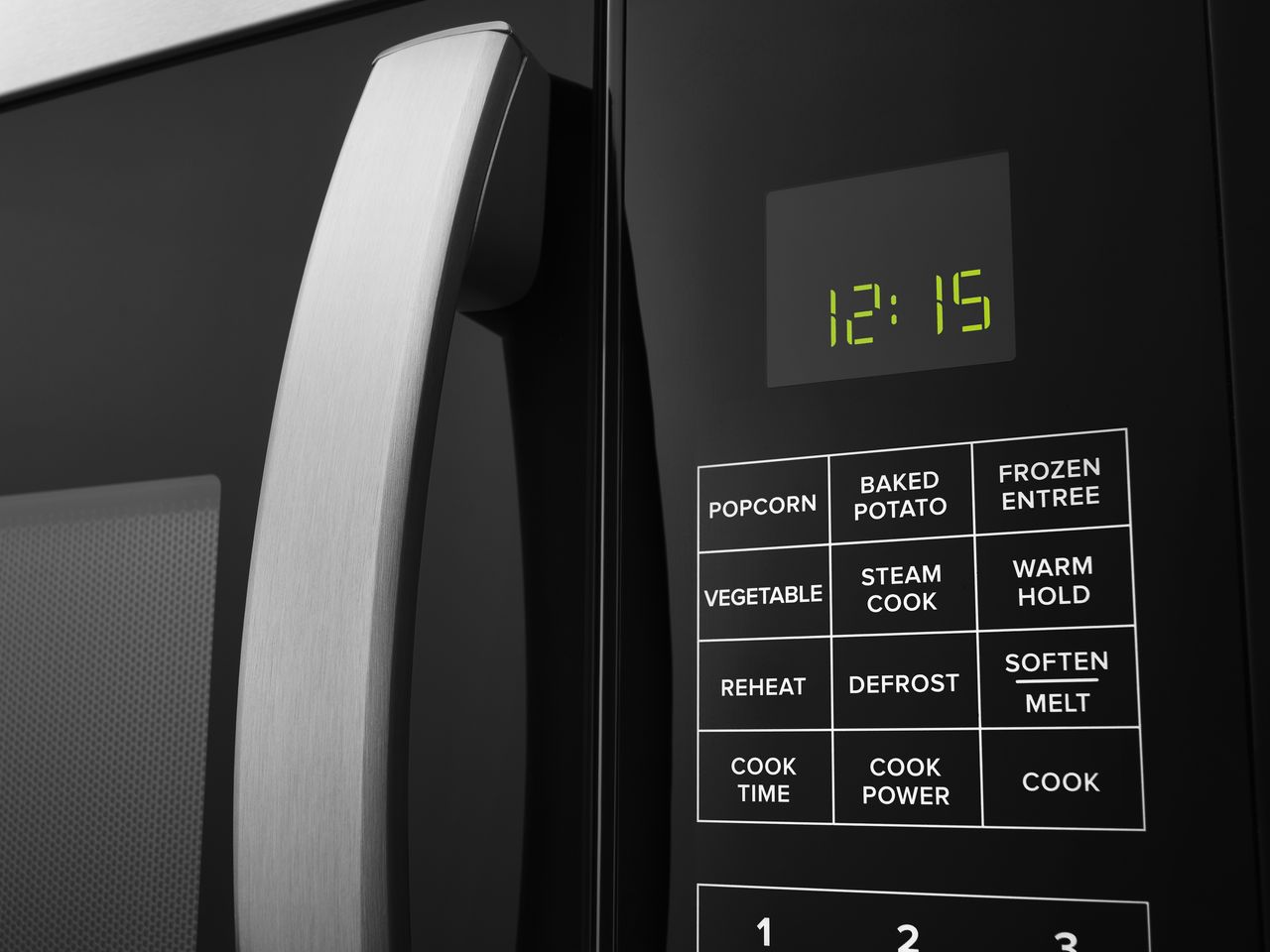
The microwave display is more than just a screen. It shows you the cooking time, clock, power levels, and sometimes error messages. For many models, if the display is out, you can’t use basic features. You might not be able to set the timer, choose defrost settings, or even know if the microwave is running. This makes life harder, especially if you rely on your microwave for quick meals.
A working display also tells you if something is wrong. For example, some KitchenAid models show codes for door problems, overheating, or electrical issues. If the display isn’t working, you lose all this information. That’s why fixing the display is important, not just for convenience but also for safety and proper use.
Common Symptoms Of Display Problems
Not all display issues are the same. Here are the most common ways the problem shows up:
- Completely blank display: The screen is dark even though the microwave is plugged in.
- Dim or flickering display: The numbers or letters are hard to read or keep flashing.
- Partial display: Some segments or parts of numbers show, but not the full display.
- Frozen display: The screen is stuck showing one time or code and doesn’t change.
- Random characters or error codes: The display shows nonsense or codes you don’t recognize.
Each of these symptoms can have different causes. Sometimes the fix is simple, other times it’s more complicated.
What Causes The Kitchenaid Microwave Display To Stop Working?
Understanding why the display fails helps you find the right solution. Most display issues fit into a few main categories:
1. Power Supply Problems
The microwave needs a steady flow of electricity. If there’s a problem with the outlet, plug, or internal wiring, the display won’t work. Sometimes, only the display is affected; other times, the whole microwave stops working.
2. Control Board Failure
The control board is the “brain” of your microwave. If it fails, the display might go blank, flicker, or show errors. KitchenAid microwaves use electronic boards that can wear out over time, especially in humid or greasy kitchens.
3. Faulty Display Panel
The display panel itself can fail. This is often due to age, a manufacturing defect, or exposure to moisture. If only the display is affected (and not buttons or cooking), this is a likely cause.
4. Loose Or Damaged Connections
Inside the microwave, wires connect the display to the control board. If these become loose or break, the display won’t work. This can happen after moving the microwave, or from vibration over time.
5. Fuses And Circuit Breakers
Most microwaves have one or more fuses to protect against electrical surges. If a fuse blows, the display (and sometimes the whole appliance) can go dark. Some KitchenAid models also have a circuit breaker or thermal fuse inside.
6. Software Glitches
Newer microwaves may have simple software. If the control board “crashes,” the display can freeze or show errors. Sometimes, unplugging the microwave resets it.
7. Environmental Factors
Moisture, grease, and dust can get inside the microwave and cause problems over time. High humidity, steam, or even small insects can damage the display.
Quick Checks Before You Start Repairs
Before you take things apart, do a few easy checks:
- Check the power outlet: Plug another device (like a lamp) into the same outlet to see if it works.
- Inspect the plug and cord: Look for cuts, burns, or loose connections.
- Try another outlet: Move the microwave to a different outlet to rule out wiring issues.
- Reset the microwave: Unplug it for 1-2 minutes, then plug it back in. This sometimes fixes software glitches.
If the display comes back after these steps, the problem was likely simple. If not, you’ll need to investigate further.
Credit: flamingoappliance.com
Step-by-step Troubleshooting Guide
Now, let’s go through a practical process to find and fix the most common display problems.
Step 1: Confirm Power Supply Is Working
- Unplug the microwave and plug in a different device to the same outlet.
- If the device works, your outlet is fine. If not, reset your kitchen circuit breaker or try another outlet.
- Check the microwave’s power cord for damage. Replace it if you see cuts or burns.
Non-obvious insight: Some KitchenAid models have a resettable fuse on the plug itself. Look for a small button on the plug—press it to reset.
Step 2: Inspect The Display For Visible Damage
- Look at the display closely with a flashlight.
- Check for cracks, moisture behind the glass, or burn marks.
- If you see moisture, leave the microwave unplugged for several hours and let it dry. Don’t use a hair dryer—it can melt parts.
Step 3: Test The Door And Keypad
Sometimes, a problem with the door or keypad can stop the display:
- Open and close the door firmly.
- Press several buttons and listen for beeps.
- If the microwave beeps but the display stays blank, the display panel may be faulty.
Step 4: Try A Hard Reset
Unplug the microwave for at least 5 minutes. This resets the control board. After plugging it back in, check if the display works.
Non-obvious insight: Some microwaves need the clock reset after a power outage. Try setting the clock—if the display comes on, the problem was a software glitch.
Step 5: Check For Blown Fuses
Warning: Only open the microwave if you are comfortable with electronics. High voltage can be dangerous even when unplugged.
- Remove the microwave’s outer cover (usually screws on the back and sides).
- Locate the main fuse (often near the power cord entry).
- Use a multimeter to test for continuity. Replace with the exact same type if blown.
Step 6: Inspect Internal Connections
- With the microwave unplugged, look at the wires from the control board to the display.
- Gently press connectors to make sure they’re seated.
- Look for signs of burning or corrosion.
If you find a loose connector, re-seat it and test the microwave.
Step 7: Evaluate The Control Board And Display Panel
If all else fails, the problem may be a failed control board or display panel. These parts are replaceable, but can be expensive.
- Take a photo of your model number and search for replacement parts.
- If you have a spare microwave of the same model, try swapping the display panel.
- For most people, this is the point to call a professional.
Comparison: Cost And Difficulty Of Common Fixes
Here’s a look at how common repairs compare in cost and skill level:
| Fix | DIY Difficulty | Average Cost (USD) | Parts Needed |
|---|---|---|---|
| Power cord replacement | Easy | $15–$30 | Power cord |
| Fuse replacement | Medium | $5–$15 | Fuse |
| Display panel swap | Hard | $40–$100 | Display module |
| Control board replacement | Hard | $80–$200 | Control board |
| Professional repair | N/A | $120–$250 | Labor/parts |
Most people can handle easy fixes. For anything inside the microwave, consider your skill and safety first.
Common Mistakes To Avoid
Even experienced DIYers can make mistakes. Here are some common errors:
- Not unplugging the microwave before opening it.
- Using the wrong fuse type, which can cause more damage.
- Forcing connectors, which can break fragile pins.
- Ignoring signs of burning or moisture—these mean bigger problems.
- Forgetting to check warranty coverage before starting repairs.
If your microwave is under warranty, repairs may be free. Check your paperwork or KitchenAid’s website.
When To Call A Professional
Some problems require expert help. Call a repair technician if:
- You smell burning or see smoke inside the microwave.
- The microwave trips the breaker every time you use it.
- You tried basic fixes and the display is still dead.
- The microwave is making unusual noises or sparks.
- You are not comfortable opening electrical appliances.
A qualified technician has tools and training to safely diagnose and repair high-voltage appliances.

Credit: www.reddit.com
How To Find Replacement Parts
KitchenAid microwaves use specific parts. If you need to replace the display panel or control board:
- Check the model number (often inside the door).
- Search online for “KitchenAid [model number] display panel” or “control board.”
- Buy only from trusted sellers or official KitchenAid parts suppliers.
- Read reviews—some cheap parts are poor quality.
Here is a quick overview of where to buy and what to check:
| Source | Genuine Parts? | Warranty | Return Policy |
|---|---|---|---|
| KitchenAid official website | Yes | Yes | 30 days |
| Appliance parts stores | Varies | Sometimes | 7–30 days |
| Online marketplaces | No/Varies | Rarely | Varies |
| Repair technicians | Yes | Usually | Depends |
Choosing the right part can save you money and headaches. Avoid parts that are much cheaper than the competition—they may not last.
Preventing Display Problems In The Future
Once you fix the display, you want it to last. Here are steps to keep your microwave working well:
- Keep it dry: Wipe up spills and steam right away. Avoid placing the microwave near the stove, where steam rises.
- Clean regularly: Dust and grease can get inside. Clean the keypad and display with a soft, dry cloth.
- Avoid power surges: Use a surge protector, especially in areas with storms or unreliable power.
- Don’t slam the door: This can loosen internal connections.
- Check for insects: Tiny bugs sometimes get into electronics—keep your kitchen clean.
Non-obvious tip: In humid climates, leave the microwave door open for a few minutes after use to let moisture escape.
Is It Better To Repair Or Replace Your Microwave?
After you find the cause, you have to decide: should you repair, or buy a new microwave? Here’s what to consider:
Age Of The Microwave
Most microwaves last 7–10 years. If yours is older, other parts may fail soon.
Cost Of Repair
If repairs cost more than half the price of a new microwave, replacement is usually smarter.
Availability Of Parts
Some older KitchenAid models have hard-to-find parts. If replacement parts are unavailable or very expensive, consider a new model.
Energy Efficiency
New microwaves use less electricity. If your old model is inefficient, replacement can lower your bills.
Here’s a comparison of average costs and lifespan:
| Option | Average Cost (USD) | Expected Lifespan | Warranty |
|---|---|---|---|
| Repair display | $50–$250 | 1–3 years (after repair) | Varies |
| Buy new microwave | $120–$350 | 7–10 years | 1 year (typical) |
Many people choose to repair if the microwave is less than five years old and parts are available. Replacement makes sense for older or unreliable models.
Real-world Example: Fixing A Kitchenaid Microwave Display
Let’s look at an example to make these ideas more concrete.
Sarah had a five-year-old KitchenAid over-the-range microwave. One morning, the display was completely blank, but the light inside still worked. She tried unplugging and re-plugging it, but nothing changed. Here’s what she did:
- Tested the outlet with a phone charger. It worked.
- Inspected the cord—no damage.
- Opened the microwave (after unplugging) and found the main fuse. It was blown.
- Replaced the fuse (cost: $8).
- The display came back, and the microwave worked normally.
In Sarah’s case, a simple part solved the problem. But if the new fuse blew again, that would suggest a deeper electrical issue—time to call a professional.
Tip: If the display comes back after a fuse change but goes out again soon, don’t keep replacing fuses. Find and fix the underlying cause.
-2026-03-24-11-30-19.png)
Credit: www.yudinsappliances.com
The Role Of Warranty And Customer Support
If your KitchenAid microwave is under warranty (usually 1 year), contact KitchenAid customer support before you try repairs. They can guide you, send parts, or arrange service. Even out of warranty, they may offer advice.
You can reach KitchenAid support on their official website or by phone. Have your model and serial number ready.
For more information on appliance warranties and consumer protection, check the USA.gov consumer resource page.
Frequently Asked Questions
Why Did My Kitchenaid Microwave Display Suddenly Go Blank?
A blank display is usually caused by a power supply issue, a blown fuse, or a failed control board. Check the outlet, cord, and try a reset before opening the microwave. If the microwave is old, the display panel itself may have failed.
Can I Fix The Display Myself, Or Do I Need A Professional?
You can fix simple issues, like checking the outlet, changing a fuse, or pressing a reset button. For anything inside the microwave, only try repairs if you’re comfortable with electronics. High voltage can be dangerous. For display panel or control board replacement, most people should call a professional.
How Much Does It Cost To Fix A Kitchenaid Microwave Display?
Costs vary. Replacing a fuse is cheap ($5–$15). A new display panel or control board can cost $40–$200 plus labor. Professional repairs usually cost $120–$250. If your microwave is old or expensive to fix, replacement may be better.
Will A Power Surge Damage My Microwave Display?
Yes, power surges can blow fuses or damage the control board. Using a surge protector helps protect your microwave. If you have frequent power outages or surges, this is especially important.
How Do I Find The Right Replacement Part For My Kitchenaid Microwave?
Find the model number (usually inside the door). Use this number to search for parts online or at appliance stores. Buy only from trusted sellers. If you’re unsure, contact KitchenAid support—they can give you the exact part number you need.
Your KitchenAid microwave is a valuable kitchen tool. A dead display doesn’t always mean the end. With clear troubleshooting steps and smart decisions, you can often fix the problem or know when to replace your appliance. Remember to stay safe, know your limits, and ask for help if needed.
Whether you choose repair or replacement, you’ll soon have your kitchen running smoothly again.