When your Jib True 2 earbuds won’t sync together, it can turn a simple listening session into a frustrating puzzle. You may find that only one earbud connects, or the left and right sides refuse to pair with each other. For music lovers, podcast fans, or anyone relying on wireless convenience, this problem can quickly ruin your day. But the good news is that most syncing issues with Jib True 2 are fixable at home, often with just a few careful steps. This guide dives deep into why these earbuds sometimes won’t sync, how you can fix it, and what you can do to prevent issues in the future.
Understanding Jib True 2 Earbuds
Before jumping into solutions, it’s helpful to know a bit about how Jib True 2 earbuds work. These wireless earbuds from Skullcandy use Bluetooth to connect to your devices. Each earbud has its own battery, and they can be used together (stereo mode) or separately (mono mode). Typically, one earbud (usually the left) acts as the “master” and syncs with the other before connecting to your phone or laptop.
Because of this setup, several things can go wrong:
- The earbuds may fail to pair with each other
- Only one connects to your device
- Connection drops between them during use
Knowing this helps when troubleshooting, since the fix often depends on where the syncing process breaks down.
Common Reasons Jib True 2 Earbuds Don’t Sync
Syncing problems have a few main causes. Understanding these will help you solve the issue faster.
1. Low Battery Levels
If either earbud is nearly empty, it might not power on or sync correctly. Always charge your earbuds for at least 1 hour before trying to pair them.
2. Outdated Firmware
Some Jib True 2 syncing problems come from old or buggy firmware. Skullcandy sometimes releases updates to fix these issues.
3. Interference From Other Devices
Nearby wireless devices, like other Bluetooth headphones or Wi-Fi routers, can block the earbuds from syncing. Too many paired devices on your phone can also confuse the earbuds.
4. Improper Reset Or Pairing Steps
Many users try to reset or pair their earbuds but miss a step, leading to only one connecting or neither syncing.
5. Physical Damage Or Dirt
Earbuds dropped in water or with dirty charging contacts can’t pair well. Even small bits of dust in the charging case can cause issues.
6. Bluetooth Bugs On Your Device
Sometimes, the problem isn’t the earbuds—it’s your phone or computer’s Bluetooth system. Old software or pairing errors can block a good connection.
Step-by-step Troubleshooting For Jib True 2 Not Syncing
If your Jib True 2 earbuds aren’t syncing, follow these steps one by one. In most cases, you’ll solve the problem before reaching the end.
1. Charge Both Earbuds Fully
Place both earbuds in the charging case. Make sure the LEDs light up—this shows they’re charging. Leave them for at least 1 hour. If one earbud’s light doesn’t turn on, check for dirt or move it around in the case.
2. Forget The Earbuds On Your Device
On your phone, tablet, or computer:
- Go to Bluetooth settings
- Find “Jib True 2” in the paired devices list
- Tap “Forget,” “Remove,” or “Unpair”
This step ensures no old pairing data causes confusion.
3. Perform A Hard Reset
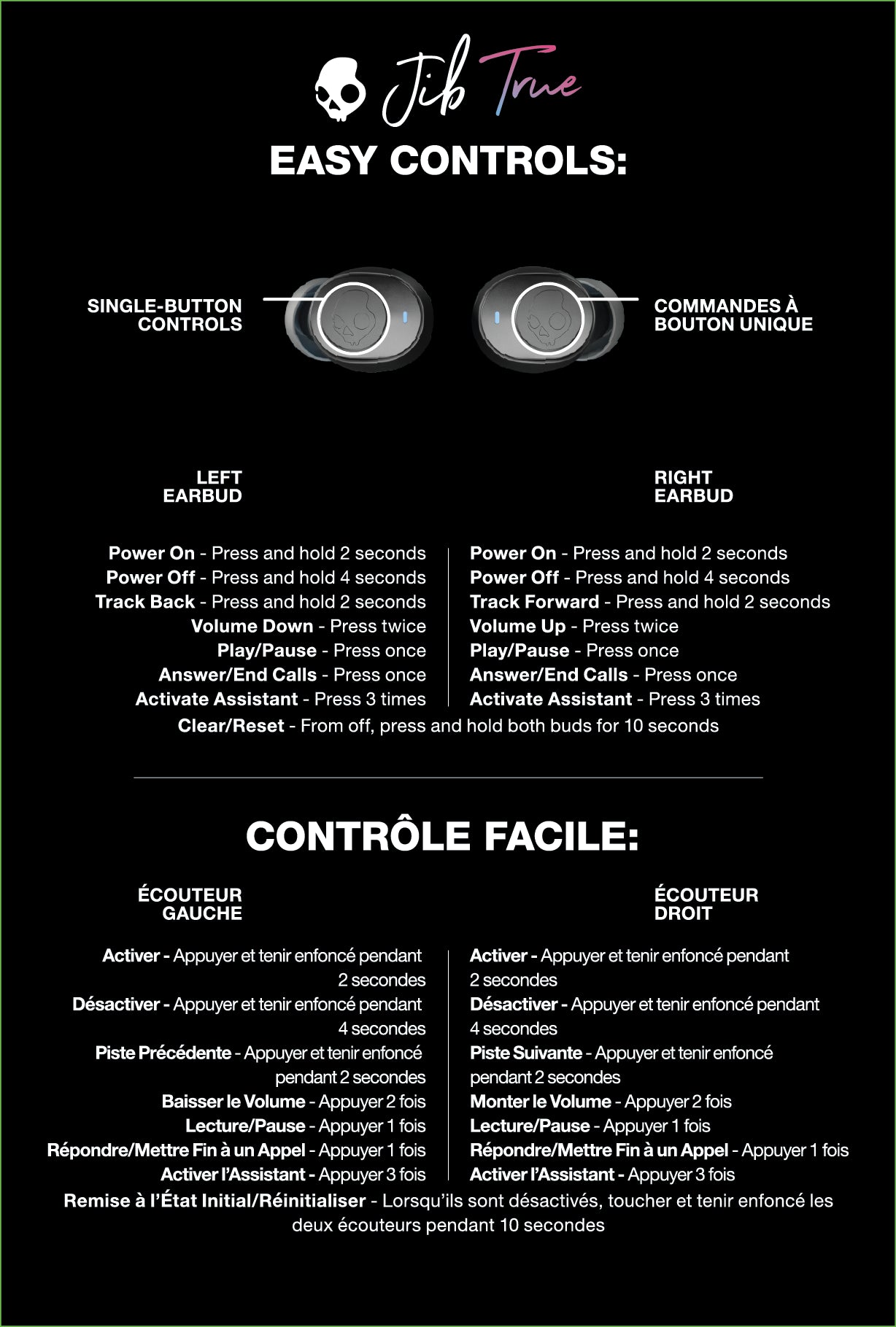
Resetting clears old connections and syncs the earbuds with each other from scratch. Here’s how:
- Remove the earbuds from the case, making sure they are powered off.
- Press and hold both earbud buttons for 10 seconds until the LEDs flash red and blue.
- Place them back in the case, then remove them again. They should now enter pairing mode, with one earbud flashing faster (master) and the other slower (slave).
This process often fixes stubborn syncing issues.
4. Sync The Earbuds With Each Other
After resetting, the earbuds should automatically try to pair with each other before connecting to your device. Wait 5–10 seconds and watch for both LEDs blinking together. If they don’t, repeat the reset.
5. Pair With Your Device
Once the earbuds are synced together, open your device’s Bluetooth menu and search for “Jib True 2. ” Tap to connect. Both earbuds should play sound.
6. Test In Mono And Stereo Modes
Try using one earbud at a time, then both together. If mono mode works but stereo doesn’t, repeat the reset and pairing process.
7. Update Firmware (if Available)
Check the Skullcandy website for firmware updates. Sometimes, connecting your earbuds to the Skullcandy app lets you update them. This step isn’t always possible for Jib True 2, but it’s worth confirming.
8. Try A Different Device
If the earbuds still won’t sync, pair them with another phone or computer. This helps you figure out if the problem is with the earbuds or your device.
9. Clean The Earbuds And Case
Use a cotton swab and rubbing alcohol to gently clean the charging contacts on both the earbuds and the case. Dirt here can stop the earbuds from charging and syncing.
10. Reset Your Device’s Bluetooth
If all else fails, turn Bluetooth off and on again on your phone or computer. Restarting your device sometimes clears hidden bugs that block connections.
Quick Comparison: Jib True 2 Vs. Other Skullcandy Earbuds
Sometimes users wonder if syncing problems are unique to Jib True 2 or common across Skullcandy models. The table below compares how Jib True 2 syncing works versus other popular Skullcandy earbuds.
| Earbud Model | Syncing Method | Common Sync Issues | Reset Difficulty |
|---|---|---|---|
| Jib True 2 | Manual/Automatic | Single earbud connects, pairing failure | Easy |
| Indy Evo | Automatic | Case pairing issues, firmware bugs | Moderate |
| Dime True | Manual/Automatic | Master/slave confusion | Easy |
| Grind Fuel | Automatic | App update needed | Moderate |
This shows that Jib True 2 is not alone—other earbuds have similar sync problems, but the reset steps are usually simple.

Credit: www.youtube.com
Deeper Fixes For Persistent Syncing Problems
If your earbuds still won’t sync after basic steps, it’s time to check less obvious issues. Here are two areas beginners often overlook.
Charging Case Problems
The charging case does more than just charge—it also manages the connection between the earbuds. If the case is faulty, the earbuds may never enter sync mode. Signs of a bad case include:
- LEDs not lighting up when earbuds are inserted
- Earbuds not powering on after charging
- Loose fit, so contacts don’t touch
If you suspect the case is the issue, try another compatible Skullcandy case if possible, or contact support for a replacement.
Bluetooth Interference And Crowded Environments
In busy areas like airports or offices, many Bluetooth and Wi-Fi signals can overlap. If you’re troubleshooting, move to a quiet area with fewer devices. Turn off other Bluetooth gadgets nearby. This simple change often helps earbuds sync properly.
Preventing Future Sync Issues
Syncing problems can be frustrating, but you can reduce the chance they happen again. Try these tips:
- Charge Regularly – Don’t let the battery drain completely. Charge after each use.
- Clean Contacts – Wipe the earbud and case contacts every week.
- Update Devices – Keep your phone, computer, and earbuds (if possible) updated.
- Pair With One Device at a Time – Avoid pairing with multiple devices unless needed.
- Store Properly – Always put earbuds in their case when not in use.
- Avoid Extreme Temperatures – Heat and cold can damage batteries and electronics.
Many users overlook how simple habits, like cleaning the contacts, can prevent most syncing issues.
Common Mistakes When Trying To Fix Syncing
When frustrated, it’s easy to make mistakes that make the problem worse. Here are a few to avoid:
- Not fully resetting both earbuds—users often reset only one.
- Skipping the “forget device” step on your phone.
- Using earbuds with different battery levels—always charge both.
- Trying to pair before the earbuds sync with each other—wait for the lights to flash together.
- Ignoring the charging case’s role—dirty or damaged cases cause many pairing issues.
Remember, careful attention to these details often solves the problem faster.
When To Contact Skullcandy Support
Most Jib True 2 syncing problems can be fixed at home. However, some issues need expert help. Contact Skullcandy support if:
- The earbuds won’t power on, even after charging.
- The LEDs never light up.
- Both earbuds work separately but never together.
- You hear crackling or distorted sound, even after resets.
- The charging case is physically damaged.
Have your proof of purchase ready. Support may ask for photos or a video showing the problem.

Credit: www.youtube.com
Warranty And Replacement Information
Jib True 2 earbuds come with a limited warranty, usually 1 year in the US. The warranty covers defects in materials and workmanship, not accidental damage or water exposure. If your earbuds are still under warranty and basic troubleshooting fails, you may qualify for a replacement.
To speed up the process:
- Register your product online
- Keep your receipt
- Describe the issue clearly when contacting support
More details are available on the official Skullcandy support page.
Real-world Example: Fixing A Stubborn Jib True 2 Pairing Issue
Let’s look at a practical situation. Sara bought Jib True 2 earbuds and used them happily for three months. One day, only the right earbud would connect. She tried resetting, but only did one earbud. She forgot to clean the charging contacts. After reading this guide, she:
- Cleaned the contacts with a cotton swab
- Charged both earbuds fully
- Reset both earbuds together
- Forgot the device on her phone and paired again
In less than 10 minutes, her earbuds were syncing and playing music in both ears.
The lesson: Most “unsolvable” syncing issues come from missing a simple step. Patience and careful troubleshooting usually pay off.
Credit: www.skullcandy.eu
Data Table: Jib True 2 Syncing Problems And Solutions
For quick reference, here’s a summary of common problems and their best fixes.
| Problem | What to Try First | If That Fails… |
|---|---|---|
| Only one earbud connects | Reset both earbuds, forget device on phone | Clean contacts, update firmware, try another device |
| No LED lights on earbuds | Charge fully, check charging case | Test case with other earbuds, contact support |
| Earbuds won’t sync together | Hard reset both earbuds | Move to a new location, clean contacts, check case |
| Connection drops randomly | Charge both earbuds, update device firmware | Reduce interference, avoid multiple device pairings |
| Distorted or crackling sound | Reset and re-pair, clean earbuds | Try different audio source, contact support if persists |
Advanced Troubleshooting: Bluetooth Settings On Devices
Some advanced users may want to dig deeper into Bluetooth settings. A few hidden options can affect syncing:
- Bluetooth cache: On Android, clearing the Bluetooth cache (in app settings) can fix hidden bugs.
- Device limit: Some phones can only connect to a limited number of Bluetooth devices at once. Remove old or unused devices.
- Audio profiles: Make sure your earbuds are set as the default audio output.
On Windows, using the “Remove Device” feature in the Bluetooth menu and restarting the computer can sometimes resolve stubborn pairing problems. On iPhones, a “Network Reset” (Settings > General > Transfer or Reset iPhone > Reset > Reset Network Settings) can clear up Bluetooth issues—but be aware this deletes saved Wi-Fi passwords too.
Table: Bluetooth Device Limits By Platform
Here’s a comparison of how many Bluetooth devices common platforms can manage at one time:
| Platform | Max Paired Devices | Max Active Devices |
|---|---|---|
| Android (most) | Up to 10 | 2 (audio + data) |
| iOS (iPhone) | Up to 7 | 2 (audio + watch) |
| Windows 10/11 | 7–12 | 2–3 |
| MacOS | 7 | 2 |
If you have many old devices paired, deleting some can improve syncing with your Jib True 2.
What Sets Jib True 2 Apart
While the Jib True 2 isn’t alone in facing sync issues, it stands out for a few reasons:
- Affordable price – Good value for basic wireless earbuds
- Simple controls – Easier to reset and pair than many models
- Long battery life – Up to 22 hours with the case
However, its basic design means it relies heavily on the charging case and correct reset steps. Understanding these strengths and limits helps you manage issues better.
Frequently Asked Questions
Why Does Only One Jib True 2 Earbud Connect?
Usually, this means the earbuds aren’t paired with each other, or one isn’t charged. Try a full reset of both earbuds and make sure both are fully charged. Don’t forget to “forget” the earbuds in your device’s Bluetooth menu before pairing again.
How Do I Reset My Jib True 2 Earbuds If They Won’t Sync?
Remove both earbuds from the case and hold both buttons for 10 seconds until the LEDs flash. Place them back in the case, then remove them to re-enter pairing mode. This resets the connection between the earbuds.
Can Dirty Contacts Cause Syncing Problems?
Yes. Dirt or sweat on the charging contacts can prevent the earbuds from syncing or charging. Clean both the earbuds and case contacts gently with a cotton swab and rubbing alcohol.
Is There A Skullcandy App For Jib True 2 Firmware Updates?
Not all Jib True 2 models support app updates. Check the official Skullcandy website for details. If your model works with the app, use it to check for firmware updates.
What Should I Do If Nothing Works?
If you’ve tried all troubleshooting steps, including resets, cleaning, and pairing with different devices, contact Skullcandy support. You may need a warranty replacement, especially if your earbuds or case are not powering on.
Syncing problems with wireless earbuds can be annoying, but they’re rarely permanent. With careful troubleshooting, most users can get their Jib True 2 earbuds working together again and enjoy their favorite music without hassle.