If you use fitness apps to track your workouts, you want all your data in one place. Jefit is a popular app for logging strength training, while Google Fit is Google’s health and fitness platform that collects data from many sources. When you connect Jefit to Google Fit, your workouts should sync automatically. But sometimes, things don’t work as they should. Many users find Jefit not syncing with Google Fit—and it can be frustrating. This article explains why this happens, how to fix it, and what you should know about keeping your fitness data connected.
Why Syncing Jefit With Google Fit Matters
When your fitness apps sync well, you see your full health picture. Jefit tracks your sets, reps, and weight for each exercise. Google Fit collects data from wearables, running apps, and other health tools. Together, they give you:
- A single view of your workouts and activity
- More accurate calorie and progress tracking
- Easier goal setting with all data in one place
- The ability to share fitness stats with doctors or coaches
If Jefit fails to sync, your Google Fit profile may show missing workouts. This can affect your motivation, streaks, or even recommendations from other apps connected to Google Fit.
How Jefit And Google Fit Integration Works
Jefit and Google Fit use an API (application programming interface) to share data. When you connect the two apps, you give Jefit permission to write your workout data into Google Fit. Jefit typically sends:
- Workout start and end times
- Type of workout (strength, cardio, etc.)
- Calories burned (estimated)
- Duration
Google Fit then adds this data to your daily activity, alongside steps, heart rate, and other information from different apps and wearables. The sync is supposed to happen automatically after each workout, but often, users find gaps or missing sessions.
Common Reasons Why Jefit Is Not Syncing With Google Fit
Several issues can cause syncing problems. Understanding these helps you find the best solution.
1. Permission Issues
If Jefit can’t access Google Fit, it can’t write your data. This usually happens if:
- You skipped the permission prompt
- You removed permissions later in your Google account settings
- Your account has multiple Google logins, causing confusion
2. Outdated Apps
Both Jefit and Google Fit require the latest updates to work well together. If you have old versions, syncing may break due to changes in the API or security updates.
3. Connectivity Problems
Syncing needs a stable internet connection. If you log a workout offline, it may not sync until you reconnect. Weak Wi-Fi or mobile data can delay or block syncing.
4. Account Mismatch
Jefit needs to connect to the same Google account as your Google Fit app. If you use different accounts, your data won’t appear.
5. App Glitches Or Bugs
No app is perfect. Sometimes, a bug in Jefit or Google Fit causes sync failures. This can happen after an update or due to a temporary server issue.
6. Battery Optimization Restrictions
Some Android devices limit background activity to save battery. This can stop Jefit from syncing unless you adjust the settings.
7. Data Limits Or Quotas
Google Fit has limits on how much data apps can write in a short time. If you log many workouts quickly, some may be skipped.
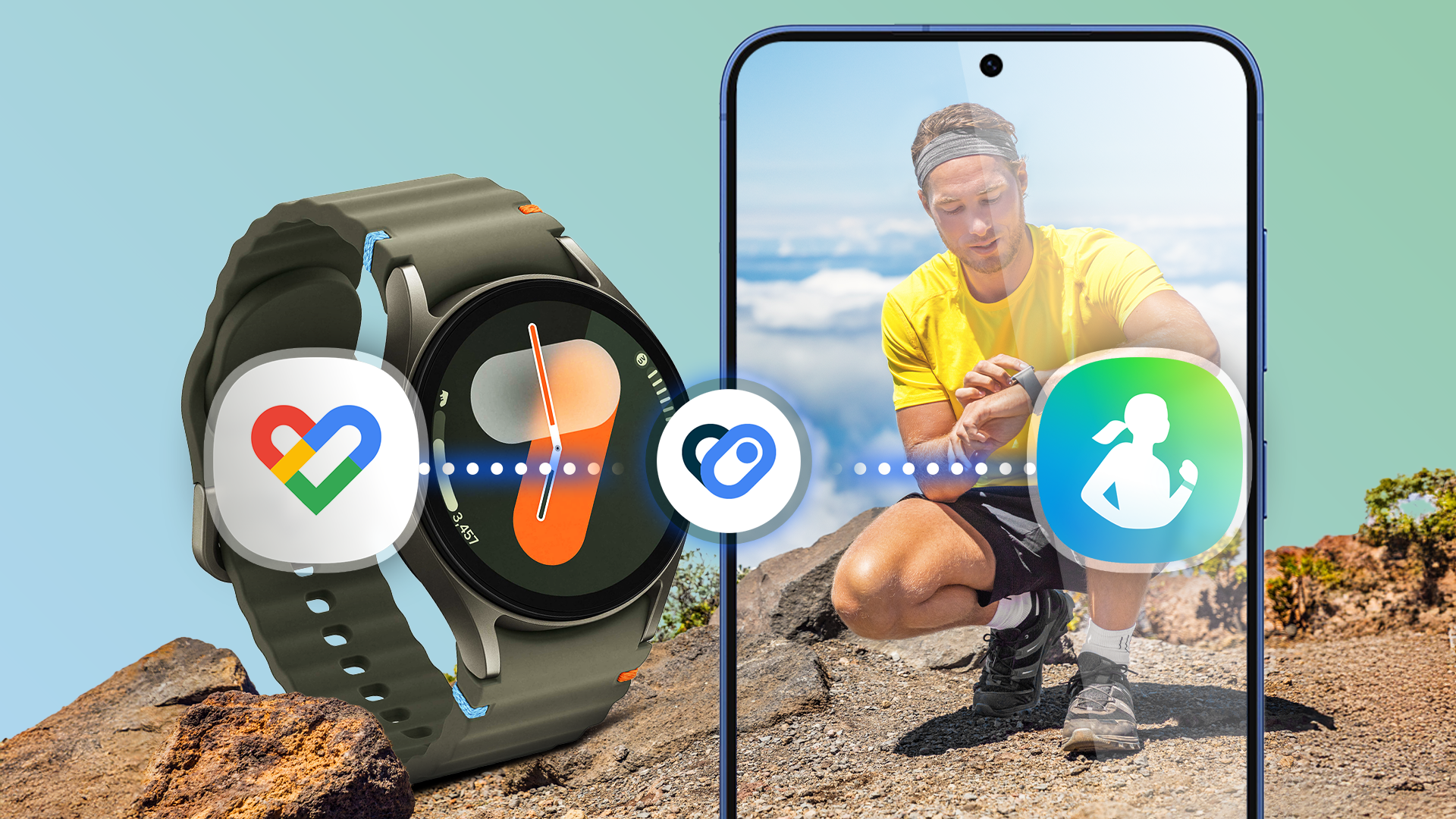
How To Connect Jefit With Google Fit (step-by-step)
If you’ve never connected the two apps, or if you want to start fresh, here’s how you do it:
- Install Jefit and Google Fit from the Play Store.
- Open Jefit and log in to your account.
- Tap the “Profile” icon at the bottom right.
- Tap “Settings.”
- Scroll to “Third-Party Apps” and select “Google Fit.”
- Tap “Connect.”
- Choose your Google account (use the same one as your Google Fit app).
- Allow permissions when prompted.
- Confirm that syncing is enabled.
After setup, log a workout in Jefit and check if it appears in Google Fit. Sometimes, the first sync can take a few minutes.
Credit: www.androidpolice.com
Troubleshooting: Fixing Jefit Not Syncing With Google Fit
If your workouts are not appearing in Google Fit, try these steps one by one. Most users find a solution by following this troubleshooting path.
1. Check Permissions
- Open your phone’s “Settings.”
- Go to “Apps” or “App Management.”
- Find and select Jefit.
- Tap on “Permissions.”
- Ensure that “Physical activity” and “Google Fit” access are both enabled.
Also, check within your Google account:
- Open the Google Fit app.
- Tap your profile picture > “Manage connected apps.”
- Find Jefit in the list and make sure it is connected and allowed to write data.
2. Update Both Apps
- Open the Play Store.
- Search for Jefit and Google Fit.
- Tap “Update” if available for either app.
Using the latest version prevents problems caused by outdated code or compatibility issues.
3. Re-link The Accounts
Sometimes, disconnecting and reconnecting resets the sync.
- In Jefit, go to “Settings” > “Google Fit.”
- Tap “Disconnect.”
- Wait a few seconds, then tap “Connect” and follow the prompts.
4. Check Your Internet Connection
- Make sure Wi-Fi or mobile data is working.
- Try browsing a website to confirm.
- If you logged workouts offline, open Jefit when online to trigger a sync.
5. Confirm You’re Using The Same Account
Many users have more than one Google account on their phone. Jefit and Google Fit must use the same account for syncing.
- In Jefit: Go to “Settings” > “Google Fit” and check which account is listed.
- In Google Fit: Tap your profile picture and see the email at the top.
If they are different, disconnect and reconnect using the correct account.
6. Disable Battery Optimization For Jefit
On Android, battery optimization can block syncing.
- Open phone “Settings.”
- Go to “Battery” or “Battery Optimization.”
- Find Jefit in the list.
- Set it to “Don’t optimize” or “Allow background activity.”
This allows Jefit to sync even when the app is not open.
7. Force A Manual Sync
If automatic syncing is stuck, you can force a sync.
- Open Jefit.
- Log a new workout (even a test one).
- Wait a few minutes, then check Google Fit.
This often triggers the apps to connect and update.
8. Clear Cache And App Data
Corrupt cache files can block syncing.
- Go to phone “Settings” > “Apps.”
- Find Jefit > “Storage.”
- Tap “Clear Cache” and “Clear Data.”
Note: Clearing data may log you out, so make sure you know your login details.
9. Reinstall Both Apps
If nothing works, reinstalling can fix hidden issues.
- Uninstall both Jefit and Google Fit.
- Restart your phone.
- Reinstall both apps from the Play Store.
- Reconnect your accounts.
10. Check For Server Outages
Sometimes, the problem is on Jefit or Google’s side. Visit their status pages or social media to see if others report syncing issues. This is rare but can happen during major updates.
Comparing Jefit–google Fit Sync With Other Fitness Apps
Is Jefit’s integration with Google Fit better or worse than other fitness apps? Here’s a side-by-side look.
| App | Syncs With Google Fit | Data Types Shared | Reliability |
|---|---|---|---|
| Jefit | Yes | Strength, Duration, Calories | Moderate |
| Strava | Yes | Cardio, GPS, Heart Rate | High |
| Fitbod | No | N/A | N/A |
| MyFitnessPal | Yes | Calories, Weight, Exercise | High |
| Strong | No | N/A | N/A |
Jefit is one of the few strength apps that syncs with Google Fit, but its reliability is lower than larger apps like Strava or MyFitnessPal. It’s not unusual to see missed workouts or data delays.

Credit: www.jefit.com
Real-world Problems And User Examples
Let’s look at some real situations where users face syncing trouble:
- Missed Sessions: A user logs three workouts in Jefit, but only two appear in Google Fit. This can break exercise streaks.
- Partial Data: Sometimes, only the workout time appears, but calories or type are missing.
- Delayed Sync: Workouts show up hours later, making it hard to keep track in real time.
- Multiple Devices: Users with Jefit on two phones or a tablet may see inconsistent syncing.
These problems often come from permission errors, app bugs, or using different Google accounts on each device.
Advanced Solutions And Tips
If you’ve tried all basic fixes and still have issues, these advanced tips can help.
Use A Single Device For Logging
Syncing works best if you log workouts and connect accounts on one main device. Switching between devices can confuse the sync process.
Avoid Rapid Logging
Logging many workouts in a short time (for example, updating old logs) can overwhelm the sync process. Log workouts in order and give the app time to sync each one.
Check Google Fit Data Types
Jefit may only write certain data types to Google Fit (like strength training or duration). Cardio sessions or custom exercises may not appear. Double-check if the workout type you logged is supported for syncing.
Monitor App Updates
Major updates to either app can change the way syncing works. Check the app’s update notes and user forums if syncing suddenly stops after an update.
Try Syncing At Different Times
Some users find that syncing works better at certain times of day (for example, at night when fewer users are online). This is rare but worth testing if you notice delays.
Credit: www.jefit.com
What Jefit Data Actually Syncs With Google Fit
Not all workout details from Jefit appear in Google Fit. Here’s what usually syncs:
| Data Type | Jefit Logs | Google Fit Shows |
|---|---|---|
| Workout Type | Strength, Cardio | Strength, Cardio (sometimes labeled as “Other”) |
| Exercise List | All exercises (e.g., Bench Press, Squat) | No (only total workout) |
| Duration | Exact time spent | Yes |
| Calories Burned | Estimated by Jefit | Yes (estimate may differ) |
| Sets/Reps/Weight | Detailed log | No |
Key insight: If you want detailed exercise stats in Google Fit, you’ll be disappointed. Google Fit only shows the summary, not each set or rep.
Alternative Ways To Track Workouts If Sync Fails
If you can’t get Jefit and Google Fit to sync, consider these options:
- Manual Entry: Enter workouts directly in Google Fit, though this is time-consuming.
- Export Data: Jefit allows you to export your workout history as a CSV file. You can keep a backup or use it in other apps.
- Try Another App: Apps like Strava or MyFitnessPal have more reliable Google Fit integration for general fitness tracking.
- Third-party Sync Tools: Some services (like Health Sync) can bridge data between fitness apps, though they may require payment and careful setup.
User Mistakes That Cause Syncing Failure
Even experienced users make common mistakes that block syncing:
- Using Different Google Accounts: Always check which account is active in both apps.
- Ignoring Permissions: If you don’t accept all permission prompts, syncing won’t work.
- Forgetting to Reconnect After Updates: Major app updates sometimes break the connection. Always check after updating.
- Relying on Offline Logging: If you log workouts without an internet connection, sync can be delayed or lost if the app crashes.
- Not Checking App Status: Sometimes, the problem is a known bug. Check user forums or status pages before making drastic changes.
How To Know If Sync Is Working Properly
A simple way to check if syncing is working:
- Log a workout in Jefit.
- Wait 1-5 minutes.
- Open Google Fit and check your activity timeline for the workout.
- If you see the entry (with correct time and type), syncing works.
- If missing or incomplete, follow troubleshooting steps.
Some users like to test with a short “test workout” and delete it after confirming sync.
When To Contact Support
If you’ve tried all steps and your workouts still don’t sync, it may be time to contact support:
- Jefit Support: Use their in-app help or email support@jefit.com.
- Google Fit Help: Visit their help center or ask in the Google Fit community.
Provide details like your phone model, app versions, and a clear description of the problem. Screenshots help support staff understand your issue faster.
The Future Of Jefit And Google Fit Integration
Fitness apps are always evolving. Both Jefit and Google Fit update their features and connections regularly. There is hope that future versions will offer more stable and detailed syncing, but it depends on user demand and technical limits.
Some users hope for richer data sharing (like sets and reps), but privacy and standardization issues make this hard. For now, expect summary data only.
One External Resource For Further Help
For more details about Google Fit’s capabilities and supported apps, see the official Google Fit Help Center.
Frequently Asked Questions
Why Can’t I See My Jefit Workouts In Google Fit?
Usually, this happens due to permissions, outdated apps, or using different Google accounts. Check connections and try syncing a test workout. If the problem continues, follow the troubleshooting steps in this article.
Does Jefit Sync Sets And Reps To Google Fit?
No. Google Fit only receives summary workout data (type, time, calories). Details like sets, reps, or exact exercises stay in Jefit.
How Long Does It Take For Jefit To Sync With Google Fit?
Syncing usually happens within a few minutes after logging a workout in Jefit. Sometimes, delays occur due to internet issues or app updates.
Can I Force Jefit To Sync With Google Fit Manually?
Yes. Logging a new workout or disconnecting and reconnecting your Google Fit account often triggers a manual sync. There is no dedicated “sync now” button.
Are There Alternatives If Jefit Won’t Sync With Google Fit?
You can log workouts manually in Google Fit, use another fitness app with better integration, or try third-party sync tools. Exporting your workout history from Jefit is another option.
Staying on top of your fitness data is important for motivation and progress. With patience and these tips, you can usually keep Jefit and Google Fit working together—and enjoy a clear view of your health journey.