If you use Jefit to track your workouts and Apple Health to monitor your overall health, a syncing problem can be frustrating. You expect your weightlifting sessions, sets, and calories burned to flow smoothly from Jefit into your Apple Health dashboard. But sometimes, the connection just doesn’t work as expected. Data fails to appear, progress seems lost, and motivation can dip. Fixing this issue is not always simple—there are several possible causes, from permissions to app bugs. This guide will help you understand why Jefit not syncing with Apple Health happens, and exactly what you can do to resolve it.
You’ll find straightforward explanations, practical troubleshooting steps, clear comparisons, and non-obvious tips that even experienced users sometimes miss. Whether you’re a beginner or a long-time Jefit user, this article will help you restore your data flow and make the most of your fitness tracking.
Why Syncing Jefit With Apple Health Matters
Many users connect Jefit with Apple Health for a more complete health profile. Jefit records workout details, while Apple Health brings together data from many sources: steps, sleep, heart rate, nutrition, and more. When both apps sync well, you get:
- A unified view of activity and progress
- Better insights through combined data analysis
- Easier sharing with healthcare professionals or trainers
If Jefit data is missing from Apple Health, your fitness history feels incomplete. You may not see accurate calorie counts, workout durations, or progress trends. That’s why solving the syncing problem is important for anyone serious about tracking their health.
How Jefit Syncs With Apple Health: The Basics
Before jumping into fixes, it helps to know how syncing works. Jefit and Apple Health communicate through your phone’s operating system. After you give permission, Jefit can write workout data to Apple Health, and sometimes read data back.
Here’s a basic overview:
- User gives permission in Apple Health for Jefit to share data.
- Jefit records your workout (exercises, sets, reps, etc.)
- Data is exported to Apple Health, usually after you finish and save a workout.
- Apple Health imports the data and adds it to your activity records.
This process usually happens automatically, but it can break for many reasons. Understanding the flow helps you troubleshoot where things might go wrong.
Common Reasons Jefit Fails To Sync With Apple Health
When Jefit doesn’t sync with Apple Health, the cause is often one of a handful of issues. Recognizing these saves you time and frustration.
1. Permission Issues
Most syncing failures happen because permissions are not set correctly. Apple Health is strict about privacy and will block Jefit if you haven’t allowed the right types of data sharing.
2. Outdated App Versions
Using an old version of Jefit or Apple Health can create compatibility problems. New iOS or app updates sometimes change how data syncing works.
3. Software Bugs Or Glitches
Even with correct settings, apps sometimes glitch. Temporary bugs after an update or background process failures can block syncing.
4. Connectivity Problems
Jefit often requires an internet connection to sync properly with its servers before sending data to Apple Health. Poor Wi-Fi or mobile data can delay or stop syncing.
5. Account Issues
If you have recently changed devices, logged out, or switched Apple IDs, Jefit may lose its link to Apple Health.
6. Data Type Mismatches
Not all workout data can be shared. If you expect every detail (like every exercise name) to appear in Apple Health, you might be disappointed. Only certain data types (workout, calories, duration) can sync.
Quick Comparison: What Jefit Data Syncs To Apple Health?
Here’s a simple comparison to clarify what types of data usually transfer from Jefit to Apple Health:
| Data Type | Syncs to Apple Health? | Notes |
|---|---|---|
| Workout Duration | Yes | Shows as Exercise Minutes |
| Calories Burned | Yes | Estimate based on workout |
| Exercise List | No | Only summary, not each exercise |
| Sets & Reps | No | Only total workout details sync |
| Workout Type (Strength/HIIT) | Yes | Sometimes shown as “Other” |
Insight: Many users expect each exercise detail to show up in Apple Health, but only summary workout information is transferred.

Credit: www.reddit.com
Step-by-step Fixes For Jefit Not Syncing With Apple Health
If you’re not seeing your Jefit workouts in Apple Health, don’t panic. Follow these steps, and check after each one to see if the problem is fixed.
1. Check Apple Health Permissions
- Open the Apple Health app.
- Tap your profile picture in the top right.
- Select Apps under Privacy.
- Choose Jefit.
- Make sure all toggles are ON for “Allow Jefit to Write Data.”
If any are off, Jefit cannot send those data types to Apple Health. Turn them all on, especially for Workouts and Active Energy.
Non-obvious tip: Even if you turned these on before, app updates or iOS changes can reset them. Always recheck after updates.
2. Update Both Apps
Outdated apps often cause syncing trouble.
- Visit the App Store.
- Update Jefit and Apple Health (via iOS update).
- Restart your phone after updating.
Non-obvious tip: Sometimes, you must also update the Jefit account itself. Log in again or check for a prompt within the app.
3. Re-link Jefit With Apple Health
Sometimes, the connection needs to be reset.
- In Jefit, go to Profile > Settings > Apple Health.
- Toggle OFF all data sharing.
- Wait 10 seconds, then toggle ON again.
- Open a workout, finish it, and check if it syncs.
4. Force Sync Jefit Data
Jefit may delay sending data. To force a sync:
- Open Jefit.
- Tap Profile > Settings > Data Sync (if available).
- Tap “Sync Now.”
- Check Apple Health after a few minutes.
5. Check Internet Connection
Without a good internet connection, syncing can fail. Make sure:
- Wi-Fi or cellular data is ON.
- Background App Refresh is enabled for Jefit (Settings > Jefit > Background App Refresh).
- Airplane mode is OFF.
6. Restart Both Apps And Your Device
Close both Jefit and Apple Health (swipe up to force close). Restart your device. This clears temporary software glitches.
7. Sign Out And Back In
In Jefit, log out and log back in. This can refresh account and sync settings.
8. Check For Device/account Changes
If you have a new iPhone, restored from backup, or changed Apple IDs, the sync link can break. Re-link Jefit with Apple Health as above.
9. Uninstall And Reinstall Jefit
If nothing else works:
- Delete Jefit (press and hold app, tap Delete).
- Reinstall from the App Store.
- Log in and re-link to Apple Health.
Warning: Make sure your data is backed up to Jefit servers before deleting.
Real-world Example: Fixing A Persistent Sync Issue
Let’s say you completed a workout in Jefit, but nothing appears in Apple Health. You check permissions—they’re all on. Both apps are updated. Still no sync.
You try restarting, but the issue continues. In this case, try this sequence:
- In Jefit settings, toggle off all Apple Health data sharing.
- Uninstall Jefit.
- Reboot your phone.
- Reinstall Jefit and log in.
- Re-link to Apple Health and toggle all permissions ON.
- Complete a short test workout.
This method resets all connections and often solves “stuck” sync issues. Many users skip step 2 (uninstall/reinstall), but it can resolve hidden app bugs.

Credit: www.reddit.com
Table: Jefit Vs. Other Fitness Apps (sync Reliability)
How does Jefit compare to other popular fitness apps for Apple Health syncing? Here’s a quick look:
| App | Apple Health Sync Reliability | Data Types Synced | Known Issues |
|---|---|---|---|
| Jefit | Moderate | Workout, Calories, Duration | Occasional permission resets |
| Strava | High | Workout, Distance, Calories | Rare data delays |
| Strong | High | Workout, Sets, Reps, Calories | Some duplicates |
| Fitbod | High | Workout, Calories, Duration | Occasional missing workouts |
Insight: Jefit’s sync is reliable for most users, but not perfect. Strong and Strava offer more detailed sync, but Jefit’s workout tracking features are unique.
Advanced Troubleshooting Steps
If you still have no luck after the basics, try these deeper fixes.
1. Reset Privacy And Location Settings
Go to Settings > General > Transfer or Reset iPhone > Reset > Reset Location & Privacy. This resets all privacy settings, including Health permissions. You’ll need to re-allow apps like Jefit.
Caution: This resets permissions for all apps, not just Jefit.
2. Check Icloud And Apple Id
If you sync Apple Health across devices using iCloud, make sure:
- You’re logged into the same Apple ID on all devices.
- ICloud sync is enabled for Health (Settings > Apple ID > iCloud > Health).
Insight: Some users find Health data doesn’t sync across devices unless both iCloud and Health are enabled.
3. Review App Settings In Detail
In Jefit:
- Go to Profile > Settings > Data Sharing/Apple Health.
- Look for any additional toggles, such as “Sync Past Workouts.”
- Enable all available options.
4. Contact Support
If none of the above works, contact Jefit Support or Apple Support. When reporting your issue, include:
- IPhone model and iOS version
- Jefit app version
- Screenshot of Apple Health permissions
- Steps you’ve already tried
This can speed up the process and help you get a solution.
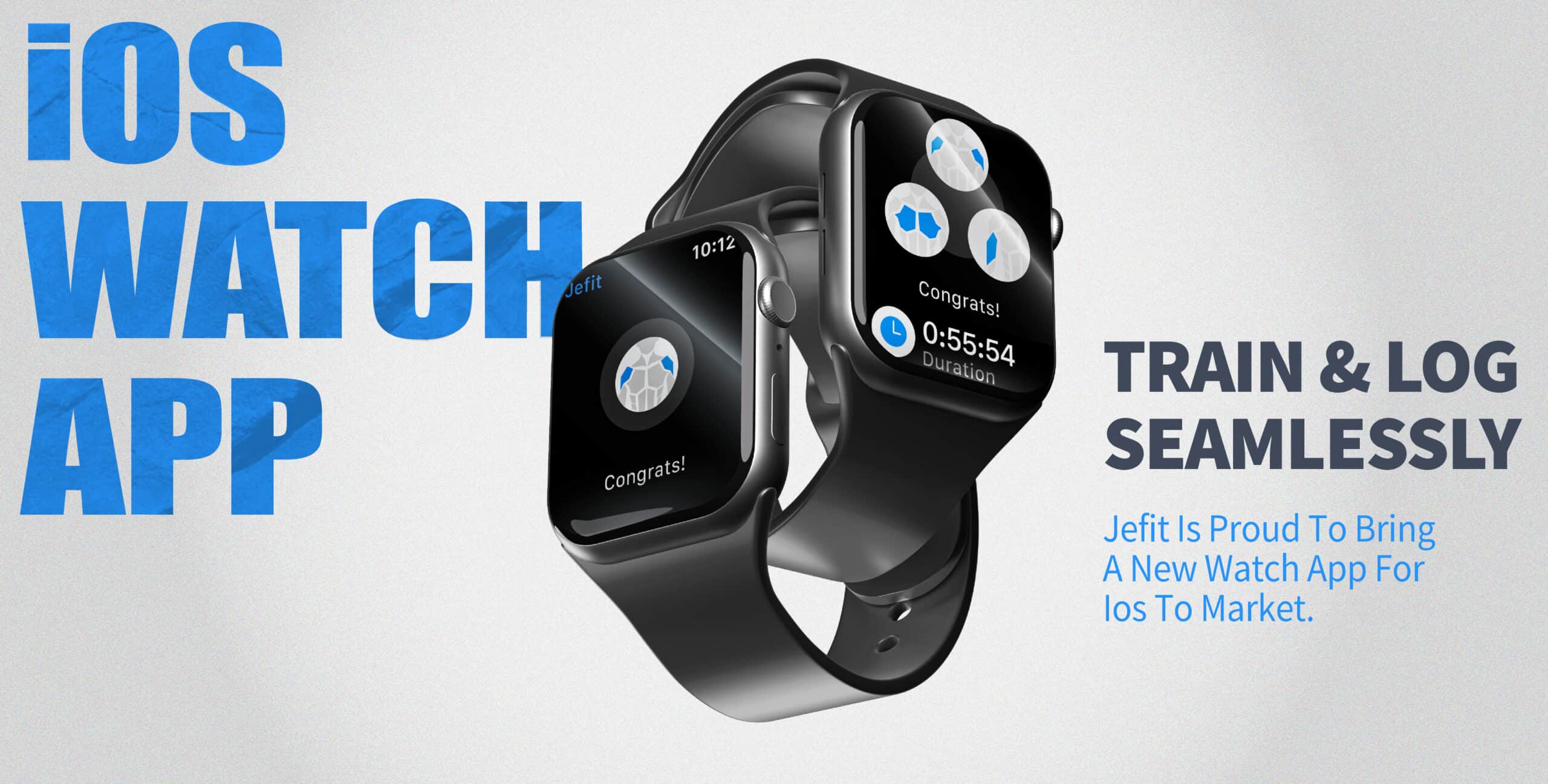
Credit: www.jefit.com
Preventing Future Sync Problems
Once you solve your syncing issue, there are a few habits that keep things running smoothly:
- After every iOS or Jefit update, recheck permissions in Apple Health.
- Regularly open Jefit to trigger background syncs (don’t let it sit unused for weeks).
- Keep both apps updated to the latest version.
- Use the same Apple ID on all devices and avoid unnecessary device resets.
- Backup your Jefit data regularly (Jefit > Profile > Cloud Backup).
What If Jefit Still Doesn’t Sync?
Sometimes, even after every fix, syncing just won’t work—especially on older devices or rare software bugs. In these cases, consider:
- Using Jefit for workout logging and Apple Health for overall health metrics, rather than relying on perfect sync.
- Trying another workout tracker as a temporary solution. Apps like Strong or Fitbod have robust Apple Health integration.
- Waiting for an app update. Report your problem to Jefit support so they know users are affected.
Tip: Jefit’s user forums and social media pages sometimes have workarounds posted by other users experiencing the same issue.
Additional Insights Most Users Miss
- Apple Health sometimes delays updates. Your workout may appear 10-15 minutes after syncing, not instantly.
- Duplicate workouts can happen if you manually log the same session in both apps. Avoid double-entry.
- Battery optimization settings (like Low Power Mode) can restrict background syncing. Disable them if you notice delays.
- Data correction is limited. If a workout logs incorrectly in Apple Health, you usually can’t edit it—so check the entry before closing Jefit.
Table: Typical User Mistakes And How To Avoid Them
Many people repeat the same errors when trying to fix syncing problems. Here’s how to avoid the most common pitfalls:
| Mistake | What Happens | How to Avoid |
|---|---|---|
| Only checking Jefit app settings | Permissions remain off in Apple Health | Always check both Jefit and Health settings |
| Ignoring app updates | Incompatible versions block syncing | Update both apps regularly |
| Expecting instant sync | Assume it’s broken when it’s just delayed | Wait up to 15 minutes and refresh |
| Not backing up data before reinstall | Lose workout history | Backup to Jefit cloud before deleting |
Good habits and patience can prevent hours of frustration.
When To Contact Support
If you’ve tried every step and data still won’t sync, reach out for help. Jefit’s support team is responsive, and Apple Support can help with device-specific issues. Be ready with:
- Your device details
- App versions
- A clear description of the problem
- Screenshots if possible
This helps support teams find and fix the root problem faster. For more about Apple Health integration, the official Apple Support page is a reliable resource.
The Bottom Line
When Jefit not syncing with Apple Health ruins your fitness tracking, it’s almost always fixable. With careful checking of permissions, app updates, and some patience, most users restore the connection without losing data. Stay calm, follow the steps, and remember: syncing issues are common with all fitness apps, not just Jefit. Keep your apps updated, review your settings after updates, and use backup tools to protect your progress.
If you’re still stuck, it’s not your fault—sometimes software just needs a little nudge or a bug fix from the developers. Don’t let a temporary sync problem stop your fitness journey.
Frequently Asked Questions
Why Does Jefit Sometimes Stop Syncing Even After It Worked Before?
This usually happens after an app update or iOS update. Permission settings can reset, or the connection between apps may break. Always check your permissions and update both apps after any software changes.
Can I Sync Old Jefit Workouts To Apple Health?
Usually, only new workouts sync after permissions are enabled. Some versions of Jefit allow you to “Sync Past Workouts” in the settings, but this isn’t always reliable. Try toggling this feature on if available.
Why Do Only Some Data Types Sync From Jefit To Apple Health?
Apple Health limits what third-party apps can send. Jefit typically syncs workout duration, calories, and type—not every exercise or set. This is due to Apple’s privacy and data structure policies.
Will I Lose My Jefit Data If I Uninstall The App?
If you’ve backed up your data to the Jefit cloud (Profile > Backup), you won’t lose your workouts. Always back up before deleting the app to avoid losing your history.
Is There A Better App For Syncing Strength Workouts To Apple Health?
Several apps, like Strong and Fitbod, offer more detailed sync with Apple Health, including sets and reps. However, Jefit’s workout planning and analytics features are still unique for many users.
—
By following these steps and tips, you can solve most Jefit-to-Apple Health syncing issues and keep your fitness tracking on track.