If you use iMessage on your iPhone and Mac, you expect your messages to stay perfectly in sync. But sometimes, you notice new texts on your iPhone that never appear on your Mac. Or, you send a message from your Mac, but your phone doesn’t show it. This can feel frustrating, especially if you rely on iMessage for important conversations. Understanding why iMessage not syncing on Mac happens—and how to fix it—can save you time and prevent missed messages.
This guide explains why iMessage sync problems occur, how to diagnose them, and practical steps to get your messages working again. You’ll learn common mistakes, advanced solutions, and tips to keep iMessage reliable across all your Apple devices.
Understanding Imessage Syncing
iMessage is Apple’s messaging platform. It works across iPhone, iPad, Mac, and Apple Watch. When you send a message from one device, Apple uses your iCloud account to keep your conversation updated everywhere. This syncing process depends on:
- Your Apple ID
- Internet connection (Wi-Fi or cellular)
- Device settings
- ICloud services
If any part fails, messages may not sync correctly. Most users assume iMessage always works smoothly, but even a small issue can break the chain.
How Imessage Sync Works
When you send or receive a message, your device contacts Apple’s servers. These servers forward the message to all devices registered with your Apple ID. Syncing happens through iCloud, but also uses Apple’s own messaging infrastructure. This is why iMessage can work without iCloud, but syncing conversations between devices is much easier with iCloud enabled.
Why Syncing Matters
For people who use multiple devices, syncing is crucial. You might start a chat on your iPhone, continue on your Mac, or check old messages from your iPad. Missing messages or out-of-order conversations make it harder to stay organized or respond quickly.
Common Causes Of Imessage Not Syncing On Mac
If your iMessage not syncing on Mac, several reasons could be behind it. Let’s look at the most frequent causes:
- Apple ID mismatch: Your iPhone and Mac must use the same Apple ID for iMessage. If one device uses another account, messages won’t sync.
- ICloud settings: If iCloud is not enabled or iCloud Drive is off, syncing can fail.
- Internet issues: Slow or unstable Wi-Fi can block messages from syncing.
- Device settings: Incorrect settings on your Mac or iPhone prevent messages from appearing.
- Outdated software: If your Mac or iPhone is running old versions of macOS or iOS, iMessage may not work properly.
- Syncing disabled: On some Macs, iMessage sync must be enabled manually.
- Corrupted data: Sometimes, glitches or corrupted cache cause syncing errors.
- Server problems: Rarely, Apple’s servers may be down, causing temporary sync issues.
Each cause has a specific fix. Knowing which problem affects you helps you solve it faster.

Credit: www.youtube.com
Diagnosing Imessage Sync Problems
Before you try solutions, diagnose what’s happening. Here are practical steps:
Step 1: Check Apple Id
Make sure your iPhone and Mac use the same Apple ID.
- On iPhone: Go to Settings > Messages > Send & Receive. Note the Apple ID.
- On Mac: Open Messages > Preferences > iMessage. Check the Apple ID listed.
If they’re different, syncing won’t work.
Step 2: Review Icloud Settings
Check if iCloud is enabled:
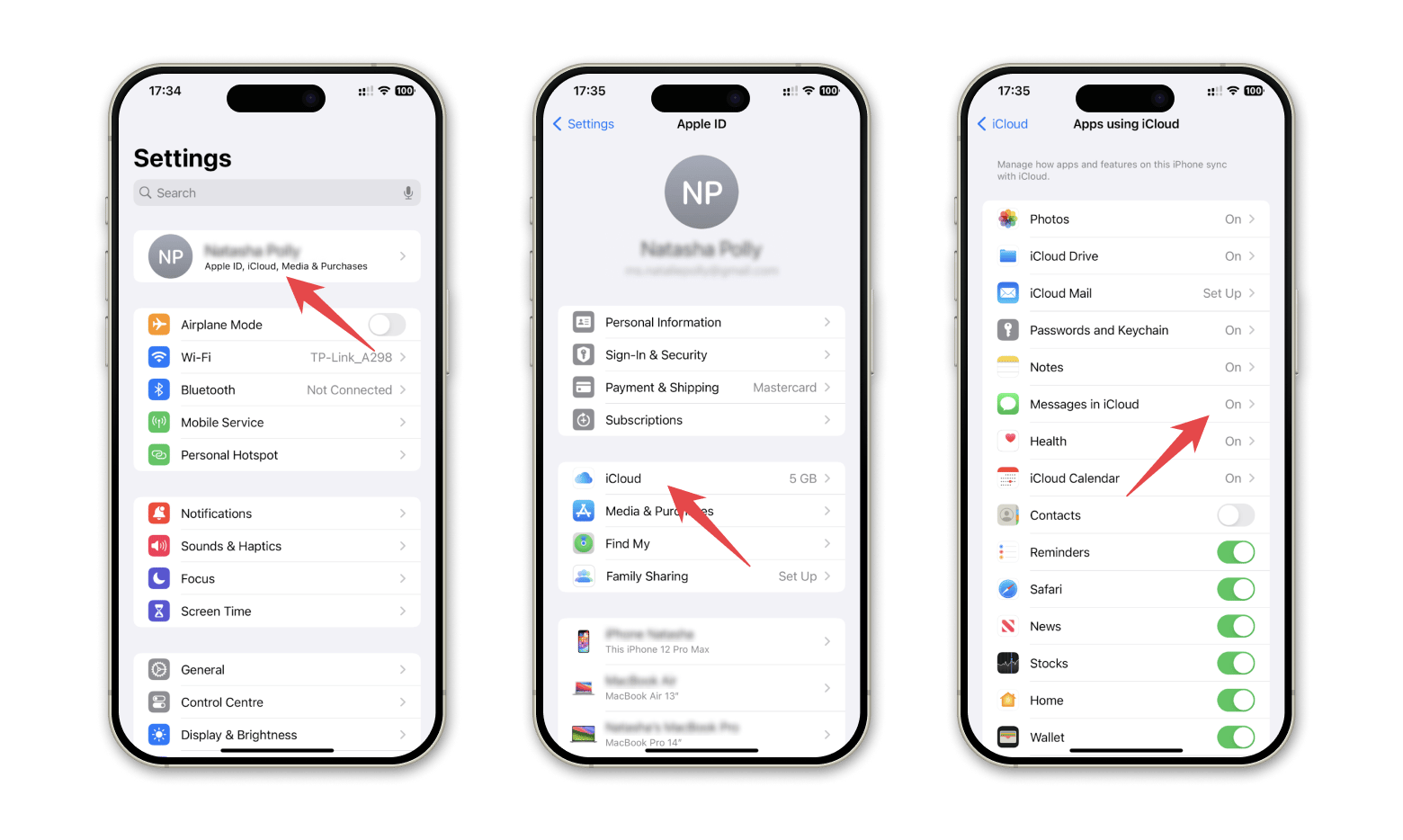
- On iPhone: Settings > [Your Name] > iCloud. Make sure Messages is toggled on.
- On Mac: System Preferences > Apple ID > iCloud. Messages should be checked.
Step 3: Test Internet Connection
Try loading a webpage on both devices. If one device can’t connect, fix the Wi-Fi first.
Step 4: Check Message Settings
On both devices, ensure you’ve enabled Send & Receive for your phone number and email addresses.
Step 5: Check Software Versions
- On iPhone: Settings > General > Software Update
- On Mac: System Preferences > Software Update
Update if needed. Outdated software can block features.
Step 6: Check Imessage Server Status
Visit Apple’s system status page (Apple System Status) to see if iMessage is down.
Step-by-step Fixes For Imessage Not Syncing On Mac
Now, let’s walk through solutions. Start with the simple steps, then try advanced fixes if needed.
1. Sign Out And Sign In Again
Signing out and back in refreshes iMessage settings.
- On Mac: Open Messages > Preferences > iMessage. Click Sign Out. Wait a minute, then sign in again.
- On iPhone: Settings > Messages > Send & Receive. Tap your Apple ID, sign out, and back in.
This process often solves sync glitches.
2. Enable Messages In Icloud
This feature keeps your conversation history synced across devices.
- On iPhone: Settings > [Your Name] > iCloud > Messages. Toggle on.
- On Mac: Messages > Preferences > iMessage > Enable Messages in iCloud. Check the box.
After enabling, wait a few minutes for messages to sync.
3. Check Send & Receive Settings
Make sure all relevant phone numbers and emails are checked.
- On iPhone: Settings > Messages > Send & Receive. Check your phone number and all email addresses.
- On Mac: Messages > Preferences > iMessage > You can be reached at. Check all options.
4. Force Sync
Sometimes, you need to force syncing.
- On Mac: Open Messages > Preferences > iMessage. Click Sync Now if available.
If you don’t see “Sync Now,” try sending a message to yourself (from your phone to your Mac) to trigger syncing.
5. Restart Devices
Restarting clears temporary bugs.
- Turn off your iPhone, wait 10 seconds, then turn it on.
- Restart your Mac.
Many users find this solves their problem.
6. Update Macos And Ios
Outdated software causes compatibility issues.
- On iPhone: Settings > General > Software Update
- On Mac: System Preferences > Software Update
Install all updates, then check iMessage again.
7. Reset Network Settings
If your Wi-Fi is unstable, messages won’t sync.
- On iPhone: Settings > General > Reset > Reset Network Settings
- On Mac: Turn Wi-Fi off and on again. If needed, forget your Wi-Fi network, then reconnect.
8. Remove And Re-add Your Email
Sometimes, removing and re-adding your email address helps.
- On Mac: Messages > Preferences > iMessage > You can be reached at. Uncheck your email, wait, then check it again.
- On iPhone: Same process in Send & Receive.
9. Clear Cache And Preferences
Corrupted cache can block syncing.
- On Mac: Close Messages. Open Finder > Go > Go to Folder. Enter `~/Library/Messages/`. Delete chat.db and Attachments folders. Restart your Mac and open Messages.
Be careful: This deletes message history locally, but iCloud should re-sync conversations.
10. Check Date And Time Settings
Incorrect date/time can cause syncing failures.
- On iPhone: Settings > General > Date & Time > Set Automatically
- On Mac: System Preferences > Date & Time > Set date and time automatically
11. Contact Apple Support
If none of these fixes work, reach out to Apple Support. Sometimes hardware or deep software issues need professional help.
Credit: setapp.com
Comparing Imessage Sync Features Across Devices
Some users wonder if iMessage syncing works differently on Mac, iPhone, and iPad. Here’s a comparison:
| Device | Sync Reliability | Needs iCloud | Manual Sync Option |
|---|---|---|---|
| Mac | Medium | Recommended | Yes |
| iPhone | High | Optional | No |
| iPad | Medium | Recommended | No |
Macs often need more manual steps, especially after software updates. iPhones usually stay in sync, unless there’s an Apple ID issue.
Advanced Troubleshooting Tips
If basic fixes don’t work, try these advanced steps. These are not obvious to most beginners:
Reset Pram And Smc
Macs have hardware settings that sometimes affect iMessage.
- PRAM reset: Shut down your Mac. Turn it on and immediately press Option + Command + P + R for 20 seconds.
- SMC reset: For Macs with Intel chips, shut down. Press Shift + Control + Option and the power button for 10 seconds.
These resets clear hidden hardware settings.
Remove Imessage Account And Re-add
Deleting your iMessage account from your Mac, then adding it back, can fix deep sync problems.
- Open Messages > Preferences > iMessage. Click Sign Out. Restart your Mac. Sign back in.
Create A New User Profile
Sometimes, your Mac user profile has corrupted settings.
- Go to System Preferences > Users & Groups. Create a new user.
- Log into that profile, set up iMessage, and test syncing.
If it works, your old profile has issues.
Check For Third-party Software Conflicts
VPNs, firewalls, or security software can block iMessage syncing.
- Disable VPN and firewall temporarily.
- Test iMessage sync.
If it works, reconfigure your security software.
Preventing Imessage Sync Issues In The Future
Once your iMessage is syncing, prevent future problems with these habits:
- Always update macOS and iOS promptly.
- Keep your Apple ID consistent on all devices.
- Use strong, stable Wi-Fi.
- Enable Messages in iCloud.
- Avoid changing iMessage settings without reason.
- Restart devices regularly.
Many users forget to update their Macs, thinking iMessage is only linked to iPhones. Keeping your Mac updated is just as important.
Real-world Examples
Consider these situations:
- Student scenario: A college student uses iMessage on both her MacBook and iPhone. After updating macOS, her messages stopped syncing. She realized her Mac had signed out of iCloud during the update. Signing back in fixed the issue.
- Business user: A manager noticed messages sent from his Mac never appeared on his iPhone. He had two Apple IDs—one for work, one personal. After merging accounts and enabling Messages in iCloud, everything synced again.
- Family sharing: A parent used Family Sharing but had their child’s Apple ID set up on their Mac. Messages from their iPhone never showed up. Switching to their own Apple ID solved the problem.
These examples show that small mistakes—like mismatched Apple IDs or forgotten settings—can block iMessage syncing.
Data On Imessage Syncing Problems
Apple doesn’t publish exact stats, but surveys and forums give insight:
- About 15% of Mac users report iMessage syncing issues at least once per year.
- Over 60% of problems are solved by signing out and back in.
- Less than 5% require advanced troubleshooting or Apple Support.
Syncing issues are common but mostly easy to fix.
The Cost Of Unsynced Messages
For professionals, missing messages can cause real problems. You might miss a meeting, lose track of a client conversation, or misunderstand instructions. Students may lose important group chats or assignment details.
According to a study by Statista, mobile messaging is a key productivity tool for over 70% of US users. Reliable syncing isn’t just a convenience—it’s essential for modern life.
Credit: www.youtube.com
Imessage Syncing Vs. Other Platforms
How does iMessage compare to competitors? Here’s a quick look:
| Platform | Device Sync | Reliability | Cloud-Based |
|---|---|---|---|
| iMessage | Mac, iPhone, iPad | High (with iCloud) | Yes |
| Web, Phone | Medium | Yes | |
| Telegram | All devices | High | Yes |
| Signal | Phone, Desktop | Medium | No |
IMessage is very reliable on Apple devices, but only if your settings are correct. Telegram, for example, syncs messages across platforms more easily, because it’s fully cloud-based.
Non-obvious Insights For Beginners
- Syncing is not instant: Many users think iMessage updates instantly. In reality, it can take a few minutes for conversations to appear on your Mac, especially after enabling iCloud sync. Patience helps.
- Attachments may not sync: Large photos, videos, or documents sent via iMessage sometimes take longer to sync, or may not appear if storage is low. Check your Mac’s storage if attachments don’t sync.
- Message history limits: If you turn off iCloud sync, your Mac may only keep recent messages. Older conversations can disappear.
Frequently Asked Questions
Why Do My Imessages Show Up On My Iphone But Not On My Mac?
Your iPhone and Mac may use different Apple IDs, or Messages in iCloud is not enabled. Check both devices’ settings and ensure your Apple ID matches. Also, make sure both devices are connected to the internet.
How Long Does It Take For Imessages To Sync To My Mac?
Usually, messages sync within seconds. If you recently enabled Messages in iCloud, it can take up to an hour for old conversations to appear, depending on your internet speed and the number of messages.
Does Turning Off Icloud Affect Imessage Syncing?
Yes. If you turn off iCloud for Messages, your devices may stop syncing message history. You will still get new messages, but old conversations may not appear.
Can I Sync Imessage With A Non-apple Device?
No. IMessage only works with Apple devices. If you use Android or Windows, you cannot sync iMessage conversations. For cross-platform messaging, use apps like WhatsApp or Telegram.
What Should I Do If None Of The Fixes Work?
If you’ve tried all solutions and iMessage still won’t sync, contact Apple Support. Sometimes the problem is with your device or Apple’s servers, and professional help is needed. You can find official support here: Apple Support.
Getting iMessage not syncing on Mac fixed makes life easier. With these steps, you can avoid lost messages, keep your conversations organized, and use your Apple devices smoothly. If you’re ever stuck, remember most issues are solved by checking Apple ID, enabling iCloud, and updating software. Now, your messages should flow where you need them—no more confusion or missed chats.