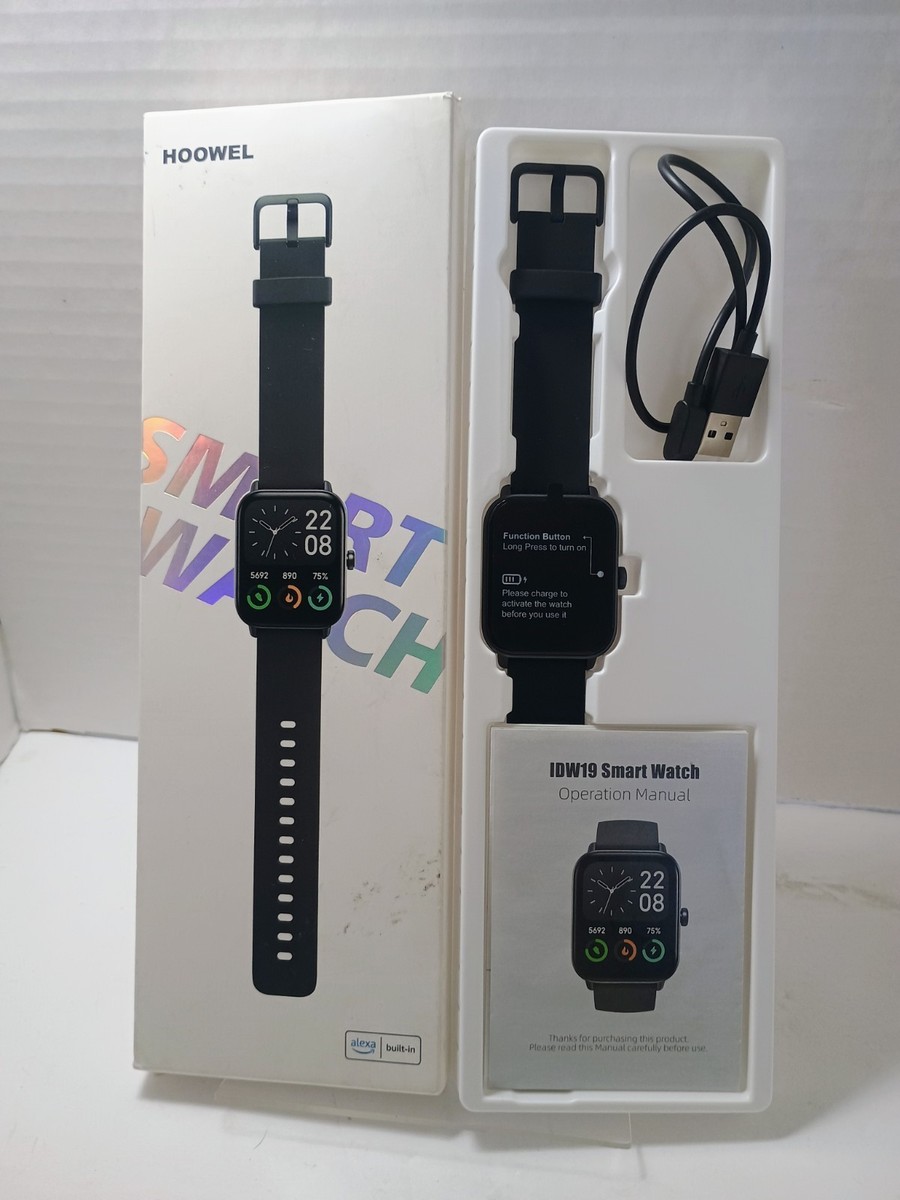
Many people rely on their smartwatches to track health, manage notifications, and stay connected throughout the day. So when your Idw19 smartwatch does not turn on, it can be frustrating and confusing. While this issue is common among new and experienced users, the good news is that most causes have clear solutions. By understanding why your device is not powering up, you can often bring it back to life without expensive repairs or long waits for customer service.
This guide will help you find out why your Idw19 smartwatch will not turn on and what you can do about it. We will cover 19 possible reasons, from basic mistakes to technical issues. For each reason, you will learn what to check, how to fix it, and when you might need expert help.
Along the way, you’ll see practical examples, learn about common misunderstandings, and get tips to avoid future problems. Let’s begin by looking at the most likely issues and their solutions.
1. Battery Is Completely Drained
One of the most common reasons your Idw19 smartwatch is not turning on is that the battery is completely empty. Smartwatches use small batteries that can run out quickly if you forget to charge them, use power-hungry features, or leave the device unused for several days.
When the battery is fully drained, the watch may not respond at all—even when you press the power button. Sometimes, the screen may remain black, and you might not see any charging symbol at first.
What to do:
Plug your Idw19 smartwatch into its charger and use a reliable USB power source. Leave it connected for at least 30–60 minutes before trying to turn it on. Some devices need extra time to wake up when the battery is deeply discharged.
Practical tip:
If your watch turns on after charging, consider setting daily or weekly charging reminders to avoid this issue in the future.
2. Charger Or Cable Is Faulty
If your charging cable or adapter is damaged, your Idw19 smartwatch may not receive any power. This is a common but often overlooked cause, especially if you use third-party or old chargers.
Signs to look for:
- The charging cable shows visible damage or fraying.
- The watch does not show a charging icon or respond when connected.
- The charger works with other devices but not your smartwatch.
How to fix:
Try using the original charger and cable that came with your watch. If you have another compatible charger, test it to see if the problem is with your current accessories.
Non-obvious insight:
Even if a cable appears intact, internal wires can break, causing charging failures. Always test with a known working charger before assuming the problem is with the watch itself.
3. Charging Port Is Dirty Or Blocked
The charging contacts on your Idw19 smartwatch are small and can easily become dirty, oily, or blocked by dust. This can stop the device from charging.
How to check:
Look closely at the charging contacts on both the watch and cable. Use a flashlight if needed.
How to clean:
- Use a soft, dry brush (like a toothbrush) to gently clean the contacts.
- Do not use water or metal tools.
- If you see stubborn dirt, use a cotton swab lightly dampened with rubbing alcohol, then let it dry fully before charging.
Practical example:
Many users notice their watch charges again after cleaning the contacts, even when it appeared “dead. ”
4. Power Button Is Stuck Or Faulty
A stuck or broken power button can prevent your Idw19 smartwatch from turning on. This happens if dust, sweat, or impact damages the button.
How to check:
Press the button firmly but gently. Does it feel normal, or does it feel stuck, soft, or unresponsive?
How to fix:
- Clean around the button with a dry cloth.
- Try pressing the button multiple times.
- If the button remains stuck, do not force it; seek professional repair.
Non-obvious insight:
Sometimes, smartwatch buttons become less responsive after exposure to water or sweat, even if the watch is “water-resistant. ”
5. Software Crash Or Freeze
Like all smart devices, the Idw19 smartwatch can experience a software crash or freeze. If the system is stuck, the screen may stay black, and normal power-on does not work.
How to reset:
- Hold the power button for at least 15–20 seconds. This often forces a reboot.
- Some models have a combination (for example, hold both buttons if your watch has more than one).
What to expect:
If the software was frozen, you should see the logo or boot animation after a forced reset.
Pro tip:
After restarting, check for firmware updates to reduce future crashes.
6. Firmware Update Failed
A failed firmware update can cause your Idw19 smartwatch to stop responding. This can happen if the update is interrupted, or the battery dies during installation.
Symptoms:
- The device will not turn on after an update attempt.
- The screen remains black, or the watch is stuck on a logo.
Possible solutions:
- Connect the watch to the charger and leave it for an hour.
- Try the forced restart method (hold the power button for 20 seconds).
- If available, use the companion app on your phone to re-initiate the update.
When to seek help:
If the device does not recover, contact support. Do not try random firmware files, as this can “brick” the device.
7. Screen Or Display Is Broken
Sometimes, the display is damaged, but the watch is still working internally. This can happen after a drop, impact, or exposure to water.
How to check:
- Listen for vibration or sounds when you press the power button.
- Try calling or sending a notification to your smartwatch to see if you feel a buzz.
What to do:
If you suspect a broken screen, do not try to open the device yourself. Seek professional repair or contact the manufacturer.
Data table comparing symptoms of battery vs display issues:
| Symptom | Battery Issue | Display Issue |
|---|---|---|
| No vibration or sound | Yes | No |
| Screen stays black | Yes | Yes |
| Responds to notifications | No | Yes |
| Charging icon visible | No | Sometimes |
8. Water Or Moisture Damage
Although many smartwatches are advertised as water-resistant, they are not waterproof. Water entering the device can short-circuit it or damage components.
Signs of water damage:
- Foggy or wet screen
- Buttons feel sticky or unresponsive
- Device stopped working after swimming or shower
What to do:
- Remove the watch from water immediately.
- Do not try to turn it on.
- Dry the device with a towel and leave it in a dry place for 48 hours.
- Silica gel packs (not rice) can help absorb moisture.
Important:
If the device does not recover, professional cleaning may be required. Water damage often voids the warranty.
Credit: www.ebay.com
9. Battery Is Defective Or Old
All rechargeable batteries, including those in the Idw19 smartwatch, lose capacity over time. A defective or old battery may no longer hold a charge, even if you plug it in.
Signs to look for:
- Watch turns off quickly after unplugging
- Device gets unusually hot during charging
- Battery life was getting worse over time
Solution:
- If your watch is still under warranty, contact the manufacturer.
- For out-of-warranty devices, battery replacement by a technician is needed.
Non-obvious insight:
Extreme temperatures (both hot and cold) can speed up battery aging.
10. Incorrect Charger Used
Using the wrong charger can prevent your smartwatch from charging properly. Some chargers do not supply the correct voltage or current.
What to check:
- Use the official charger if possible.
- If using a third-party charger, check that it supports the same voltage and current as the original (usually printed on the charger and in your watch’s manual).
Comparison of charger specifications:
| Charger Type | Voltage | Current | Safe for Idw19? |
|---|---|---|---|
| Official charger | 5V | 1A | Yes |
| Phone charger (fast charge) | 9V | 2A | No |
| Low-power USB port | 5V | 0.5A | Maybe (slow charging) |
Practical tip:
Avoid fast chargers unless the watch manual says they are supported.
11. Firmware Corruption
Sometimes, the software that controls your Idw19 smartwatch becomes corrupted. This can happen during updates, failed syncs, or due to malware.
Symptoms:
- The device does not start or is stuck in a boot loop (repeatedly turning on and off).
- The watch does not connect to the app.
What to try:
- Perform a hard reset (see your manual for the exact button combination).
- Reinstall firmware using the official app, if available.
Important:
Never attempt to flash random firmware from the internet. This can permanently damage your device.
12. Temperature Extremes
Exposure to very high or low temperatures can stop your Idw19 smartwatch from working. Batteries and electronics are sensitive to temperature.
Examples:
- Leaving the watch in a hot car or direct sunlight
- Wearing the watch in a sauna or freezing weather
What to do:
- Move the watch to a room-temperature environment.
- Let it rest for at least 1 hour before turning it on or charging.
Non-obvious insight:
Charging a battery when it’s too hot or cold can cause permanent damage.
13. Magnetic Interference
Smartwatches use magnets for charging and sensors. Strong magnets or devices with magnetic fields (like speakers) can sometimes interfere with the watch’s operation.
How to check:
- Did you store your watch near a magnetic device?
- Did the problem start after using a new accessory?
What to do:
- Move the watch away from all magnets.
- Try restarting after a few hours.
Practical tip:
Avoid placing your watch near laptops, speakers, or magnetic clasps when not in use.
14. Physical Damage To Internal Components
A hard drop or impact can damage the internal parts of your Idw19 smartwatch. Sometimes, the outside looks fine, but the inside is broken.
Symptoms:
- No response at all, even when charging
- Watch feels loose or rattles inside
What to do:
- Do not try to open the device yourself.
- Contact an authorized repair center.
Real example:
One user reported their watch stopped working after falling from a desk, even though the screen did not crack. The battery connector inside had come loose.
15. Firmware Incompatibility
If you use your Idw19 smartwatch with an app or phone that is not fully supported, firmware incompatibility can cause it to freeze or fail to start.
Signs to look for:
- The problem started after updating your phone or app.
- The watch no longer syncs or powers up after changes.
What to do:
- Check for updates to both the watch and companion app.
- If possible, connect to a phone with an older, compatible version.
Practical tip:
Always read compatibility notes before updating your phone or watch firmware.
16. Unrecognized Device By Computer
When you connect your smartwatch to a computer for charging or updates, sometimes the device is not recognized. This can stop charging or prevent firmware installation.
How to check:
- Does the computer show any message when you connect the watch?
- Try using a different USB port or cable.
How to fix:
- Use a direct USB port (not a hub).
- Restart both the computer and the watch.
- Install any required drivers if prompted.
Non-obvious insight:
Some smartwatches only charge from a wall adapter, not a computer’s USB port.

Credit: www.amazon.com
17. Watch Is In Power-saving Or Sleep Mode
If your Idw19 smartwatch is set to an ultra power-saving mode, it may appear to be off when it is actually in deep sleep.
How to check:
- Press and hold the power button for several seconds.
- Place the watch on the charger to wake it up.
What to do:
- If the watch turns on, disable power-saving mode in settings.
Pro tip:
Review power-saving settings to avoid confusion with the device being “dead. ”
18. App Or Bluetooth Connection Problems
Sometimes the smartwatch appears off because it is not communicating with your phone. Connection issues can stop notifications, health tracking, or app functions, making the watch seem unresponsive.
What to check:
- Is Bluetooth enabled on your phone?
- Is the app running and updated?
How to fix:
- Restart both the watch and your phone.
- Unpair and re-pair the devices through Bluetooth settings.
Non-obvious insight:
Some watches “wake up” only when connected to the app, so lost connections can cause confusion.
19. Manufacturing Defect
In rare cases, your Idw19 smartwatch may have a factory defect. No amount of charging, resetting, or troubleshooting will fix this.
What to do:
- If you bought the watch recently, check your warranty.
- Contact the seller or manufacturer for a replacement.
Practical example:
A small number of users report their device never turned on from the box. Warranty service usually covers these cases.
When To Seek Professional Help
You have now seen 19 reasons why your Idw19 smartwatch might not turn on. If you have tried all the steps above and your device is still dead, it is time to contact an authorized service center. Avoid opening the device yourself, as this can void your warranty or cause further damage.
Before seeking repair, gather this information:
- Purchase date and proof of purchase
- Description of what happened
- What steps you already tried
This will help the technician diagnose the problem quickly.
How To Prevent The Idw19 Smartwatch Not Turning On
Prevention is always easier than repair. Here are some tips to avoid power issues in the future:
- Charge regularly and do not let the battery drain completely.
- Use official chargers or high-quality third-party accessories.
- Keep charging contacts clean and dry.
- Update firmware only when the battery is full and never interrupt updates.
- Avoid extreme temperatures and magnetic fields.
- Use a protective case if you are active or prone to dropping the watch.
- Check compatibility before updating apps or your phone.
Data Comparison: Most Common Causes By User Reports
To help you focus your troubleshooting, here is a summary table based on user reports:
| Cause | Estimated Frequency (%) | Easy to Fix? |
|---|---|---|
| Battery drained | 40 | Yes |
| Charger/cable issue | 18 | Yes |
| Software crash | 12 | Yes |
| Physical damage | 9 | No |
| Other causes | 21 | Depends |

Credit: manuals.plus
Frequently Asked Questions
Why Does My Idw19 Smartwatch Show No Signs Of Life When I Press The Power Button?
If your watch shows no response at all, the most likely reasons are a fully drained battery, a faulty charger, or internal damage. Start by charging with a known working cable for at least an hour. If that fails, check for physical damage or try a forced restart.
Can I Use Any Phone Charger With My Idw19 Smartwatch?
No. While some phone chargers work, others may supply the wrong voltage or current. Always use the original charger or one that matches the official specifications to avoid damaging the battery or charging circuit.
My Idw19 Smartwatch Stopped Working After A Swim. What Should I Do?
First, dry the watch thoroughly and leave it in a dry place with silica gel packs for 48 hours. Do not try to turn it on while wet. If it does not recover, contact a service center. Water damage is a common reason for smartwatch failure.
Will A Software Update Fix My Idw19 Smartwatch If It Does Not Turn On?
A software update can sometimes solve power issues caused by a software crash or firmware problem. However, if the device does not power up at all, you may not be able to update it without professional help. Try a forced restart first.
Where Can I Find More Information About Smartwatch Care And Troubleshooting?
For more detailed tips and official troubleshooting steps, visit the Wikipedia Smartwatch page. This resource covers smartwatch basics, care, and technical information.
Your Idw19 smartwatch is a useful tool, and most power issues can be solved with careful troubleshooting. If you follow the steps above for each possible cause, you increase the chance of fixing the problem without stress or delay. By learning about these 19 reasons, you also reduce the risk of future problems and get the most value from your device.
Stay patient, keep your device in good condition, and reach out for help when needed.