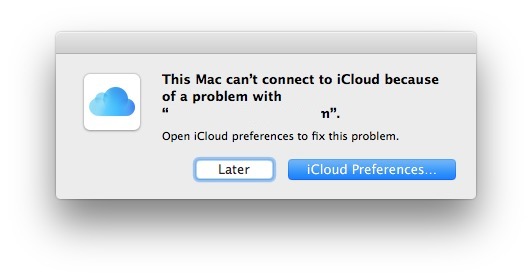
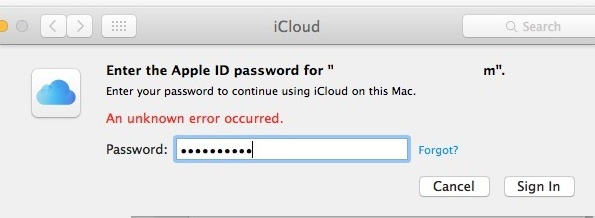
When your iCloud stops syncing and shows an unknown error, it can feel confusing and stressful. You expect your photos, notes, contacts, and files to appear across all devices. Suddenly, they don’t. You see messages like “An unknown error occurred,” or syncing simply fails without warning. This problem affects millions of users, from students to business owners. Many worry about losing important data or missing updates between devices. Fixing iCloud errors isn’t always easy, especially when the cause isn’t clear. But with the right approach, you can solve most issues and keep your devices in sync.
This guide explains why iCloud not syncing unknown error happens, how to fix it step-by-step, and how to avoid future problems. You’ll learn practical solutions, common mistakes, and some advanced tips that many beginners miss. Whether you use iPhone, iPad, Mac, or Windows, you’ll find answers here. Let’s get started so you can get back to smooth syncing and peace of mind.
Understanding Icloud Syncing And Unknown Errors
iCloud is Apple’s cloud service. It stores and syncs your photos, contacts, calendars, notes, and files across devices. When you add something on your iPhone, it appears on your Mac or iPad. If syncing fails, your data doesn’t update. An unknown error means iCloud can’t tell you what’s wrong.
How Icloud Syncing Works
iCloud works by connecting your devices to Apple’s servers. Each device uses your Apple ID. When you make changes (like adding a contact), iCloud updates that change everywhere. Syncing depends on:
- Internet connection
- Apple ID
- ICloud account settings
- Device software
- Server status
If one of these fails, syncing stops. Sometimes iCloud gives a clear error (like “not enough storage”). Sometimes, it says “unknown error,” which is much harder to fix.
Why Unknown Errors Happen
Unknown errors can come from:
- Network issues: Weak Wi-Fi or no internet.
- Account problems: Wrong Apple ID, expired password.
- Software bugs: Outdated iOS/macOS, corrupted files.
- Server outages: Apple’s servers are down.
- Third-party apps: Apps that block iCloud sync.
- Device settings: Incorrect permissions or restrictions.
These errors are “unknown” because iCloud can’t identify the exact cause. Sometimes, multiple issues combine.
Common Signs Of Icloud Syncing Failure
- Photos or files missing across devices
- Contacts don’t update after changes
- Notes not appearing in the Notes app
- “iCloud syncing failed” or “unknown error” message
- Data appears on one device but not another
If you see these symptoms, you’re facing an iCloud syncing problem.
Step-by-step Solutions For Icloud Not Syncing Unknown Error
Solving unknown errors means checking every possible cause. Here’s a practical approach.
1. Check Your Internet Connection
ICloud relies on a stable internet connection. If your Wi-Fi is weak or you have no data, syncing will fail.
- Test your connection by opening a website.
- Switch between Wi-Fi and cellular data.
- Restart your router if needed.
2. Verify Apple’s Icloud System Status
Sometimes, Apple’s servers are down. This is rare but possible. Visit Apple’s System Status page and check for outages.
If servers are down, you must wait. Don’t waste time troubleshooting until Apple fixes it.
3. Confirm Apple Id And Account Settings
Check you’re logged in with the correct Apple ID on all devices.
- Go to Settings > [Your Name] > iCloud.
- Confirm your email and Apple ID.
- If you see a prompt to re-enter your password, do it.
If you use multiple Apple IDs, syncing won’t work.
4. Update Device Software
Outdated software often causes syncing errors. Update your devices to the latest iOS, iPadOS, or macOS.
- On iPhone/iPad: Settings > General > Software Update.
- On Mac: Apple Menu > System Preferences > Software Update.
After updating, restart your device. Many unknown errors vanish after a fresh install.
5. Check Icloud Storage
If your iCloud storage is full, syncing will fail.
- Go to Settings > [Your Name] > iCloud > Manage Storage.
- Check how much space is left.
- Delete unwanted files, photos, or backups if needed.
Apple gives 5GB free. You may need to upgrade if you use iCloud for photos, files, and backups.
6. Review Icloud Settings For Each App
ICloud lets you choose which apps sync. If syncing is off for an app, data won’t update.
- Go to Settings > [Your Name] > iCloud.
- Check toggles for Photos, Contacts, Calendars, Notes, Files.
- Turn on syncing for all needed apps.
Sometimes, toggles switch off after software updates. Always double-check.
7. Restart All Devices
Restarting solves many unknown errors by resetting connections.
- Power off and on your iPhone, iPad, or Mac.
- Wait a minute before turning back on.
This simple step fixes many invisible issues.
8. Sign Out And Sign In To Icloud
Signing out removes your account from the device. Signing in refreshes the connection.
- Go to Settings > [Your Name] > Sign Out.
- Restart your device.
- Sign in again with your Apple ID.
This solves account glitches that cause unknown errors.
9. Disable Vpn And Security Apps
VPNs and third-party security apps sometimes block iCloud servers.
- Turn off VPN in Settings.
- Disable any firewall or security app temporarily.
- Try syncing again.
If it works, adjust VPN settings to allow iCloud.
10. Reset Network Settings
Network problems may cause unknown errors. Resetting network settings can help.
- On iPhone/iPad: Settings > General > Reset > Reset Network Settings.
- On Mac: Remove and re-add Wi-Fi networks.
Warning: This removes saved Wi-Fi passwords.
11. Check Device Permissions
Some apps need permission to access iCloud. If permissions are missing, syncing fails.
- Go to Settings > Privacy.
- Check permissions for contacts, photos, notes, etc.
- Allow access if needed.
12. Remove And Re-add Icloud Account
If nothing works, remove iCloud from your device and add it again.
- Sign out of iCloud.
- Restart device.
- Sign in again.
This resets all iCloud settings and connections.
13. Contact Apple Support
If you still have problems, contact Apple Support. They can check your account and devices for hidden errors.
Credit: osxdaily.com
Data Table: Common Icloud Syncing Error Causes
Here’s a quick comparison of error causes and solutions:
| Error Cause | Typical Symptom | Quick Fix |
|---|---|---|
| Weak Internet | Data not updating | Check connection, restart router |
| Wrong Apple ID | Data missing | Sign in with correct ID |
| Outdated Software | Syncing fails | Update device software |
| iCloud Storage Full | Photos/files missing | Free up space |
| VPN/Security App | Unknown error message | Disable VPN/app |
| Server Outage | All devices affected | Wait for Apple fix |
Advanced Troubleshooting For Persistent Unknown Errors
Sometimes, basic steps don’t solve the problem. Here’s how to go deeper.
Check For Corrupted Data
Corrupted files or contacts can block syncing. Delete any suspicious files, contacts, or notes. Try syncing again.
Use Icloud.com For Testing
Log in to iCloud.com. If your data appears online but not on your device, the problem is local. If data is missing online, it’s an iCloud issue.
Compare Device Syncing Status
Not all devices sync at the same speed. Compare your devices using this table:
| Device | Sync Speed | Common Issues |
|---|---|---|
| iPhone | Fast | App permissions, network drops |
| iPad | Medium | Storage, outdated software |
| Mac | Variable | Firewall, account mismatch |
| Windows PC | Slow | iCloud app bugs, compatibility |
Check Background App Refresh
If Background App Refresh is off, apps may not sync. Enable it in Settings > General > Background App Refresh.
Review Apple’s Support Forums
Apple’s support forums have real user experiences. Search your exact error message. Sometimes, you’ll find a solution not in official guides.

Credit: www.reddit.com
Non-obvious Insights: What Beginners Often Miss
- Sync Delay Is Normal: Sometimes syncing takes time, especially with large files or slow internet. Don’t panic if changes don’t appear instantly.
- Local vs. Cloud Data: If you delete something locally, it may not disappear from iCloud immediately. Always check on iCloud.com.
- Third-Party App Interference: Apps like antivirus, VPN, or backup tools can block iCloud. If you recently installed new software, try disabling it.
Preventing Future Icloud Syncing Errors
Once you fix the problem, keep your devices running smoothly.
Keep Software Updated
Always update your devices. Apple releases patches for syncing bugs.
Use Strong, Stable Internet
Avoid public Wi-Fi when syncing sensitive data. Use a private, stable connection.
Monitor Icloud Storage Regularly
Don’t wait for storage to run out. Check your usage every month.
Avoid Multiple Apple Ids
Stick to one Apple ID. Using several IDs causes syncing confusion.
Backup Your Data
Keep backups on your computer or external drive. If iCloud fails, you won’t lose important files.
Review Permissions
After updates, check app permissions. Sometimes updates reset settings.
Credit: osxdaily.com
Data Table: Icloud Storage Plans And Features
Understanding storage is key to avoiding errors. Here’s a comparison:
| Plan | Storage | Main Features | Price (USD/month) |
|---|---|---|---|
| Free | 5 GB | Basic backup, photos, notes | $0 |
| 50 GB | 50 GB | More photos, backups, files | $0.99 |
| 200 GB | 200 GB | Family sharing, large backups | $2.99 |
| 2 TB | 2 TB | Full device backup, pro use | $9.99 |
Real-world Examples: Icloud Syncing Issues And Solutions
Example 1: Student’s Notes Not Syncing
A college student notices her Notes app isn’t updating across devices. She checks iCloud storage and finds it’s full. After deleting old photos and files, syncing resumes.
Example 2: Business Owner’s Contacts Missing
A small business owner uses iCloud for contacts. After a software update, his contacts stop syncing. He discovers the Contacts toggle is off in iCloud settings. Turning it on solves the issue.
Example 3: Family Photos Not Appearing
A family shares photos via iCloud. Suddenly, some photos don’t appear on Dad’s iPad. He checks Apple’s System Status and finds a server outage. He waits, then syncing returns.
These examples show how simple fixes solve most unknown errors.
Frequently Asked Questions
What Should I Do If Icloud Shows “unknown Error” But Everything Else Seems Fine?
First, check your internet connection and Apple’s System Status. Update your device software and review your iCloud settings for each app. If the error continues, sign out and sign in to iCloud, and restart your device. Sometimes, a simple refresh solves hidden problems.
Does Using Multiple Apple Ids Cause Icloud Syncing Errors?
Yes, using different Apple IDs on devices can confuse iCloud and stop syncing. Always use the same Apple ID on all devices you want to sync. If you need separate accounts, keep them clearly separated.
How Long Does Icloud Syncing Usually Take?
Syncing time depends on your internet speed and the amount of data. Small changes appear within seconds. Large files (like photos) may take minutes or longer, especially on slow connections. If syncing is slow, check your Wi-Fi and iCloud storage.
Can Third-party Apps Block Icloud Syncing?
Yes, VPNs, firewalls, antivirus, and backup apps may block iCloud servers or interfere with syncing. If you have syncing problems, try disabling these apps temporarily. If syncing works, adjust their settings to allow iCloud.
What If Icloud Storage Is Full And Syncing Fails?
When iCloud storage is full, syncing stops. Delete unnecessary files, photos, or backups. You can also upgrade your storage plan. Check your storage regularly to avoid future errors.
Solving iCloud not syncing unknown error can be tricky, but most problems have clear solutions. By following the steps above, you can fix syncing failures, prevent future errors, and keep your data safe. Remember, patience and careful checking are key. If you need more help, Apple Support is always available. Syncing your devices reliably will give you confidence and peace of mind every day.