If you depend on your iPhone, iPad, or Mac to keep your contacts organized, it can be frustrating when iCloud Contacts not syncing. Suddenly, you can’t find someone’s number, or new contacts you add on your phone don’t show up on your computer. This problem can disrupt your work, communication, and even personal life. Syncing issues are common, but they are rarely unsolvable.
In this guide, you’ll learn exactly why iCloud Contacts may not sync, how to fix it step by step, and what you can do to avoid future issues. Whether you use iOS, macOS, or both, you’ll find practical solutions and useful tips.
Even if you’re not tech-savvy, you’ll see that syncing can be reliable again with the right actions.
Why Do Icloud Contacts Fail To Sync?
Before you jump to fixing, it helps to know what might be causing the problem. iCloud Contacts depend on several factors working together. If one fails, syncing stops. Here are the most common reasons:
1. Internet Connection Problems
ICloud needs an active internet connection. If your device goes offline or the connection is unstable, contacts won’t sync.
2. Icloud Account Issues
If you’re not signed in, or if your iCloud account has verification errors, syncing fails.
3. Icloud Storage Full
When your iCloud storage is full, new data—including contacts—can’t upload.
4. Settings Misconfiguration
If iCloud Contacts is disabled in your device settings, syncing won’t happen.
5. Software Bugs Or Outdated Os
Older software sometimes has bugs that newer updates fix.
6. Third-party Apps Conflicts
Some apps manage contacts differently or overwrite iCloud settings.
7. Corrupted Contact Data
Rarely, a single corrupted contact can interrupt the whole sync process.
Understanding these causes helps you focus your troubleshooting. Now let’s move into the solutions.
Quick Checks Before Troubleshooting
Sometimes, the simplest checks solve the problem immediately. Run through these steps first:
- Check Wi-Fi or Mobile Data: Open Safari or another app to test your internet.
- Restart Your Device: Simple reboots often fix minor issues.
- Check Apple System Status: Visit Apple’s system status page to see if iCloud is down.
- Sign In to the Same Apple ID: Make sure every device uses the same Apple ID.
If syncing still doesn’t work, move on to the following steps.
Step-by-step Solutions For Icloud Contacts Not Syncing
Let’s walk through each solution, from basic to advanced. Try them in order for best results.
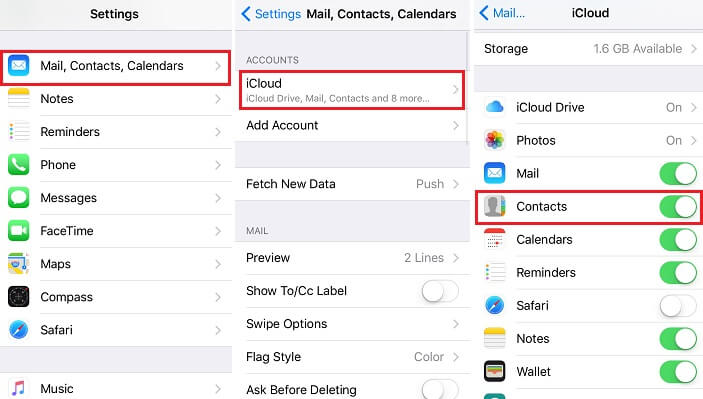
1. Make Sure Icloud Contacts Is Enabled
On iPhone or iPad:
- Open Settings
- Tap your name (Apple ID banner) at the top
- Tap iCloud
- Ensure Contacts is toggled ON
On Mac:
- Open System Settings (or System Preferences on older macOS)
- Click Apple ID > iCloud
- Make sure Contacts is checked
If Contacts is already enabled, try toggling it OFF, wait 10 seconds, then ON again.
2. Force Contacts To Sync
On iOS:
- Open Contacts app
- Pull down from the top to refresh
On Mac:
- Open Contacts
- Click All iCloud
- From the Card menu, choose Look for Duplicates (sometimes this triggers syncing)
- Close and reopen the app
3. Update Your Device
Outdated software can block syncing. Update your device:
- On iPhone/iPad: Settings > General > Software Update
- On Mac: System Settings > General > Software Update
Install any available updates and restart.
4. Check Icloud Storage
If your iCloud storage is full, contacts can’t sync. To check:
- Settings > [your name] > iCloud > Manage Storage (iOS)
- System Settings > Apple ID > iCloud > Manage (Mac)
If storage is nearly full, free up space by deleting unnecessary backups, files, or photos.
5. Sign Out And Back In To Icloud
This refreshes your sync connection:
- Go to Settings (iOS) or System Settings (Mac)
- Tap your name, scroll down, and tap Sign Out
- Wait a minute, then sign in again
Warning: Signing out may remove some iCloud data from the device. Make sure you have a backup.
6. Check Default Account For Contacts
Sometimes, contacts save to another account (like Gmail), not iCloud.
On iPhone/iPad:
- Settings > Contacts > Default Account
- Choose iCloud
On Mac:
- Open Contacts > Preferences > Accounts
- Set iCloud as default
7. Disable And Re-enable Icloud Contacts
This can reset stuck syncing.
On iOS:
- Settings > [your name] > iCloud > Contacts > Toggle OFF
- Choose Keep on My iPhone
- Wait a minute, toggle Contacts ON
On Mac:
- System Settings > Apple ID > iCloud > Uncheck Contacts
- Wait, then recheck
8. Merge Local Contacts With Icloud
If you have contacts saved locally, you can move them to iCloud:
On iPhone:
- Settings > Contacts > Accounts > On My iPhone
- Move contacts to iCloud one by one (edit and assign to iCloud group), or use “Export” and “Import” in the Contacts app on Mac.
9. Reset Network Settings
Bad network settings can block iCloud. On iOS:
- Settings > General > Transfer or Reset iPhone > Reset > Reset Network Settings
You’ll need to re-enter Wi-Fi passwords.
10. Reboot All Devices
Restart each device connected to your iCloud account. This is especially helpful if you use multiple devices.
11. Remove And Re-add Icloud Account
As a last resort:
- Delete the iCloud account from the device
- Add it back and enable Contacts
This will trigger a full resync.
Comparing Icloud Contacts Sync: Iphone Vs Mac
To clarify how syncing should work, here’s a comparison of iCloud Contacts on iPhone and Mac:
| Feature | iPhone/iPad | Mac |
|---|---|---|
| Sync Frequency | Automatic (push) | Automatic (push), Manual refresh possible |
| Contacts App | Native Contacts app | Contacts app |
| Default Account Option | Yes (iCloud/Gmail/Other) | Yes (iCloud/Other) |
| Manual Export/Import | No | Yes |
| Merge Local Contacts | Limited (edit contact) | Full import/export |
| Network Dependency | Wi-Fi/Mobile Data | Wi-Fi/Ethernet |
This shows that Mac gives you more control, especially with importing and exporting contacts.
Credit: www.sync-mac.com
Common Mistakes That Interrupt Icloud Contact Sync
Even experienced users can make errors that cause syncing to stop. Here are some frequent mistakes:
1. Saving New Contacts To The Wrong Account
If you add contacts to Gmail or “On My iPhone,” they won’t sync with iCloud.
2. Having Multiple Apple Ids
If different devices use different Apple IDs, contacts won’t match up.
3. Not Enabling Icloud For Contacts
It’s easy to forget this toggle during setup.
4. Outdated Software
Delaying updates can cause compatibility issues.
5. Ignoring Storage Warnings
When iCloud is full, you may see alerts that are easy to dismiss.
6. Using Third-party Contact Apps
Some contact managers don’t sync with iCloud at all.
Troubleshooting Advanced Sync Issues
If you’ve tried everything above and contacts still won’t sync, more advanced steps might be needed.
Check For Duplicate Or Corrupted Contacts
Corrupted entries can halt syncing.
- On Mac, open Contacts > Card > Look for Duplicates
- Delete any contacts with odd characters or incomplete info
- Sync again
Inspect Icloud Web
Visit iCloud Contacts in your browser. Check if your contacts appear there:
- If contacts appear on the web but not on your device, the issue is with your device.
- If contacts don’t appear on the web, the issue is with uploading from your device.
Review Account Security
Sometimes, Apple locks accounts for security. Check if your Apple ID needs verification or if you have two-factor authentication enabled. Update your password if prompted.
Use Contact Export/import
On Mac, you can export contacts as vCards and re-import them:
- Open Contacts
- Select all contacts, File > Export > vCard
- Delete local contacts (after backup)
- Import vCard into iCloud
This often fixes sync issues caused by corrupted databases.
How To Prevent Icloud Contacts Sync Problems
Prevention is easier than troubleshooting. Here are steps to keep your contacts in sync:
- Keep Your Devices Updated: Regularly check for iOS/macOS updates.
- Stick to One Apple ID: Use the same Apple ID everywhere.
- Back Up Regularly: Export contacts as a backup every few months.
- Avoid Third-Party Contact Apps: Unless you know they work with iCloud.
- Monitor iCloud Storage: Don’t let it get too full.
- Check Sync Status: Occasionally visit iCloud.com to confirm contacts match.
Real-life Example: Fixing Icloud Contacts Sync
Consider a user named Sara. She adds new contacts on her iPhone, but they don’t show up on her Mac. Here’s how she solved it:
- Checked Internet Connection: Both devices were online.
- Verified Apple ID: Same account on both devices.
- Checked iCloud Settings: Contacts enabled on iPhone, but not on Mac.
- Enabled iCloud Contacts on Mac: Instantly, contacts started syncing.
Sara had simply forgotten to enable Contacts in her Mac’s iCloud settings. This shows that often, the solution is simple but easy to overlook.
Data Security And Privacy Concerns
Many users worry about the privacy of their contacts. iCloud uses end-to-end encryption for your contacts. This means only you can access them, even if someone accesses Apple’s servers.
However, you should:
- Use a strong Apple ID password
- Enable two-factor authentication
- Avoid sharing your Apple ID
This protects your contacts from unauthorized access.
Icloud Vs Competing Contact Sync Services
Some users wonder if other services are more reliable. Here’s a quick comparison:
| Service | Platform Support | Automatic Sync | Security | Ease of Use |
|---|---|---|---|---|
| iCloud | Apple devices (iOS, macOS, web) | Yes | End-to-end encryption | Very easy |
| Google Contacts | Android, iOS, web | Yes | Standard encryption | Easy |
| Microsoft Outlook | Windows, macOS, web, iOS, Android | Yes | Standard encryption | Moderate |
ICloud is the best choice for users who mainly use Apple devices.

Credit: www.youtube.com
Two Insights Many Users Overlook
1. Manual Sync Is Rarely Needed
ICloud is designed for automatic sync. If you find yourself constantly refreshing or manually exporting/importing, something is wrong. Fix the root issue instead of relying on manual workarounds.
2. Local Vs Icloud Contacts
Many users don’t realize they may still have “On My iPhone” or “On My Mac” contacts. These do not sync. Always check your default save location—otherwise, your contact list will always be incomplete across devices.
When To Contact Apple Support
If you’ve tried all solutions and contacts still don’t sync, it’s time to contact Apple Support. Persistent issues could mean a deeper account or device problem. Sometimes, Apple can check logs or reset your account’s sync status from their end.
You can reach them at the official Apple Support page or visit an Apple Store.

Credit: learn.microsoft.com
Frequently Asked Questions
Why Are Only Some Of My Contacts Syncing With Icloud?
Usually, this happens because some contacts are saved under a different account (like Gmail or “On My iPhone”). Only contacts stored in iCloud will sync across all devices. Check your default account in settings and move or merge contacts into iCloud.
Will I Lose Contacts If I Turn Off Icloud Contacts?
When you turn off iCloud Contacts, you’ll be asked if you want to keep or delete contacts from your device. If you choose “Keep,” the contacts stay on your device but won’t sync anymore. If you choose “Delete,” they are removed from your device but stay in iCloud (and on other devices).
How Do I Know If My Contacts Are Really Syncing?
Add a new contact on one device. Wait a minute, then check another device signed in to the same Apple ID. If the contact appears, syncing works. You can also check contacts on the iCloud website.
Can I Sync Icloud Contacts With Non-apple Devices?
Yes, but with limitations. You can access iCloud Contacts via the web on Windows or Android. Some email apps let you import iCloud contacts, but automatic syncing isn’t as smooth as on Apple devices.
What Should I Do If Contacts Are Duplicated After Syncing?
Duplicates can happen after enabling sync or merging accounts. On Mac, open the Contacts app, go to Card > Look for Duplicates, and merge them. On iPhone, you’ll need to manually edit or delete duplicates.
Getting your iCloud Contacts syncing again is almost always possible. Stay patient, follow these steps, and you’ll have your contacts available everywhere you need them. If problems continue, Apple Support is ready to help. With careful setup and a little maintenance, you can trust iCloud to keep your address book safe, private, and in sync.