When you want to unwind after a long day, few things are as frustrating as the Hulu app not working. Whether you’re craving your favorite series or looking forward to a new movie release, a glitchy or unresponsive Hulu app can quickly ruin your plans. Streaming issues can pop up on any device—smart TVs, mobile phones, streaming sticks, or even game consoles. The good news? Most Hulu app problems have clear solutions, and with the right steps, you can get back to your entertainment with minimal hassle.
This guide will walk you through the most common reasons why the Hulu app stops working, how to troubleshoot and fix them, and when you might need extra help. Along the way, you’ll find practical tips, real-world examples, and clear explanations to make solving Hulu issues as painless as possible—even if you’re not a tech expert.
Understanding Hulu App Problems
Not all Hulu issues are created equal. Sometimes the problem is with Hulu’s servers, but more often, it’s something on your device or network. Recognizing the type of issue you’re facing is the first step toward a quick fix.
Common Hulu App Issues
Here are some of the most frequent Hulu app problems users report:
- App won’t open or crashes immediately
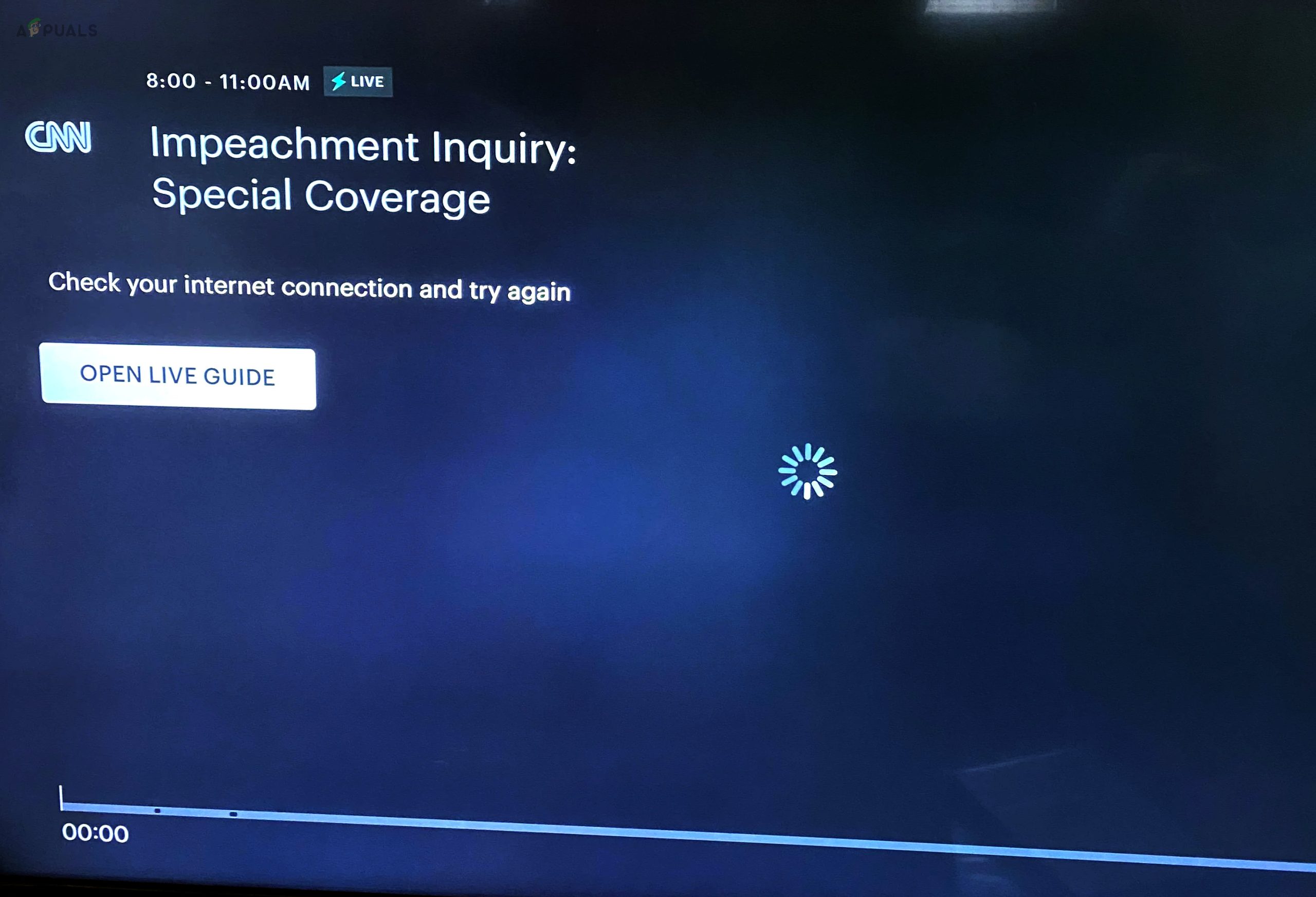
- Video won’t load or is stuck on buffering
- Black screen with audio only
- Error messages (e.g., P-DEV320, RUNUNK13, 5003)
- App freezes or lags during playback
- Login problems or account issues
- Problems with subtitles or audio sync
Each of these issues can have different causes, so it’s important to look for patterns. Does Hulu only crash on your TV but work fine on your phone? Do you see the same error code every time? These clues help narrow down the real problem.
Hulu App Vs. Hulu Service Outages
It’s easy to blame your device or home network, but sometimes the issue is on Hulu’s end. Major outages can affect thousands of users at once. Before spending too much time troubleshooting, check if Hulu’s servers are down. Visit social media, search for Hulu outage maps, or check with sites like Downdetector to see if others are having the same problem.
Quick Checks Before Troubleshooting
Before you dive into advanced fixes, try these simple steps. They solve many Hulu app issues and only take a few minutes.
1. Restart Your Device
Powering off and then turning your device back on often solves temporary glitches.
2. Check Your Internet Connection
A slow or disconnected network is a leading cause of streaming problems. Try loading another website or app to confirm your internet is working.
3. Test A Different App Or Device
Open another streaming app like Netflix or YouTube. If those work but Hulu doesn’t, the problem is likely with Hulu, not your device or network.
4. Update The Hulu App
Outdated apps can cause crashes and other problems. Visit your device’s app store to see if there’s an update for Hulu.
5. Check Hulu’s Status Online
As mentioned earlier, a widespread service outage may be the cause.
If these steps don’t solve the problem, it’s time to go deeper.
Credit: devanshi.com
Device-specific Hulu App Troubleshooting
Hulu is available on a wide range of devices. Sometimes, the best fix depends on what you’re using. Here’s how to troubleshoot Hulu app issues by device type.
Smart Tvs
Smart TVs from brands like Samsung, LG, Sony, and Vizio are popular for streaming Hulu. But they can have unique app issues:
- Clear the app cache: Many smart TVs let you clear an app’s cache through the settings menu. This removes temporary files that might be causing trouble.
- Reinstall the Hulu app: Uninstalling and reinstalling the app often fixes stubborn errors.
- Update your TV’s software: Outdated system software can cause app compatibility problems. Check for system updates in your TV’s settings.
- Try a wired connection: If your TV is far from the router, using an Ethernet cable instead of Wi-Fi can improve streaming reliability.
Streaming Sticks And Boxes (roku, Fire Tv, Apple Tv, Chromecast)
These devices are designed for streaming but can still run into problems.
- Restart the device: Unplug it from power for 30 seconds, then plug it back in.
- Remove and reinstall Hulu: Deleting the app and reinstalling ensures you have the latest version.
- Update device firmware: Like smart TVs, streaming sticks get periodic software updates that fix bugs.
Mobile Devices (ios, Android)
If Hulu isn’t working on your phone or tablet:
- Force close the app: On iOS, swipe up from the bottom to open the app switcher and swipe Hulu away. On Android, use the “Apps” menu in settings.
- Check for device updates: Outdated iOS or Android versions can cause app problems.
- Free up storage: If your device is almost full, it may not run Hulu smoothly. Delete unused apps or files to free up space.
Game Consoles (playstation, Xbox)
- Restart the console: Power off fully and turn back on.
- Clear system cache: Each console has its method for clearing cache—look up your model’s instructions.
- Reinstall Hulu: Remove the app, restart the console, and install Hulu again.
Fixing Common Hulu Error Codes
Hulu often displays error codes when something goes wrong. Here are some of the most common ones and how to fix them.
P-dev320
This is a general streaming error, often related to network or app issues.
- Restart your device and router.
- Try switching between Wi-Fi and mobile data (if on a phone).
- Update the Hulu app.
Rununk13
This error can mean corrupted data or a network problem.
- Clear the Hulu app cache.
- Reinstall the app.
- Try a different device to see if the error is device-specific.
5003
Usually tied to playback errors.
- Check your internet speed (minimum 3 Mbps for Hulu, but 8 Mbps or higher is better for HD).
- Restart your device.
- Try a different internet connection if possible.
Black Screen With Audio
You might hear sound but see no picture.
- Pause, then resume playback.
- Try rewinding or fast-forwarding a few seconds.
- Restart the app.
Internet Speed And Connectivity: The Hidden Problem
Many Hulu app issues come from poor internet connection. Even if your other apps seem fine, Hulu’s video streams require a stable and fast connection.
Recommended Internet Speeds For Hulu
Hulu provides specific recommendations for smooth streaming:
| Streaming Quality | Minimum Speed | Recommended Speed |
|---|---|---|
| SD (Standard Definition) | 1.5 Mbps | 3 Mbps |
| HD (High Definition) | 3 Mbps | 8 Mbps |
| 4K Ultra HD | 16 Mbps | 25 Mbps |
If your connection is below these speeds, you’ll likely see buffering or low-quality video.
How To Test And Improve Your Connection
- Use a speed test website to check your download speed.
- Move closer to your Wi-Fi router or use a wired connection if possible.
- Limit other devices using your network during streaming.
- Restart your modem and router to fix temporary glitches.
Non-obvious Insight: Hidden Network Congestion
Many homes have “peak hours” when internet slows down—often in the evening when everyone is streaming. If Hulu works fine in the morning but not at night, you may need a better internet plan or a new router.
The Importance Of App And Device Updates
Outdated apps and devices are a leading cause of Hulu app issues. Developers often release updates to fix bugs, add new features, and stay compatible with Hulu’s servers.
Why Updates Matter
- Security: Old software can be vulnerable to security risks.
- Compatibility: Hulu sometimes changes its systems, making old app versions obsolete.
- Performance: Updates often fix crashing, freezing, or slow loading.
Make it a habit to check for both app and device updates at least once a month.
How To Update The Hulu App
- On smart TVs and streaming devices: Go to the app store, find Hulu, and select “Update” if available.
- On mobile: Use the App Store (iOS) or Google Play (Android) and check for Hulu updates.
- On game consoles: Visit the console’s app marketplace and check for updates.
Non-obvious Insight: Automatic Updates May Fail
Many people think their devices update apps automatically, but sometimes updates fail due to low storage or network issues. Manually checking for updates can solve problems you didn’t know you had.
Clearing Cache And App Data
Temporary files stored by the Hulu app can become corrupted or outdated, leading to a range of issues.
How To Clear Cache On Popular Devices
- Android: Go to Settings > Apps > Hulu > Storage > Clear Cache.
- Apple devices: Uninstalling and reinstalling the app clears cache and data.
- Smart TVs (like Samsung): Go to Settings > Apps > Hulu > Clear Cache/Data (if available).
- Roku/Fire TV/Apple TV: Removing and reinstalling Hulu is the simplest way.
Clearing the cache does not delete your Hulu account or subscription, but you may need to log in again.
Reinstalling The Hulu App
If updates and clearing cache don’t work, reinstalling the app is a powerful solution. This removes all old data and gives you a fresh start.
Steps For Reinstalling Hulu
- Uninstall the Hulu app from your device.
- Restart your device (important for clearing lingering files).
- Reinstall Hulu from the app store.
- Open Hulu, log in, and try streaming again.
Reinstalling solves many mysterious bugs that don’t respond to other fixes.
Credit: bm-shpk.com
Hulu Account Problems
Sometimes, the problem isn’t with the app or device—it’s with your Hulu account.
Common Account Issues
- Login errors: Double-check your email and password.
- Account suspended: This can happen if your payment method fails. Update your billing info.
- Too many devices: Hulu limits the number of devices streaming at once. Log out of unused devices.
What To Do
- Try logging in on a different device or web browser.
- Reset your password if you can’t remember it.
- Visit the Hulu account page online to check for alerts or messages.
Error Messages And What They Mean
Hulu error codes can be confusing, but they often point to a specific problem.
| Error Code | Likely Cause | Suggested Fix |
|---|---|---|
| P-DEV320 | Network/App issue | Restart device, check network, update app |
| RUNUNK13 | Corrupted data, network | Clear cache, reinstall app |
| 5003 | Playback error | Check connection, restart device |
| BYA-403-007 | Regional restriction | Use Hulu in supported area |
| 94 | App version outdated | Update or reinstall Hulu app |
If you see an error not listed here, search for it on Hulu’s official support site for detailed advice.

Credit: support.google.com
Advanced Solutions For Persistent Problems
If you’ve tried all the basic fixes and Hulu still isn’t working, consider these less obvious solutions.
Change Your Dns Settings
Sometimes, your internet provider’s DNS can cause issues with streaming apps. Switching to a public DNS like Google’s (8. 8. 8. 8 and 8. 8. 4. 4) can improve reliability, especially on smart TVs and streaming sticks.
Check For Vpn Or Proxy Issues
Hulu blocks most VPN and proxy services. If you use one to change your location, Hulu may refuse to play content or show error codes. Disable VPNs and proxies when using Hulu.
Factory Reset Device
As a last resort, factory resetting your device can solve deep software problems. This deletes all apps and settings, so use it only if nothing else works.
Contact Hulu Support
If you’ve tried everything and Hulu still won’t work, contact Hulu support directly. They may be aware of account-specific problems or larger service outages. Have your device information, error codes, and steps you’ve tried ready.
Comparing Hulu App With Other Streaming Services
Understanding how Hulu’s reliability compares to other streaming apps can provide helpful context.
| Service | Reported App Issues (per 100,000 users/month) | Most Common Problem |
|---|---|---|
| Hulu | 550 | Playback errors |
| Netflix | 320 | Login issues |
| Disney+ | 400 | Buffering |
| Prime Video | 500 | App freezing |
While Hulu has more reported issues than Netflix, it’s important to remember that many problems are shared across streaming services. Network strength, device compatibility, and app updates are common trouble spots for all major platforms.
Preventing Future Hulu App Problems
Once you’ve solved your current Hulu issue, a few habits can help prevent future headaches.
- Keep devices and apps updated
- Use a strong, stable internet connection
- Log out of Hulu on unused devices
- Restart your streaming device every few days
- Avoid using VPNs or proxies with Hulu
It’s also wise to bookmark Hulu’s support page and follow their official social media for outage alerts.
When To Replace Your Device
If Hulu and other streaming apps constantly crash or refuse to update, your device may be too old. Most streaming apps only support devices made in the last 5–7 years. If your smart TV or streaming stick can’t install the latest Hulu app, it’s time to consider a replacement.
Newer devices not only support the latest apps but are also more energy efficient and offer better picture quality.
Real User Experiences
Understanding what other Hulu users face can make troubleshooting less stressful. Here are a few real examples:
- Anna from California found her Hulu app crashed every time she paused a show on her Samsung TV. The fix? Updating the TV’s firmware solved everything.
- Mike from Ohio dealt with endless buffering, only to discover his Wi-Fi router was set on a crowded channel. Changing to a less-used channel improved Hulu and all his streaming apps.
- Priya in Texas was stuck with the P-DEV320 error on her phone, but Hulu worked fine on her laptop. Reinstalling the mobile app fixed the problem instantly.
The takeaway: Small details—like device updates, Wi-Fi settings, or even reinstalling an app—can make a big difference.
Additional Resources
If you need more technical help, check out the official Hulu Help Center at Hulu Support. They offer step-by-step guides for every device, live chat, and up-to-date outage info. You can also find helpful discussions on tech forums like Reddit’s r/Hulu.
Frequently Asked Questions
Why Does Hulu Keep Buffering On My Device?
Buffering often happens due to a slow or unstable internet connection. Check your speed using a speed test, restart your router, and limit other devices using the network. For HD streaming, you need at least 8 Mbps.
How Do I Fix The Hulu App Crashing On My Smart Tv?
Try restarting your TV, updating both the Hulu app and your TV’s software, and clearing the Hulu app cache. If that doesn’t help, uninstall and reinstall Hulu.
What Does The P-dev320 Error Mean?
P-DEV320 is a general streaming error usually related to network or app issues. Restart your device and router, update Hulu, and try again. If the error continues, contact Hulu support.
Can I Use Hulu With A Vpn?
Hulu blocks most VPN and proxy services. If you use a VPN, you may see errors or be unable to stream. For the best experience, disable VPNs and proxies while using Hulu.
Why Can’t I Log In To My Hulu Account?
Double-check your email and password, reset your password if needed, and make sure your subscription is active. If problems continue, log in from a different device or browser to see if the issue is device-specific.
—
No one enjoys technical problems during movie night, but most Hulu app issues are easier to fix than they seem. By following the steps in this guide, you can quickly get back to your favorite shows. And if the problem persists, remember that Hulu’s support team and online resources are there to help.
Regular updates, a strong internet connection, and a little troubleshooting knowledge will keep your streaming experience smooth and enjoyable.