A soft glow fills your living room. Your TV flashes with action, and your smart lights should dance along with every explosion and color shift. But your Hue Sync Box just sits there, unmoved. The seamless light and sound experience you expected is broken. Frustrating, isn’t it? If your Hue Sync Box isn’t syncing, you’re not alone—this is one of the most common issues for Philips Hue users. But with the right steps, you can get your immersive lighting system back in action.
What Is The Hue Sync Box And Why Does Syncing Matter?
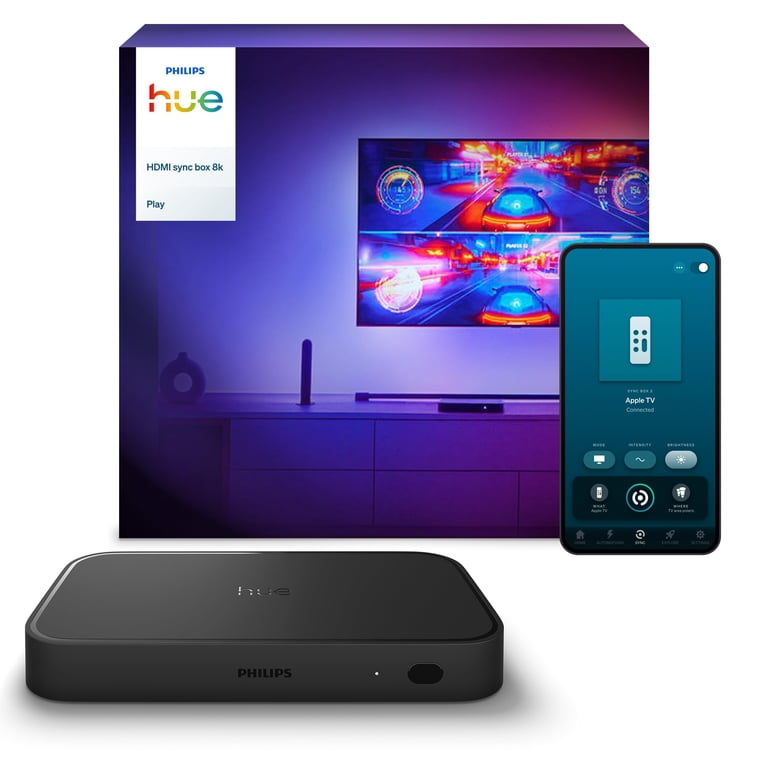
The Philips Hue Sync Box is designed to create an immersive entertainment experience. It connects to your TV or monitor and syncs your Hue lights with the colors and effects on your screen. This means when the screen turns blue, your lights do too. During action scenes, your room flashes in time with the movie. When syncing fails, the lights don’t match what you see, and you lose the magic.
Syncing issues can range from minor delays to total failure, where nothing happens at all. For users who invest in smart lighting for movies, gaming, or ambiance, a non-syncing box can be a major disappointment.
Common Causes Of Hue Sync Box Not Syncing
Before fixing the problem, it helps to know why it happens. Most syncing issues fall into a few categories:
- Connection problems – Poor HDMI or network connections block data.
- Software bugs – Outdated firmware or app versions can cause errors.
- Incompatible devices – Not all TVs, apps, or streaming devices support syncing.
- Network interference – Wi-Fi issues may prevent smooth communication.
- User settings – Misconfigured light zones or entertainment areas stop syncing.
Let’s look at each cause more closely.
Connection Problems
A loose HDMI cable or a bad port can break the link between your media device, the Hue Sync Box, and your TV. If your box can’t “see” what’s happening on screen, it can’t send the right signals to your lights.
Sometimes, the issue is as simple as a poorly inserted cable.
Software Bugs
The Hue Sync Box relies on both firmware (its built-in software) and the Philips Hue app to work. If either one is out of date, bugs or compatibility problems can stop syncing. Updates often fix issues, but many users skip them.
Incompatible Devices
Not every device works perfectly with the Hue Sync Box. For example, some smart TVs or HDMI splitters don’t play well with Philips Hue. Sometimes, even certain streaming apps block video signals in a way the box can’t read.
Network Interference
Though the Sync Box uses HDMI for video, it also relies on your Wi-Fi network to talk to your Hue Bridge and lights. If your network is slow or crowded, signals may not reach the lights quickly enough—or at all.
User Settings
Incorrectly set up entertainment areas, or selecting the wrong HDMI input, can prevent syncing. Sometimes, users forget to assign their lights to the correct zone, or they use settings that don’t match their setup.
Step-by-step Troubleshooting For Hue Sync Box Not Syncing
If your Hue Sync Box isn’t syncing, don’t panic. Here’s a practical, step-by-step process to find and fix the problem.
1. Check Physical Connections
Start with the basics—cables and ports. This is the most common beginner mistake.
- Inspect all HDMI cables: Make sure each one is firmly plugged into the correct port (media device, Sync Box, TV).
- Try different HDMI cables: Sometimes, cables go bad, especially cheap ones.
- Swap HDMI ports: Test different ports on your TV and Sync Box to see if one works better.
- Power cycle everything: Turn off the TV, Sync Box, and your media device. Unplug them for one minute, then restart.
Even experienced users often miss a loose cable or a failing port.
2. Ensure All Devices Are Powered On
It may sound obvious, but sometimes a device is in standby or sleep mode. Make sure:
- TV, Sync Box, Hue Bridge, and media player are all powered on.
- The Hue Bridge shows a steady connection light.
- The Sync Box’s LED indicator is on.
3. Update Firmware And Apps
Outdated firmware or apps are a hidden cause of syncing issues. Many users don’t check for updates regularly.
- Open the Philips Hue app on your phone or tablet.
- Check for firmware updates for both the Hue Bridge and the Hue Sync Box.
- Update the Hue Sync mobile app to the latest version.
- Restart your devices after updating.
Tip: Always update the Hue Bridge before the Sync Box for best results.
4. Review Your Network Setup
The Hue Sync Box uses your home Wi-Fi to communicate with your lights. Any network issue can cause delays or disconnects.
- Place the Hue Bridge close to your router for a strong signal.
- Avoid using a guest Wi-Fi network for your Hue system.
- Limit other heavy Wi-Fi use while syncing (like large downloads).
- If possible, use a wired Ethernet connection for your Hue Bridge.
If your Wi-Fi signal is weak, consider adding a Wi-Fi extender or mesh system.
5. Check Entertainment Area Settings
The Hue Sync Box only controls lights assigned to an entertainment area in your app.
- Open the Hue app, go to Settings > Entertainment Areas.
- Make sure your lights are assigned to the correct area.
- Double-check the light locations in the app match your room layout.
- If you add or move lights, update the area and re-sync.
Many users forget to update this after changing their setup.
6. Choose The Correct Hdmi Input
The Hue Sync Box has up to four HDMI inputs. If you select the wrong one, the box won’t see your video source.
- Use the Sync Box remote or app to select the active HDMI input.
- Double-check which device is plugged into each port.
7. Test With Different Content Or Devices
Sometimes, the content or streaming app blocks syncing. Test with:
- Different media devices (Blu-ray player, game console, streaming stick)
- Different apps (YouTube, Netflix, Disney+, etc.)
- Local video files, not just streaming content
If one source works but another doesn’t, the issue is likely with that device or app.
8. Factory Reset As A Last Resort
If nothing else works, a factory reset often clears unseen problems. Warning: This erases all settings.
- On the Hue Sync Box, press and hold the reset button (usually for 10 seconds).
- Re-add the box in the Hue app.
- Reconfigure your entertainment areas and preferences.
This step is rarely needed, but it can solve deeper software bugs.
How The Hue Sync Box Compares With Other Sync Solutions
To understand why syncing fails—and how to fix it—it helps to see how the Hue Sync Box stacks up against alternatives like the Hue Sync app for PC/Mac or competitor products.
Here’s a side-by-side look:
| Feature | Hue Sync Box | Hue Sync App (PC/Mac) | Competitor (e.g., Govee Immersion) |
|---|---|---|---|
| Works with TV/Console | Yes | No (PC/Mac only) | Yes |
| HDMI Inputs | 4 | N/A | Usually 1 |
| Syncs with Streaming Apps | Sometimes (depends on content protection) | Yes (if playing on PC/Mac) | Varies |
| Firmware Updates | Yes | Yes | Varies |
| Supports 4K HDR | Yes | Yes (if PC supports it) | Some do, some don’t |
| Price Range | High | Free (with lights) | Medium |
Non-obvious Insight: Many users don’t realize that the Hue Sync Box cannot always sync with copy-protected streaming content (like Netflix or Disney+) on some devices. This is due to HDCP (High-bandwidth Digital Content Protection). Using a PC/Mac with the Hue Sync app sidesteps this, but only for computer-based viewing.
Advanced Tips For Reliable Syncing
If you’ve handled the basics and still have trouble, try these advanced tips:
Use Certified Hdmi Cables
Not all HDMI cables are equal. For 4K HDR or fast syncing, use Premium High-Speed HDMI cables. Cheap or old cables might drop frames, causing lights to lag or not sync at all.
Avoid Hdmi Splitters And Switches
While tempting, many HDMI splitters or switches don’t support the full range of signals the Hue Sync Box needs. If you must use one, choose a model labeled for 4K HDR and HDCP 2.2 compatibility.
Reduce Wi-fi Interference
- Move the Hue Bridge away from other electronics, especially Wi-Fi routers.
- Set your router to a less crowded channel (often 1, 6, or 11 for 2.4GHz).
- If possible, connect your Bridge via Ethernet.
Group Lights Thoughtfully
For smoother effects, group your Hue lights by type and placement. Mixing bulbs and light strips in one zone can cause uneven syncing.
Use The Latest App Features
The Philips Hue app adds new features often. For example, some updates allow for finer control over brightness, intensity, or which lights participate in syncing. These settings can resolve issues where only some lights respond.
Real-world Examples Of Syncing Problems And Solutions
Let’s look at a few real situations users face and how they solved them.
Example 1: No Lights Responding
Anna set up her Hue Sync Box but nothing happened when she played her favorite movie. She checked cables—fine. After some frustration, she discovered her lights weren’t assigned to an entertainment area. Once she opened the Hue app and assigned them, everything started working.
Example 2: Only Some Lights Syncing
David noticed only two out of four lights were changing color. He realized he moved a lamp but didn’t update the entertainment area. After fixing the layout in the app, all four lights synced again.
Example 3: Syncing Delay
Michelle saw her lights lagging a second behind the action. She switched to a certified HDMI cable and moved her Hue Bridge closer to the router. The delay disappeared.
Example 4: Syncing Works With Some Devices Only
Carlos’s Hue Sync Box worked with his game console but not his streaming stick. He found the streaming stick was plugged into an HDMI port that didn’t support HDCP 2. 2. Switching ports fixed the issue.
When To Contact Support
Sometimes, the problem is beyond home troubleshooting. Contact Philips Hue support if:
- The Sync Box won’t connect to your Hue Bridge at all.
- Firmware updates fail repeatedly.
- You see error lights or codes on the Sync Box.
- All troubleshooting fails, and the device is still under warranty.
Philips Hue has an official support page with troubleshooting guides and contact options: Philips Hue Support.
Common Buyer And Setup Mistakes
Avoid these common mistakes that lead to syncing issues:
- Buying incompatible HDMI devices – Check for 4K HDR and HDCP 2.2 support.
- Not updating firmware before setup – Always update before your first sync.
- Mixing Zigbee and Wi-Fi bulbs – Only Hue (Zigbee-based) lights work with the Sync Box.
- Placing the Hue Bridge too far from the router – Weak signals cause problems.
- Using a guest Wi-Fi network – The Sync Box and Bridge must be on the same main network.
Credit: www.walmart.com
Comparison: Hue Sync Box Versus Native Tv Ambilight
Some TVs, especially from Philips, come with built-in Ambilight. How does it compare?
| Feature | Hue Sync Box | TV Ambilight |
|---|---|---|
| Works with any TV | Yes | No (only select models) |
| Room-wide lighting | Yes | Limited to TV edges |
| Customizable zones | Yes | No |
| Expand with more lights | Yes | No |
| Price | High | Usually built-in |
Non-obvious Insight: While TV Ambilight is easier to set up, it can’t match the flexibility or full-room effects of a Hue Sync Box paired with multiple lights.
Tips For Preventing Future Sync Issues
- Keep all devices updated: Enable auto-updates if possible.
- Label HDMI cables and ports: Reduces confusion when changing devices.
- Reboot regularly: Restarting devices every few weeks clears glitches.
- Document your entertainment area setup: Take a photo or note the layout in the app.
- Test after any changes: Whenever you add a new device or move lights, test syncing before movie night.

Credit: www.reddit.com
Frequently Asked Questions
What Streaming Services Work With The Hue Sync Box?
Most streaming services work, but some (like Netflix or Disney+) may block syncing due to HDCP protection on certain devices. The Sync Box works best with devices that output standard HDMI video. For the best results, use a streaming device known to work with Hue Sync Box, such as Apple TV or some Blu-ray players. If you have trouble, try using the Philips Hue Sync app on a PC/Mac.
Why Do My Lights Lag Behind The Video?
Lag usually comes from slow Wi-Fi, low-quality HDMI cables, or too many connected devices. Try moving your Hue Bridge closer to your router, use a certified HDMI cable, and limit network use during syncing. Also, check for firmware updates.
Can I Use The Hue Sync Box With Non-hue Lights?
No. The Hue Sync Box only works with Philips Hue lights connected to a Hue Bridge. Other brands of smart bulbs, including Wi-Fi-only models, are not supported.
Will The Hue Sync Box Work With A Projector?
Yes, as long as your projector has an HDMI input and supports HDCP 2. 2 for protected content. Just connect your media device to the Sync Box, then the Sync Box to your projector. Some projectors may require additional audio adapters if they lack built-in speakers.
How Many Lights Can I Sync At Once?
You can sync up to 10 Philips Hue lights in one entertainment area. However, for the smoothest effect, use only the lights in your TV viewing area, and make sure they are placed and assigned correctly in the Hue app.
A well-synced Hue lighting system can turn any movie or game into a full-room experience. While syncing issues can be annoying, they are almost always fixable with careful steps and a little patience. Remember to check connections, keep software updated, and use the right equipment.
Once you get your Hue Sync Box working, you’ll see your living room in a whole new light.

Credit: www.reddit.com