Millions of people use their smartphones and smartwatches to track daily steps. It’s a simple way to stay motivated and measure progress. Health Connect is a popular Android tool that brings all your health data together from different apps. But sometimes, your steps just don’t show up. This can be confusing—and frustrating—especially if you’re trying to keep up with a fitness goal or need accurate records for your health. If you’ve ever opened Health Connect and noticed missing or outdated step counts, you’re not alone.
This guide will help you understand why Health Connect is not syncing steps, what you can do to fix it, and how to avoid this problem in the future. We’ll dive into how the system works, common issues, and practical solutions—whether you use Google Fit, Samsung Health, Fitbit, or another app. You’ll also find comparisons, helpful tables, and answers to common questions.
How Health Connect Syncs Step Data
Before fixing a sync issue, it’s important to know how Health Connect actually works. Health Connect is an Android service that acts as a central storage for your health data. It connects with supported apps (like Google Fit, Samsung Health, and others) and allows them to read and write data in one place.
When you walk, your phone or wearable counts your steps. This data is stored inside the fitness app—sometimes on your device, sometimes in the cloud. Health Connect then collects this data, so other apps can access it.
Here’s a simplified flow:
- Your Device Tracks Steps: This could be your phone’s sensors or a smartwatch.
- Fitness App Stores Steps: Google Fit, Samsung Health, or another app saves the data.
- Health Connect Collects Data: The Health Connect app receives the step count from the fitness app.
- Other Apps Can Use Data: Any app with permission can now see your steps.
If something breaks in this chain, steps won’t sync to Health Connect.
Common Apps That Use Health Connect
Health Connect is supported by several big-name apps. Here’s a quick look:
| App Name | Steps Tracking | Health Connect Support | Cloud Backup |
|---|---|---|---|
| Google Fit | Yes | Yes | Yes |
| Samsung Health | Yes | Yes | Optional |
| Fitbit | Yes | Partial | Yes |
| Withings Health Mate | Yes | Yes | Yes |
Non-obvious insight: Not every fitness app syncs steps to Health Connect in real-time. Some update only when you open the app or after a set period.
Why Steps Fail To Sync: The Main Causes
When steps don’t appear in Health Connect, the problem can be simple or complex. Here are the most common reasons:
1. Permissions Are Not Set Correctly
Health Connect needs explicit permission to access step data. If you deny access, or an app doesn’t request it, Health Connect can’t sync your steps.
2. Battery Optimization Is Blocking Sync
Android’s battery optimization often blocks background syncing to save power. This can stop Health Connect or your fitness app from updating steps.
3. Outdated App Versions
If Health Connect, your fitness app, or Android system is not up to date, compatibility issues may block syncing.
4. Data Is Stuck In The Source App
Sometimes, the fitness app itself has not counted steps correctly or hasn’t uploaded the data.
5. Conflicting Data Sources
If you use multiple devices or apps (like a smartwatch plus your phone), Health Connect may see conflicting data and ignore one source.
6. Account Or Cloud Sync Issues
If your steps are stored in the cloud (like with Fitbit), sync problems between your account and device can prevent Health Connect from seeing your latest steps.
7. App Bugs Or Temporary Server Problems
Sometimes, a bug or a temporary server issue can block syncing for hours or days.
Pro tip: If you recently changed your phone, reinstalled apps, or reset permissions, you are more likely to see syncing issues.
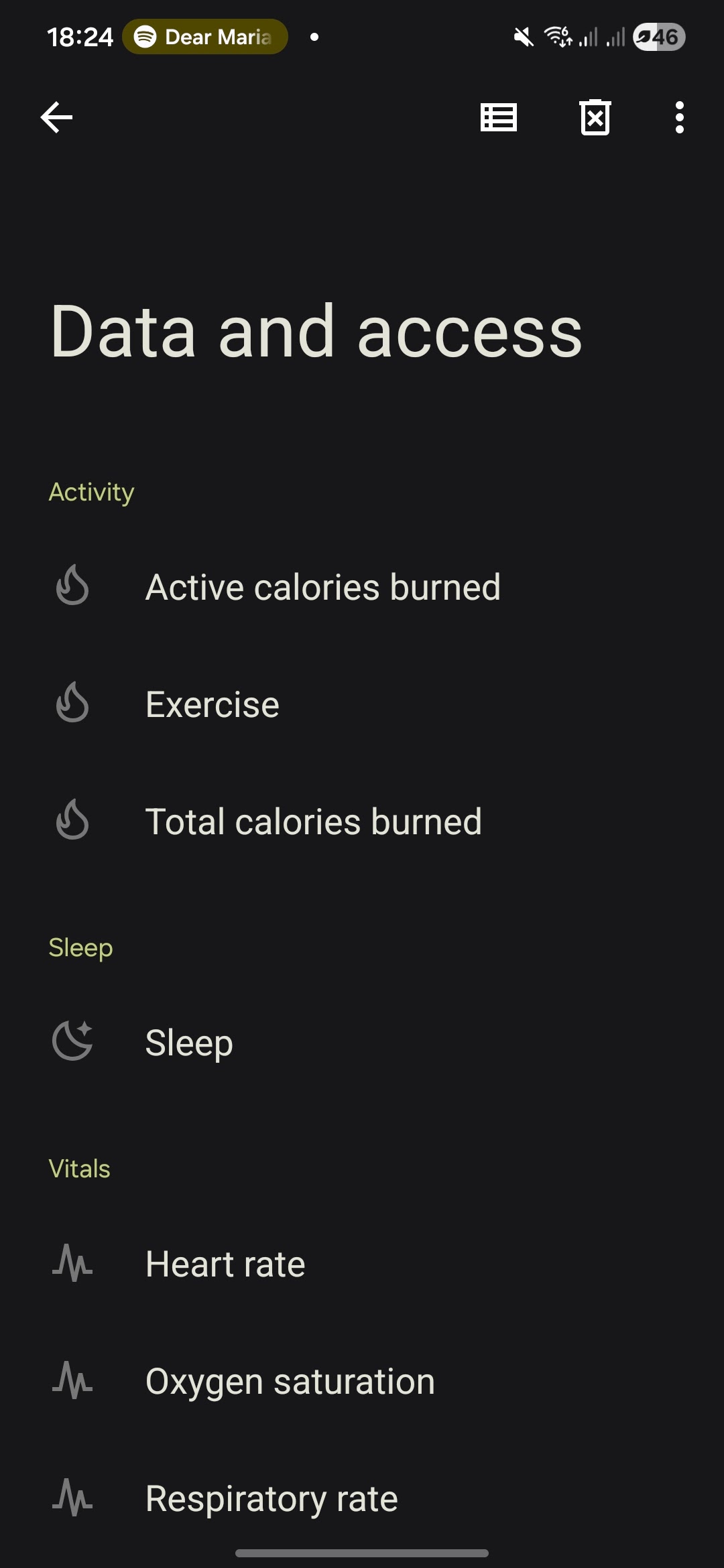
Credit: support.google.com
How To Fix Health Connect Not Syncing Steps
Let’s get practical. Here’s a step-by-step plan to fix Health Connect when it’s not syncing your steps. Each solution works for most Android phones and popular fitness apps.
1. Check App And Health Connect Permissions
- Open Health Connect on your phone.
- Go to “App permissions.”
- Make sure your fitness app (like Google Fit or Samsung Health) has permission to read and write “Steps.”
- Repeat in the fitness app’s settings—look for “Connect with Health Connect” or “Data sharing.”
Example: In Google Fit, go to Settings > Manage connected apps > Health Connect > Allow.
2. Update All Related Apps
- Open the Google Play Store.
- Search for “Health Connect,” your fitness app, and any other related apps (like Google Fit or Samsung Health).
- If “Update” is available, tap it.
Non-obvious insight: Sometimes, a recent app update fixes invisible bugs that break syncing.
3. Disable Battery Optimization
- Go to your phone’s Settings > “Apps” > “Health Connect.”
- Tap “Battery” > “Unrestricted” (or “Don’t optimize”).
- Repeat for your fitness app.
Note: This will let Health Connect run in the background and sync steps even when you’re not using your phone.
4. Force Sync Steps
- Open the fitness app and make sure it shows your latest steps.
- Open Health Connect and tap “Sync now” (if available).
- Wait a few minutes—steps may not appear instantly.
5. Restart Your Phone
A simple restart often clears temporary sync issues.
6. Reconnect Health Connect And Fitness Apps
- In Health Connect, find the list of connected apps.
- Remove your fitness app.
- Add it back and grant all required permissions.
- Try syncing steps again.
7. Check For Conflicting Devices
- Make sure only one device (phone or watch) is set as your main step counter.
- In Health Connect, set your preferred source for steps (if available).
8. Clear App Cache
- Go to Settings > “Apps” > “Health Connect.”
- Tap “Storage” > “Clear cache.”
- Repeat for your fitness app.
9. Check Internet Connection
If your fitness app uses cloud storage (like Fitbit), make sure you have a stable Wi-Fi or data connection.
10. Wait Or Contact Support
If all else fails, it may be a server issue. Wait a few hours, then check again. If the problem continues, contact app support.
Real-world example: A user with Samsung Health and Health Connect found that steps only synced after opening Samsung Health manually. The solution was to allow Samsung Health to run in the background and disable battery optimization.
Troubleshooting Different Device And App Setups
The steps above solve most problems, but some setups need special attention.
Syncing Steps From A Wearable (smartwatch Or Fitness Band)
If you use a smartwatch (like a Galaxy Watch) or a band (like Fitbit), here are extra things to check:
- Make sure your device is connected to your phone.
- Sync steps to your phone app first. Only then will Health Connect see them.
- Some devices require their app (like Galaxy Wearable or Fitbit app) to be open and synced before steps show up in Health Connect.
Tip: If you switch between phone and watch for tracking steps, Health Connect may count steps from only one source. Check your preferred device setting.
Using Multiple Fitness Apps
You might use several apps for steps (Google Fit, Samsung Health, etc.). They can all connect to Health Connect, but:
- Only one app can be set as the “main source” for steps.
- If apps write duplicate data, Health Connect tries to merge them, but conflicts can cause missing steps.
Migrating To A New Phone
If you get a new phone, install Health Connect and all fitness apps. Make sure you:
- Restore your data from backup (if possible).
- Reconnect each app to Health Connect.
- Resync your wearable device.
Warning: Some step data may be stored locally and can’t be restored from cloud backups.
Data Table: Common Sync Problems And Solutions
Here’s a quick reference for typical sync issues and how to fix them:
| Problem | Likely Cause | Solution |
|---|---|---|
| No steps syncing at all | Permissions missing | Grant permissions in Health Connect and fitness app |
| Steps delayed by hours | Battery optimization or background restriction | Disable battery optimization for both apps |
| Steps differ between apps | Multiple data sources or conflicts | Set one app as preferred steps source |
| New steps not appearing after upgrade | App version outdated | Update all related apps |
| Steps missing after switching phones | Data not restored or device not synced | Restore from backup and reconnect devices |

Credit: support.challengehound.com
Preventing Health Connect Sync Issues
Fixing problems is good, but preventing them is better. Here’s how to keep step syncing smooth:
Regularly Update Apps
App developers fix bugs and add features often. Keeping Health Connect, your fitness app, and system software updated prevents most sync issues.
Review Permissions After Updates
Sometimes, updates reset permissions or settings. Check permissions after major updates.
Use Only One Main Step Counter
Set your phone or smartwatch as the main device for step counting. This avoids conflicts.
Avoid Unnecessary App Installations
Installing many fitness apps can confuse Health Connect. Only install apps you actually use.
Monitor Battery Saver Settings
Extreme battery-saving modes can block background syncing. Use these settings with care.
Backup Your Data
If your step data is important, use a fitness app that supports cloud backup. This protects your records if you switch devices.
Extra insight: Some users see better results by opening their fitness app before Health Connect each day. This ensures the data is fresh before syncing.
When To Contact Support
If your steps still won’t sync after all troubleshooting, it may be a deeper technical problem. Here’s when to seek help:
- Steps never sync despite following all fixes
- Syncing works for other data (like sleep or heart rate), but not steps
- Errors or warning messages appear in Health Connect
- Your device or app is listed as supported but doesn’t work
Contact the support team for your fitness app and Health Connect. Provide details: your phone model, Android version, app versions, and a description of the problem. Be patient—some issues need developer action to fix.

Credit: www.reddit.com
Comparing Health Connect With Other Sync Solutions
Health Connect isn’t the only way to sync steps across apps. Here’s a quick comparison to help you understand its strengths and weaknesses.
| Sync Solution | Supported Devices | Step Data Accuracy | Multi-App Support | Data Privacy |
|---|---|---|---|---|
| Health Connect | Most Android devices, supported apps | High (if set up correctly) | Yes | User-controlled |
| Google Fit Only | Android, Wear OS, some iOS | Medium-High | Limited | Google policy |
| Samsung Health Only | Samsung devices | High on Samsung devices | Limited | Samsung policy |
| Manual Export/Import | Varies | Depends on user | No | Manual control |
Takeaway: Health Connect is the best option for syncing steps across multiple Android apps if you want full control and maximum compatibility.
Real-world Example: Fixing A Persistent Sync Issue
Let’s look at a real-life scenario. Jane uses a Galaxy phone with Samsung Health and Google Fit. She installed Health Connect to sync her steps to another app. But her steps stopped syncing last week.
Steps Jane took:
- Checked permissions in Health Connect—Samsung Health and Google Fit were both allowed to read/write steps.
- Updated all apps via Google Play Store.
- Disabled battery optimization for all health apps.
- Restarted her phone.
- Opened Samsung Health and waited for the steps to update.
Result: Steps appeared in Health Connect after opening Samsung Health. The issue was that Samsung Health only synced steps when opened, not in the background.
Lesson: Some apps require manual syncing, or their background sync is limited by the phone’s power-saving settings.
Advanced Tips For Tech-savvy Users
If you’re comfortable with Android settings and want to go further:
- Check for background data restrictions in your phone’s settings.
- Use developer options to monitor background process limits.
- Review Health Connect’s “Data sources” screen to see where your steps come from.
- Export logs or reports if available and analyze sync timing.
Warning: Changing advanced settings can affect other apps. Make changes carefully.
Looking Ahead: The Future Of Health Data Sync
Health Connect is new but growing fast. Google and other developers are improving compatibility and fixing sync issues with each update. More apps and devices will support Health Connect in the future. This means step data will become even more reliable and easier to sync.
If you want to stay updated, check official Android and Google blogs. For more details about Health Connect’s features and updates, see the official Google Help page.
Frequently Asked Questions
Why Does Health Connect Show Zero Steps Even Though My Fitness App Tracks Them?
This usually happens when permissions are missing or the fitness app hasn’t synced its latest data to Health Connect. Open your fitness app, check step counts, and make sure both apps have permissions enabled.
Can I Sync Steps From An Iphone Or Apple Watch With Health Connect?
No. Health Connect is only available for Android devices. It does not support step data from iPhone or Apple Watch. Consider using a third-party service if you need cross-platform syncing.
How Do I Choose Which App Health Connect Uses For Step Counting?
In Health Connect, look for the “Data sources” or “App priority” section. Set your preferred app (like Google Fit or Samsung Health) as the main source for steps. Only one app should write step data to prevent conflicts.
Will I Lose My Past Step Data If I Reinstall Health Connect?
You usually won’t lose step data if it’s backed up to the cloud (such as Google Fit or Samsung Health accounts). However, local-only data not saved to your account may be lost. Always back up your health data before reinstalling apps.
Why Are Steps Delayed When Syncing With Health Connect?
Delays happen due to battery optimization, background restrictions, or slow internet connections. Some apps only sync steps when opened. To avoid delays, disable battery optimization for Health Connect and your fitness app, and open both apps daily.
Staying active is important—and so is having accurate records of your steps. With a little attention to your setup, Health Connect can provide smooth, reliable syncing across your favorite fitness apps. If syncing ever fails, use this guide to quickly find and fix the problem, and get back to focusing on your health goals.