If you use a health app with your Apple Watch, you expect your activity, steps, heart rate, and other health data to sync smoothly. But sometimes, health app not syncing with Apple Watch becomes a frustrating issue. Your workouts disappear, your daily stats don’t match, or you see gaps in your health history. This isn’t just annoying—it can make it hard to track your progress, share achievements, or even spot important health patterns.
You’re not alone. Many Apple Watch users run into sync problems with apps like Apple Health, Strava, MyFitnessPal, or Fitbit. The reasons range from software glitches to settings mistakes. The good news: most sync issues can be fixed with a few smart steps. In this guide, you’ll get clear troubleshooting advice, tips to prevent future problems, and insights on how syncing works behind the scenes.
Let’s explore why syncing fails, how to fix it, and what you can do to keep your data up to date—so you don’t lose a step in your health journey.
How Apple Watch Syncs With Health Apps
To solve sync problems, it helps to understand how data moves between your Apple Watch, your iPhone, and your health apps. The process isn’t as direct as you might think.
The Syncing Process Explained
- Apple Watch collects data: Sensors on your Watch track steps, heart rate, workouts, and more.
- Watch sends data to iPhone: The Watch uses Bluetooth to send this data to the Health app on your iPhone. This usually happens automatically when your Watch and iPhone are near each other.
- Health app shares data with third-party apps: If you use other health or fitness apps (like Strava or MyFitnessPal), they request data from the Health app, not directly from the Watch.
This means your data passes through several layers. If any connection fails—Bluetooth, app permissions, background refresh—syncing can stop.
Common Apps Involved
Some apps most often used with Apple Watch and the Health app include:
- Strava (workouts, running, cycling)
- MyFitnessPal (nutrition, steps)
- Nike Run Club
- Fitbit
- Google Fit
- Headspace (mindfulness, meditation)
- Sleep Cycle
Each app may need different permissions and settings to sync correctly.
When Does Syncing Happen?
- When you open the Health app or a third-party health app on your iPhone
- Automatically in the background, if allowed
- After completing a workout or activity
Pro insight: Syncs may be delayed if your iPhone’s battery is low, if Low Power Mode is on, or if you have not opened the app recently.
Why Health App Fails To Sync With Apple Watch
Syncing problems can appear for many reasons. Knowing these causes helps you troubleshoot faster.
Most Common Causes
- Bluetooth is Off: The Watch and iPhone need Bluetooth to communicate. If Bluetooth is disabled, syncing stops.
- App Permissions Not Set: Health apps need permission to access and write data. If permissions are missing, data won’t sync.
- Background App Refresh Disabled: Apps need to run in the background to sync automatically.
- Outdated Software: Old versions of iOS, watchOS, or the health app can cause compatibility issues.
- Account Issues: Sometimes, logging out or a new phone can break account connections.
- Sync Conflicts: Two apps may try to write the same data, causing confusion.
- Storage Problems: If your iPhone or Watch is low on storage, syncing can pause.
Hidden issue: If you use multiple health apps that all try to write the same type of data (like steps), you can get duplicates or missing data.
How To Spot A Sync Issue
Look for these signs:
- Data on your Apple Watch doesn’t match your iPhone.
- Workouts or activity rings are missing in your health app.
- Third-party apps show “no data” or “sync error.”
- Data stops updating after a recent update or new device setup.

Credit: www.shakesandcones.com
Step-by-step Solutions For Sync Problems
You can usually fix syncing issues with a few targeted steps. Try these, starting with the simplest.
1. Check Basic Connections
- Make sure Bluetooth is turned on for both devices.
- Keep your Apple Watch and iPhone close together.
- Connect your iPhone to Wi-Fi for faster syncing.
2. Force Data Sync
- Open the Health app on your iPhone.
- Pull down on the “Summary” page to refresh.
- Open the third-party app (like Strava or MyFitnessPal) and check for a “Sync” or “Refresh” button.
3. Restart Devices
- Restart your Apple Watch: Press and hold the side button, then swipe Power Off.
- Restart your iPhone: Hold the power button and slide to power off, then turn it back on.
This can clear up temporary software glitches.
4. Update Software
- On your iPhone: Go to Settings > General > Software Update.
- On your Watch: Open the Watch app > General > Software Update.
- Update the health app and any third-party apps through the App Store.
Tip: Updates often fix bugs that cause syncing problems.
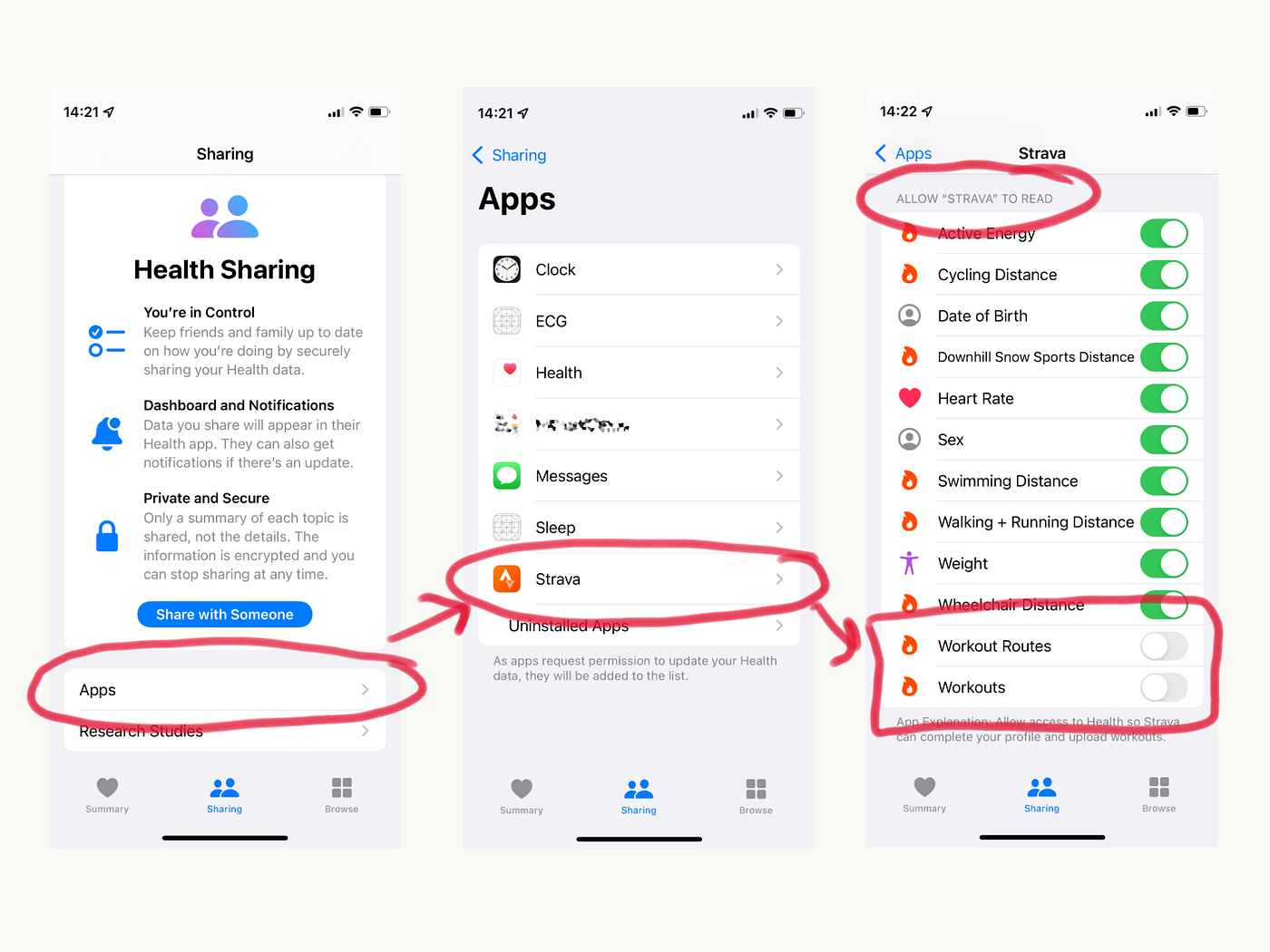
5. Check App Permissions
- Go to Settings > Health > Data Access & Devices.
- Tap the app you use (e.g., Strava).
- Make sure all health categories (like steps, workouts, heart rate) are turned ON.
If you use the Health app:
- Open Health app > Tap your profile icon > Apps > Select your app > Check permissions.
6. Enable Background App Refresh
- Go to Settings > General > Background App Refresh.
- Make sure it’s ON for your health apps.
Some apps need background access to sync automatically.
7. Reconnect The Apple Watch
- Open the Watch app > My Watch > All Watches > Tap the info button next to your Watch > Unpair Apple Watch.
- Pair the Watch again with your iPhone.
This step rebuilds the connection.
8. Check Storage Space
- On iPhone: Settings > General > iPhone Storage.
- On Watch: Watch app > General > Usage.
Free up space if you’re almost full.
9. Log Out And Back In
- Open the third-party app.
- Log out of your account, then log in again.
- This can reset the connection.
10. Delete And Reinstall Apps
- Delete the app from your iPhone.
- Reinstall from the App Store.
- Reconnect permissions and log in again.
Advanced tip: Deleting apps can erase local data, so back up important info first.
Comparing App Sync Features
Different health apps offer different syncing features. Here’s a look at how popular apps compare:
| App | Syncs with Health App? | Syncs with Apple Watch? | Manual Refresh Needed? |
|---|---|---|---|
| Strava | Yes | Yes | Sometimes |
| MyFitnessPal | Yes | Yes | Rarely |
| Fitbit | Partial | No (directly) | Yes |
| Google Fit | Partial | No (directly) | Yes |
| Nike Run Club | Yes | Yes | No |
Non-obvious insight: Some apps only sync specific data (like workouts) but not all health info (like sleep or heart rate).
Advanced Troubleshooting
If basic steps don’t work, try these advanced fixes.
Reset Sync Data
- Open the Watch app on iPhone.
- Go to General > Reset.
- Tap “Reset Sync Data.”
This forces your Watch to re-sync all data with your iPhone.
Reinstall Watchos
If you notice continued problems:
- Unpair your Watch (this makes a backup).
- Pair it as a new Watch (not from backup) to avoid copying over corrupt data.
- Set up health apps again.
Reset Network Settings
Sometimes, network glitches can block data:
- Go to Settings > General > Transfer or Reset iPhone > Reset > Reset Network Settings.
You’ll need to reconnect to Wi-Fi after this.
Check For App-specific Issues
Some apps have their own sync settings. For example:
- In Strava, check “Settings > Applications, Services, and Devices.”
- In MyFitnessPal, check “Steps” and confirm Apple Watch is selected as your step source.
Pro tip: If you use multiple devices (like an iPad and iPhone), sometimes only one will sync health data from the Watch. Make sure you’re using your main device.
How To Prevent Sync Issues
After you fix a sync problem, you want to avoid it happening again. Here’s how:
- Keep your apps and devices updated: Set automatic updates for apps and software.
- Open your health app daily: This triggers background syncs.
- Allow background app refresh: Don’t turn it off for battery saving unless necessary.
- Check permissions after updates: Sometimes updates reset permissions.
- Avoid using too many health apps: Multiple apps can conflict. Stick to a few trusted ones.
- Charge your devices regularly: Low battery can pause background syncing.
- Back up your iPhone and Watch: Use iCloud or computer backups in case you need to restore.
How Syncing Errors Affect Your Health Data
Sync problems do more than annoy you—they can impact your health goals or records.
- Missing workouts: If a run or cycling session isn’t saved, you lose progress.
- Broken trends: Incomplete data can break your streaks or long-term charts.
- Incorrect stats: Calories, steps, or active minutes may be inaccurate.
- Missed achievements: Apple Watch rings or app badges may not appear.
Example: If you’re sharing activity with friends, they might see gaps—even if you exercised. For people tracking health conditions, missing data can impact medication or exercise plans.
What To Do If Syncing Still Fails
Sometimes, nothing works. Here’s when to get more help:
- Contact app support: Most health apps have support teams who can check account or server issues.
- Visit the Apple Support site: They have troubleshooting guides and chat support.
- Ask in Apple Communities: Other users may have found a fix for your issue.
- Wait for updates: Sometimes the issue is with the app’s servers, and it will resolve soon.
Insider tip: Always keep a written record of your health data if you’re tracking for medical reasons, as digital records can sometimes fail.
Credit: www.hzcpas.com
Data Security And Privacy With Health Apps
Syncing your health data involves sharing sensitive information. Apple and most health apps use end-to-end encryption and strict privacy settings, but you should still be careful.
- Only share data with apps you trust.
- Review permissions regularly (Settings > Health > Data Access & Devices).
- Turn off sharing if you stop using an app.
- Use a strong passcode on your iPhone and Apple Watch.
Non-obvious insight: Some apps may keep copies of your data in the cloud. Deleting the app doesn’t always delete your data—check the app’s privacy policy.
Common Myths About Health App Syncing
Many users believe things about syncing that aren’t true. Let’s clear up a few:
- Myth: “Data syncs instantly every time.”
- In reality, syncing can take a few minutes or longer, especially with large data sets or slow connections.
- Myth: “Only one app can access my health data.”
- You can allow multiple apps, but be careful to avoid conflicts.
- Myth: “Deleting an app deletes all my health data.”
- Your data often stays in the Health app unless you remove it manually.
- Myth: “Apple Watch stores all data forever.”
- The Watch has limited storage; old data is offloaded to your iPhone and iCloud.
Comparing Apple Health With Other Platforms
How does Apple’s system compare to others, like Fitbit or Google Fit? Here’s a quick look:
| Feature | Apple Health | Fitbit | Google Fit |
|---|---|---|---|
| Device Sync | Apple Watch, iPhone | Fitbit devices | Wear OS devices, Android phones |
| Third-Party Apps | Yes (many) | Limited | Some |
| Manual Data Entry | Yes | Some | Yes |
| Data Export | Yes (XML) | Yes (CSV) | Yes (CSV) |
| Privacy Focus | High | Medium | Medium |
Key takeaway: Apple Health has strong privacy controls and broad app support, but syncing can be more complex than with single-brand platforms.
When To Reset Your Health Data
If you have ongoing sync issues or lots of duplicate data, you may consider resetting your health data.
- Go to Settings > Health > Data Access & Devices.
- Tap your device or app and choose “Delete All Data from [App/Device].”
Warning: This is permanent. Back up important info first.

Credit: liberoapartments.cz
Real-world Example
Let’s look at a typical case:
Maria uses her Apple Watch for running and logs meals with MyFitnessPal. One day, her step count in MyFitnessPal is zero, even though her Watch shows 8,000 steps.
She tries these steps:
- Opens Health app and pulls to refresh.
- Opens MyFitnessPal, logs out, and back in.
- Checks permissions: MyFitnessPal can read steps from Health.
- Updates both apps and restarts devices.
After these steps, her steps sync again. She learns to check permissions after every update—a small habit that saves her time.
Frequently Asked Questions
Why Isn’t My Apple Watch Data Showing In My Health App?
This often happens if Bluetooth is off, background app refresh is disabled, or permissions are not given. Make sure Bluetooth is on, open the Health app to trigger a sync, and check settings under Data Access & Devices.
How Often Does Apple Watch Sync With Health Apps?
Apple Watch syncs health data with your iPhone throughout the day, usually every few minutes when both devices are nearby. Third-party apps may sync less frequently, depending on their settings.
Can I Force A Sync Between Apple Watch And Health Apps?
Yes, you can often force a sync by opening the Health app and pulling down to refresh, or by opening the third-party app and looking for a “Sync” or “Refresh” button.
What Do I Do If My Steps Are Missing In Myfitnesspal Or Strava?
Check app permissions (Settings > Health > Data Access & Devices) and make sure your app can read steps from Health. Try logging out and back in, updating the app, or reinstalling if the problem continues.
Is My Health Data Safe When Syncing Between Apps?
Apple uses end-to-end encryption and privacy controls for health data. Only share data with apps you trust, and check privacy policies. For more info, visit the official Apple Support page.
When your health app is not syncing with Apple Watch, it can be stressful. But with the right steps, you’ll usually get your data flowing smoothly again. Stay patient, keep your apps updated, and don’t hesitate to reach out for help if you need it. Your health data is valuable—make sure it’s always where you need it.