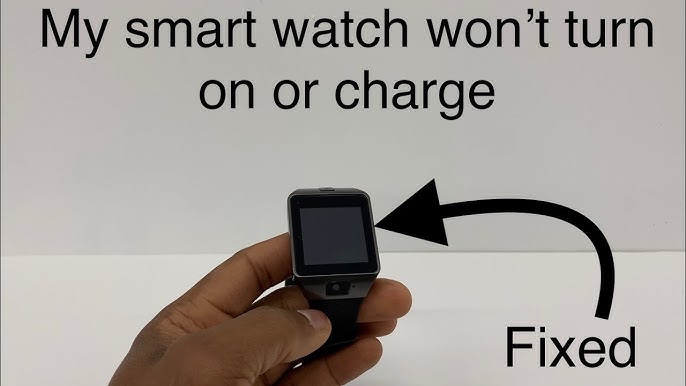
If your Hammer smartwatch is not turning on, it can be worrying—especially if you rely on it for daily health tracking, notifications, and staying connected. Many users face this issue, and while it can feel frustrating, the causes are often simple and fixable at home. In this guide, you’ll learn the main reasons a Hammer smartwatch may fail to power up, practical solutions you can try, and how to avoid common mistakes. Whether you’re new to smartwatches or have used them for years, this article provides clear steps, helpful insights, and actionable advice.
Why Your Hammer Smartwatch Won’t Turn On
When a smartwatch like the Hammer doesn’t respond, it’s rarely a sign of a dead device. Instead, it usually points to power supply issues, software glitches, or hardware faults. Understanding the possible causes helps you troubleshoot effectively, rather than guessing or getting stuck in a cycle of repeated attempts.
Common Causes
- Battery is Completely Drained: If the watch has not been charged for a long time, the battery may be empty. Sometimes, it needs a longer period connected to the charger before it shows any signs of life.
- Charging Cable or Adapter Problem: Faulty or incompatible charging accessories can prevent the watch from getting power.
- Dirty or Blocked Charging Contacts: Sweat, dust, or skin oils can block the charging pins, making it hard for electricity to flow.
- Software Crash or Freeze: Like phones, smartwatches can freeze or crash and may need a reset.
- Defective Power Button: If the button is stuck or not making contact, the watch won’t turn on.
- Firmware Update Failure: An incomplete or interrupted update can brick the device temporarily.
- Water Damage: Even water-resistant models can suffer if exposed to high pressure or submersion.
- Internal Hardware Failure: Less common, but possible, especially in older devices or after a drop.
A study by Statista in 2023 found that battery-related issues accounted for about 42% of smartwatch power failures, while software glitches made up another 28%. Most cases are resolved without professional repair.
Initial Checks Before Troubleshooting
Before you start with detailed fixes, a few simple checks can save time and effort.
- Inspect the charging cable and adapter for visible damage.
- Try charging from a different power source, like a laptop or wall socket.
- Remove any case or screen protector that might block charging contacts.
- Listen for vibration or look for screen flicker when plugging in—the smallest sign can indicate the device is charging.
Many users skip these basics, jumping to advanced solutions without realizing the problem is often with the accessories, not the watch itself.

Credit: twkf.gov.tr
Step-by-step Troubleshooting
The following steps are designed for the Hammer smartwatch, but they apply to most similar devices. Go through each step in order.
1. Charge For At Least 30 Minutes
Connect your Hammer smartwatch to its original charger and leave it connected for at least half an hour. If the battery is deeply discharged, it may take several minutes before anything appears on the screen.
Tip: Avoid using fast chargers or third-party cables, as they sometimes provide the wrong voltage.
2. Inspect And Clean Charging Contacts
If nothing happens, unplug the watch and look closely at the charging pins on both the watch and the cable.
- Use a soft, dry cloth to gently wipe the contacts.
- If you see dirt, use a cotton swab dipped in isopropyl alcohol to clean the area. Allow it to dry before reconnecting.
- For stubborn grime, a soft toothbrush can help.
Warning: Never use water or sharp objects, as these can damage the contacts.
3. Try A Different Charger And Cable
Switch to another compatible Hammer charging cable and wall adapter if available. If you don’t have one, try charging from a computer’s USB port (lower voltage, safer for testing).
4. Check The Power Button
Press and hold the power button for at least 10 seconds. On some Hammer models, this triggers a forced restart.
- If the button feels stuck or unresponsive, gently press around it to loosen any debris.
- Avoid pressing too hard, which can break internal components.
5. Perform A Forced Restart
Some Hammer smartwatches have a reset method:
- Press and hold the power button and another designated button (such as the ‘back’ or ‘home’ button) at the same time for 10–15 seconds.
- If the watch vibrates, shows a logo, or flashes, it’s restarting.
Model-specific resets may vary—check your manual or the Hammer official website for details.
6. Examine For Physical Or Water Damage
Look for any cracks, dents, or signs of moisture under the screen or in the charging port. Water inside the device can prevent it from turning on.
- If you suspect water damage, turn the watch off (if possible) and leave it in a dry, warm place for 24–48 hours.
- Never use a hairdryer or oven to speed up drying.
7. Connect To The Hammer App
Some users report that connecting the watch to the Hammer companion app via Bluetooth can trigger a restart.
- Open the app on your phone and follow the steps to add or reconnect your device.
- If the app detects the watch, follow any on-screen instructions for updates or resets.
8. Check For Firmware Updates
If the watch shows signs of life but gets stuck on the boot screen, a failed firmware update could be the cause.
- Connect to the app and look for an option to reinstall or update the firmware.
- Keep the watch connected to power during the update to avoid interruption.
9. Seek Professional Help
If none of the above steps work, your watch may have a deeper hardware issue.
- Contact Hammer customer support or visit an authorized service center.
- Provide details about what you’ve tried—this helps technicians diagnose faster.
Comparing Hammer Smartwatch Models
Not all Hammer smartwatches behave the same way. Here’s a quick comparison of three popular models and their common power-on issues:
| Model | Common Issue | Reset Method | Water Resistance |
|---|---|---|---|
| Hammer Ace Ultra | Battery drain | Hold power 15s | IP68 |
| Hammer Pulse X | Button stuck | Power + Back 10s | IP67 |
| Hammer Cyclone | Firmware freeze | Power 10s | IP68 |
Check your model’s guide for exact instructions, as steps can change between releases.
Battery Life And Deep Discharge
One hidden reason for a Hammer smartwatch not turning on is deep battery discharge. This happens if the battery drains below a safe voltage, which can occur after weeks of no use. In this state, the battery’s built-in protection circuit prevents charging to avoid damage.
- Leaving the device on the charger for several hours may slowly revive the battery.
- In rare cases, the battery cannot recover and may need professional replacement.
Non-obvious insight: Using the watch until it switches off by itself too often can shorten battery life over time. Always recharge when you see a low-battery warning.
Software Glitches And Update Problems
Software can freeze on smartwatches just as it does on smartphones. This may happen due to:
- Interrupted updates (e.g., phone call or low battery during update)
- Incompatible apps installed from unofficial sources
- Corrupted data from failed sync attempts
If your device is stuck on a boot logo or blank screen, a forced reset or update from the app is the best solution.
Pro tip: Only install updates when your battery is above 50% and the watch is plugged in.
Charging Accessories: What Really Matters
Many users underestimate the impact of chargers and cables. Here’s what to look for:
- Use only official Hammer chargers or certified replacements.
- Check the output voltage and current (usually 5V, 1A or 2A).
- Avoid cheap third-party chargers—they can supply unstable power, which may harm your device.
Here’s a comparison of charger safety:
| Charger Type | Power Stability | Device Compatibility | Warranty Impact |
|---|---|---|---|
| Official Hammer | High | Guaranteed | Protected |
| Certified 3rd Party | Medium | Usually OK | Sometimes voids |
| Generic/Unknown | Low | Risky | Not covered |
Non-obvious insight: Hammer’s warranty can be voided if damage is caused by unofficial accessories.
Water Damage: What You Need To Know
Hammer smartwatches often advertise IP67 or IP68 water resistance, but this does not mean they are waterproof. Accidental exposure to water, especially hot water or soap, can cause quick internal damage.
- IP67: Can survive 1 meter deep for 30 minutes (fresh water only).
- IP68: Can survive 1.5 meters for 30 minutes.
If your watch was exposed to water and won’t turn on, don’t try to charge it immediately. Instead:
- Power off (if possible).
- Dry with a soft cloth.
- Place in a dry, warm place, or in a bowl of uncooked rice or silica gel to draw out moisture.
- Wait at least 48 hours before attempting to charge or power up.
Important: Even with resistance ratings, avoid wearing your smartwatch in hot showers, saunas, or salty water.
Credit: www.youtube.com
When To Replace The Battery
Smartwatch batteries degrade with age. If your Hammer smartwatch is more than two years old and refuses to turn on, the battery may be at the end of its life.
Signs of a failing battery:
- Watch only turns on when plugged in
- Sudden shutdowns even with charge remaining
- Swollen or bulging case
Hammer does not recommend users replace batteries themselves due to the risk of damaging the device or losing water resistance. Contact an authorized service center for battery replacement.
How To Prevent Power-on Issues
You can avoid most problems with a few simple habits:
- Charge regularly: Don’t let your battery reach 0%.
- Keep charging contacts clean: Wipe them weekly.
- Avoid extreme temperatures: Both heat and cold can harm batteries.
- Update software only when prompted: Avoid unofficial apps or firmware.
- Store properly: If not using the watch, charge it to 50% and power it off.
Data Safety: Backups And Recovery
If your Hammer smartwatch won’t turn on, you might worry about losing health data or activity records. Most Hammer models sync data with the companion app automatically, but here’s how to be sure:
- Open the Hammer app on your phone.
- Check the last sync date; if recent, most data is saved.
- If you recover the watch, sync it immediately to update records.
Pro tip: Enable cloud backup in the app if available. This protects your data even if the device is lost or damaged.
Real-world Examples
Let’s look at a few real user scenarios:
- Aman, Delhi: His Hammer Ace Ultra stopped turning on after a week of no use. Leaving it on the official charger overnight revived the device—deep discharge was the culprit.
- Priya, Mumbai: Her watch wouldn’t charge after a swim. Drying it in silica gel for two days fixed the issue—water in the charging port was blocking power.
- John, London: After a failed firmware update, his watch was stuck on the logo. Resetting through the app solved the problem.
These examples show that most issues are recoverable if you stay calm and follow the right steps.
When To Contact Support
If your Hammer smartwatch is still under warranty and none of the above fixes work, reach out to official support.
- Prepare your purchase invoice, model number, and a list of steps you’ve tried.
- Most service centers will ask you to send photos or videos describing the problem.
- If your device needs repair, always use an authorized center to avoid losing warranty coverage.
For more details and the latest support contacts, visit the official Hammer website.
Repair Vs. Replacement: What Makes Sense?
If your watch is out of warranty or repair costs are high, you may wonder if it’s better to replace it.
- Repair makes sense if: ** The watch is less than two years old, the battery is the only problem, or the repair cost is below 40% of the device’s price.
- Replace if: The mainboard is damaged, repeated failures occur, or the watch is more than three years old.
Here’s a quick cost comparison:
| Issue | Repair Cost (USD) | Replacement Cost (USD) | Recommendation |
|---|---|---|---|
| Battery replacement | $25–$40 | $60–$120 | Repair |
| Screen replacement | $45–$80 | $60–$120 | Depends |
| Mainboard issue | $70–$90 | $60–$120 | Replace |
Tip: If you choose to replace, remember to unlink and wipe your old watch if possible to protect your data.
Common Mistakes To Avoid
- Using the wrong charger: This can cause permanent damage to the battery or mainboard.
- Ignoring dirty contacts: Even a thin layer of sweat can block charging.
- Trying to open the watch yourself: This often breaks water resistance and voids warranty.
- Charging after water exposure: Always dry the device first.
- Skipping regular updates: Old software can cause glitches.
Practical Tips For Long-term Use
- Keep firmware updated: This fixes bugs and improves performance.
- Charge overnight, but not every night: Occasional deep discharge is okay, but don’t make it a habit.
- Use a surge protector: Protects your watch from voltage spikes.
- Store in a cool, dry place: Heat speeds up battery aging.
- Take off during intense sports: Reduces risk of hard knocks or water pressure damage.
Credit: www.consumerreports.org
Frequently Asked Questions
Why Does My Hammer Smartwatch Vibrate But Not Turn On?
If your watch vibrates but the screen stays black, the display or its connection may be faulty. Try a forced reset. If the issue continues, the screen may need repair.
Can I Replace The Hammer Smartwatch Battery Myself?
It is not recommended. Hammer smartwatches are sealed for water resistance. Opening the case at home can damage the watch and void the warranty. Visit an authorized service center.
Will My Health Data Be Lost If My Watch Doesn’t Turn On?
Most data is saved to the companion app when synced. If you haven’t synced recently, some information may be lost. Enable automatic sync and cloud backup in the app for future safety.
Is It Safe To Use Any Usb Charger For My Hammer Smartwatch?
No. Only use official or certified chargers. Unstable voltage from cheap chargers can damage the battery or electronics, sometimes permanently.
What Should I Do If My Hammer Smartwatch Gets Wet?
Power it off if possible, dry with a cloth, and leave in a dry place for at least 48 hours before charging. Never use heat to dry it. If it still does not work, visit a service center.
If your Hammer smartwatch is not turning on, don’t panic. Most causes are fixable with careful troubleshooting and patience. Start with simple solutions, avoid risky fixes, and maintain your device to prevent future problems. For persistent issues, professional support is always the safest choice.
With the right steps, you’ll often have your Hammer smartwatch working again—and ready to track your next adventure.