When you rely on Google Drive for your files, syncing problems can be more than just an annoyance—they can disrupt work, delay sharing, and even put data at risk. Whether you use Google Drive for personal documents or as part of a business workflow, knowing how to solve syncing issues is essential. This guide explains why Google Drive sometimes fails to sync, common error messages, and step-by-step solutions you can use right now. You’ll also learn some lesser-known tips that many users miss, along with practical advice to keep your files flowing smoothly.
Understanding Google Drive Syncing
At its core, Google Drive syncing is the process where your files and folders are automatically updated across all your connected devices. Add a file on your phone, and it appears on your laptop. Edit a document on your tablet, and the changes show up everywhere. This seamless experience depends on a set of background processes and settings that must work together.
Syncing can occur via:
- The Google Drive web app (in your browser)
- Google Drive for Desktop (previously Backup and Sync)
- The Google Drive mobile app (on Android or iOS)
Problems can appear on any of these platforms, but the underlying causes often overlap.
Main Reasons Google Drive Stops Syncing
It’s helpful to understand the most common causes before trying to fix them:
- Internet Connection Problems: Google Drive needs a stable connection. Drops or slow speeds can pause syncing.
- Outdated Google Drive App: Old versions may not work well with newer features or security updates.
- Insufficient Storage Space: If your Google account or device runs out of space, syncing may stop.
- File and Folder Name Issues: Unsupported symbols or long names can cause errors.
- Account Issues: Expired sessions, logged out accounts, or permission errors can halt syncing.
- Conflicting Apps or Software: Security software, firewalls, or other sync tools can block Google Drive.
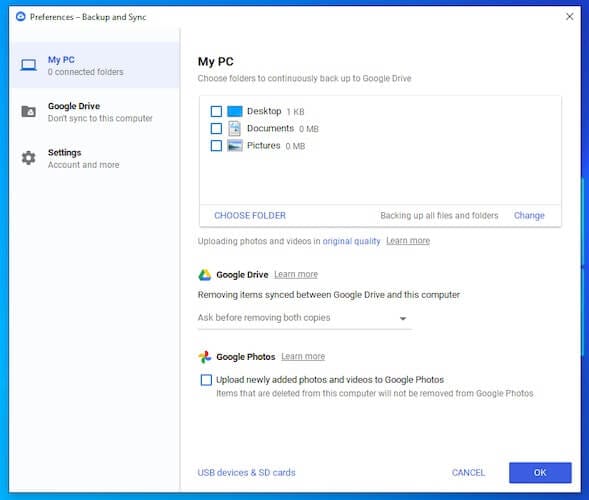
- Incorrect Folder Settings: Syncing only selected folders, or moving folders, may confuse the app.
- Cache or Temporary File Problems: Corrupted cache files may break the sync process.
How Google Drive Sync Works (and Where It Breaks)
To give you a clearer picture, here’s how Google Drive’s sync process typically works, and where things might go wrong:
| Sync Step | What Happens | Possible Issues |
|---|---|---|
| File/Folder Changes | You create or edit files in the Google Drive folder | Unsupported files, too large, or special characters |
| Local App Detects Changes | Google Drive for Desktop sees the update | App not running, outdated, or crashed |
| Syncs to Cloud | Files are uploaded to Google servers | No internet, insufficient space, login issues |
| Other Devices Download | Other devices get the updated files | Device offline, not enough storage, account mismatch |
One non-obvious insight: Syncing is not always instant. It can take a few seconds or even minutes, depending on file size and connection speed.
Common Error Messages And What They Mean
When Google Drive stops syncing, you might see error messages like:
- “Can’t sync files”
- “Sync paused”
- “Error: Unable to connect”
- “You do not have permission to sync this file”
- “Not enough storage”
Each of these points to a specific problem. For example, “Sync paused” often means your internet is disconnected or you paused it manually. “Not enough storage” means you’ve hit your quota—either on Google Drive or your local hard drive.
Credit: inclowdz.wondershare.com
Step-by-step Fixes For Google Drive Not Syncing
Let’s walk through practical solutions, starting with the simplest.
1. Check Your Internet Connection
A slow or unreliable connection is the most common reason. Test by opening other websites or running a speed check. If the internet is slow or keeps dropping, fix this before going further.
2. Restart Google Drive
Sometimes, the easiest fix is to close and reopen the app:
- On desktop: Click the Drive icon in your system tray, click the gear, and choose “Quit.”
- On mobile: Swipe away the app, then open it again.
- On the web: Refresh the page or sign out and back in.
3. Update Google Drive
Outdated apps can cause all kinds of problems:
- On desktop, download the latest version from Google’s website.
- On mobile, update through the App Store or Google Play.
- On the web, updates are automatic, but try clearing your browser cache if issues persist.
4. Check Storage Space
Google gives you 15 GB free storage shared across Drive, Gmail, and Google Photos. If you’re out of space, syncing will stop.
To check:
- Go to drive.google.com and look at the bottom left for storage details.
- On desktop, right-click the Drive icon and check settings.
If you’re full, delete large files or upgrade your plan.
5. Verify File And Folder Names
Some characters are not allowed in file or folder names (like <, >, :, “, /, , |, ?, *). Also, names longer than 255 characters can cause issues.
Rename problematic files and folders and try syncing again.
6. Make Sure You’re Logged In
You may be logged out or using the wrong account. Double-check your account in the app or browser.
7. Check Folder Selection
If you use “Stream files” or “Mirror files” modes, you can choose which folders to sync. Make sure the folders you want are actually selected.
8. Clear Cache And Temporary Files
Corrupted cache files can block syncing. Here’s how to clear them:
- On desktop: Exit Google Drive. Navigate to `%USERPROFILE%AppDataLocalGoogleDriveFS` (Windows) or `~/Library/Application Support/Google/DriveFS` (Mac). Delete or rename the folder, then restart Drive.
- On mobile: Go to device settings > Apps > Google Drive > Storage > Clear Cache.
Tip: Clearing the cache will not delete your actual files.
9. Check Security Software And Firewalls
Antivirus programs or firewalls can block Google Drive. Try disabling them temporarily or adding Drive to the allowed list.
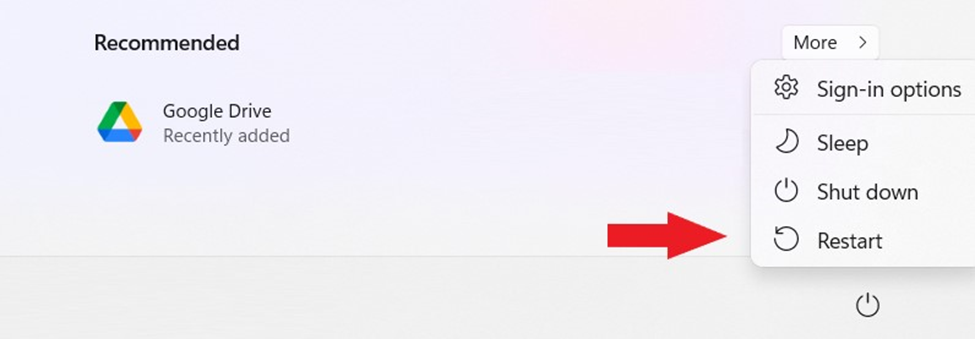
10. Restart Your Computer Or Device
A full restart can clear up stuck background processes or network issues.
11. Reinstall Google Drive
If nothing works, uninstall and reinstall the app. Be sure to sign in with the correct account.
Advanced Troubleshooting For Persistent Problems
Some syncing problems are more complex. Here’s what to do if the basic steps don’t help.
Diagnose With Google Drive Logs
Google Drive for Desktop creates logs you can use for troubleshooting. On Windows, logs are found in `%USERPROFILE%AppDataLocalGoogleDriveFSlogs`. On Mac, check `~/Library/Application Support/Google/DriveFS/logs`.
Look for repeated error messages or file paths that appear often—these often point to the problem file or folder.
Compare Drive Settings Across Devices
Sometimes, settings are different on each device. For example, if you set your desktop app to sync only certain folders, but your laptop syncs everything, some files may not appear everywhere.
Here’s a simple comparison of settings that can affect sync:
| Setting | Desktop | Mobile | Web |
|---|---|---|---|
| Choose folders to sync | Yes | No | No |
| Offline access | Yes (with Drive for Desktop) | Yes (select files/folders) | Yes (Chrome feature) |
| Manual file upload | Yes | Yes | Yes |
Check File Ownership And Permissions
If you can’t sync a shared file, check if you have edit access. Owners can restrict permissions, which will block syncing or changes. You may need to request permission or make a copy of the file.
Look For File Conflicts
Sometimes, a file edited in two places at the same time creates a conflict copy (file with “(conflicted copy)” in its name). This is common if you work offline or have multiple collaborators.
Resolve conflicts by:
- Comparing versions and keeping the correct one
- Deleting duplicates
Test With A New Google Account
If nothing else works, try syncing with a different Google account. If the new account syncs fine, the issue is likely with your original account’s settings or files.
How To Prevent Syncing Problems In The Future
Prevention is often easier than fixing issues. Here are some good habits:
- Keep Google Drive updated on all devices.
- Avoid special characters in file and folder names.
- Check storage space regularly.
- Use reliable internet connections for big file uploads or downloads.
- Log out and back in after changing your Google account password.
- Back up important files outside Google Drive if possible.
- Don’t move or rename the Google Drive folder on your computer without updating the app settings.
Non-obvious Insights Most People Miss
- Selective Sync Can Cause “Missing Files”: Many users forget they’ve chosen to sync only certain folders. If you move a file outside these folders, it won’t sync—no error is shown.
- File Ownership Affects Sync: If you’re not the owner or lose access to a shared file, it may disappear from your synced folder without warning.

Credit: superuser.com
Google Drive Vs Other Cloud Services: Sync Reliability
How does Google Drive syncing compare to other top cloud storage services? Here’s a quick look at reliability and user satisfaction, based on public surveys and user reviews.
| Cloud Service | Sync Reliability (1-5) | User Satisfaction (%) | Free Storage |
|---|---|---|---|
| Google Drive | 4.5 | 88 | 15 GB |
| Dropbox | 4.3 | 85 | 2 GB |
| OneDrive | 4.2 | 80 | 5 GB |
| iCloud Drive | 4.0 | 77 | 5 GB |
Google Drive scores well for both reliability and free space. However, like any cloud service, it can hit snags—especially when files are large, connections are weak, or settings are misconfigured.
When To Contact Google Support
If you’ve tried all troubleshooting steps and still can’t sync, it’s time to get help. Contact Google Support through the Help menu in the app or visit the official Google Drive Help Center for more advanced diagnostics.
Credit: www.raysync.io
Frequently Asked Questions
Why Is Google Drive Not Syncing On My Pc?
This usually happens due to internet issues, outdated apps, or storage limits. Make sure your internet is stable, your app is updated, and you have enough free space on both your device and your Google Drive account. Also, check that the Google Drive app is running and that you’re logged into the correct account.
How Do I Force Google Drive To Sync?
On desktop, right-click the Drive icon and choose “Pause syncing,” wait a few seconds, then choose “Resume syncing. ” On mobile or web, try refreshing the app or page, or sign out and back in. If files still don’t sync, restarting your device can help.
Can Google Drive Sync Be Interrupted By Antivirus Or Firewall Software?
Yes, antivirus and firewall settings can block Google Drive’s connection. If you suspect this, temporarily disable these programs to see if syncing resumes. For a permanent fix, add Google Drive to their allowed or trusted apps list.
What File Types Or Names Cause Sync Errors In Google Drive?
Files with unsupported characters (like <, >, :, “, /, , |, ?, *) or names longer than 255 characters can block syncing. Also, some system files or very large files may not sync. Rename files or split large files to fix these issues.
How Can I Check My Google Drive Storage Limit?
Open drive.google.com in your browser. Look at the bottom left corner of the page—you’ll see your current storage usage and total limit. On mobile or desktop apps, check settings for similar information.
Solving Google Drive syncing problems may seem complicated, but most issues have straightforward fixes. With the steps and insights above, you can get your files moving again and keep your workflow running without surprises. If all else fails, remember that Google Support is just a click away.