Keeping your schedule organized is not always easy. For many people, Google Calendar is a lifesaver. It helps you track meetings, birthdays, travel plans, and more—on your phone, laptop, or tablet. But what happens when your Google Calendar stops syncing? Suddenly, appointments disappear, reminders get missed, and double bookings happen. The stress can add up fast.
If you’re facing this problem, you’re not alone. Every day, thousands of users search for answers when Google Calendar events don’t show up across devices. This guide will help you understand why syncing issues happen, how to fix them, and how to prevent them in the future.
We’ll cover all platforms—Android, iOS, Windows, Mac, and the web—and share practical solutions that really work.
Let’s dive in so you can get your schedule back on track.
What Does “google Calendar Not Syncing” Mean?
When Google Calendar is not syncing, changes made on one device don’t appear on others. For example, you add a meeting on your phone, but it doesn’t show up on your laptop. Or, a friend invites you to an event, but you never see it in your app. Sometimes, old events won’t disappear, or new ones are stuck in limbo.
These issues can range from minor delays to major errors. In today’s connected world, even small syncing failures can disrupt your work or personal life.
Why Google Calendar Stops Syncing: Common Causes
Understanding the root of the problem makes fixing it much easier. Here are the main reasons Google Calendar syncing fails:
- Network connection problems: Slow or unstable internet is the number one cause. Syncing depends on a reliable connection.
- Outdated app or OS: Older versions of the Google Calendar app or your device’s operating system can cause bugs or compatibility problems.
- Account issues: Wrong or expired logins, password changes, or permission errors can block syncing.
- App settings: Sync may be disabled accidentally, or the wrong calendar is selected.
- Storage limits: If your device is low on storage, syncing can fail.
- Calendar sharing problems: If the event is on a shared or subscribed calendar, permissions may be missing.
- Server-side issues: Rare, but sometimes Google’s servers have outages or delays.
Credit: www.calendar.com
Quick Checks Before Troubleshooting
Before you dive into deeper fixes, check these simple points first:
- Is your device connected to the internet?
- Are you using the latest version of the Google Calendar app?
- Is your Google account active and logged in?
- Have you recently changed your Google password or enabled 2-Step Verification?
- Are you looking at the correct calendar (especially if you have several)?
Many syncing problems are resolved by these quick checks.
How To Fix Google Calendar Not Syncing On Android
Most people use Google Calendar on their Android devices. If you’re seeing missing or outdated events, try these steps:
1. Check Sync Settings
Open the Google Calendar app. Tap Menu > Settings. Tap your account and make sure Sync is turned on. If it’s off, toggle it on and wait a few minutes.
2. Update The App
Open the Google Play Store. Search for Google Calendar. If you see “Update,” tap it. Outdated apps often have bugs that block syncing.
3. Clear App Cache And Data
Go to Settings > Apps > Google Calendar. Tap “Storage.” First, tap “Clear Cache.” If that doesn’t work, tap “Clear Data.” Be aware: clearing data removes all calendar info from the device, but your events stay in your Google account.
4. Check Device Accounts
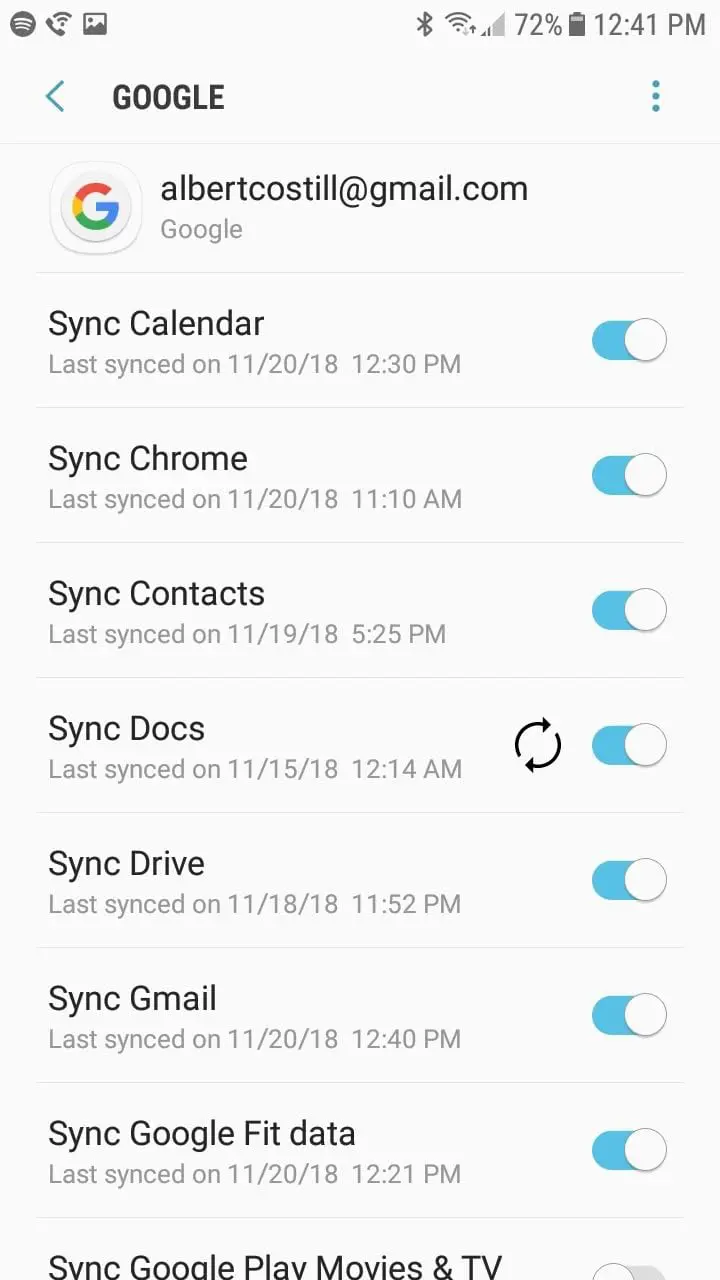
Open Settings > Accounts. Tap your Google account. Make sure “Sync Calendar” is enabled. If not, turn it on.
5. Restart Your Device
Sometimes a simple restart fixes temporary glitches. Power off, wait 10 seconds, and turn your phone back on.
6. Remove And Re-add Your Account
If nothing works, try removing your Google account from the device and adding it again. This forces a fresh sync.
Extra Insight: Battery Optimization
On some Android devices, battery saving features can block background syncing. Go to Settings > Battery > Battery Optimization. Find Google Calendar and set it to “Don’t optimize. ” This ensures syncing isn’t paused to save power.
How To Fix Google Calendar Not Syncing On Iphone Or Ipad
Google Calendar works with iOS, but the integration is a bit different. If you’re missing events, follow these steps:
1. Check Calendar Settings
Go to Settings > Calendar > Accounts. Make sure your Google account is added. Tap it and ensure “Calendars” is turned on.
2. Update The App
Open the App Store. Search for Google Calendar. Tap “Update” if it’s available.
3. Refresh Calendars
Open the Calendar app. Pull down from the top to refresh. This forces your device to fetch new data.
4. Check Fetch Settings
Go to Settings > Passwords & Accounts. Tap Fetch New Data. Make sure it’s set to “Push” or “Fetch” at a reasonable interval (like every 15 minutes).
5. Restart Your Device
Turn your iPhone or iPad off and on again.
6. Re-add Your Google Account
If syncing is still broken, remove your Google account from Settings > Calendar > Accounts, then add it back.
Extra Insight: Third-party Apps
Some users install third-party calendar apps (like Outlook or Fantastical). If they have incorrect permissions or are syncing with different accounts, events can get out of sync. Always check which app is your default calendar and which accounts are connected.
How To Fix Google Calendar Sync Issues On Windows And Mac
Many people use Google Calendar in a web browser or through apps like Microsoft Outlook or Apple Calendar. Here’s what to do if syncing fails on your computer:
Google Calendar In A Browser
- Refresh the page (press F5 or reload).
- Clear browser cache and cookies.
- Try a different browser to see if the problem is local.
- Check if you’re logged into the correct Google account.
Microsoft Outlook
If you’ve added your Google Calendar to Outlook, syncing can sometimes stall.
- Check that your Google account is connected in File > Account Settings.
- Remove and re-add the Google account if events are missing.
- Confirm that “Sync Calendar” is enabled in the settings.
Apple Calendar (mac)
- Open Calendar > Preferences > Accounts.
- Make sure your Google account is listed and enabled.
- Uncheck and recheck the “Enable this account” box to force a sync.
- Try removing and adding the account again.
System Date And Time
Incorrect date and time settings on your computer can block syncing. Make sure your system clock is set to automatic and matches your time zone.
Security Software
Firewalls or antivirus programs can sometimes block syncing. Check your security software settings and allow calendar apps through the firewall.
Credit: www.calendar.com
Advanced Troubleshooting Steps
If basic fixes don’t work, it’s time to try more advanced solutions. These steps are more technical but can solve stubborn syncing problems.
Check Google’s Service Status
Rarely, Google Calendar’s servers may be down. Visit the Google Workspace Status Dashboard to see if there’s an ongoing outage.
Check Calendar Visibility
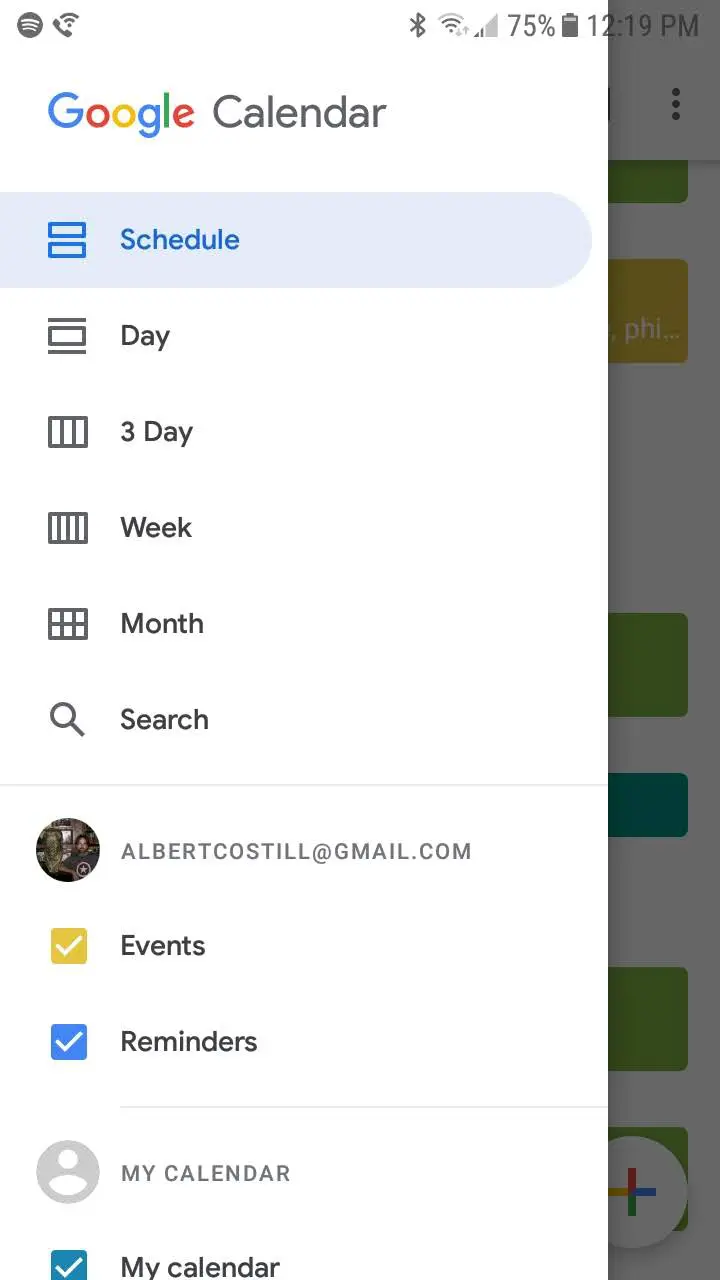
Sometimes, the calendar is syncing but events are hidden. In the Google Calendar app or web version, check the left sidebar. Make sure all relevant calendars are checked (visible). If a calendar is unchecked, its events won’t show.
Increase Sync Frequency
On some apps, you can choose how often to sync. Set this to the shortest interval (like every 5 minutes) to get changes faster.
Check For Duplicates Or Corrupt Events
If a specific event is causing problems, try deleting and re-creating it. Corrupt or duplicate events can block syncing.
Use A Different App
If the Google Calendar app won’t sync, try a different calendar app (like aCalendar, Business Calendar, or the default system app). Sometimes, a fresh app fixes compatibility issues.
Export And Re-import Calendars
If you have persistent problems, export your calendar data (Settings > Import & Export in the web version), delete the calendar, and re-import it. This can clean up hidden errors.
Factory Reset (last Resort)
If nothing works and other Google services are broken, consider a factory reset. This wipes your device, so only use it if you’ve tried everything else.
Comparing Sync Issues Across Platforms
Here’s a quick comparison of where syncing issues are most common and how hard they are to fix:
| Platform | Common Causes | Difficulty to Fix |
|---|---|---|
| Android | App settings, battery optimization | Easy to Medium |
| iOS | Account permissions, fetch settings | Easy |
| Windows | Browser cache, Outlook integration | Medium |
| Mac | Account sync, app integration | Medium |
| Web | Server outages, account selection | Easy |

Credit: calendarbridge.com
Google Calendar Sync: App Vs Web
Not all Google Calendar experiences are the same. Here’s how syncing differs between the app and web version:
| Feature | App (Android/iOS) | Web |
|---|---|---|
| Push Notifications | Yes | No |
| Offline Access | Yes | Limited |
| Event Editing | Full | Full |
| Sync Frequency | Every few minutes (background) | On refresh |
| Multiple Accounts | Easy | Easy |
Preventing Google Calendar Sync Problems
Prevention saves time. Here are some tips to keep your calendars in sync:
- Update regularly: Always use the latest version of the app and your device’s operating system.
- Check permissions: Make sure Google Calendar has access to your accounts and calendar data.
- Monitor storage: Keep enough free space on your device to prevent sync errors.
- Connect to stable Wi-Fi: Syncing is faster and more reliable on a strong connection.
- Avoid third-party app conflicts: If you use multiple calendar apps, check that they aren’t fighting for control.
- Review shared calendar permissions: If you’re using a work or family calendar, make sure sharing settings are correct.
- Log out and in after password changes: If you change your Google password, log out of all devices and log back in to refresh tokens.
- Restart regularly: Rebooting your device clears temporary errors.
Real-world Examples
Case Study 1: Android Calendar Not Updating
Jessica uses a Samsung phone and notices her meetings from her work PC aren’t appearing on her phone’s Google Calendar. She checks her sync settings and finds Battery Optimization turned on for Google Calendar. After changing this setting, her calendar starts updating instantly.
Case Study 2: Shared Calendar Missing On Iphone
Michael subscribes to his wife’s Google Calendar on his iPhone. After she updates an event, it doesn’t show up on his device. He removes and re-adds her shared calendar. The updates appear again—he had accidentally unchecked her calendar in the app’s display settings.
Case Study 3: Outlook Integration Issue
Sonia uses Google Calendar inside Microsoft Outlook for work. After a recent update, events stop syncing. She checks the Google Workspace Status Dashboard and finds there was a temporary server issue. After waiting an hour and restarting Outlook, syncing resumes.
These examples show that most problems have a practical solution—sometimes it just takes a bit of detective work.
When To Contact Support
If you’ve tried all fixes and your calendar still won’t sync, it may be time to contact support. Here’s when you should reach out:
- None of your devices will sync, even after resetting everything.
- You see persistent error messages (like “Sync Error” or “Account Not Found”).
- Shared calendars won’t appear, even though others can see them.
- There’s a known Google outage that isn’t resolved after a day.
For help, visit the Google Calendar Help Center.
How Sync Delays Work
Not all syncing is instant. Google Calendar usually syncs every few minutes, but sometimes delays happen. Here’s a quick look at typical sync times:
| Action | Expected Sync Time |
|---|---|
| Creating a new event | Within 1-2 minutes |
| Editing an event | Within 1-2 minutes |
| Deleting an event | Up to 5 minutes |
| Syncing shared calendars | Up to 10 minutes |
| After app restart | Immediate |
If you don’t see changes right away, give it a few minutes before troubleshooting.
Frequently Asked Questions
Why Do Events Show On One Device But Not Another?
This usually means sync is turned off on one device or the device is offline. Check sync settings and internet connection on all devices.
How Do I Force Google Calendar To Sync?
Open the Calendar app, go to settings, and turn sync off and on. On Android, you can also open Settings > Accounts > Google and tap “Sync now. ” On iOS, pull down to refresh the calendar list.
Can I Sync Google Calendar With Outlook Or Apple Calendar?
Yes, you can. Use the “Add account” feature in Outlook or Apple Calendar and log in with your Google account. Make sure to allow calendar permissions.
What If My Shared Calendar Isn’t Updating?
Check the sharing settings on the web version of Google Calendar. Make sure you have permission to view and edit the shared calendar. Remove and re-add the calendar if needed.
Does Google Calendar Sync Instantly?
Not always. Most changes sync within a few minutes, but delays can happen. Shared and subscribed calendars may take longer.
Getting Google Calendar to sync across your devices is important for staying organized. Most problems have simple solutions—check your settings, update your apps, and keep your devices connected. With a few smart habits, you’ll avoid most syncing headaches. For more technical details, see the Google Calendar Wikipedia page. Now, get back to your day with a calendar that works for you!