If you own a Garmin device, you probably love tracking your workouts, monitoring your health, or following your outdoor adventures. But sometimes, things do not go as smoothly as you hope. You might find that your Garmin is not syncing with your phone, computer, or even the Garmin Connect app.
This can be frustrating, especially if you rely on up-to-date data. But don’t worry—most sync issues can be fixed without deep tech skills. Let’s explore why Garmin devices sometimes stop syncing, how to solve it, and what you can do to avoid future problems.
Why Garmin Devices Stop Syncing
To solve a problem, it helps to know why it happens. Garmin devices rely on Bluetooth, Wi-Fi, USB cables, and apps to send data to your phone or computer. If any part of this chain breaks, syncing fails. Here are the most common causes:
- Bluetooth problems: Bluetooth can disconnect, lag, or get stuck.
- Outdated software: Old versions of the Garmin app or device firmware often create conflicts.
- App permissions: If Garmin Connect does not have the right permissions, it cannot access your data.
- Full storage: If your device or phone is running out of space, syncing may stop.
- Account issues: Logging out, changing your password, or using the wrong account can break the link.
- USB or Wi-Fi problems: For users syncing with a computer or over Wi-Fi, weak connections or broken cables are often the issue.
- Background app settings: Phones may stop apps from running in the background to save battery.
Surprisingly, many first-time users miss that background app restrictions and even low phone battery can stop syncing. Also, using battery-saving modes can silently block data transfers.
Basic Troubleshooting Steps
Before diving into advanced solutions, try these simple steps. They fix most syncing problems for both new and experienced users.
- Restart everything: Turn off your Garmin device and your phone. Wait 10 seconds, then turn them back on.
- Check Bluetooth: Make sure Bluetooth is enabled on your phone and the device is paired.
- Open Garmin Connect: Launch the app and check for sync status. Sometimes the app needs to be open to sync.
- Update your software: Check for updates on your Garmin device and the Garmin Connect app.
- Check cables (for USB sync): Try a different USB port or cable if you use a computer.
If these steps don’t work, don’t worry. The next sections go deeper and address specific situations.
Troubleshooting Garmin Not Syncing With Phone
Syncing with a phone is the most common setup. If your Garmin won’t sync, try the following.
Check Bluetooth Connection
Sometimes, Bluetooth is the weak point. Here’s what to do:
- Make sure your Garmin device is listed as “Connected” in your phone’s Bluetooth settings.
- If not, unpair and re-pair your device.
- Avoid pairing the Garmin with more than one phone at a time.
Grant App Permissions
Garmin Connect needs certain permissions to sync. On both Android and iOS, make sure:
- Bluetooth is enabled for the app.
- Location services are on (some devices require this).
- Background activity is allowed.
Force Sync In Garmin Connect
Sometimes a manual sync helps:
- Open Garmin Connect.
- Pull down on the main screen to start a sync.
- Wait for the sync to finish—watch for any error messages.
Try Forgetting And Re-pairing
If the above fails, remove your Garmin from your phone’s Bluetooth devices, then pair it again through Garmin Connect. This often fixes hidden pairing problems.
Make Sure No Other Devices Interfere
If you have other Bluetooth devices nearby (like headphones), turn them off. Sometimes, too many Bluetooth connections can confuse your phone.
Troubleshooting Garmin Not Syncing With Computer
Some users prefer syncing via USB cable. If you do, pay attention to the following:
Use The Right Usb Cable
Not all USB cables transfer data—some only charge. Use the official Garmin cable, or check your cable supports data transfer.
Update Garmin Express
Garmin Express is the software you use on your computer to sync. Make sure you have the latest version.
Check For Device Recognition
If your computer does not “see” your Garmin, try:
- Using a different USB port.
- Restarting your computer.
- Trying another computer, if available.
Disable Antivirus/firewall Temporarily
Rarely, security software blocks Garmin Express. Try disabling it for a short time to see if syncing works.
Free Up Storage
If your device storage is almost full, delete some old activities or music files. This can help the sync process.

Credit: support.strava.com
Troubleshooting Garmin Not Syncing With Garmin Connect App
If your Garmin device and phone are connected, but the Garmin Connect app is not updating, consider these steps.
Log Out And Log Back In
Sometimes, logging out and back in solves account sync issues.
Reinstall Garmin Connect
Uninstall the app, restart your phone, and reinstall the app. This can clear out hidden bugs or corrupted files.
Check For App Updates
Go to the App Store or Google Play Store and make sure you have the latest version of Garmin Connect.
Clear App Cache (android Only)
On Android, you can clear the app cache by:
- Going to Settings > Apps > Garmin Connect > Storage.
- Tap “Clear Cache.”
Check Garmin Connect Status
Rarely, Garmin’s servers experience outages. Check their official status page or social media for updates.
Syncing Over Wi-fi: Special Tips
Some Garmin devices sync over Wi-Fi. Here are some tips if you use this method:
- Make sure your Wi-Fi network is stable and not overloaded.
- Keep your Garmin device within range of your router.
- Check that your device is added to the correct Wi-Fi network in Garmin Connect.
- Restart your router if you suspect network problems.
Non-obvious tip: Many users forget that changing your Wi-Fi password or router can break the link. Always update your Garmin’s Wi-Fi settings after a change.
Common Garmin Sync Error Messages And What They Mean
When Garmin fails to sync, you might see messages like:
- “Sync Failed”: The device could not connect to Garmin Connect. Often Bluetooth or network issues.
- “No Internet Connection”: Your phone or device is offline.
- “Device Not Found”: The app cannot detect your Garmin. Likely a Bluetooth problem.
- “Storage Full”: Your device or phone is out of space.
Understanding these messages can point you to the right fix.
Comparing Sync Methods
Below is a quick look at how the main Garmin sync methods compare:
| Method | Speed | Reliability | Best For |
|---|---|---|---|
| Bluetooth (Phone) | Medium | Good | Daily activity syncing |
| Wi-Fi | Fast | Very Good | Large file transfers |
| USB (Computer) | Fastest | Best | Firmware updates, music transfer |
Advanced Solutions For Persistent Sync Problems
If you’ve tried the basics and still have trouble, these advanced fixes may help.
Reset Bluetooth Settings
On your phone, you can reset all network settings. This will erase all Bluetooth pairings, so use with caution.
- On iPhone: Settings > General > Reset > Reset Network Settings.
- On Android: Settings > System > Reset options > Reset Wi-Fi, mobile & Bluetooth.
Factory Reset Garmin Device
As a last resort, reset your Garmin device. This erases all data, so back up your info first.
- Go to Settings on your Garmin device.
- Look for “Reset” or “Restore Defaults.”
- Follow the prompts.
Use A Different Phone Or Computer
Sometimes the problem is your phone, not your Garmin. Try syncing with another phone or computer. If it works, the issue is likely with your original device.
Contact Garmin Support
If nothing works, reach out to Garmin Support. They can diagnose hardware issues or walk you through advanced steps.
Preventing Garmin Sync Issues In The Future
You can avoid many syncing headaches by following these tips:
- Keep software updated: Always use the latest Garmin Connect and device firmware.
- Check storage regularly: Delete old workouts or music you no longer need.
- Restart your devices often: A simple restart can prevent many problems.
- Avoid pairing with multiple devices: Stick to one phone or computer for syncing.
- Monitor battery levels: Low battery can sometimes block syncing.
- Review permissions after updates: App updates can reset permissions.
Pro tip: After major phone or app updates, open Garmin Connect and check all permissions. This small step prevents many silent sync failures.
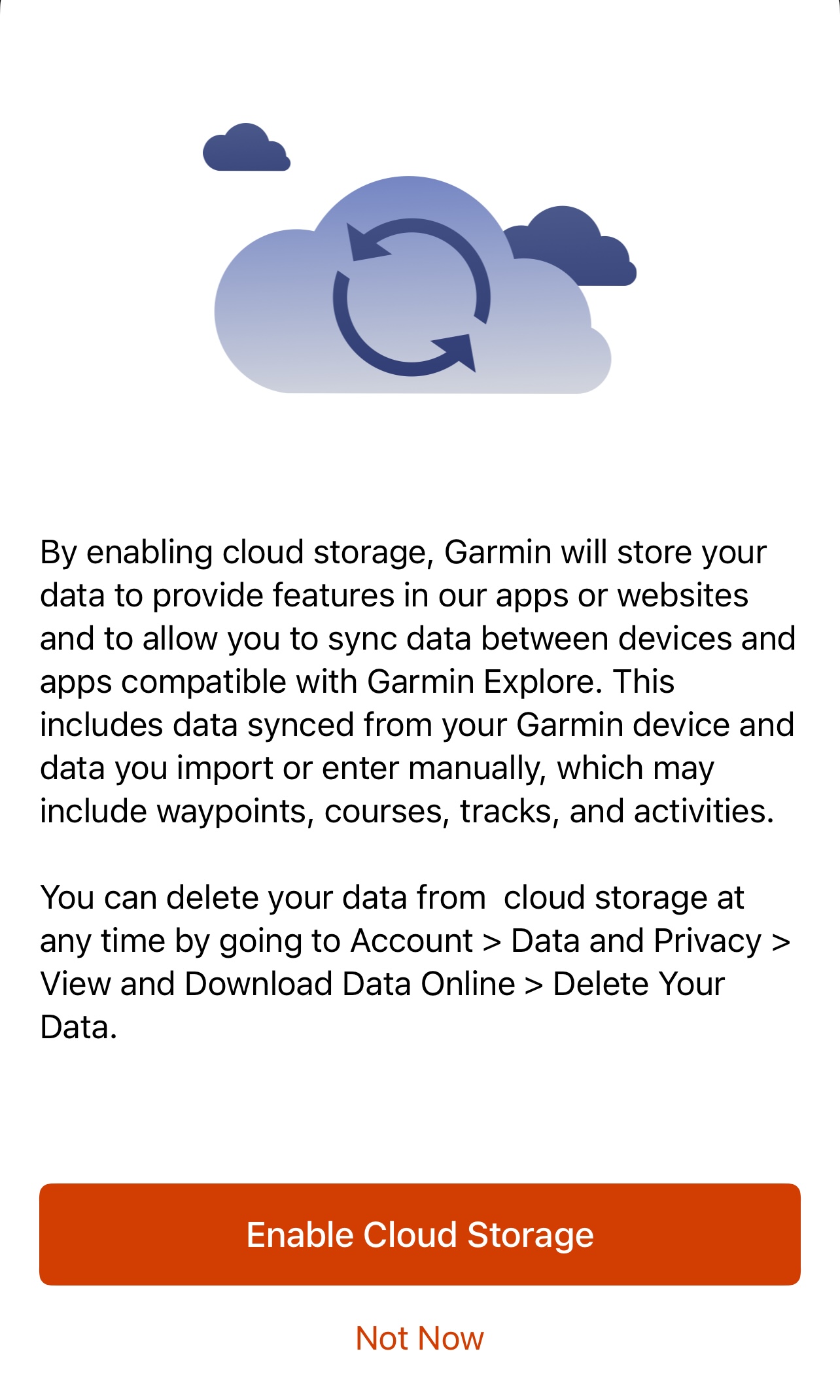
Credit: support.garmin.com
Real User Experiences: What Works And What Doesn’t
Many users report that most Garmin sync issues are solved by restarting devices or re-pairing Bluetooth. For example, a runner in New York shared that after updating her phone’s operating system, her Garmin stopped syncing. The fix? She deleted the Garmin Connect app, reinstalled it, and paired her watch again. It took less than 10 minutes.
Another cyclist found that using a different USB cable solved a stubborn sync problem with his Edge cycling computer. He had been using a cheap charging cable, not realizing it could not transfer data.
A fitness trainer in London noticed that when her phone’s battery saver mode was on, her Garmin would not sync until she turned it off. This is a common issue, especially for Android users.
Data Loss Concerns And How To Avoid Them
Many worry that a sync failure means lost data. In most cases, your data remains safe on the device until you can sync again. However, if your device memory is full, new activity data may not be saved.
Tips to avoid data loss:
- Sync after every workout.
- Check device storage weekly.
- Back up your data using Garmin Express or export it from Garmin Connect.
How Garmin Syncing Works (simplified)
Understanding how syncing works can help you troubleshoot. Here’s a simplified view:
- Your Garmin device collects data (like steps, heart rate, GPS).
- When you sync, the device uses Bluetooth, Wi-Fi, or USB to send this data to your phone or computer.
- The Garmin Connect app or Garmin Express uploads the data to Garmin’s servers.
- You can then view your data in the app or online.
If any step fails, syncing stops. Knowing this chain makes it easier to spot where things go wrong.
Comparing Garmin Sync Reliability With Other Brands
How Does Garmin Stack Up Compared To Other Top Brands?
| Brand | Sync Reliability | Common Issues | App Rating (out of 5) |
|---|---|---|---|
| Garmin | Very Good | Bluetooth pairing, permissions | 4.6 |
| Fitbit | Good | App crashes, device detection | 4.4 |
| Apple Watch | Excellent | App integration | 4.8 |
| Samsung Gear | Good | App permissions, OS updates | 4.3 |
Garmin generally offers strong sync reliability, but like all brands, it is not immune to problems.

Credit: www.reddit.com
Is It A Bug Or A Design Limitation?
Sometimes, sync problems are caused by actual bugs. Other times, they are the result of design choices. For example, some Garmin devices only sync certain data types (like music or maps) over USB, not Bluetooth. Knowing your device’s limitations can help manage expectations.
If you suspect a bug, check Garmin forums or the official Garmin site for updates. Sometimes, a firmware or app update is released to fix known problems.
When To Consider Upgrading Your Device
If your Garmin device is more than 5 years old, syncing problems may become more common. Older devices may not support the latest Bluetooth or app updates. If you have tried all troubleshooting tips and still cannot sync reliably, it might be time to consider a newer model.
Newer Garmin devices offer:
- Faster syncing speeds
- Better battery life
- More reliable Bluetooth and Wi-Fi
- Improved app support
But before you spend money, try all the steps above. Many users find that a simple fix solves the problem, even with older devices.
Useful Resources For Garmin Sync Problems
If you want more help, Garmin provides several official resources:
- Garmin Support Center
- Garmin Forums (community advice)
- Official troubleshooting guides
For detailed, up-to-date info, you can visit the Garmin Support Center.
Frequently Asked Questions
Why Does My Garmin Keep Disconnecting From My Phone?
This usually happens because of Bluetooth interference, outdated software, or battery-saving settings on your phone. Try restarting both devices, updating all software, and making sure Bluetooth is not being used by too many other devices at the same time.
Can I Sync My Garmin With More Than One Device?
Garmin recommends syncing with only one phone or computer at a time. Trying to use multiple devices can create conflicts and cause sync problems.
Will I Lose My Workout Data If Syncing Fails?
Usually, your data stays on your Garmin device until you can sync again. However, if your device storage is full, new data might not be saved. Sync regularly to avoid losing data.
How Do I Know If Garmin Connect Is Down?
You can check Garmin’s official status page or their social media channels. Server outages are rare but do happen. If many users report problems at once, it’s likely a server issue.
What Is The Fastest Way To Sync Large Files Or Music?
USB sync with Garmin Express on your computer is the fastest and most reliable way to transfer large files like music or maps. Wi-Fi is also fast, but Bluetooth is slower for big transfers.
Keeping your Garmin device syncing smoothly can be easy once you understand the common issues and solutions. With these tips, you can spend less time troubleshooting and more time enjoying your activities. Whether you use your Garmin for running, cycling, hiking, or daily health tracking, staying connected ensures your data is always up to date.
And remember, most sync problems can be fixed with just a few simple steps.