When your Galaxy Watch 4 doesn’t sync the time, it’s more than an inconvenience. Suddenly, alarms ring late, meetings get missed, and your workout tracking becomes unreliable. This is a surprisingly common problem, but there’s good news: it’s usually fixable without needing to visit a service center. If you’ve found yourself tapping your watch, hoping the time will magically correct itself, you’re not alone. Many users, even those who consider themselves tech-savvy, overlook the small settings and hidden issues that cause these syncing problems.
This guide takes you through every major reason your Galaxy Watch 4 might not sync the time. We’ll cover Bluetooth and phone connection issues, software and firmware glitches, battery and power-saving settings, and network or location-based problems. Each section offers practical steps, clear explanations, and solutions that actually work.
Along the way, you’ll find helpful tables and tips that go beyond the basics, so you don’t waste time on guesswork. Let’s get your Galaxy Watch 4 back on track—precisely on time.
Why Accurate Time Sync Matters On Galaxy Watch 4
Most people use smartwatches as more than just a clock. Your Galaxy Watch 4 is also a fitness tracker, calendar, and even a remote control for your phone. If the time is off, every feature that relies on correct scheduling can go wrong. You might miss medication reminders, get inaccurate sleep data, or lose track of your running pace.
Not syncing can also affect third-party apps, like weather or finance tools, which depend on real-time updates. Even small time drifts can add up and cause confusion throughout your day. That’s why fixing time sync issues isn’t just about the clock—it’s about making sure your device does everything you bought it for.
1. Bluetooth And Phone Connection Issues
The Galaxy Watch 4 relies heavily on its connection to your smartphone, especially for syncing time. If Bluetooth is off, unstable, or your devices are out of range, your watch can quickly lose track of the correct time.
How Bluetooth Sync Works
When your watch is paired with your phone, it regularly checks and matches the time with your phone’s clock. If the connection is lost, the watch continues using its last known time. This can lead to time drift or missing updates, especially if you travel across time zones.
Common Connection Problems
- Bluetooth turned off on phone or watch
- Device out of range (more than 30 feet)
- Paired but not connected (shows in Bluetooth list but no data transfer)
- Interference from other wireless devices
Step-by-step Solutions
- Check Bluetooth Status
- On your phone, open Settings > Connections > Bluetooth. Make sure it’s on.
- On the watch, swipe down for quick settings and look for the Bluetooth icon.
- Forget and Re-Pair Devices
- On your phone, tap the watch in the Bluetooth list and choose Unpair.
- Restart both devices.
- Pair them again using the Galaxy Wearable app.
- Keep Devices Close
- Stay within 10-20 feet, especially during sync.
- Remove physical barriers (walls, metal objects).
- Update the Galaxy Wearable App
- Outdated apps can cause sync errors. Visit the Play Store and check for updates.
Troubleshooting Table: Bluetooth Sync Problems
| Problem | Possible Cause | Quick Fix |
|---|---|---|
| No time update | Bluetooth off | Enable Bluetooth on both devices |
| Time updates slowly | Weak signal | Move devices closer |
| Paired but not syncing | Corrupt pairing | Unpair and re-pair devices |
Non-obvious Insight
Many users forget that Bluetooth can be disrupted by Wi-Fi networks or microwaves. If you experience constant drops, try turning off nearby wireless devices to see if the connection stabilizes.

Credit: www.youtube.com
2. Software Or Firmware Glitches
Even the best hardware can be tripped up by buggy software. The Galaxy Watch 4 depends on both the Wear OS and Samsung’s custom interface. If either is outdated or corrupted, time syncing can fail.
How Software Affects Sync
Software controls how often the watch checks for updates, how it handles daylight savings, and even which clock (phone vs. watch) is considered accurate. A single glitch can freeze the sync process.
Typical Signs Of Software Issues
- Watch time never changes, even after traveling to a new time zone
- The watch shows the correct time only after a restart
- Time is off by several minutes, not just seconds
Solutions For Software Problems
- Restart Both Devices
- Hold the power button on the watch, tap Restart.
- Restart your smartphone.
- Check for Updates
- On your watch: Settings > Software Update.
- On your phone: Galaxy Wearable app > Watch settings > Update Watch Software.
- Reset Sync Data
- In the Galaxy Wearable app, go to General > Reset.
- This does not erase your data but forces a fresh sync.
- Factory Reset (Last Resort)
- On the watch: Settings > General > Reset.
- Backup your data before doing this!
Data Table: Update Frequency And Sync Success
| Update Status | Average Sync Issues per Month |
|---|---|
| Up-to-date | 1–2 |
| Outdated by 3+ months | 6–8 |
| Never updated | 10+ |
Non-obvious Insight
A hidden cause of sync errors: Beta versions of Wear OS. If you joined Samsung’s test programs, beta firmware can behave unpredictably. Consider reverting to the stable release if you notice new problems after joining a beta.
3. Battery And Power Saving Settings
One overlooked reason for time sync failure is battery optimization. Both your phone and watch have settings to extend battery life, but these can block important background tasks like time syncing.
How Battery Settings Affect Sync
When your watch enters Power saving mode, it may turn off non-essential features, including regular time checks. The same is true if your phone has restricted the Wearable app to save battery.
Signs Of Battery-related Sync Issues
- Time updates only when charging or after unlocking
- Sync fails when battery is below 20%
- Watch shows “Low Battery” often before time drifts
Solutions: Adjusting Power Settings
- Disable Power Saving Mode
- On the watch: Settings > Battery > Power saving. Turn it off.
- On your phone: Make sure the Wearable app is allowed to run in the background.
- Exclude Galaxy Wearable from Battery Optimization
- On your phone: Settings > Apps > Galaxy Wearable > Battery > Unrestricted.
- Charge Regularly
- Try not to let your devices fall below 15–20% battery if you rely on precise timekeeping.
- Check for Background App Restrictions
- Some security or cleaner apps can block sync tasks. Whitelist the Wearable app if necessary.
Power Saving Mode Comparison Table
| Mode | Sync Frequency | Battery Life |
|---|---|---|
| Normal | Every 15–30 min | ~2 days |
| Power Saving | Every 2–3 hours | ~3 days |
| Watch Only | Manual only | ~5 days |
Non-obvious Insight
A common mistake: enabling background restrictions on the Wearable app without realizing it. Some Android versions enable this by default to save battery. Always double-check these settings after a major OS update.
4. Network And Location-based Problems
The Galaxy Watch 4 can sync time using not just your phone, but also Wi-Fi, GPS, or even mobile data (for LTE models). If there’s a problem with your network or location settings, time updates can fail.
How Network And Location Affect Time Sync
- Traveling across time zones: The watch needs accurate GPS or network location to adjust automatically.
- Wi-Fi only mode: If your watch isn’t paired with your phone, it will use Wi-Fi to fetch time from internet servers.
- Poor signal: Spotty connections can delay time updates.
Common Network-related Issues
- Watch shows the wrong time after a flight or long drive
- Time does not update unless connected to Wi-Fi
- Mobile data (LTE) watch shows delayed time sync
Solutions For Network And Location Sync
- Enable Location Services
- On your phone: Settings > Location. Make sure it’s on.
- On your watch: Settings > Connections > Location.
- Check Internet Connection
- Make sure Wi-Fi or mobile data is working on both devices.
- Set Time Zone Automatically
- On your watch: Settings > General > Date and time > Set automatically.
- Restart After Changing Time Zones
- Manually restart your watch after landing in a new time zone to force a fresh sync.
- Sync via LTE (if available)
- For LTE models, ensure your mobile plan includes data for your watch.
Non-obvious Insight
If you use VPNs or location spoofing apps, these can confuse your watch’s time zone detection. Disable these apps temporarily if you notice persistent time errors after travel.
Advanced Troubleshooting Steps
If you’ve tried all the solutions above and your Galaxy Watch 4 still won’t sync the time, there are some deeper fixes to consider.
Use The Galaxy Wearable App’s “re-sync” Feature
- Open the Galaxy Wearable app.
- Tap Watch settings > General > Sync now.
This forces an immediate sync between the watch and your phone, including the current time.
Clear Cache For Wearable Apps
- On your phone: Settings > Apps > Galaxy Wearable > Storage > Clear cache.
- Repeat for Galaxy Watch4 Manager if listed.
Check For Third-party App Conflicts
Some apps that manage notifications or system time (like custom launchers) can interfere with syncing. Try disabling these apps and see if the problem resolves.
Reset Network Settings (phone)
- Settings > General Management > Reset > Reset network settings.
- This will erase Wi-Fi, Bluetooth, and mobile data settings. Reconnect your devices after this step.
When To Contact Support
If none of these steps solve the problem, it’s possible there’s a hardware fault with your watch or phone. Visit the official Samsung support page or a local service center for further help.
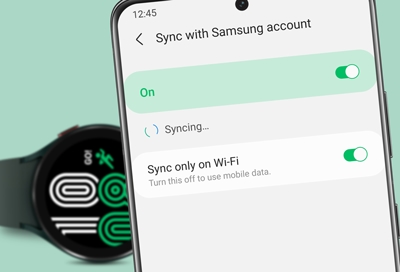
For additional technical details, Samsung’s official guide at Samsung Support can be a good resource.
Credit: www.samsung.com
Preventing Time Sync Issues In The Future
Fixing your current problem is important, but preventing future sync issues saves you time and frustration. Here’s what you can do:
- Keep Software Updated
- Make a habit of checking for updates every month.
- Avoid Battery-Saving Apps
- Use only trusted apps to manage power settings.
- Regularly Restart Devices
- A simple restart every week can clear minor glitches before they become major problems.
- Monitor Bluetooth and Location Permissions
- Check that the necessary permissions for the Galaxy Wearable app are always enabled.
- Avoid Beta Software Unless Necessary
- Stable releases are less likely to cause sync issues.
- Be Mindful of Travel
- Restart your watch after crossing time zones, especially if you rely on location-based time settings.
Frequently Asked Questions
Why Does My Galaxy Watch 4 Time Only Update When Connected To Wi-fi?
When your watch is not connected to your phone, it relies on Wi-Fi to fetch the current time from the internet. If your Wi-Fi connection is unstable or unavailable, time updates may be delayed. For best results, keep your watch paired with your phone via Bluetooth, especially when traveling or moving between time zones.
Can I Manually Set The Time On Galaxy Watch 4?
Normally, the Galaxy Watch 4 is designed to sync time automatically from your phone or the internet. However, if you want to set the time manually, you can go to Settings > General > Date and time and turn off “Set automatically.” You can then set the time, but this is not recommended as it may cause problems with apps or notifications.
Does Airplane Mode Affect Time Sync On Galaxy Watch 4?
Yes, enabling airplane mode disables all wireless connections, including Bluetooth, Wi-Fi, and mobile data. This prevents your watch from syncing with your phone or the internet, so the time will not update until you turn off airplane mode and reconnect.
What Should I Do If My Galaxy Watch 4 Still Won’t Sync After Trying Everything?
If you have tried all troubleshooting steps—restarting, updating software, re-pairing devices, and resetting network settings—and your watch still does not sync time, contact Samsung support or visit a service center. Persistent issues can sometimes be caused by hardware faults, especially if your device has been exposed to water or physical damage.
Are There Third-party Apps That Can Help With Time Sync On Galaxy Watch 4?
While most users should rely on Samsung’s built-in features, some third-party apps claim to help with time sync. Be cautious, as these apps may not be as reliable or could even cause more problems. Always choose apps from trusted developers and check reviews before installing.
For most users, the built-in sync system is the safest and most accurate choice.
Getting the time right on your Galaxy Watch 4 makes every other feature work better, from fitness to scheduling. With these solutions, you’re equipped to fix time sync problems now—and keep them from coming back.

Credit: www.reddit.com