If you own a Fitbit Versa 2, you know how helpful it can be for tracking steps, workouts, sleep, and more. But when your Versa 2 stops syncing with your phone or the Fitbit app, frustration quickly sets in. Suddenly, your hard-earned activity data is trapped on your watch, and you can’t see your progress, update goals, or share achievements.
Syncing problems are common, but the good news is they are usually fixable. This guide is designed to help you understand why your Fitbit Versa 2 not syncing issue happens and how to solve it. Whether you’re a tech beginner or a more advanced user, you’ll find clear, step-by-step advice. By the end, you’ll know how to get your Fitbit and phone talking again—so you can get back to your fitness journey without missing a beat.
Why Syncing Matters For Fitbit Versa 2
Syncing is how your Fitbit Versa 2 sends data—like steps, heart rate, and sleep—from the watch to your phone and the Fitbit app. Without syncing, your watch still records data, but you can’t view trends, set new goals, or participate in challenges.
Syncing also keeps your Fitbit’s software up to date and can fix minor bugs.
For many users, syncing happens automatically in the background. But when something interrupts that process, data gets stuck. You might notice the app showing old information, or your steps for the day don’t appear. This is a clear sign that your Fitbit Versa 2 is not syncing.
Key Functions That Rely On Syncing
- Daily activity stats: Steps, distance, calories, and floors climbed
- Heart rate trends: Viewing detailed graphs and averages
- Sleep analysis: Comparing sleep stages over time
- Notifications: Receiving calls, texts, and app updates
- Firmware updates: Keeping your device secure and smooth
If syncing breaks down, you lose access to many of these features.
Common Causes Of Fitbit Versa 2 Not Syncing
Sync problems can happen for several reasons. Understanding the most common causes helps you fix issues faster and avoid them in the future.
Bluetooth Connection Issues
The Fitbit Versa 2 uses Bluetooth to talk to your phone. If Bluetooth is off or unstable, syncing will stop. You might see an error in the app, or the watch may seem “disconnected.”
Outdated Fitbit App Or Device Software
Both your phone’s Fitbit app and your watch’s firmware need regular updates. Old versions can cause bugs or block syncing completely.
Multiple Devices Connected
If you connect your Fitbit Versa 2 to more than one phone or tablet, the app might get confused. This often leads to missed syncs or the device showing as unavailable.
App Permissions
The Fitbit app needs certain permissions on your phone to work properly. If you deny access to Bluetooth, location, or background activity, syncing can fail.
Low Battery
A low battery on your watch or phone may stop the sync process to save power. Always make sure both devices have enough charge.
Software Glitches
Sometimes, small software errors can freeze the syncing process. These are often fixed with a simple restart or reset.
Physical Obstructions
Walls, metal objects, or even other wireless devices can weaken the Bluetooth signal between your watch and phone.
Quick Checks Before Advanced Troubleshooting
Before diving into complex solutions, it’s smart to check a few basics. These simple steps solve most syncing issues.
- Is Bluetooth turned on for your phone?
- Is your Fitbit Versa 2 charged (at least 25%)?
- Is your phone’s Fitbit app updated to the latest version?
- Is your phone’s operating system current (Android/iOS)?
- Is your Versa 2 within 20 feet (6 meters) of your phone?
- Are you using only one device with the Fitbit at this time?
If you answer “no” to any of these, fix them first and try syncing again.
Step-by-step Solutions To Fix Fitbit Versa 2 Not Syncing
Let’s go through the most effective ways to fix syncing issues, from the easiest to more advanced methods.
1. Restart Both Devices
Restarting often clears temporary glitches.
- Restart your Fitbit Versa 2: Hold the left button for 10 seconds until you see the Fitbit logo.
- Restart your phone: Power it off, wait 30 seconds, and turn it back on.
Try syncing again after restarting.
2. Toggle Bluetooth
Turn Bluetooth off and on again.
- On your phone, open settings, find Bluetooth, and turn it off.
- Wait 10 seconds, then turn it back on.
- Open the Fitbit app and try syncing.
3. Force Sync In Fitbit App
Sometimes, syncing needs a manual push.
- Open the Fitbit app.
- Tap your profile photo, then your device (Versa 2).
- Tap “Sync Now.”
If syncing starts, you’ve solved the problem.
4. Check App Permissions
Your phone may block the Fitbit app from syncing in the background. Make sure permissions are set correctly.
- On iPhone: Go to Settings > Fitbit > enable Bluetooth, Background App Refresh, and Location.
- On Android: Go to Settings > Apps > Fitbit > Permissions > allow Bluetooth and Location.
5. Update App And Firmware
Old software can block syncing.
- Check the App Store or Google Play Store for Fitbit app updates.
- In the Fitbit app, check for Versa 2 firmware updates: Tap your device > Device Settings > Check for device update.
6. Remove And Re-add Your Versa 2
If nothing works, try this reset:
- In the Fitbit app, tap your profile photo, then your Versa 2.
- Scroll down and tap “Remove This Device.”
- Restart your phone.
- Set up your Versa 2 again in the Fitbit app.
7. Forget And Re-pair Bluetooth
A bad Bluetooth pairing can block syncing.
- Open your phone’s Bluetooth settings.
- Find “Versa 2” or “Fitbit” and tap “Forget” or “Remove.”
- Restart your phone.
- Open the Fitbit app and set up your watch again.
8. Reset Network Settings (advanced)
On rare occasions, your phone’s network settings interfere.
- On iPhone: Settings > General > Reset > Reset Network Settings.
- On Android: Settings > System > Reset options > Reset Wi-Fi, mobile & Bluetooth.
Note: This will remove saved Wi-Fi networks and Bluetooth devices. You’ll need to reconnect them.
9. Factory Reset Versa 2 (last Resort)
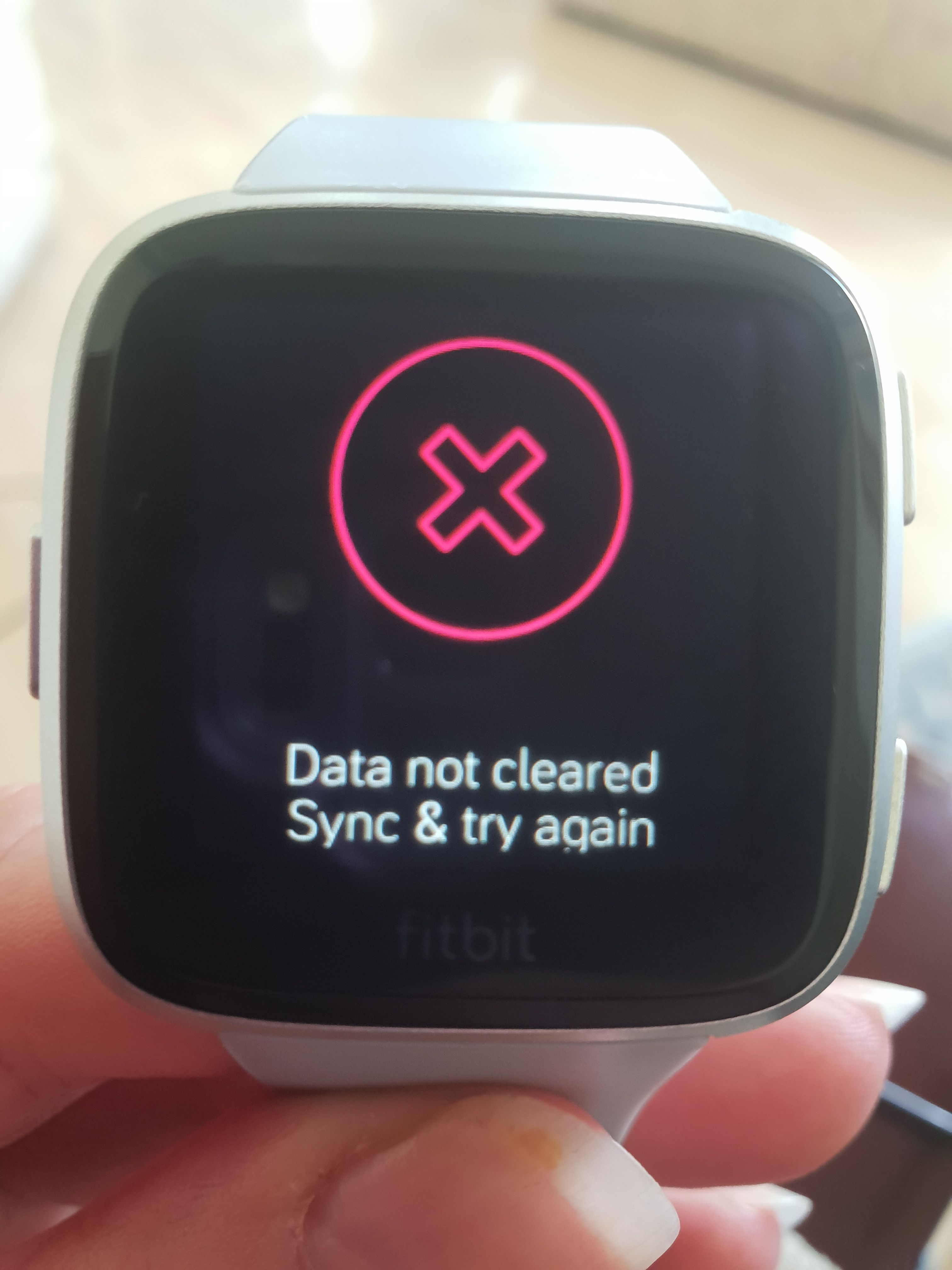
Use this only if nothing else works. A factory reset erases all data from your watch.
- On Versa 2, swipe left to “Settings.”
- Tap “About,” then “Factory Reset.”
- Set up your Versa 2 as new in the Fitbit app.
Credit: antillespr.edu
Comparing The Most Common Fixes
Here’s a quick look at which solutions are fastest, easiest, and most likely to work:
| Solution | Difficulty | Success Rate | Time Needed |
|---|---|---|---|
| Restart Devices | Very Easy | High | 1-2 min |
| Toggle Bluetooth | Very Easy | Medium | 1 min |
| Force Sync in App | Easy | Medium | 2 min |
| Update App/Firmware | Easy | High | 5-10 min |
| Remove and Re-add Device | Medium | High | 10-15 min |
| Factory Reset | Hard | Very High | 20 min |
Restarting and updating solve most issues. Only use factory reset as a last resort.
Advanced Tips Most Beginners Miss
Even experienced Fitbit users sometimes miss a few important details. Here are two advanced insights that can help:
- Background App Refresh: On both iOS and Android, the Fitbit app needs permission to run in the background. If you turn off this feature (to save battery or data), syncing becomes unreliable. Always keep “Background App Refresh” enabled for Fitbit.
- Battery Optimization Settings: Many Android phones (especially Samsung, Xiaomi, and Huawei) have aggressive battery optimization. These settings may close the Fitbit app when it’s not being used, blocking automatic syncing. Go to your phone’s battery settings and add Fitbit as an exception so it can run in the background.

Credit: antillespr.edu
How To Prevent Future Syncing Problems
Once you fix the syncing issue, it’s smart to take steps to avoid it happening again.
Keep Your Devices Updated
Regularly check for updates for both the Fitbit app and your phone’s operating system. Updates often include bug fixes that improve syncing.
Charge Devices Regularly
Low battery can interrupt syncing. Try to keep both your Versa 2 and phone charged above 25%.
Limit Other Bluetooth Devices
Having too many Bluetooth devices connected at once can confuse your phone. Disconnect devices you don’t need.
Avoid Interference
Keep your Fitbit Versa 2 and phone close together when syncing. Avoid walls, metal desks, or other electronics between them.
Use Only One Device At A Time
Don’t try to sync your Versa 2 with more than one phone or tablet. Pick one device for daily syncing to avoid confusion.
Monitor App Permissions
If you update your phone or reinstall the Fitbit app, double-check that all permissions are still granted.
When To Contact Fitbit Support
If you try all the steps above and your Fitbit Versa 2 still isn’t syncing, it may be time to get professional help. Here’s when to contact Fitbit Support:
- Your Versa 2 does not appear in the Fitbit app after setup
- The watch is stuck on the Fitbit logo or won’t turn on
- You see error messages like “Device Not Found” or “Sync Failed” every time
- Your watch will not pair with any phone, even after a factory reset
You can reach Fitbit Support through their website or app. They may ask for details about your watch, app, and phone model. Be ready to describe what you’ve tried so far.
Syncing Fitbit Versa 2 Across Different Phones
Sync issues can look different on iOS versus Android. Here’s a comparison to help you diagnose based on your phone type:
| Problem | iOS (iPhone) | Android |
|---|---|---|
| Bluetooth drops connection | Sometimes after iOS updates | Common with battery optimization |
| Permissions block syncing | Location/Bluetooth settings | Battery/Background data settings |
| App crashes | Rare | More common on older phones |
| Firmware update issues | Via App Store only | Google Play or Fitbit app |
If you change phones (for example, from Android to iPhone), always “remove” your Fitbit Versa 2 from the old phone’s Bluetooth settings and app before connecting to the new one.
What Data Gets Lost If Versa 2 Doesn’t Sync?
It’s natural to worry about losing your progress. Here’s what happens when your Fitbit can’t sync:
- Daily activity: Your Versa 2 stores up to 7 days of detailed motion data and 30 days of daily totals.
- Sleep data: Recent sleep sessions are saved on the device, but detailed analysis may be limited until you sync.
- Heart rate: Basic trends are stored, but high-resolution graphs need syncing.
If you don’t sync within 7 days, some detailed data may be lost. Always try to sync at least once a week.
Credit: www.reddit.com
Fitbit Versa 2 Not Syncing After Update
Sometimes, updates introduce new bugs or reset permissions. If your Versa 2 stops syncing after an app or firmware update, try these steps:
- Restart both your watch and phone.
- Check permissions (updates may turn them off).
- Re-pair Bluetooth if needed.
- Update the Fitbit app again if a new fix is released.
Updates can sometimes take a few hours to roll out globally, so be patient if you don’t see an immediate fix.
Real User Experiences
Many Fitbit users have faced syncing problems—and most have fixed them with simple steps. For example, a user on the Fitbit Community forum shared that after weeks of failed syncs, simply resetting network settings on their phone solved the problem.
Another user found that disabling battery optimization on their Android phone made syncing work perfectly.
It’s also common for syncing issues to appear after a phone system update. In these cases, uninstalling and reinstalling the Fitbit app often solves the issue.
These real-world examples show that patience and methodical troubleshooting usually pay off.
Fitbit Versa 2 Vs. Other Fitbit Models: Syncing Reliability
Fitbit has released many models over the years, and syncing reliability can vary. Here’s how the Versa 2 compares to other popular Fitbit devices:
| Model | Bluetooth Version | Syncing Issues (reported) | Max Data Storage (without sync) |
|---|---|---|---|
| Versa 2 | Bluetooth 4.0 | Occasional, often fixed by restart | 7 days |
| Versa 3 | Bluetooth 5.0 | Rare, newer hardware | 7 days |
| Charge 4 | Bluetooth 4.0 | Similar to Versa 2 | 7 days |
| Inspire 2 | Bluetooth 4.2 | Less frequent | 7 days |
The Versa 2 is generally reliable, but like other Bluetooth 4.0 devices, it can be sensitive to interference and software bugs.
Frequently Asked Questions
What Should I Do If My Fitbit Versa 2 Won’t Sync At All?
Start with the basics: restart both devices, check Bluetooth, and make sure your Fitbit app and device firmware are up to date. If these don’t work, remove and re-add your Versa 2 to the app, and consider a factory reset as a last resort.
Does Syncing Use A Lot Of Battery On The Versa 2?
No, syncing is designed to use minimal battery. However, if your watch or phone battery is very low, syncing may pause until you recharge.
Can I Sync My Fitbit Versa 2 With Multiple Phones?
It’s possible, but not recommended. Syncing with more than one device often causes connection issues. For best results, use one main phone for syncing.
How Often Should I Sync My Versa 2?
Try to sync at least once a day to keep your data up to date. If you miss a few days, sync within a week to avoid losing detailed data.
Where Can I Get Official Help For Fitbit Syncing Issues?
Visit the official Fitbit Help Center for troubleshooting guides, community forums, and ways to contact support.
If your Fitbit Versa 2 not syncing issue is causing stress, remember that most problems are easy to solve with a few quick steps. By following this guide, you can keep your fitness data flowing, avoid future headaches, and enjoy your Fitbit to the fullest.