Many people love using Fitbit to track their daily activity, workouts, sleep, and heart rate. These small devices offer valuable insights that can help you live a healthier life. But sometimes, Fitbit stops showing your data. Steps disappear, heart rate graphs are empty, or your latest night’s sleep isn’t there.
This can be confusing and frustrating, especially if you rely on that information to monitor your health goals.
If you’re facing the Fitbit not showing data issue, you’re not alone. Thousands of users search for solutions every month. This guide will help you understand why Fitbit data may not appear, how to fix the issue, and how to prevent it from happening again. You’ll find clear explanations, practical steps, and expert insights—even things beginners usually miss.
Why Fitbit Data Goes Missing
Understanding why Fitbit data might not show is the first step to solving the problem. There are several possible reasons, and sometimes more than one issue happens at the same time.
Syncing Problems
The most common cause is syncing issues. Fitbit devices collect data, but they need to transfer it to your phone or computer. If syncing fails, your app won’t show the latest information.
- Bluetooth on your phone may be off or unstable.
- The Fitbit app could be frozen or needs updating.
- Your device might be out of battery or too far from your phone.
Software Glitches
Sometimes, a software bug causes data to disappear. This can happen after an update or when the app crashes.
- New firmware may have unexpected problems.
- The Fitbit app can have compatibility issues with your device’s operating system.
- Corrupted files can stop data from displaying.
Account Issues
Your Fitbit account stores data in the cloud. If there’s a problem with your account, your data might not show.
- Login errors can block your access.
- Multiple devices connected to one account may cause confusion.
- Server outages may temporarily hide your data.
Device Malfunctions
Fitbit devices are complex electronics. Hardware problems can cause missing data.
- The heart rate sensor might be dirty or blocked.
- The device could have water damage or a faulty battery.
- Buttons or screens may not respond, stopping tracking.
User Mistakes
Sometimes, the issue is simple human error.
- Wearing the device incorrectly affects measurement.
- Forgetting to start or stop tracking for workouts.
- Accidentally deleting or resetting data.
Non-obvious insight: Many users don’t realize that using Fitbit on multiple devices (like phone and tablet) can cause data syncing conflicts. Also, if your phone’s battery saver or app optimization settings are on, they might block Fitbit from syncing in the background.
Common Fitbit Data Issues Explained
Not all missing data problems are the same. The type of missing information can help you diagnose the cause.
Steps And Activity Data Missing
If your daily steps, distance, or active minutes are zero or not updating, it’s often a syncing or sensor issue.
- Check if your Fitbit is securely on your wrist and not too loose.
- Make sure it’s charged and connected to your phone.
- Restarting both device and app can help.
Heart Rate Not Showing
When heart rate graphs are empty, it’s usually a sensor or skin contact problem.
- Clean the back of your device and your wrist.
- Wear the tracker above your wrist bone for better readings.
- Some tattoos or dark skin tones may affect optical sensors.
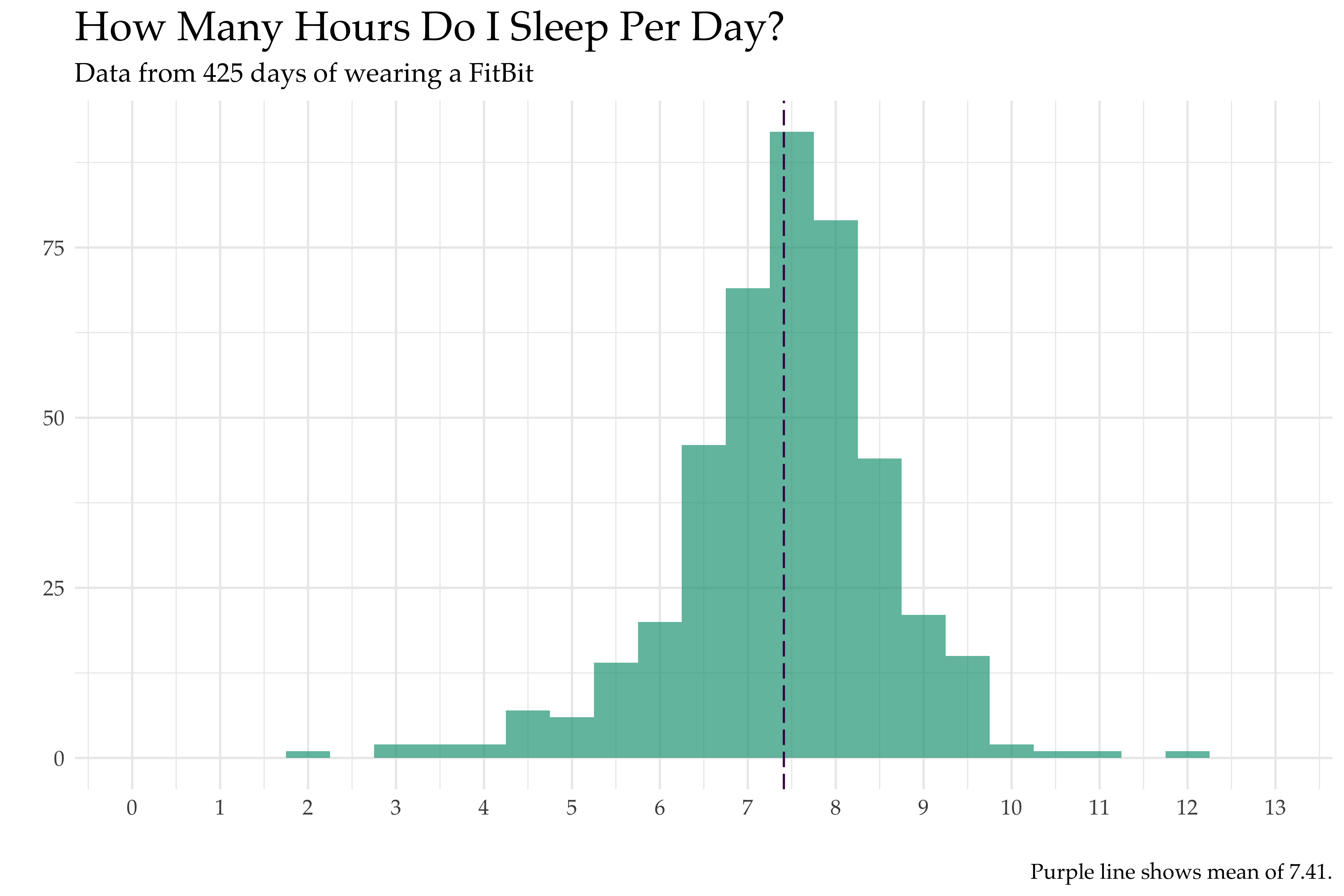
Sleep Data Disappeared
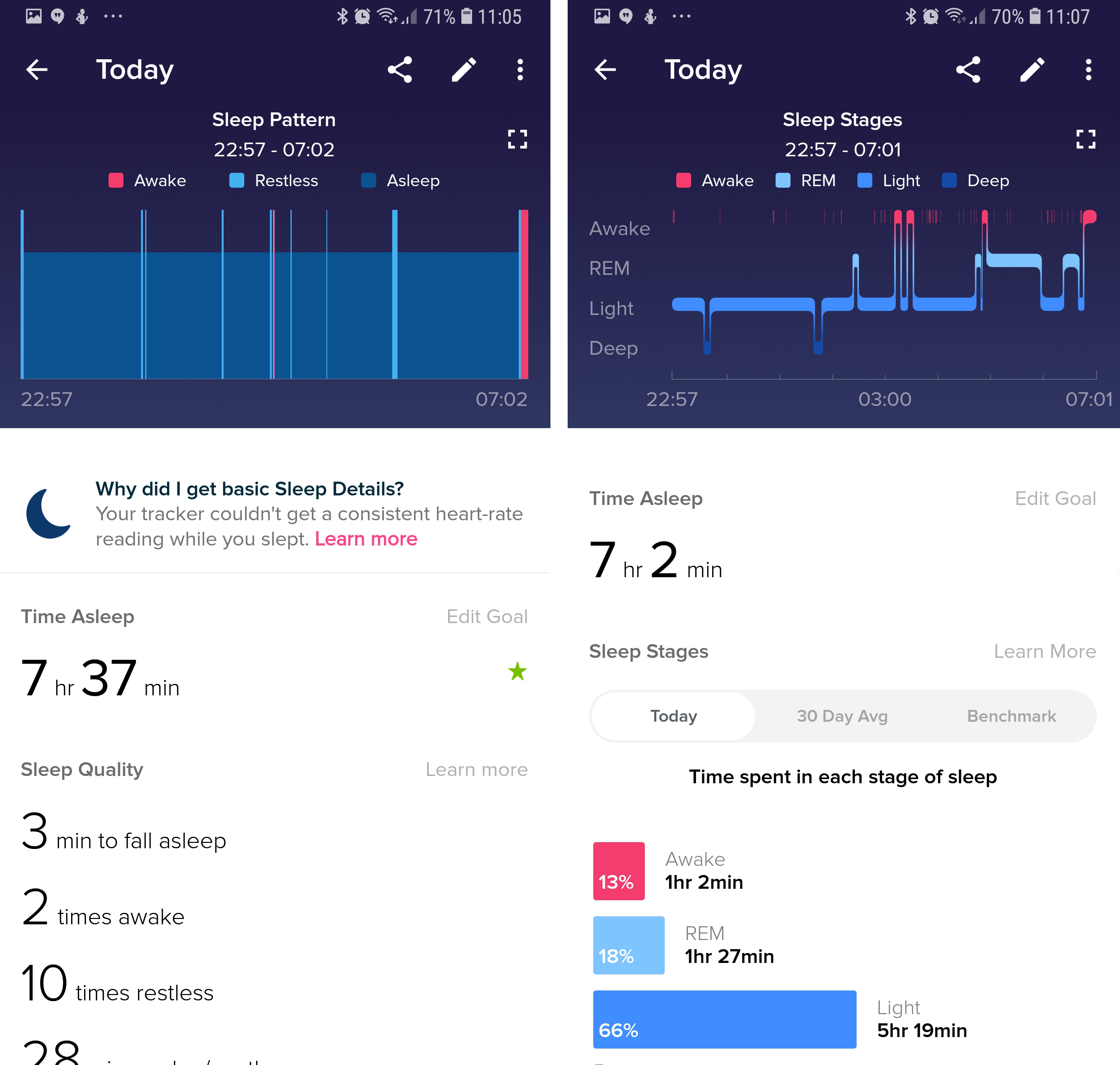
If you don’t see your sleep data, check if you wore your Fitbit overnight. Some models need to be set to sleep mode manually, while others are automatic.
- Sync your device as soon as you wake up.
- Sleep data may be delayed if the device is low on battery.
Exercise And Workout Data Missing
Missing exercise records often result from forgetting to start tracking or an app crash.
- Use the “Exercise Shortcut” feature for quick starts.
- Check for app updates that may fix bugs.
Floors And Elevation Data Not Appearing
Some Fitbit models track floors climbed using an altimeter. If this data is missing, it may be a hardware issue.
- Altimeters can fail if moisture gets inside the device.
- Firmware updates sometimes fix tracking bugs.
Credit: tradicao.pt
Quick Fixes For Missing Fitbit Data
You don’t always need expert help to solve Fitbit data issues. Try these steps first before contacting support.
1. Check Bluetooth Connection
- Make sure Bluetooth is turned on in your phone settings.
- Move your Fitbit closer to your phone.
- Restart Bluetooth or toggle it off and back on.
2. Force Sync Your Fitbit
- Open the Fitbit app.
- Tap your device icon.
- Tap “Sync Now” to force a manual sync.
3. Restart Your Fitbit Device
- Hold down the button(s) on your Fitbit for 10 seconds until you see the logo.
- Restarting clears temporary bugs and often restores data.
4. Update Your Fitbit App And Device
- Go to your phone’s app store and check for Fitbit app updates.
- In the app, check for device firmware updates.
5. Log Out And Log In To Your Account
- Sometimes, logging out and back in fixes account or server issues.
6. Check Battery And Charging
- Make sure your Fitbit is charged.
- If the battery is low, some features may not work.
7. Reinstall The Fitbit App
- Delete the app from your phone.
- Reinstall it and log in again.
- This can fix corrupted files or bad updates.
8. Review App Permissions
- Fitbit needs permissions to access Bluetooth, location, and background activity.
- Go to your phone’s settings and check app permissions.
9. Turn Off Battery Saver Modes
- Battery saver or optimization settings can stop syncing.
- Make sure Fitbit is allowed to run in the background.
Non-obvious insight: On Android, “Do Not Disturb” or “Airplane Mode” can silently block Fitbit syncing, even when Bluetooth seems on.
Fixing Fitbit Data Issues: Step-by-step Examples
Let’s walk through a few scenarios with step-by-step solutions.
Example 1: Fitbit Not Syncing Steps To App
- Make sure your Fitbit is charged and on your wrist.
- Open the Fitbit app and check if Bluetooth is on.
- Tap your profile picture > your device name > tap “Sync Now.”
- If data still doesn’t show, restart your phone and your Fitbit.
- If all else fails, uninstall and reinstall the app.
Example 2: No Heart Rate Data After Update
- Check if your Fitbit band is tight enough.
- Clean the sensor area and your wrist.
- Restart the device.
- Check for another firmware update.
- If the sensor is still not working, contact Fitbit support.
Example 3: Sleep Data Not Appearing
- Make sure you wore your Fitbit overnight.
- Sync the device as soon as you wake up.
- Wait a few minutes, as sleep data can take time to process.
- Restart the app if data doesn’t appear.
Advanced Troubleshooting For Persistent Problems
If quick fixes don’t work, try these more advanced steps.
Resetting Your Fitbit Device
A factory reset erases all data on the device. Only use this if other steps fail.
- For most models, go to Settings > About > Factory Reset.
- Re-pair the device with your Fitbit app after reset.
Checking For App Or Os Compatibility
Fitbit may not work well with outdated operating systems.
- Check Fitbit’s support page for the latest compatible devices.
- Update your phone’s OS if needed.
Clearing Fitbit App Cache (android Only)
- Go to Settings > Apps > Fitbit > Storage > Clear Cache.
- This can solve app freezing or data loading problems.
Using Fitbit Web Dashboard
If the app isn’t showing data, try logging in at fitbit. com.
- Sometimes, cloud data is there even if the app doesn’t show it.
- If your dashboard shows the data, the problem is with your app.
Contacting Fitbit Customer Support
If nothing works, reach out to Fitbit support. Provide:
- Device model and serial number.
- Details about missing data.
- Steps you’ve already tried.
Expert tip: Keep a record of your troubleshooting steps. This helps support staff solve your issue faster.
Preventing Fitbit Data Loss In The Future
Once your Fitbit is working, you want to avoid this headache again. Here’s how to keep your data safe and visible.
Sync Regularly
- Get in the habit of syncing your device at least once a day.
- Frequent syncing reduces the risk of data loss if your device battery dies.
Keep Devices Updated
- Regular updates fix bugs and add new features.
- Enable auto-updates on your phone and Fitbit device.
Check App Permissions
- Make sure Fitbit has all needed permissions after every update or phone reset.
Use Only One Device For Syncing
- Syncing with multiple phones or tablets can cause conflicts and lost data.
- Choose one main device for syncing.
Handle With Care
- Protect your Fitbit from water (unless it’s waterproof) and impacts.
- Clean sensors regularly for accurate tracking.
Back Up Your Account
- Occasionally export your health data from the Fitbit website.
- This gives you a backup in case of device failure.
Practical note: Some users have reported that switching Wi-Fi networks or traveling between time zones can affect Fitbit syncing. Manually check and adjust your time zone settings if needed.
Fitbit Models: Data Issue Patterns
Some Fitbit models are more likely to experience certain data problems. Here’s a quick comparison:
| Model | Common Data Issues | Special Notes |
|---|---|---|
| Fitbit Charge Series | Heart rate, step syncing | Frequent app updates help |
| Fitbit Versa Series | Sleep, notifications | Check app permissions |
| Fitbit Inspire Series | Step count, battery life | Lower battery may affect data |
| Fitbit Sense | Advanced sensors | Firmware updates needed |
| Fitbit Ace (Kids) | Syncing, parental controls | Check family account settings |
Fitbit App Vs Fitbit Web: Where’s My Data?
Many users get confused about where their data is stored and shown. Fitbit keeps your information in the cloud, but the app and web dashboard sometimes show different things.
| Platform | Strengths | Weaknesses |
|---|---|---|
| Fitbit App (Mobile) | Real-time sync, easy to use | Needs Bluetooth and permissions |
| Fitbit Web Dashboard | More data export options | Data may lag behind app |
Pro tip: If the web dashboard shows your latest stats but the app does not, try reinstalling or updating the app. If neither shows data, the problem is most likely with your device or account.
The Role Of Fitbit Servers And Cloud Sync
When you sync your Fitbit, data goes from your device to your phone, then to Fitbit’s servers. If there’s an outage or maintenance, your data can temporarily disappear from the app or web.
- Server outages are rare but do happen.
- Check Fitbit’s official status page for updates.
- Your device will store up to 7 days of detailed data if syncing is delayed.
Non-obvious insight: If you go more than a week without syncing, your Fitbit may delete old data to make space. Sync regularly to avoid losing your history.
When To Consider A Device Replacement
Sometimes, missing data is a sign your Fitbit is failing. Here’s when it’s time to think about a new device:
- Repeated data loss after trying all fixes.
- Physical damage, water inside the device, or a broken sensor.
- Battery doesn’t hold a charge for more than a few hours.
- Device is no longer supported for updates.
Fitbit offers a limited warranty and trade-in discounts for some older models. If your device is within warranty, contact support for replacement options.
Credit: www.altaunited.com
Real-world Data: Fitbit Data Loss Statistics
Several studies and forums have discussed how often Fitbit users face missing data problems.
- Up to 15% of Fitbit users report at least one data sync issue per year (based on Fitbit Community Forum surveys).
- The majority of problems are fixed by restarting or updating the app.
- Less than 3% of users face device hardware failures leading to total data loss.
Example: In 2022, a major update caused temporary sleep data loss for some Fitbit Charge 4 users. Fitbit fixed this with a firmware patch within a week.
For more about device reliability, you can read this Fitbit Wikipedia article.
Tips For Getting The Most Out Of Your Fitbit
Once your data is showing correctly, use these strategies to improve your Fitbit experience:
- Set daily sync reminders in your phone calendar.
- Use Fitbit Premium for deeper health insights (if available).
- Export your data monthly for backup and review.
- Clean your device regularly for accurate readings.
- Check for updates at least once a month.
Advanced user tip: Some third-party apps can pull your Fitbit data automatically into other health platforms like Google Fit or Apple Health. This adds another layer of backup and analysis.
Frequently Asked Questions
What Should I Do If My Fitbit Is Not Syncing At All?
First, check that Bluetooth is on and your device is charged. Try restarting both your phone and Fitbit. Use “Sync Now” in the app. If it still doesn’t work, reinstall the Fitbit app and log in again. If problems continue, contact Fitbit support.
Why Is My Sleep Data Not Showing On My Fitbit App?
Make sure you wore your Fitbit overnight and synced it in the morning. Some devices need to be in sleep mode to track sleep. If your sleep data is still missing, restart your device and app. Occasionally, sleep data can be delayed due to server processing.
Can I Recover Lost Data If My Fitbit Didn’t Sync For Several Days?
Fitbit devices usually store up to 7 days of detailed data. If you sync within that time, your data should transfer. After 7 days, some information (like detailed heart rate) may be lost, but basic summaries might still sync.
Is It Safe To Use Third-party Apps With Fitbit?
Most popular third-party apps are safe, but always check privacy policies and reviews. Giving access to your Fitbit data means sharing your health information. Stick with well-known apps and avoid entering your password on unfamiliar sites.
How Can I Prevent Fitbit From Losing Data Again?
Sync your device daily, keep your app and device updated, and use only one device for syncing. Give all needed permissions to the Fitbit app. Regularly back up your data through the web dashboard. If you switch phones, unlink the old device before pairing a new one.
Fitbit devices are powerful and convenient, but data issues can happen to anyone. With the right steps, you can quickly fix most problems and keep your health tracking on track. Remember to sync often, keep everything updated, and reach out for help when needed.
This way, your Fitbit will remain a reliable partner on your fitness journey.

Credit: www.fondation-enovos.lu