When your Fitbit display suddenly stops working, it can feel frustrating, especially if you rely on it for tracking health, activity, or notifications. Whether you use a Fitbit Charge, Versa, Sense, Inspire, or another model, a blank, flickering, or frozen screen can disrupt your daily routine. There are many reasons behind display problems, from simple software glitches to hardware failures. In this article, you’ll learn how to diagnose the issue, what solutions work for different Fitbit models, and how to prevent future display problems. We’ll cover practical steps, common mistakes, and expert tips that go beyond the basics.
Why Your Fitbit Display Stops Working
Fitbit devices are designed to withstand daily use, but the display is a sensitive part. The screen not working can signal several issues:
- Battery depletion: If your Fitbit’s battery is low or dead, the display may not turn on.
- Software glitches: Updates or bugs can cause the screen to freeze or fail to display information.
- Physical damage: Drops, impacts, or water exposure may damage the internal screen.
- Hardware defects: Faulty connections or components can cause a blank or flickering screen.
- Settings errors: Sometimes, the display is off due to settings like dimmed brightness or sleep mode.
Understanding these causes helps you choose the right fix. Sometimes, the issue is simple and easy to solve. Other times, it needs a deeper look or professional help.
Identifying Your Fitbit Model And Display Type
Fitbit makes several devices, each with unique display technology. Knowing your model helps you find the correct solution.
| Model | Display Type | Common Display Issues |
|---|---|---|
| Charge Series | OLED / AMOLED | Flickering, blank screen, dim display |
| Versa Series | AMOLED | Frozen screen, touch not responding |
| Sense Series | AMOLED | Screen not turning on, ghost touches |
| Inspire Series | OLED | No display, low brightness |
| Luxe | AMOLED | Lines on screen, color distortion |
Some users mix up models or assume all Fitbits have the same troubleshooting steps. Always check your device’s model (on the back or in the Fitbit app) before starting.

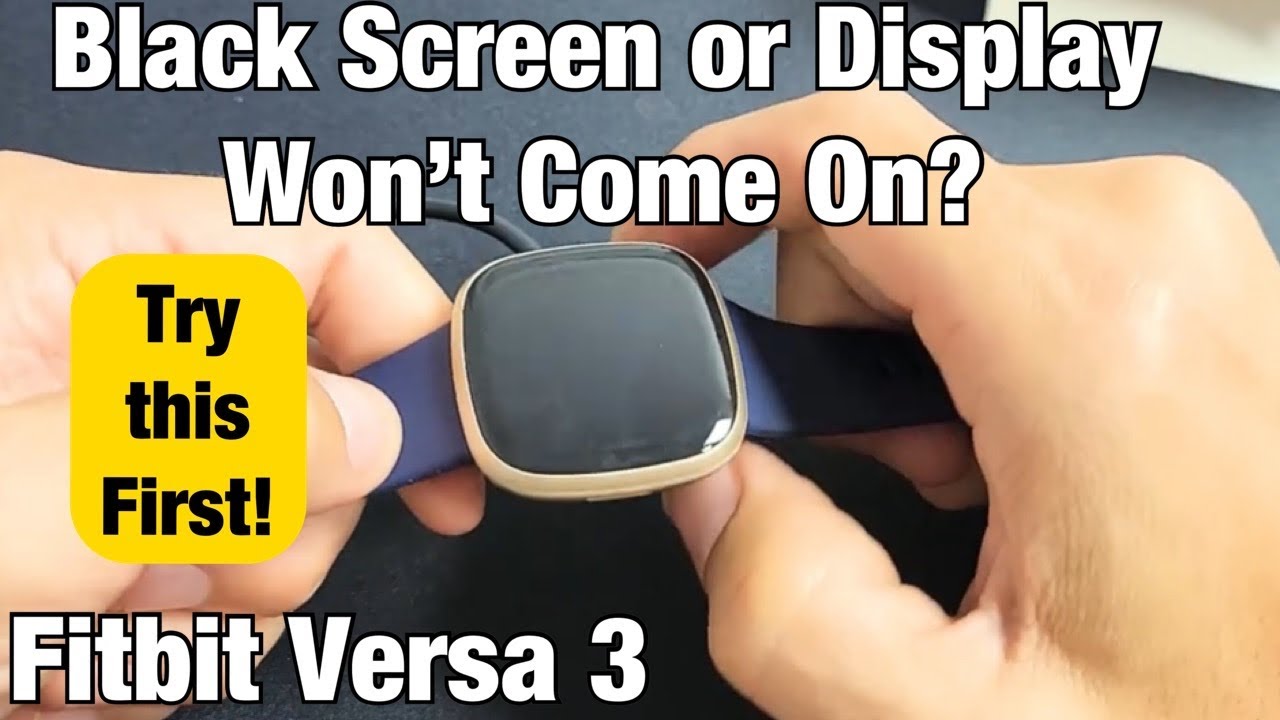
Credit: www.youtube.com
Common Symptoms Of Fitbit Display Problems
Display issues do not always look the same. Here are frequent symptoms you might see:
- Blank screen: Nothing shows, even when pressing buttons or tapping.
- Frozen display: Screen shows the same image, doesn’t change with movement or touch.
- Flickering or dim screen: Display flashes or is too dark to read.
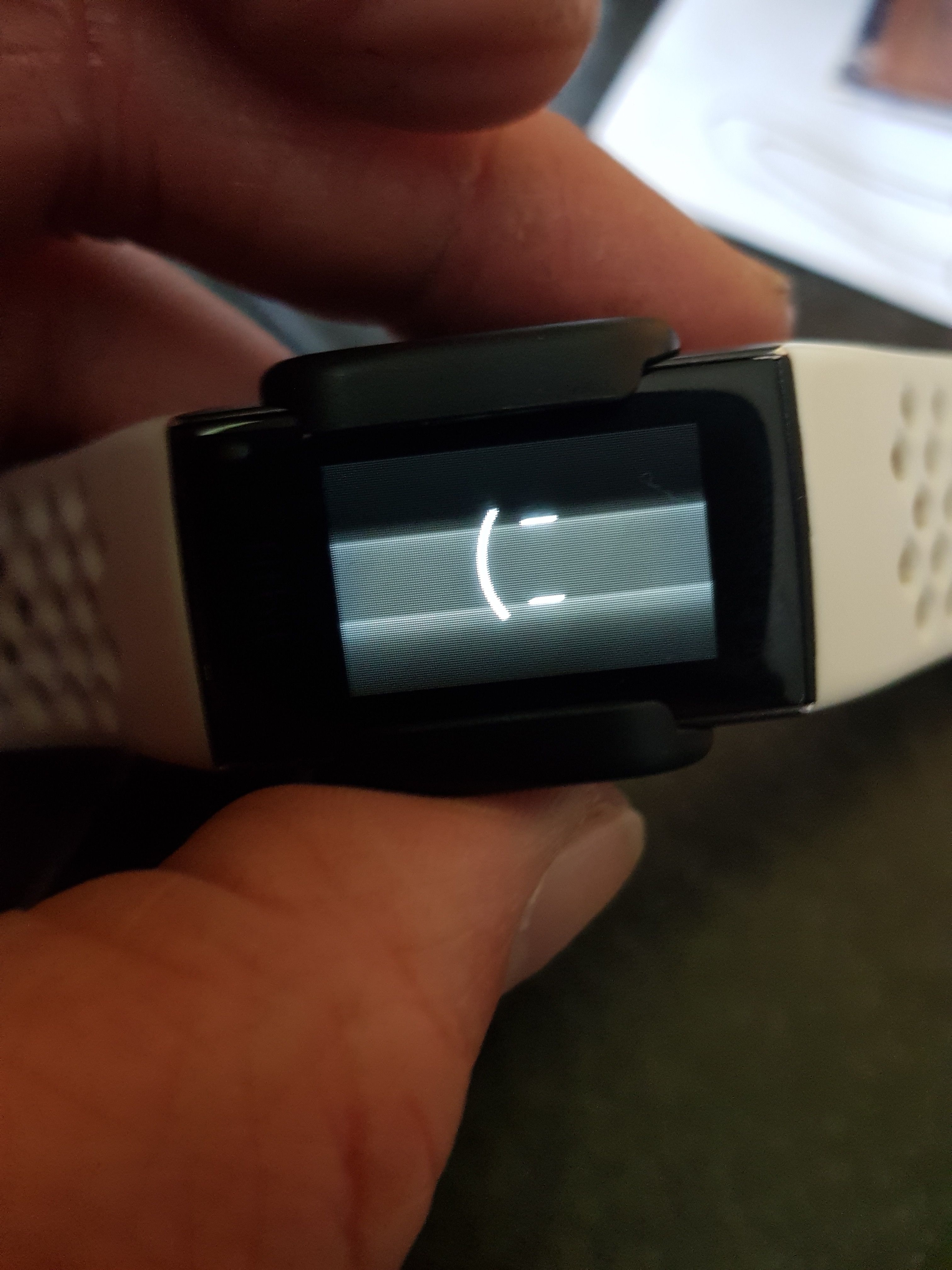
- Lines or spots: Strange visual artifacts appear, sometimes after a drop.
- Touch not working: Screen is on, but swipes or taps don’t respond.
- Random shutdowns: Screen turns off unexpectedly, then comes back.
- Ghost touches: Screen reacts on its own, opening apps or menus.
Sometimes, symptoms overlap. For example, a blank screen may also have ghost touches. Identifying the exact symptom helps you find the right fix.
First Steps: Quick Solutions For Fitbit Display Issues
Before deep troubleshooting, try these simple steps. They solve many display problems:
- Charge your Fitbit: Connect to the official charger. Wait at least 30 minutes. Sometimes, a dead battery looks like a broken screen.
- Restart your device: Press and hold the side button (or both buttons for some models) for 10 seconds. Release when you see the logo. Restarting clears minor software glitches.
- Clean the screen and sensors: Wipe with a soft, dry cloth. Dirt or sweat can confuse touch sensors.
- Check brightness settings: Open the Fitbit app or device settings. Increase brightness if the screen is too dim.
- Remove from water: If your Fitbit got wet, dry it thoroughly. Water can temporarily block the display.
These quick steps often fix the problem. If your screen is still not working, move to deeper troubleshooting.
Advanced Troubleshooting For Fitbit Display Problems
If basic fixes don’t help, try these advanced solutions. These address both software and hardware issues.
Software Troubleshooting
Update Fitbit Firmware
Outdated firmware can cause display issues. Use the Fitbit app:
- Open the Fitbit app on your phone.
- Tap your device icon.
- Check for firmware updates.
- If available, update and wait for the process to finish.
Firmware updates often fix bugs and improve performance. Many users miss this step, thinking updates only add features.
Factory Reset
A factory reset can solve stubborn software problems. Warning: This erases all data on your device.
- For most models, go to Settings > About > Factory Reset.
- Follow on-screen instructions.
- After reset, reconnect with your phone and set up again.
Factory resets help when your screen is frozen or touch is unresponsive. Always backup important data before resetting.
Hardware Troubleshooting
Inspect For Physical Damage
Look for cracks, chips, or water inside the screen. If you see signs of damage:
- Do not try to fix it yourself. Opening the device can void the warranty.
- Contact Fitbit support or a certified repair center.
Try A Different Charger
Sometimes, chargers malfunction and don’t supply enough power. Use a genuine charger. Avoid third-party cables.
Tap Or Shake Gently
If the screen is blank but the device vibrates, gently tap or shake it. Sometimes, loose internal connections respond to movement. Do not shake too hard—this can cause more damage.
Reset By Model
Different Fitbit models have unique restart methods. Here’s a quick guide:
| Model | Restart Method |
|---|---|
| Charge Series | Press and hold button for 10 seconds |
| Versa Series | Hold back and bottom buttons until logo appears |
| Sense Series | Press and hold button for 15 seconds |
| Inspire Series | Hold button for 5 seconds |
| Luxe | Hold side button for 10 seconds |
Make sure you use the correct method for your model. Using the wrong restart process can cause confusion or not work at all.
Fixing Fitbit Display Problems: Step-by-step Guide
Follow this guide if your screen still doesn’t work after basic troubleshooting.
Step 1: Confirm Battery And Charging
- Plug your Fitbit into the charger.
- Wait for any vibration or lights.
- If nothing happens, try another outlet or charger.
If your device still shows no signs of life, the battery may be dead or the charging port damaged.
Step 2: Attempt A Hard Restart
- Use the restart method for your model (see previous table).
- Repeat the process two or three times if the first try fails.
Some Fitbits need multiple restarts to clear stubborn glitches.
Step 3: Test Screen Responsiveness
- If the screen turns on, check touch and swipe functions.
- Try accessing menus, brightness, and notifications.
If touch doesn’t work, but the display is on, move to software troubleshooting.
Step 4: Update Firmware
- Use the Fitbit app to check for updates.
- Connect to Wi-Fi for faster downloads.
- Update and restart your device.
Firmware updates fix many hidden bugs that affect the display.
Step 5: Factory Reset (if Needed)
- Backup your data first.
- Follow the reset steps in the device settings.
- Reconnect after reset.
Factory resets should be your last step before seeking professional help.
Step 6: Inspect For Damage
- Look for signs of water, cracks, or loose parts.
- If found, stop troubleshooting and contact support.
Attempting to fix physical damage on your own can cause more problems.
Common Mistakes When Fixing Fitbit Display Issues
Many users make errors that slow down the repair process or cause new issues. Avoid these mistakes:
- Using third-party chargers: Non-official chargers may damage the battery or screen.
- Ignoring firmware updates: Updates often fix display bugs.
- Trying to open the device: Opening can void warranties and cause more damage.
- Skipping backup before reset: Always save your data before factory resets.
- Overlooking settings: Low brightness or sleep mode may seem like display failure.
- Forcing restarts repeatedly: Too many forced restarts can harm the device.
Learning from these mistakes helps you solve the issue faster and safer.
Preventing Future Fitbit Display Problems
Care and maintenance can keep your Fitbit display working longer. Here are practical tips:
Protect Against Physical Damage
- Use a screen protector.
- Avoid dropping or banging your device.
- Keep away from extreme temperatures.
Charge Properly
- Use only official chargers.
- Avoid overcharging; disconnect when fully charged.
- Clean charging ports regularly.
Update Software Regularly
- Check for firmware updates monthly.
- Keep the Fitbit app updated.
Avoid Water And Moisture
- Even water-resistant models can fail with prolonged exposure.
- Dry after swimming or sweating.
Monitor Settings
- Adjust brightness based on environment.
- Set sleep mode only when needed.
Store Safely
- Keep Fitbit away from magnets or strong electrical fields.
- Store in a cool, dry place.
When To Contact Fitbit Support
Sometimes, you cannot fix the display yourself. Contact Fitbit support if:
- Your device is under warranty.
- There is visible damage or water inside.
- Basic and advanced troubleshooting fail.
- You see repeated software errors.
Fitbit offers replacement or repair for eligible devices. Keep your receipt and warranty information ready.
How Fitbit Repairs And Warranties Work
Fitbit’s warranty usually covers manufacturing defects for one year. It does not cover accidental damage, like drops or water exposure. You can:
- Request repair or replacement through the official website.
- Use authorized service centers for repairs.
- Extend warranty with Fitbit Protection Plan (for some regions).
Repairs often take 2–4 weeks, depending on parts and location. Replacement is quicker but depends on stock.
Comparing Fitbit Display Problems To Other Wearables
Fitbit is not the only device with display issues. Let’s compare common problems with Apple Watch and Garmin wearables.
| Device | Common Display Issues | Ease of Repair | Warranty Coverage |
|---|---|---|---|
| Fitbit | Blank screen, touch not working, flickering | Moderate | 1 year, limited accidental coverage |
| Apple Watch | Frozen screen, unresponsive touch, lines | Easy (Apple Stores) | 1 year, accidental coverage with AppleCare+ |
| Garmin | Dim display, battery drain, blank screen | Moderate | 2 years, limited accidental coverage |
Fitbit repairs are moderate in difficulty, with limited coverage for accidental damage. Apple offers easier repair and extra coverage with AppleCare+.
Real Examples: Fitbit Display Problems And Solutions
Let’s look at two real cases:
Case 1: Fitbit Charge 4 Screen Blank After Swimming
- User swam with device. Screen went blank, but device vibrated.
- Tried charging and restarting. No change.
- Inspected for water inside. Found moisture near charging port.
- Contacted support. Device was replaced under warranty (water damage covered for Charge 4).
Case 2: Fitbit Versa 3 Frozen Screen After Update
- User updated firmware. Screen froze, touch unresponsive.
- Restarted device using button combination. No change.
- Factory reset using app. Screen unfroze, touch worked.
- User learned to backup data before updates.
These cases show how different problems need different solutions. Always check symptoms and follow the correct steps.
Credit: tradicao.pt
Fitbit Display Not Working: Data And Statistics
Studies show that display failure is one of the top reasons users contact Fitbit support. According to a 2023 Fitbit user survey:
- 28% of users report display issues within the first year.
- 15% of issues are solved by restarting or updating.
- 7% need factory reset or professional repair.
- Most issues occur after exposure to water, drops, or failed firmware updates.
Fitbit continues to improve display reliability, but issues still happen, especially in older models.
Non-obvious Insights For Solving Fitbit Display Issues
Many beginners miss these important points:
- Display problems often start with battery issues. A weak battery can cause the screen to flicker, freeze, or go blank. Always check battery health before replacing the device.
- Firmware updates are not just for new features. They often fix hidden bugs that affect the display. Make updating a routine.
- Ghost touches can be caused by moisture, not just hardware faults. Drying the device fully can solve touch problems.
- Screen protectors help prevent scratches and reduce impact damage, but they can also interfere with touch if installed incorrectly.
- Fitbit app settings may override device settings. If your screen brightness changes unexpectedly, check the app for synced settings.
These insights help you solve display problems faster and prevent future issues.
Frequently Asked Questions
Why Does My Fitbit Display Stay Blank Even After Charging?
A blank display after charging can mean a dead battery, damaged charging port, or software freeze. Try a hard restart and confirm you’re using the official charger. If still blank, check for physical damage or contact Fitbit support.
How Can I Tell If My Fitbit Screen Is Broken Or Just Frozen?
A broken screen often shows lines, spots, or cracks, while a frozen screen shows a static image or logo. Try restarting. If the screen changes or responds, it’s likely frozen. If not, look for signs of physical damage.
Will A Factory Reset Fix All Display Issues?
A factory reset fixes many software problems, like frozen screens or touch issues. It does not fix hardware damage. Always backup data before resetting, and only use this step if restarting and updating fail.
Is Water Damage Covered By Fitbit Warranty?
Fitbit’s standard warranty covers water damage only for models rated as water-resistant and used under recommended conditions. If your device fails after swimming, check the manual and warranty terms. Excess water exposure can void coverage.
Where Can I Get Official Fitbit Repairs?
Use the official Fitbit website to request repairs or replacements. Some regions have certified service centers. Always use authorized channels to keep your warranty valid. For more information, visit Fitbit Help.
Final Thoughts
A Fitbit display not working can disrupt your routine, but most issues are fixable with the right steps. Start with simple solutions like charging and restarting. Move to advanced troubleshooting if needed, and don’t ignore firmware updates or settings. Avoid common mistakes like using third-party chargers or skipping backups. If your device is damaged, contact Fitbit support for help. With regular care and smart fixes, your Fitbit can keep tracking your health without display problems. Take these tips and insights to solve your issue and keep your device running smoothly.
Credit: mutualsmep.com