When you use Firefox, syncing your browser history is a key feature. It keeps your visited sites available across devices. You can start reading an article on your laptop and finish it on your phone. But sometimes, Firefox doesn’t sync history as expected. This can be frustrating, especially if you rely on your browser to remember important links and track your activity. In this article, you’ll find clear explanations for why Firefox not syncing history happens, practical solutions, and some non-obvious tips to fix the problem fast.
Understanding Firefox Sync
Firefox Sync is a cloud-based service that connects your Firefox browser on multiple devices. It saves and synchronizes data like bookmarks, passwords, open tabs, and history. When you sign into your Firefox account on each device, Sync keeps your browsing experience unified. That means your history should appear everywhere—unless something goes wrong.
How Sync Works
Firefox uses encrypted communication to send your browser data to its servers. Each device uploads new history entries and downloads updates from other devices. If the sync process fails, you might notice missing history or inconsistent data.
For example, suppose you visit five new websites on your tablet. Firefox uploads those sites’ URLs to the cloud. When you later open Firefox on your laptop, the browser should download and show those same five sites in your history list.
This is all automatic, as long as Sync is working. If there’s a glitch—such as a network interruption—those sites might not appear immediately, or at all, on your other device.
What Is Synced
Not all data is treated equally. Firefox Sync can handle:
- Browsing history
- Bookmarks
- Passwords
- Open tabs
- Add-ons
By default, most users want history synced. But you can turn off history sync in Firefox settings. If you accidentally disable it, history won’t appear on other devices.
Also, it’s important to know that some data (like saved logins and open tabs) might sync more reliably than history. This can lead to confusion if you see bookmarks and passwords syncing, but not your most recent visited pages.
Sync Frequency
Firefox doesn’t sync history instantly. It usually updates every few minutes, or when you manually trigger sync. If your history hasn’t appeared after some time, it could be a delayed sync.
For instance, if you add a bookmark on your phone, you may notice it appears on your laptop within a minute or two. But history might take a bit longer, especially if your device is in sleep mode or has a slow connection.
If you need your latest history right away, using manual sync can help.
Common Reasons Firefox Doesn’t Sync History
Several issues can cause Firefox not syncing history. Understanding these helps you find the right fix.
- Account Problems: If your Firefox account isn’t signed in or has authentication issues, Sync stops working.
- Sync Settings: You may have disabled history sync or selected only bookmarks/passwords to sync.
- Network Issues: Poor internet connection can prevent Firefox from reaching its sync servers.
- Version Mismatch: Different Firefox versions on your devices can cause sync errors.
- Corrupted Profile: Damaged Firefox profiles may block or misplace history data.
- Server Outages: Sometimes, Mozilla’s servers are down or overloaded.
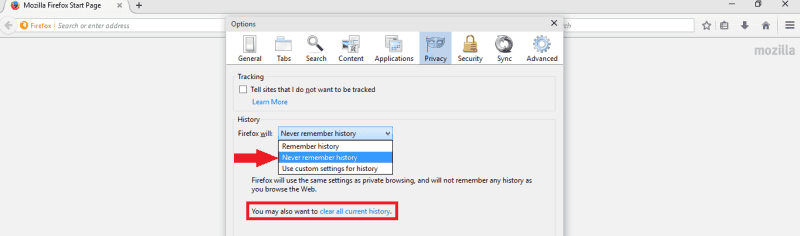
- Privacy Settings: Strict privacy or anti-tracking settings can block history sync.
- Third-party Add-ons: Extensions like privacy blockers or antivirus can interfere with Sync.
- Device Storage Issues: Low storage can prevent Firefox from saving and syncing history.
Some of these are easy to overlook. For example, you might assume you’re signed in everywhere, but one device could have signed you out after an update. Or, an extension you installed long ago may suddenly begin blocking sync after a recent change.
Credit: wiki.instar.com
Diagnosing The Problem
Before you try any fixes, it’s smart to diagnose where the problem happens. Is history missing on one device or all devices? Is only history affected, or are bookmarks and passwords missing too?
Step-by-step Diagnosis
- Check Sync Status: Go to Firefox menu > Settings > Sync. Make sure you’re signed in and see a green checkmark.
- Review Synced Data: Under Sync settings, see which items are checked. Is history enabled?
- Try Manual Sync: Click “Sync Now” and watch for errors.
- Test Internet Connection: Open another website to check if your device is online.
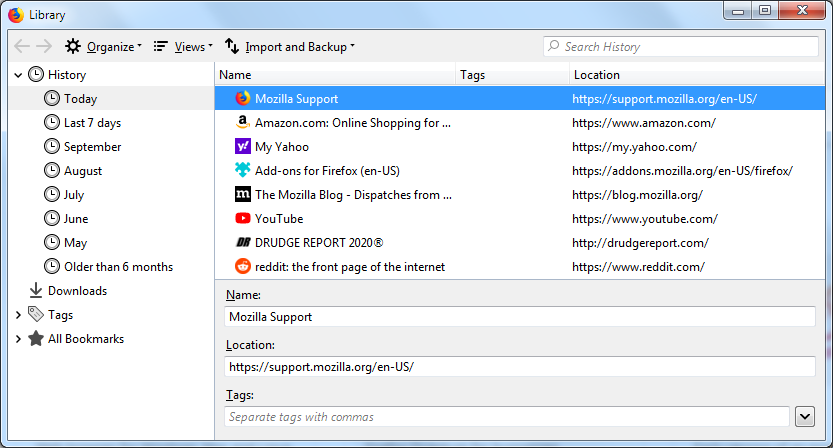
- Compare Devices: Open history on each device. Note which entries are missing.
- Check Firefox Version: Compare versions—update if needed.
- Look for Error Messages: Firefox sometimes shows sync errors at the bottom of the settings page.
It also helps to restart Firefox after making any changes. Sometimes, sync issues resolve themselves after a restart, especially if the problem was caused by a temporary glitch.
Here’s a comparison of common causes and solutions:
| Problem | How to Check | Quick Fix |
|---|---|---|
| Account not signed in | Settings > Sync | Sign in again |
| History not selected | Sync settings | Enable history sync |
| Network issue | Try loading sites | Reconnect Wi-Fi |
| Version mismatch | Check About Firefox | Update Firefox |
| Corrupted profile | History not loading | Create new profile |
If you’re not sure which device is causing the issue, try logging out of Sync on each device one by one. If history sync starts working again after logging out of a device, that device was likely the problem.
Fixing Firefox Not Syncing History
Now let’s move to solutions. You’ll find steps for both simple and advanced fixes.
1. Check Firefox Account And Sync Settings
- Open Firefox and click the menu icon (three lines).
- Select Settings > Sync.
- Make sure you’re signed in.
- Check “History” is selected for syncing.
- If not, check the box and click “Sync Now”.
Sometimes, toggling the history option off and on can help “refresh” the sync settings. After doing this, wait a few minutes, then check your other devices.
2. Update Firefox
Outdated browsers often cause sync problems. On each device:
- Click menu > Help > About Firefox.
- Firefox will check for updates and install them.
- Restart Firefox and try syncing again.
Updating also brings important security improvements, so make this a habit even if you aren’t having problems.
3. Test Network Connection
Sync needs a stable connection. If your Wi-Fi or data is weak, history won’t sync.
- Switch to another network if possible.
- Try visiting a site like Mozilla Support to test connectivity.
- Restart your router if needed.
If you’re syncing over mobile data, ensure your phone or tablet allows background data for Firefox. Some battery-saving settings may block sync when not on Wi-Fi.
4. Manual Sync
Sometimes auto-sync delays history updates. Force a manual sync:
- Go to Settings > Sync.
- Click “Sync Now”.
- Wait for the green checkmark.
After syncing, open your history panel and see if new entries appear. If not, try manual sync on another device.
5. Check Privacy Settings
Strict privacy settings can block Sync.
- Open Settings > Privacy & Security.
- Under History, make sure “Firefox will remember history” is selected.
- For enhanced tracking protection, try setting it to “Standard”.
If you use “Never remember history” or “Custom” settings, Firefox may not save any history, so there’s nothing to sync. Double-check these options if you value syncing history.
6. Disable Interfering Extensions
Privacy add-ons, antivirus, or VPNs can block Firefox Sync.
- Go to Settings > Add-ons and Themes.
- Disable extensions one by one.
- Try syncing after each disable.
- Especially check privacy blockers or security tools.
Some users find that ad blockers or even password managers can affect sync. If you find the culprit, look for settings inside the add-on to allow Firefox Sync domains.
7. Clear Cache And Cookies
Corrupted cache can block sync.
- Go to Settings > Privacy & Security > Cookies and Site Data.
- Click “Clear Data”.
- Restart Firefox.
This also logs you out of most websites, so be sure to save your work before clearing data.
8. Reconnect Firefox Account
If your account is stuck, disconnect and reconnect.
- In Settings > Sync, click “Disconnect”.
- Sign out and then sign in again.
- Re-enable history sync.
You may be asked to re-verify your account by email or with two-factor authentication.
9. Recreate Firefox Profile
If nothing works, create a fresh profile.
- Type `about: Profiles` in the address bar.
- Click “Create a New Profile”.
- Set up Sync and try again.
A new profile is like a clean slate for Firefox, which often fixes strange sync bugs.
10. Check Mozilla Server Status
Sometimes, the issue is on Mozilla’s side.
- Visit Mozilla’s status page or search for “Mozilla Sync server status”.
- If servers are down, wait and try later.
You can also check online forums to see if other users are reporting similar sync issues at the same time.
Credit: support.mozilla.org
Advanced Troubleshooting
If basic fixes don’t work, try these advanced steps.
Reviewing Sync Logs
Firefox keeps logs of Sync activity.
- Type `about: Sync-log` in the address bar.
- Look for recent logs and errors.
- If you see “history” errors, note the error code.
You can search Mozilla’s forums or support pages for your error code, which may give a direct solution.
Resetting Sync Data
You can clear sync data and start fresh.
- Go to Settings > Sync > Manage Account.
- Click “Reset Sync”.
- This wipes synced data and resends everything.
Be aware this can take several minutes if you have a lot of data or many devices.
Using A Test Device
Add a third device (phone, tablet, or computer) to your Firefox account.
- Sign in and enable history sync.
- Check if history appears on the test device.
- This can show if the problem is with one device or your account.
This method is especially useful if you have access to devices with different operating systems, like Windows and Android.
Comparing Sync Across Devices
Here’s a comparison table of how history sync looks on working vs. broken devices:
| Device | History Synced | Bookmarks Synced | Passwords Synced |
|---|---|---|---|
| Laptop | Yes | Yes | Yes |
| Phone | No | Yes | Yes |
| Tablet | Yes | No | Yes |
This shows how sync can be selective—one device may miss only history, another misses bookmarks.
Real-world Examples
Let’s look at practical scenarios.
Example 1: History Missing On Phone
You use Firefox on your laptop and phone. Bookmarks appear everywhere, but history from your laptop never shows up on your phone.
- Diagnosis: Sync is enabled, but privacy settings on your phone block history.
- Fix: Set “Firefox will remember history” in phone settings.
Another possible cause is battery optimization settings on your phone. These can limit background activity for Firefox and stop sync from running when the app is closed.
Example 2: Sync Works Except On One Computer
Your work computer doesn’t show synced history, but your home laptop and phone do.
- Diagnosis: Work computer uses an old Firefox version.
- Fix: Update Firefox and reconnect Sync.
Sometimes, strict corporate firewalls or security software can also block sync services. In these cases, check with your IT department.
Example 3: Interfering Add-on
You installed a privacy extension that blocks Sync requests.
- Diagnosis: Add-on disables history sync.
- Fix: Disable the extension and try syncing again.
If you want to keep the add-on, look for an “allowlist” or settings to let Firefox Sync work while still protecting your privacy.

Credit: www.primaveraonline.com
Non-obvious Insights For Beginners
Many guides miss these points:
- Sync doesn’t include private browsing history. If you browse in private mode, history won’t sync.
- Firefox Sync is not real-time. There can be delays of several minutes, especially if your device sleeps or loses network.
- Deleting history on one device deletes it everywhere. If you remove entries on your phone, they disappear on your laptop after sync.
- Profile corruption isn’t obvious. Sometimes, only history fails while bookmarks and passwords work. Creating a new profile is a hidden fix.
Another subtle detail: Firefox will not sync history from devices where you have disabled saving any history (such as in “Never remember history” mode). Also, if you use a custom folder for your profile, make sure it is accessible and not blocked by security software.
Preventing Sync Issues
You can avoid future problems by following a few tips:
- Keep Firefox updated on all devices.
- Use strong, stable internet connections.
- Avoid unnecessary privacy extensions.
- Regularly check Sync status.
- Don’t clear history or cache unless needed.
- Use “Standard” privacy settings unless you have special needs.
Also, make it a habit to occasionally sign out and back into your Firefox account, especially after major updates or device changes. This can refresh sync connections and prevent silent issues.
Here’s a quick prevention comparison:
| Action | Effect on Sync | Recommended? |
|---|---|---|
| Update Firefox | Improves sync reliability | Yes |
| Install privacy add-ons | May block sync | Only if needed |
| Clear cache frequently | Can fix errors, but risky | Occasionally |
| Use strict privacy settings | Blocks history sync | No |
Firefox Sync Vs. Other Browsers
Firefox isn’t the only browser with sync features. Here’s how it compares to others:
- Chrome: Syncs history faster, but links to Google account.
- Edge: Syncs history, but sometimes misses open tabs.
- Safari: Syncs history only with Apple devices.
Firefox stands out for privacy, but sometimes sync is slower or less reliable.
Another difference is transparency: Firefox lets you see exactly what data you are syncing, and lets you control each category. Some other browsers “bundle” sync options, making it harder to disable only one type of data.
When To Contact Support
If you’ve tried all fixes and history still doesn’t sync, it may be time to contact Mozilla Support.
- Prepare details: Device types, Firefox versions, sync status, error messages.
- Visit the official support site and search for your issue.
- Post in the community forum if you need more help.
When posting for help, include screenshots or log files (from `about:sync-log`) to get better answers.
Frequently Asked Questions
Why Is My Firefox History Missing On My Phone?
Most likely, history sync is disabled on your phone, or privacy settings block history. Open Firefox settings, check “History” under Sync, and set privacy to “Firefox will remember history”.
Also, check for battery saver or background activity restrictions, which are common on Android devices.
Does Firefox Sync Private Browsing History?
No. Private browsing history is never synced. Anything you do in private mode stays local and is deleted when you close the window.
How Long Does Firefox Take To Sync History?
Usually, Firefox Sync updates history within a few minutes. If your device is offline or asleep, it may take longer. Manual sync can speed it up.
Can Add-ons Affect History Sync?
Yes. Some privacy extensions, antivirus, or VPNs can block Firefox Sync. Try disabling add-ons one by one and see if history starts syncing.
Is It Safe To Reset Firefox Sync?
Resetting Sync is safe, but it clears all synced data and starts fresh. You won’t lose local history unless you delete it. Always check your settings before resetting.
Firefox Sync is a powerful tool, but history syncing can be tricky. By checking your settings, updating Firefox, and avoiding strict privacy blockers, you can fix most problems. Don’t forget: syncing is not real-time, and some delays are normal. If you still have trouble, Mozilla Support and community forums are great resources. With the right approach, your browsing history will be available anywhere, anytime.