When you use Visual Studio Code (VSCode), extensions are a big part of what makes the editor powerful. They help you write code, debug, use new languages, and connect with tools like Git or Docker. For many people, VSCode’s Settings Sync feature is a lifesaver. It can save your extensions, themes, and settings to the cloud, and bring them back on any other machine. But sometimes, VSCode extensions just won’t sync—even when it looks like everything should work.
If you’re struggling with extensions not syncing in VSCode, you’re not alone. This issue can be very frustrating, especially if you use multiple devices or want to set up a new machine quickly. Let’s explore why this happens, what you can do about it, and some tips even experienced developers may not know.
Why Vscode Extensions Don’t Sync
The first step is to understand how sync works. VSCode’s Settings Sync uses your Microsoft or GitHub account to store your settings, extensions, and even keyboard shortcuts in the cloud. When you sign in on another device, it tries to download everything to match your preferences.
But the system isn’t perfect. There are several common reasons why extensions might not sync:
- Account Problems: If you’re not logged in, or if you use different accounts on each device, syncing won’t work as expected.
- Sync Conflicts: If you change settings on both devices before syncing, VSCode can get confused about which version is correct.
- Extension Compatibility: Some extensions are platform-specific. For example, an extension made for Windows may not work on macOS or Linux.
- Network or Proxy Issues: Firewalls, proxies, or slow internet connections can block syncing.
- Outdated VSCode: Using different versions of VSCode can cause features not to match, including how sync works.
- Settings Sync Limitations: Not everything is synced—some things, like workspaces or global state, may not transfer.
- Manual Sync Settings: You might have turned off sync for extensions without realizing.
How Vscode Settings Sync Works
VSCode’s Settings Sync is powerful, but knowing how it works behind the scenes can help you solve problems. The process includes:
- Authentication: You must sign in with a supported account (Microsoft or GitHub).
- Cloud Storage: VSCode saves your settings and extension list to the cloud.
- Syncing Triggers: Sync can happen automatically or manually.
- Conflict Handling: If there are changes on both devices, VSCode asks you which version to keep.
The extension sync feature does not sync your extension data or user data within those extensions—only the extension list and settings themselves.
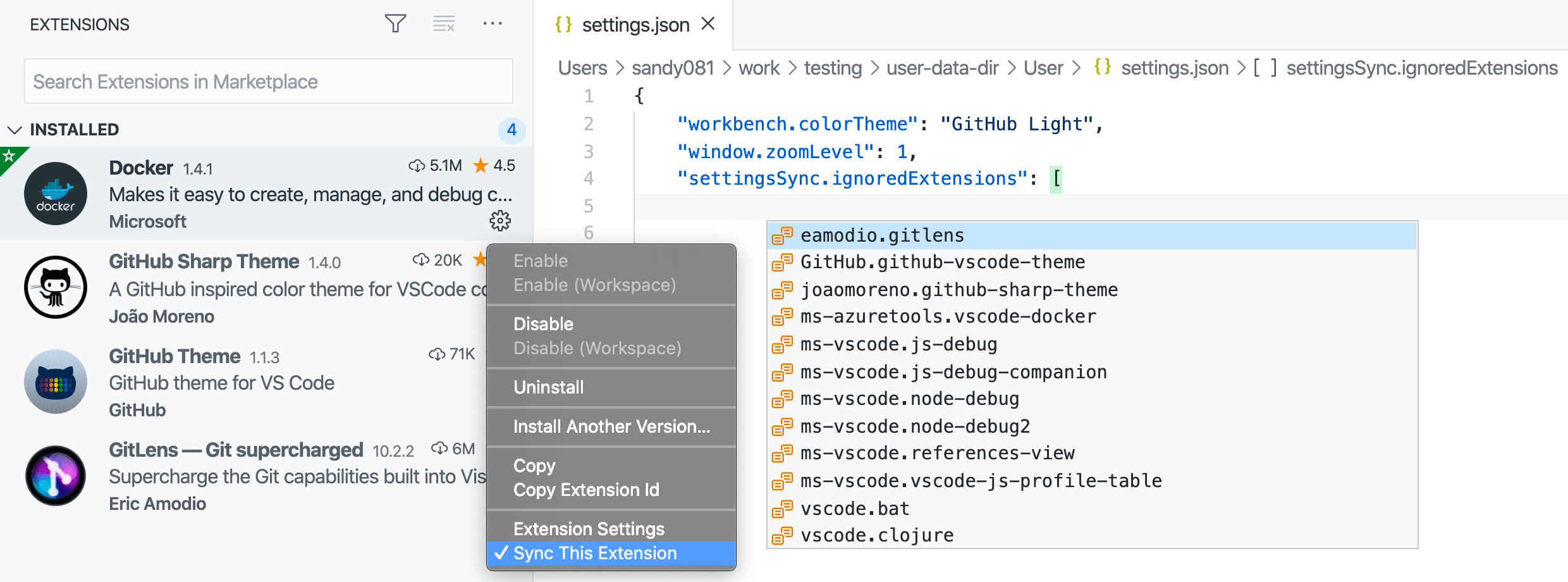
Credit: code.visualstudio.com
Common Reasons Extensions Don’t Sync (and How To Fix Them)
Let’s dive deeper into each common problem and see how to fix them.
1. Account Is Not Linked Correctly
You must use the same account on all devices. If you use a Microsoft account on one computer and GitHub on another, VSCode sees these as separate users.
How to fix:
- Check your account in VSCode’s bottom-left corner. Click the account icon to see which account you’re using.
- On every device, make sure you’re signed in with the same account.
2. Settings Sync Is Not Enabled For Extensions
VSCode lets you choose what to sync: settings, keybindings, extensions, or snippets. It’s possible to sync only settings, not extensions.
How to fix:
- Go to Command Palette (Ctrl+Shift+P or Cmd+Shift+P).
- Type “Settings Sync: Configure” and press enter.
- Make sure “Extensions” is checked.
3. Network Or Proxy Blocks Sync
If you’re on a corporate or school network, a firewall or proxy might block sync.
How to fix:
- Try connecting from a different network, like your phone’s hotspot.
- Ask your IT team if syncing is blocked.
- If you need a proxy, set it in VSCode’s settings: `http.proxy`.
4. Extension Platform Issues
Some extensions only work on one operating system. For example, Windows-specific extensions won’t sync to Linux.
How to fix:
- Check the extension’s documentation or the VSCode marketplace for supported platforms.
- Install platform-specific extensions only on the correct machine.
5. Outdated Vscode Version
The sync feature is updated often. Using old versions can cause incompatibility.
How to fix:
- Go to Help > Check for Updates (or Code > Check for Updates on macOS).
- Always use the latest stable release.
6. Sync Conflicts
If you make changes on two machines before syncing, VSCode may not know which is correct.
How to fix:
- When prompted, choose which version to keep: Local or remote.
- To avoid conflicts, always sync after making changes.
7. Extensions Have Dependencies
Some extensions need other extensions to work. If only one installs, it may not function properly.
How to fix:
- Read the extension’s description for dependencies.
- Install required extensions manually if needed.
8. Corrupted Extension Data
Rarely, extension data can get corrupted, blocking sync.
How to fix:
- Disable sync and manually reinstall problem extensions.
- Delete the extension’s folder in your `.vscode/extensions` directory.
Diagnosing Sync Issues: Step-by-step
If you’re not sure what’s wrong, follow this process to find the problem quickly.
Step 1: Check Your Account
- Click the account icon in the bottom-left.
- Make sure you’re signed in with the correct account on every device.
Step 2: Verify Sync Settings
- Open Command Palette.
- Search for “Settings Sync: Show Synced Data.”
- Confirm that extensions are listed.
Step 3: Manually Trigger Sync
- Use Command Palette: “Settings Sync: Sync Now.”
- Watch for errors in the status bar or output panel.
Step 4: Check For Errors
- Open the Output panel (View > Output).
- Switch to “Settings Sync” in the dropdown.
- Look for error messages. Common errors include network problems or authentication failures.
Step 5: Update Vscode
- Always keep VSCode updated to avoid compatibility problems.
Step 6: Test On A New Machine Or Profile
- Try setting up VSCode in a fresh user profile or on a different computer.
- See if sync works there—this can show if the problem is with your settings or the computer.
Platform Differences: Windows, Macos, And Linux
VSCode works on many platforms, but extension syncing can behave differently depending on your operating system.
Here’s a comparison of the main issues you might see:
| Platform | Sync Behavior | Common Problems |
|---|---|---|
| Windows | Most extensions work. Some are Windows-only. | Path issues, admin rights, antivirus blocking sync. |
| macOS | Sync works well. Some Windows extensions won’t install. | Permissions, keybindings differences. |
| Linux | Most extensions work. Some need extra libraries. | Dependency errors, missing libraries, case-sensitive paths. |
Tip: If you switch between Windows and Linux, remember that path names are case-sensitive on Linux but not on Windows. This can break some extensions or settings.
Tips For Reliable Extension Syncing
To make syncing smooth, try these practical tips:
- Sync after major changes: Always trigger a manual sync after installing or removing many extensions.
- Keep VSCode updated: New features and bug fixes improve sync reliability.
- Use the same account everywhere: Mixing Microsoft and GitHub accounts leads to confusion.
- Limit platform-specific extensions: Only install Windows- or Linux-only extensions on the proper OS.
- Check your internet connection: A slow or unstable connection can block sync.
- Avoid using Insiders and Stable together: The Insiders build of VSCode syncs separately from the Stable release.
- Review extension lists: Use “Show Synced Data” to check which extensions are actually synced.

Credit: forum.cursor.com
Case Study: A Developer’s Real Sync Problem
Sara is a full-stack developer who uses VSCode on both her Windows desktop and her MacBook. She relies on extensions like Prettier, ESLint, and a custom theme. Recently, she noticed that new extensions she installed on her desktop weren’t appearing on her MacBook—even though Settings Sync was on.
She tried logging out and back in, but nothing changed. Sara then used the Command Palette to “Show Synced Data” and saw the new extensions were missing from the synced list. After some digging, she realized she was logged into her Microsoft account on Windows and her GitHub account on macOS.
Once she switched to the same account on both devices and triggered a manual sync, all her extensions synced correctly.
Insight: Even advanced users sometimes overlook account mismatches. Double-check your account before spending hours troubleshooting.
Advanced Troubleshooting For Sync Problems
Sometimes, simple fixes don’t work. Here are advanced steps to try:
Clearing The Sync State
VSCode can get stuck with old sync data. Resetting it often helps.
- Open Command Palette.
- Type “Settings Sync: Reset Synced Data.”
- This wipes your cloud data. Re-enable sync and upload your settings again.
Checking For Extension Sync Exclusions
Some extensions are intentionally excluded from sync for privacy or security reasons.
- Extensions can mark themselves as not syncable.
- To check, go to the extension’s page in the marketplace and look for sync information.
Looking At Sync Logs
VSCode keeps logs that can give you more detail about what’s going wrong.
- Open Output (View > Output).
- Select “Settings Sync” from the dropdown.
- Look for lines with “ERROR” or “WARNING”.
Using Settings Sync Cli
For very technical users, VSCode has a hidden command-line interface for sync.
- Run `code –sync` from your terminal to see advanced options.
- This can help script or automate sync in large teams.
Comparing Extension Lists
If you’re not sure what’s missing, export your extension list on each machine and compare.
- To export: Open terminal and run `code –list-extensions > extensions.txt`.
- Compare the `extensions.txt` files between devices.
Here’s a simple table to illustrate the comparison process:
| Extension Name | Present on Device A | Present on Device B |
|---|---|---|
| Prettier | Yes | No |
| ESLint | Yes | Yes |
| Custom Theme | Yes | No |
Non-obvious tip: Some extensions may appear in the marketplace but are not listed in your extension sync because they’re disabled or installed only for a specific workspace.

Credit: github.com
Best Practices For Teams And Enterprises
If you’re in a team or enterprise environment, syncing VSCode extensions can be more complex.
- Use shared extension packs: Create a custom extension pack for your team.
- Document required extensions: Use a `extensions.json` file in your project’s `.vscode` folder to recommend or require extensions.
- Lock down extension versions: Use the exact version of an extension for consistency.
- Disable unnecessary syncing: For privacy, turn off sync for settings you don’t want to share.
Here’s a quick comparison of personal vs team sync strategies:
| Personal Use | Team/Enterprise Use |
|---|---|
| Flexible extension list | Standardized extension packs |
| Sync all settings | Sync only approved settings |
| Manual updates | Automated updates via scripts |
Pro tip: Teams should review the official VSCode extension marketplace guide for managing extensions at scale.
What Not To Do When Extensions Don’t Sync
It’s easy to make mistakes when you’re frustrated by sync issues. Avoid these common errors:
- Don’t create multiple sync accounts: This will split your data and make troubleshooting harder.
- Don’t keep both Insiders and Stable on the same device: They sync separately and can overwrite each other.
- Don’t force reinstall VSCode right away: Most sync problems are not fixed by reinstalling.
- Don’t ignore error messages: They often contain the exact reason for the failure.
Future Of Extension Sync In Vscode
Microsoft is improving VSCode’s sync feature regularly. Some planned or recent improvements include:
- Better conflict resolution: Newer versions handle sync conflicts more clearly.
- Workspace sync: Syncing project-specific settings and extensions is being tested.
- Faster sync times: Performance is getting better, especially for users with many extensions.
If you rely heavily on sync, keep an eye on the official VSCode release notes for updates.
Frequently Asked Questions
Why Do Some Extensions Not Sync Even When Sync Is Enabled?
Some extensions are platform-specific or intentionally excluded from sync for security reasons. Also, if you’ve disabled sync for extensions, they won’t be included. Always check your sync settings and the extension’s marketplace page for more details.
Can I Force Vscode To Sync Extensions Immediately?
Yes. Open the Command Palette and select “Settings Sync: Sync Now.” This triggers an immediate sync. You can also use the CLI command `code –sync` for advanced options.
What Happens If I Use Different Accounts On Different Machines?
VSCode treats each account separately. If you use a Microsoft account on one device and GitHub on another, your extensions and settings will not sync between them. Always use the same account to keep everything in sync.
Are My Extension Settings Synced Too?
VSCode syncs your extension list and settings, but not all extension data. Some extensions store user data or configurations locally, which are not included in sync. You may need to export/import those settings manually.
How Can I Sync Only Extensions Without Syncing Settings Or Keybindings?
When you enable Settings Sync, you can choose what to sync. Go to Command Palette > “Settings Sync: Configure” and check only “Extensions.” This lets you sync your extensions list without changing your other settings.
Getting VSCode to sync your extensions smoothly can save hours of setup time and keep your workflow consistent. By understanding how sync works, watching for common problems, and using these troubleshooting tips, you’ll be able to solve most sync issues quickly—even those that confuse experienced users.