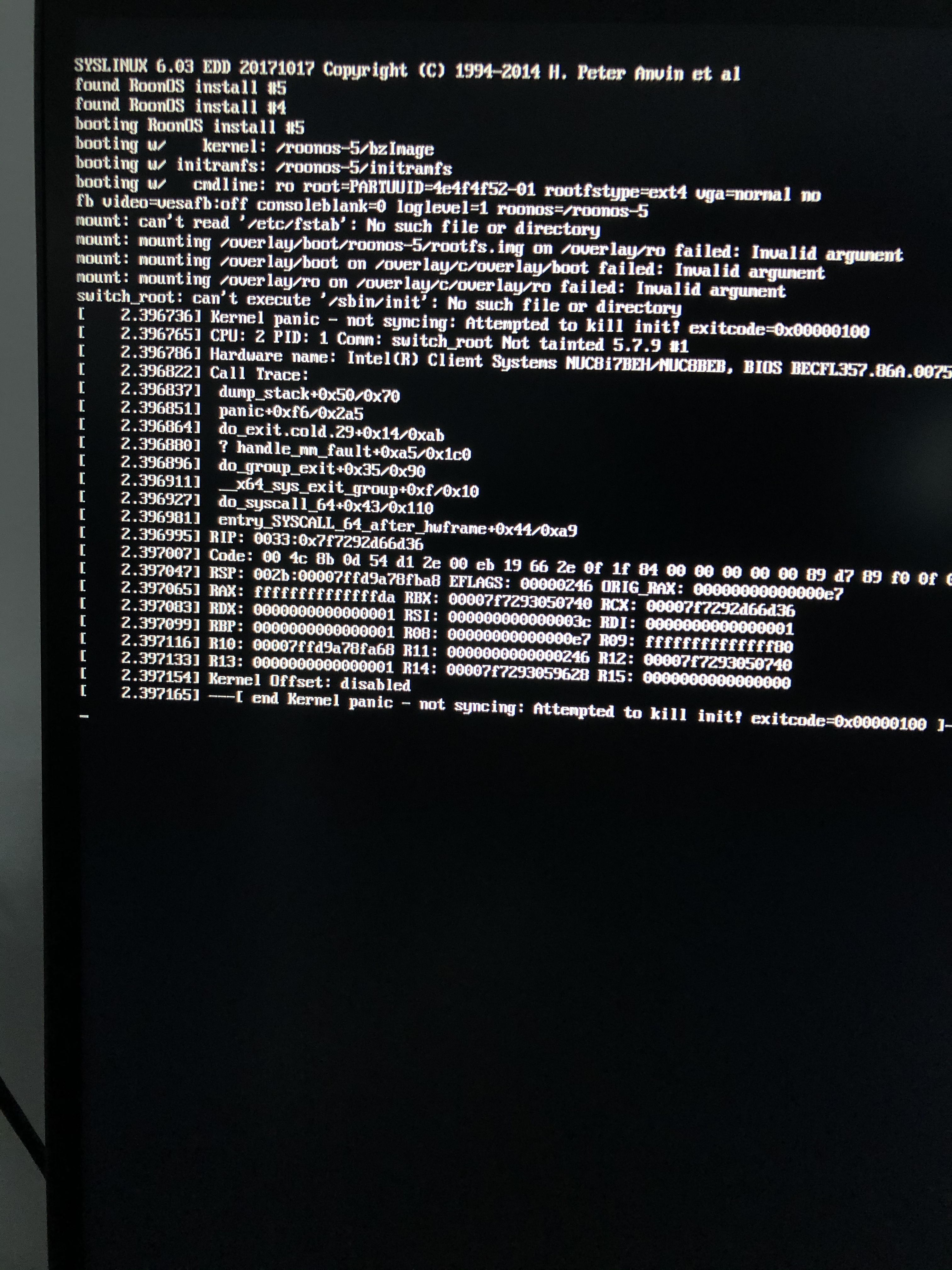
When you see the error message “End Kernel Panic Not Syncing Attempted to Kill Init,” it can feel alarming and confusing. The words sound technical, and the screen often freezes, making your computer unusable. This problem usually happens on Linux systems, and sometimes on devices running Android or embedded Linux.
If you use Linux for work, study, or even at home, understanding this error can help you fix it faster and avoid more trouble later.
This article explains what kernel panic means, why the “Not Syncing Attempted to Kill Init” error appears, and how you can fix it. We’ll look at real examples, common causes, step-by-step solutions, and practical advice. Even if you’re not a Linux expert, you’ll find clear explanations and guidance to help you recover from this error.
What Is Kernel Panic?
A kernel panic is a safety measure in Unix-like operating systems, including Linux. It happens when the core part of the system (the kernel) finds a problem it cannot solve. Instead of continuing and risking data loss or corruption, the system stops everything. You usually see a message on the screen, and the system freezes.
Think of kernel panic like a car’s emergency brake. If something dangerous happens and the car can’t drive safely, it stops immediately. The operating system does the same to protect your files and hardware.
How Kernel Panic Differs From Other Errors
Not all system errors are kernel panics. Most errors let you keep working or restart your computer. Kernel panic is different because:
- It stops all operations
- You cannot use the keyboard or mouse
- The screen shows a detailed message about the problem
- You must reboot or power off manually
Some common errors, like “blue screen” in Windows, are similar but not exactly the same. Kernel panic is more severe and means the system found a big problem at its core.
Understanding “not Syncing Attempted To Kill Init”
The message “End Kernel Panic Not Syncing Attempted to Kill Init” is specific. It tells you that the kernel tried to stop a process called init, which is the first process that runs when Linux starts. If init fails, the whole system cannot work, because init launches all other processes.
Why Is Init So Important?
On Linux, init (sometimes called systemd or other names) is the parent of all processes. It starts right after the kernel loads and begins setting up the system. Without init, nothing else can run. Killing init is like removing the foundation of a building—everything falls apart.
What Does “not Syncing” Mean?
“Not Syncing” means the kernel did not write all data to disk before stopping. Usually, the kernel tries to save important information to avoid losing files. But in this case, the error was so serious that the kernel did not even try to save data.
Example Error Output
Here’s how the error often looks on screen:
Kernel panic - not syncing: Attempted to kill init!
You may also see technical details about the process, memory addresses, or other messages.

Credit: www.reddit.com
Common Causes Of This Error
Understanding why this error happens is the first step to fixing it. There are several possible causes, and some are more common than others.
1. Corrupted System Files
If important files are missing or damaged, init cannot start. This often happens after an interrupted upgrade, power loss, or disk failure.
2. Incorrect Permissions
If files for init or its dependencies have wrong permissions, the kernel cannot launch them.
3. Misconfigured Bootloader
The bootloader (like GRUB) must point to the correct kernel and init files. If it’s set up wrong, the system fails to boot.
4. Missing Libraries Or Dependencies
Init needs certain libraries to run. If these are missing, the kernel cannot start init.
5. Hardware Issues
Bad memory, failing hard drives, or incompatible hardware can cause kernel panic.
6. Faulty Kernel Or Modules
If you recently installed a new kernel or module and something went wrong, init may not start.
7. Wrong Root Partition
If the system cannot find the root partition, it cannot launch init.
8. Bad Updates
Sometimes, updating the system breaks compatibility, leading to this error.
9. Custom Kernel Compilation Errors
If you compile your own kernel and make mistakes, this error can appear.
Diagnosing The Problem
Before fixing the error, you need to know what caused it. Diagnosing kernel panic is sometimes tricky, but a few steps can help.
Checking Boot Messages
Pay attention to messages on the screen before the panic. They can tell you which file or process failed. Look for lines like:
- “unable to mount root fs”
- “init: Not found”
- “segmentation fault”
Write down the exact error messages for later.
Using A Live Cd Or Usb
Booting from a Live CD or USB lets you access your system without starting the installed Linux. You can check files, repair disks, and change settings.
Checking Disk Health
Use tools like fsck to check disk integrity. Bad sectors or corrupt partitions are common causes.
Reviewing Recent Changes
Think about what happened before the error. Did you:
- Install updates?
- Change hardware?
- Edit system files?
- Compile a new kernel?
These clues help narrow down the cause.
Comparing System Configurations
If you have another working system, compare bootloader settings, permissions, and installed libraries.
Step-by-step Solutions
Once you have clues about the cause, try these steps to fix the error. You don’t need to be a Linux expert, but some steps require using the command line.
1. Repair Corrupted System Files
Boot from a Live CD or USB, then mount your root partition. Use fsck to check and fix errors:
sudo fsck /dev/sda1
Replace `/dev/sda1` with your root partition. After repairing, reboot and see if the error is gone.
2. Restore Init Or Systemd
If init or systemd is missing or corrupt, copy it from a backup or reinstall your distribution’s package:
sudo mount /dev/sda1 /mnt
sudo chroot /mnt
sudo apt-get install --reinstall init
For systems using systemd, change the package name.
3. Fix Permissions
Check permissions on critical files:
ls -l /sbin/init
The owner should be root, and permissions should be rwxr-xr-x. Fix if needed:
sudo chmod 755 /sbin/init
sudo chown root:root /sbin/init
4. Correct Bootloader Settings
Boot into your system’s bootloader (GRUB or LILO). Make sure it points to the correct kernel and root partition.
Example GRUB entry:
linux /boot/vmlinuz-5.10.0 root=/dev/sda1 ro
Update GRUB after changes:
sudo update-grub
5. Replace Missing Libraries
Sometimes init cannot start because libraries are missing. Use ldd to check dependencies:
ldd /sbin/init
If any library is “not found,” reinstall it using your package manager.
6. Check Hardware
Run memory tests using memtest86+. Check hard drive health with smartctl:
sudo smartctl -a /dev/sda
Replace failing hardware if needed.
7. Roll Back Updates
If the error appeared after an update, boot from a Live CD and restore backups or downgrade packages.
8. Recompile Kernel Carefully
If you built a custom kernel, double-check your configuration. Make sure you included support for your filesystem, init, and drivers.
9. Correct Root Partition
Edit bootloader settings to point to the correct root partition. Sometimes, disk labels change after updates or hardware changes.
10. Restore From Backup
If none of the above works, restore your system from a backup. This is often the fastest way to recover.
Data Table: Common Causes Vs. Fixes
Here is a comparison of common causes and their solutions:
| Cause | How to Fix |
|---|---|
| Corrupted system files | Run fsck, restore from backup |
| Wrong permissions | Set correct permissions for /sbin/init |
| Misconfigured bootloader | Edit GRUB settings, update bootloader |
| Missing libraries | Reinstall libraries, check with ldd |
| Hardware failure | Test and replace memory or disk |
| Bad updates | Restore or downgrade packages |
Advanced Troubleshooting
If basic fixes don’t work, try these advanced steps. They are more technical, but can solve rare problems.
Rebuild Initramfs
The initramfs is a small archive used during boot. If it’s corrupt, the kernel can’t find init. Rebuild it:
sudo update-initramfs -u
Debug Boot With Kernel Parameters
Add boot parameters to get more information. In GRUB, add:
init=/bin/bash
This starts a shell instead of init. If it works, the problem is with init or its configuration.
Check Selinux/apparmor
Security modules can block init. Disable them temporarily to see if it fixes the issue.
Examine Kernel Logs
Boot from a Live CD and check logs:
sudo cat /mnt/var/log/messages
sudo cat /mnt/var/log/kern.log
Look for errors related to init or failed mounts.
Data Table: Basic Vs. Advanced Troubleshooting
| Basic Steps | Advanced Steps |
|---|---|
| Run fsck | Rebuild initramfs |
| Check permissions | Add kernel parameters |
| Edit GRUB settings | Disable SELinux/AppArmor |
| Reinstall packages | Examine kernel logs |
Real-world Example
Let’s look at a real case. A student upgraded their Linux system, then saw the “End Kernel Panic Not Syncing Attempted to Kill Init” error. They booted from a Live USB and found that /sbin/init was missing.
Steps taken:
- Booted from Live USB
- Mounted root partition
- Restored /sbin/init from backup
- Checked permissions and ownership
- Rebooted, and the system worked again
They learned to always keep backups and check file integrity after updates.

Credit: raspberrypi.stackexchange.com
Non-obvious Insights
Many beginners miss two important details:
- Init can be a symlink: On some systems, /sbin/init is a symbolic link to systemd or another init system. If the link breaks, the error appears. Always check if /sbin/init is a link, and where it points.
- Root partition can change: After hardware changes or updates, the device name for your root partition might change (like from /dev/sda1 to /dev/sdb1). Bootloader settings must match the new device name.
Practical Tips To Avoid Kernel Panic
If you use Linux daily, these tips help prevent the error:
- Always backup your system before updates or major changes
- Use stable and tested kernels
- Double-check bootloader settings after hardware upgrades
- Keep your disks healthy with regular checks
- Avoid editing system files unless necessary
- Test custom kernels in a virtual machine first
Credit: community.roonlabs.com
Data Table: Prevention Tips
| Tip | Benefit |
|---|---|
| Backup before updates | Quick recovery from errors |
| Use stable kernels | Fewer compatibility problems |
| Check bootloader after changes | Correct system startup |
| Regular disk checks | Find hardware issues early |
| Test in virtual machine | Safe testing environment |
When To Seek Professional Help
If you try all solutions and still see the error, it’s time to ask for help. Professional support can:
- Recover important files
- Fix deep system issues
- Reinstall Linux safely
- Guide you with hardware replacements
Don’t risk losing data or spending days troubleshooting. Sometimes, expert help is the best option.
Frequently Asked Questions
What Is “end Kernel Panic Not Syncing Attempted To Kill Init”?
This error means the Linux kernel stopped because it tried to kill the init process, which is essential for booting. The system cannot continue, and you must fix the underlying problem before you can use your computer again.
How Can I Fix The Error If I Cannot Boot My System?
Boot from a Live CD or USB. This lets you access your files, check disk health, and repair or restore missing files. Follow the steps above to repair system files, fix permissions, or restore backups.
Does This Error Mean My Data Is Lost?
Usually, your data is safe unless your disk is physically damaged. The kernel panic stops the system to protect data. However, always backup before making changes, and check disk health to be sure.
Is This Error Only On Linux?
Mostly, yes. Kernel panic is common in Linux and other Unix-like systems (like Android). Windows has similar errors called “blue screen,” but the message and causes are different.
Where Can I Find More Technical Details?
For deeper technical explanations, visit the official Linux documentation or research articles like Wikipedia.
Solving “End Kernel Panic Not Syncing Attempted to Kill Init” can be stressful, but with careful steps and the right information, most users can fix it themselves. Remember to keep backups, check disk health, and avoid risky changes. If you are stuck, don’t hesitate to ask for help from experts or the Linux community.
This knowledge not only helps you fix your current system, but gives you confidence to handle other technical problems in the future.