Dropbox Not Syncing on Windows 11: Causes, Fixes, and Pro Tips
If you rely on Dropbox to keep your files up to date across devices, it’s frustrating when syncing stops working. On Windows 11, many users face issues where Dropbox won’t sync new files, shows error messages, or gets stuck on “Syncing…” forever. This guide explains why Dropbox may not sync on Windows 11 and gives you clear, step-by-step solutions to get your files moving again.
You’ll learn what really causes Dropbox syncing problems, common mistakes to avoid, and advanced troubleshooting tips. Whether you’re a student, remote worker, or business user, you’ll find practical advice to keep your Dropbox reliable and fast.
Why Dropbox Stops Syncing On Windows 11
Before jumping into fixes, it helps to know what can break Dropbox syncing. Windows 11 is more secure and modern, but that sometimes means apps like Dropbox need extra permissions or settings.
Here are the top reasons Dropbox won’t sync on Windows 11:
- Internet issues: Slow or unstable connections stop Dropbox from uploading or downloading files.
- Permission errors: Windows 11 security updates may block Dropbox from accessing certain folders.
- Conflicting apps: Antivirus or firewall programs sometimes block Dropbox traffic.
- Outdated Dropbox app: Old versions may not work well with Windows 11’s changes.
- Account problems: Wrong login, full storage, or multiple accounts can cause confusion.
- File name errors: Windows and Dropbox have rules about file names and locations.
- Selective Sync settings: Some folders may be unchecked and not set to sync.
- Paused syncing: Dropbox may be paused without you noticing.
- Corrupted cache: The Dropbox cache can fill up or break, stopping sync.
- System clock mismatch: If your computer clock is wrong, Dropbox can’t sync properly.
The real trick is knowing which issue is the problem and which fix to try first. Let’s tackle the most effective solutions step by step.
Quick Checks Before Deep Troubleshooting
Many Dropbox issues on Windows 11 can be solved with a few quick checks. These save time and sometimes fix the problem instantly.
1. Is Dropbox Running?
Look for the Dropbox icon (a blue box) in your system tray (bottom right of your screen). If you don’t see it, open Dropbox from your Start menu.
2. Check Your Internet Connection
Open a browser and visit a website. If pages load slowly or not at all, Dropbox can’t sync.
3. Pause And Resume Syncing
Click the Dropbox icon, then your profile photo or initials, and see if “Pause syncing” is checked. If yes, click “Resume syncing. ”
4. Restart Dropbox And Your Computer
Sometimes, simply quitting Dropbox and restarting your PC clears up glitches.
5. Update Dropbox
Open Dropbox, go to “Preferences,” then “Account,” and check for updates. Windows 11 gets regular updates, and so should Dropbox.
If you still have issues, it’s time for deeper solutions.
Fixing Dropbox Not Syncing On Windows 11
Solving Dropbox sync problems usually means working through a few focused steps. Here’s what to do next.
1. Give Dropbox Full Access In Windows 11
Windows 11 security is stricter than older versions. Dropbox needs certain permissions to sync files, especially in system folders or user directories.
- Run Dropbox as administrator:
Right-click the Dropbox shortcut and choose “Run as administrator. ” This gives Dropbox the permissions it needs.
- Allow Dropbox through Controlled Folder Access:
- Go to “Windows Security” from the Start menu.
- Click “Virus & threat protection.”
- Scroll to “Ransomware protection” and click “Manage ransomware protection.”
- If “Controlled folder access” is on, click “Allow an app through Controlled folder access.”
- Add Dropbox to the allowed apps.
Non-obvious tip: Controlled Folder Access often blocks Dropbox silently. If you set this before, you may need to re-allow Dropbox after a Windows update.
2. Check For Conflicting Apps Or Firewalls
Security software can sometimes block Dropbox from connecting to the internet.
- Temporarily disable third-party antivirus or firewall:
Turn off your security software for a few minutes and see if Dropbox syncs. If it does, add Dropbox as an exception in your security program.
- Check Windows Firewall:
- Open “Windows Security.”
- Click “Firewall & network protection.”
- Click “Allow an app through firewall.”
- Make sure Dropbox is checked for both Private and Public networks.
Pro insight: Some VPNs and proxy servers also block Dropbox sync. Try disconnecting from your VPN to test.
3. Fix Dropbox Folder And File Name Problems
Dropbox follows both Windows and its own rules for file and folder names.
- No special characters:
Avoid using characters like ?, <, >, |, :, “, *, /, or in your file or folder names.
- No “desktop.ini” or “thumbs.db” files:
Dropbox won’t sync these system files.
- No long paths:
Windows 11 supports longer file paths, but Dropbox can have trouble syncing files buried in many folders. Try moving files to a higher-level folder.
Real-world example: A user with a file named “Project:Q2|2023?.xlsx” found Dropbox stuck. Renaming it to “Project_Q2_2023.xlsx” fixed the problem.
4. Check Dropbox Storage And Account Settings
Dropbox won’t sync if your account storage is full.
- Check your storage space:
Click your profile photo in Dropbox and choose “Preferences. ” Go to “Account” to see your storage usage.
- Sign out and back in:
Sometimes, syncing gets stuck if you’ve changed your password or account. Sign out, then back in.
- Multiple accounts:
If you use both personal and work Dropbox accounts, make sure you’re syncing the right folders.
Data point: As of 2023, free Dropbox accounts have 2GB of space. Going over will pause all syncing.
5. Review Selective Sync Settings
Selective Sync lets you choose which folders sync to your PC. If a folder is unchecked, it won’t appear on your device.
- How to check Selective Sync:
- Right-click the Dropbox icon.
- Go to “Preferences.”
- Click “Sync.”
- Click “Selective Sync.”
- Ensure the folders you want are checked.
Beginner mistake: Some users think deleting a folder from Selective Sync deletes it everywhere. It only removes it from your PC, not from Dropbox online.
6. Clear Dropbox Cache
A full or corrupted cache sometimes blocks new files from syncing.
- Find your Dropbox cache folder:
Usually At C:users[yourname]dropbox.dropbox.cache
- Delete the contents:
Close Dropbox first. Then select and delete all files in the. dropbox. cache folder. Reopen Dropbox.
Insight: Clearing the cache won’t delete your files. It just removes old temporary data.
7. Check System Clock And Time Zone
Dropbox uses your computer’s clock to sync files. If your clock is wrong, syncing can fail.
- Set time automatically:
- Right-click the clock in the system tray.
- Choose “Adjust date and time.”
- Turn on “Set time automatically” and “Set time zone automatically.”
Non-obvious issue: Dual-booting with another OS or traveling between time zones can cause clock drift. Check the time if you notice random sync failures.
8. Reinstall Dropbox
If nothing else works, a clean reinstall can solve deep problems.
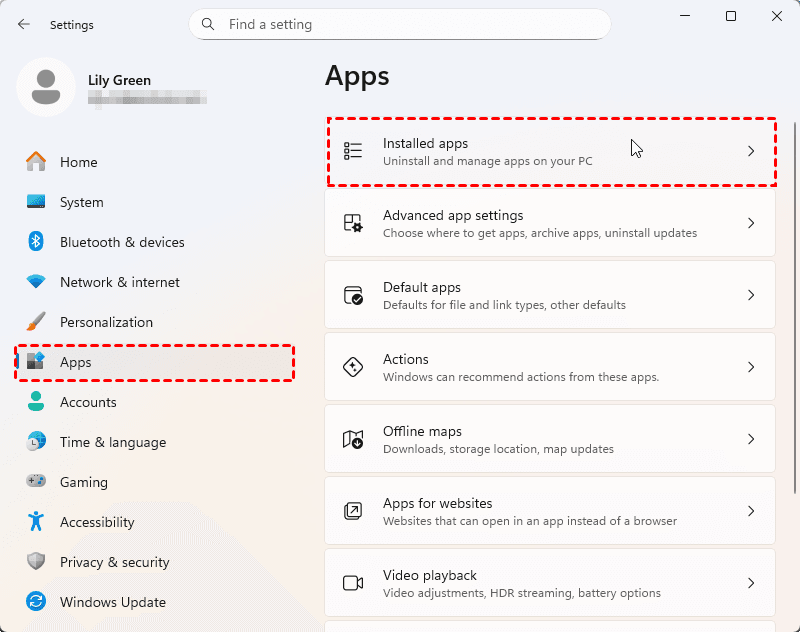
- Uninstall Dropbox from “Apps & features” in Windows Settings.
- Reboot your PC.
- Download the latest Dropbox installer from the official website.
- Install and log in.
Advanced tip: During reinstall, choose a new folder location if your old Dropbox folder is stuck or inaccessible.
Dropbox Syncing Speed And Performance On Windows 11
Sometimes Dropbox is syncing, but files move very slowly. Performance depends on several factors:
- Internet upload/download speed: Dropbox can only sync as fast as your connection allows.
- Number of files: Syncing thousands of small files takes longer than a few large ones.
- Hard drive type: SSDs sync faster than old hard drives.
- Windows performance settings: Battery saver or power-saving modes can slow syncing.
Here’s a comparison of Dropbox sync speed factors:
| Factor | Impact on Sync Speed | Improvement Tip |
|---|---|---|
| Internet Speed | High | Use wired or fast Wi-Fi |
| SSD vs HDD | Medium | Install Dropbox on SSD |
| Number of Files | High | Compress or combine small files |
| Battery Saver Mode | Medium | Turn off Battery Saver |
Pro tip: Dropbox uses “LAN sync” to speed up syncing on local networks. This works best if you have multiple PCs on the same Wi-Fi.
Credit: www.youtube.com
Advanced Troubleshooting For Persistent Issues
If Dropbox still doesn’t sync after all basic steps, try these advanced fixes.
Disable Proxy Settings
Proxies can block Dropbox connections.
- Open “Settings,” go to “Network & Internet,” then “Proxy.”
- Turn off “Use a proxy server” unless your work requires it.
Check For Windows 11 Updates
Some Dropbox sync bugs are fixed in newer Windows builds.
- Go to “Settings” > “Windows Update.”
- Click “Check for updates” and install everything available.
Reset Dropbox Settings
If your Dropbox settings are corrupted, resetting them can help.
- Close Dropbox.
- Press Win+R, type `%APPDATA%Dropbox`, and press Enter.
- Delete the “config.db” file.
- Restart Dropbox (you’ll need to log in again).
Caution: This resets preferences but not your files.
Use Dropbox Web As A Temporary Solution
If nothing else works, upload or download files via the Dropbox website. This proves your account and files are working, even if the desktop app isn’t.
Dropbox Vs. Other Cloud Storage On Windows 11
Wondering if Dropbox is more reliable than other cloud storage apps on Windows 11? Here’s a quick comparison of syncing and support:
| Service | Windows 11 Compatibility | Sync Reliability | Free Storage |
|---|---|---|---|
| Dropbox | Excellent | High (with fixes) | 2GB |
| OneDrive | Built-in | Very High | 5GB |
| Google Drive | Good | High | 15GB |
| Box | Good | Medium | 10GB |
Insight: Dropbox is still popular for its simple interface and sharing features, but OneDrive has the tightest Windows 11 integration.
Credit: www.aomeitech.com
Preventing Dropbox Sync Problems In The Future
Once you’ve fixed your current issues, a few best practices will keep Dropbox running smoothly on Windows 11.
- Update regularly: Install Windows and Dropbox updates when prompted.
- Use strong, stable Wi-Fi: Avoid public or slow hotspots for large uploads.
- Avoid special characters in file names: Stick to letters, numbers, and underscores.
- Monitor storage space: Clean up old files to avoid hitting limits.
- Backup important files: Always keep an offline copy of critical documents.
- Check selective sync after major updates: Sometimes settings reset after Windows upgrades.
Non-obvious advice: If you share folders with others, their sync issues can affect you. Ask collaborators to check their own Dropbox status.
When To Contact Dropbox Support
If you’ve tried everything and Dropbox still won’t sync, it’s time to reach out for help. Dropbox has strong support for Windows 11 users.
- Visit the official Dropbox Help Center.
- Gather logs or error messages from the Dropbox app.
- Be ready to describe what you’ve already tried.
For urgent problems with business files, Dropbox Professional and Business accounts get faster support.
External resource: For more in-depth technical troubleshooting, check the Dropbox official sync issues guide.

Credit: community.dropbox.com
Frequently Asked Questions
Why Does Dropbox Say “syncing…” But Nothing Changes?
Dropbox may be stuck due to a bad internet connection, a full account, or a file name problem. Try restarting Dropbox, checking your internet, and making sure you have space in your account.
How Can I Tell If Dropbox Is Blocked By My Firewall?
Open Windows Security > Firewall & network protection > Allow an app through firewall. If Dropbox is unchecked, your firewall is blocking it. Add Dropbox to your firewall’s allowed list.
What Happens If I Delete Files From Dropbox On My Pc?
By default, deleting files from your Dropbox folder removes them from all devices and the cloud. However, you can restore deleted files from the Dropbox website within 30 days (or longer for paid plans).
Is Dropbox Compatible With Windows 11 Arm Devices?
Dropbox now supports most Windows 11 ARM devices, but not all features may work. For best results, use the latest Dropbox version and check the Dropbox website for ARM-specific updates.
How Do I Fix Dropbox Selective Sync Not Showing All Folders?
If Selective Sync is missing folders, check that you’re logged into the correct account and that folders aren’t shared with restrictions. Sometimes, removing and re-adding folders in Selective Sync helps.
—
Dropbox is a powerful tool for file sync and backup, but even on Windows 11, problems can happen. With the steps above, you can fix most syncing issues, avoid common mistakes, and keep your files safe and up to date.
If you need more help, Dropbox’s support team and knowledge base offer deeper technical guidance. Stay proactive with updates and smart file management to get the best from Dropbox on Windows 11.