If you use Dropbox, you expect your files to sync smoothly across all your devices. But sometimes, you add a file on your computer, and it just doesn’t show up on your phone or in the web app. Or maybe you need an important document, but Dropbox tells you it’s still syncing—or worse, that syncing has stopped.
These problems can be frustrating, especially if you rely on Dropbox for work or personal projects. Understanding why Dropbox files are not syncing and how to solve these issues is the first step to keeping your files accessible and safe.
Let’s dive deep into the causes and solutions for Dropbox syncing problems, so you can get back on track quickly.
Understanding How Dropbox Syncing Works
Dropbox uses cloud storage to keep your files available anywhere you sign in. When you add, change, or delete a file in the Dropbox folder on your computer or mobile device, Dropbox uploads these changes to its servers. Then, it sends the latest version of your files to your other devices. This process is called syncing.
Syncing is usually automatic and fast, but sometimes things go wrong. If you know how syncing works, you can better spot where a problem may be happening—on your device, with your internet connection, or on Dropbox’s end.
Common Dropbox Syncing Features
- Smart Sync: Lets you see all files, but some only download when you open them.
- Selective Sync: Lets you choose which folders sync to your computer.
- LAN Sync: Speeds up syncing between computers on the same network.
These features are helpful, but they can also cause confusion if you don’t know how they behave.
Why Dropbox Files May Not Sync
There are many reasons why Dropbox might not sync your files. Here are the most common causes:
- Internet connection issues
- Dropbox app not running
- Outdated Dropbox version
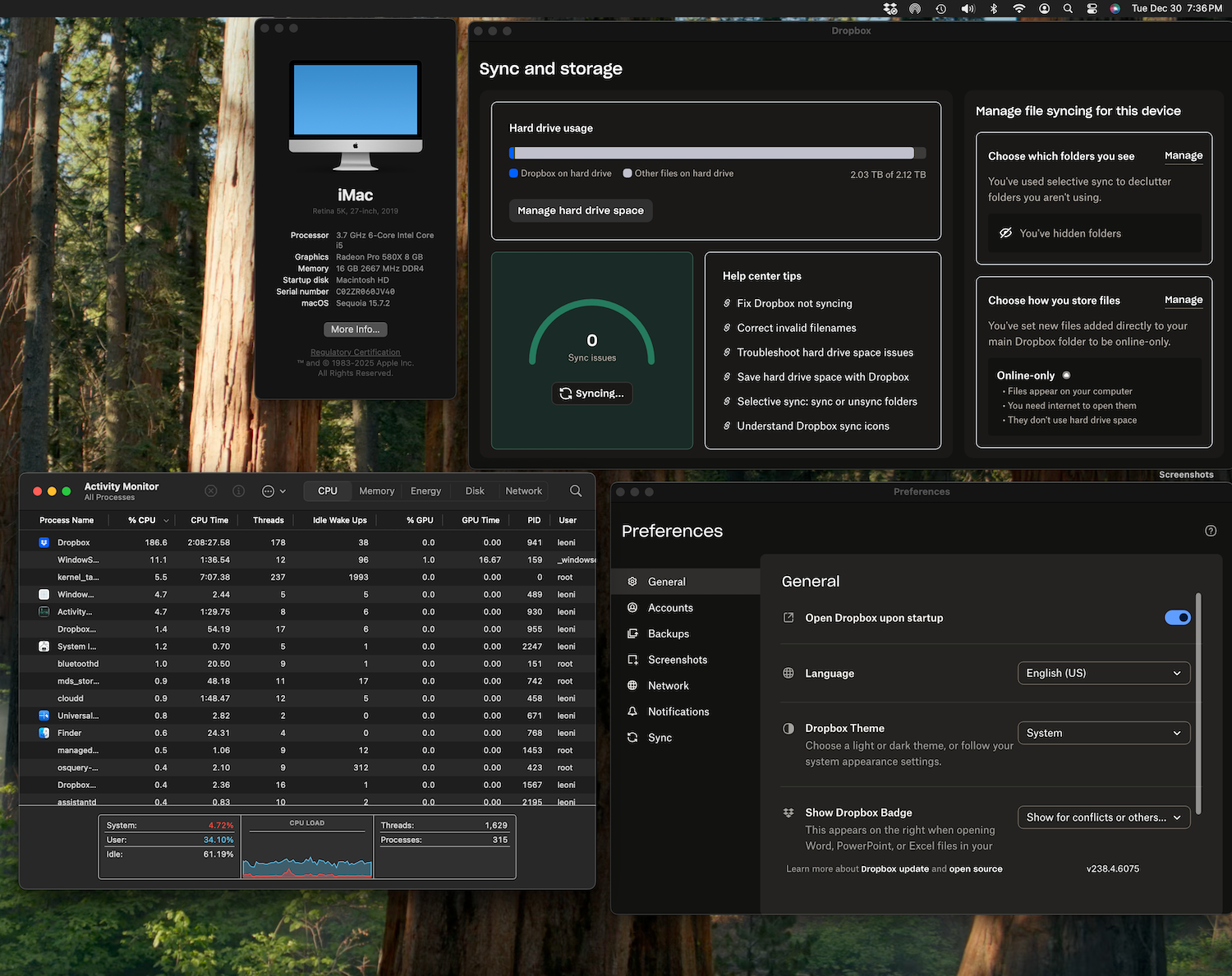
- Not enough hard drive space
- Conflicting files or names
- Selective Sync settings
- Permissions problems
- Account or login issues
- Antivirus/firewall blocks
- Dropbox server problems
Some causes are easy to fix; others need a deeper look. Let’s explore each one.
Basic Troubleshooting Steps
Before you dig into advanced solutions, it’s smart to try some quick fixes. Many syncing issues are solved with simple steps.
1. Check Your Internet Connection
Dropbox needs a stable internet connection to sync. If your internet is down or slow, syncing will stop or take much longer.
- Try opening a website to see if your connection works.
- If you use Wi-Fi, check if you’re still connected.
- Restart your router if needed.
2. Make Sure Dropbox Is Running
On your computer, Dropbox must be open to sync files.
- Look for the Dropbox icon in your system tray (Windows) or menu bar (Mac).
- If you don’t see it, search for “Dropbox” and open the app.
- On mobile, the app should sync when you open it.
3. Update Dropbox To The Latest Version
Older versions of Dropbox may stop syncing correctly.
- Go to the Dropbox website to download the latest app.
- Updates fix bugs and improve syncing.
- Automatic updates are usually on, but sometimes you need to update manually.
4. Restart Dropbox Or Your Device
Sometimes, a quick restart can fix syncing problems.
- Quit the Dropbox app completely, then open it again.
- If that doesn’t help, restart your computer or mobile device.
These four steps fix many common Dropbox syncing issues. If your files still aren’t syncing, it’s time to check for deeper problems.
In-depth Solutions For Dropbox Not Syncing
Let’s break down more specific issues and how you can solve them.
1. Not Enough Hard Drive Space
Dropbox needs enough space on your device to sync files. If your drive is almost full, files may not sync.
- On Windows, open File Explorer, right-click your drive, and check “Properties” to see free space.
- On Mac, click the Apple menu > About This Mac > Storage.
If you’re low on space:
- Delete or move large files you don’t need.
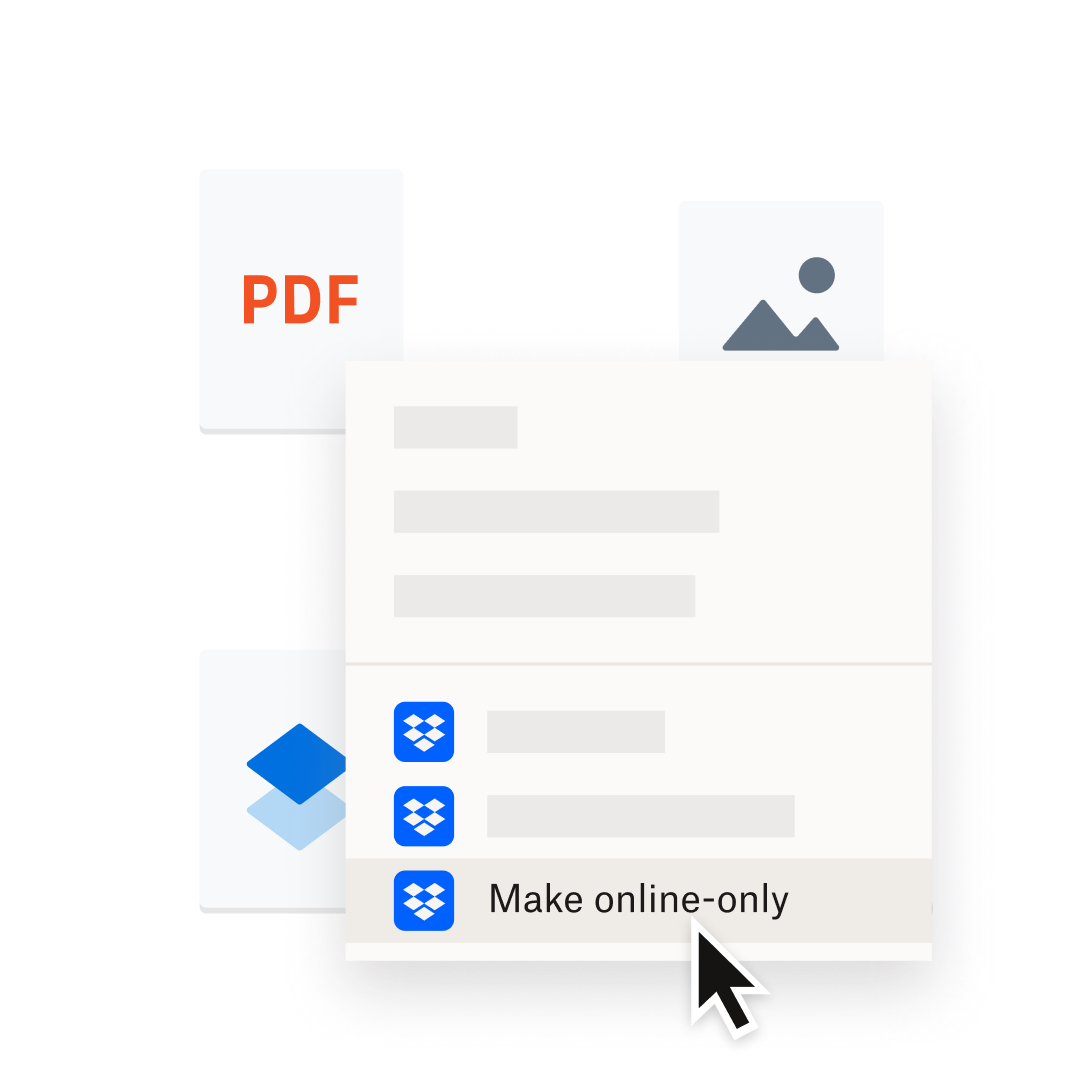
- Use Dropbox’s Smart Sync to keep files online-only.
2. Selective Sync Settings
Selective Sync lets you choose which folders appear on your computer. If a folder is not selected, files inside won’t appear or sync locally.
To check Selective Sync settings:
- Click the Dropbox icon > your profile photo > Preferences > Sync (Windows/Mac).
- Review the folder list under “Selective Sync.”
- Make sure the folders you want are checked.
3. Conflicting Files And Names
If two files have the same name but different content, Dropbox may create a conflicted copy. It’s easy to miss these.
- Look for files with names like “filename (conflicted copy)” or “filename (your device’s name).”
- Decide which file is correct and delete or rename the other.
Dropbox also has trouble syncing files with certain characters in their names (like / < >: “ | ? * on Windows). Rename files to remove these.
4. Permissions And File Ownership
Dropbox needs permission to access, change, and sync your files. If permissions change, syncing can fail.
- On Windows, right-click a file or folder, choose “Properties,” then “Security.”
- On Mac, right-click and select “Get Info,” then check “Sharing & Permissions.”
Make sure your user account has Full Control or Read & Write access. For team folders, ask your admin if you don’t have permission.
5. Antivirus And Firewall Problems
Sometimes, security software blocks Dropbox from connecting to the internet.
- Add Dropbox as an allowed program in your firewall and antivirus settings.
- On Windows, go to Control Panel > System and Security > Windows Defender Firewall > Allow an app.
- On Mac, System Preferences > Security & Privacy > Firewall.
If you’re not sure, try turning off your firewall or antivirus for a few minutes to see if syncing resumes. Don’t forget to turn it back on!
6. Account Or Login Issues
If you’re signed in to the wrong Dropbox account or your account is full, files won’t sync.
- Check the email address shown in the Dropbox app.
- Go to dropbox.com and make sure you see all your files.
- If you’re out of space, upgrade your plan or delete files.
7. Dropbox Server Outages
Although rare, Dropbox servers can go down, stopping syncing everywhere.
- Visit Dropbox Status to check for outages.
- If the servers are down, you’ll have to wait. Dropbox usually fixes problems quickly.

Credit: www.youtube.com
Advanced Troubleshooting
If basic fixes don’t help, try these advanced steps.
1. Check Dropbox Sync Status
Dropbox’s icon shows the sync status:
- Blue syncing icon: Files are being updated.
- Green checkmark: Everything is up to date.
- Red X: Something is wrong.
Hover your mouse over the icon for details. The message may tell you what to fix (“Can’t sync due to permissions” or “Not enough space”).
2. Re-link Your Dropbox Account
Unlinking and relinking can solve account or file corruption problems.
- Click the Dropbox icon > Profile photo > Preferences > Account > Unlink this computer.
- Sign in again to reconnect.
Be aware: Dropbox will re-sync all files after relinking, which may take time.
3. Move Dropbox Folder Location
Moving your Dropbox folder can fix issues with file paths or permissions.
- In Preferences > Sync, click “Move…” next to the folder location.
- Choose a new folder on your drive.
Make sure the new location has enough free space and you have full permissions.
4. Check For Hidden Files Or Folders
Some files may be set as hidden or system files, which Dropbox skips.
- On Windows, open File Explorer, click “View,” then check “Hidden items.”
- On Mac, open Finder and press Command + Shift + . (period) to show hidden files.
Rename or move hidden files if needed.
5. Use The Dropbox Web App
If a file won’t sync, try uploading or downloading it from the Dropbox web interface.
- Go to dropbox.com, sign in, and check if the file is there.
- Upload missing files or download ones that aren’t syncing.
- This is a good workaround if only one device has problems.
Dropbox Syncing On Different Platforms
Dropbox works on Windows, Mac, Linux, iOS, and Android. Syncing problems can look different depending on your device.
Dropbox Not Syncing On Windows
- Check for Windows updates.
- Make sure you’re not syncing to a network drive or external drive that disconnects.
- Run Dropbox as an administrator: Right-click Dropbox and choose “Run as administrator.”
Dropbox Not Syncing On Mac
- Make sure Dropbox has access to “Full Disk Access”: System Preferences > Security & Privacy > Privacy > Full Disk Access.
- Avoid putting your Dropbox folder in iCloud Drive or another syncing service.
Dropbox Not Syncing On Mobile Devices
- Check mobile data settings—Dropbox may be set to sync only on Wi-Fi.
- Make sure you’re signed in to the correct account.
- On iOS, enable Background App Refresh for Dropbox.
- On Android, clear the app cache: Settings > Apps > Dropbox > Storage > Clear Cache.
Common Scenarios And How To Solve Them
Syncing issues can sometimes be confusing. Here are some real-world examples.
Files Appear Online But Not On The Computer
This often happens with Selective Sync or Smart Sync.
- Check Preferences > Sync settings.
- Make files “Local” instead of “Online-only” in Smart Sync.
Files Stuck Uploading Or Downloading
- Large files may take longer. Try a smaller test file.
- Pause and resume syncing from the Dropbox menu.
- Check your upload/download speed. Some ISPs throttle large uploads.
Shared Folders Not Syncing
- Make sure you’ve accepted the folder invite.
- Check if the folder is selected in Selective Sync.
- Confirm you have permission to the folder.
Multiple Devices Out Of Sync
If several devices stop syncing, it’s likely an account, internet, or server problem.
- Check Dropbox status online.
- Make sure all devices use the same account.
- Try syncing from a different network (like a mobile hotspot).
Dropbox Syncing Vs Other Cloud Services
How does Dropbox compare with other syncing solutions like Google Drive and OneDrive? Here’s a quick comparison:
| Feature | Dropbox | Google Drive | OneDrive |
|---|---|---|---|
| Sync Speed | Very Fast | Fast | Fast |
| Selective Sync | Yes | Partial | Yes |
| Smart Sync/Online-Only | Yes | No | Yes |
| LAN Sync | Yes | No | No |
| File Version History | 30 days (Basic) | 30 days | 30 days |
Dropbox is known for fast and reliable syncing, but every cloud service can have problems with large files, slow networks, or account issues.
Preventing Dropbox Sync Problems
A little prevention saves a lot of trouble. Here’s how to avoid syncing problems in the future.
- Keep Dropbox updated on all devices.
- Check free space regularly on your devices.
- Avoid special characters in file and folder names.
- Review Selective Sync settings after adding new folders.
- Backup important files outside Dropbox.
- Don’t sync system folders or app data that change often.
- Stay under your storage quota to prevent account issues.
Two Key Insights Most Users Miss
- Smart Sync and Selective Sync Can Hide Files: If you use Smart Sync or Selective Sync, files may show in your Dropbox folder but won’t download to your computer until you open them. This is not a bug—it’s how these features work. If you want files always available offline, set them to “Local.”
- Syncing Is Not Instant: Even with fast internet, large files or many small files can take time to sync. Dropbox uploads and downloads files in the background, and may show a delay if your device is busy, your network is slow, or you’re syncing thousands of files.
Credit: www.dropbox.com
When To Contact Dropbox Support
If you’ve tried all the steps above and files still won’t sync, it may be time to get help.
- Collect details: Error messages, screenshots, and steps you’ve tried.
- Visit the Dropbox Help Center or contact support directly.
- Paid plans get faster support responses.
You can also visit community forums for advice, but be careful with third-party software or “fixers” that promise to solve Dropbox problems.
Key Dropbox Sync Error Messages
Here are some common error messages and what they mean:
| Error Message | Cause | Solution |
|---|---|---|
| “Can’t sync. Not enough disk space.” | Drive is full | Free up space or use Smart Sync |
| “Permission denied” | File/folder ownership problem | Change file permissions |
| “This file name is not supported” | Special characters in file name | Rename the file |
| “Can’t establish a secure connection” | Firewall or antivirus block | Allow Dropbox through firewall |
| “Dropbox is full” | Account over storage limit | Delete files or upgrade plan |
Understanding these error messages can help you solve the problem faster.
Dropbox And Security
Dropbox takes security seriously. If you change your password, enable two-step verification, or sign out of devices, syncing may pause until you sign in again.
- Always use a strong password and keep your account secure.
- If you see unfamiliar devices or locations in your Dropbox account, change your password immediately.
For more about Dropbox’s security features, visit their official security page.
Frequently Asked Questions
Why Are My Dropbox Files Not Updating On My Phone?
This often happens if the mobile app is set to only sync on Wi-Fi, or if Background App Refresh is off. Open the Dropbox app, check your network, and refresh manually if needed.
What Does The Blue Syncing Icon Mean?
A blue syncing icon means Dropbox is still uploading or downloading files. If this icon stays for a long time, check your internet speed or see if a large file is stuck.
Can I Force Dropbox To Sync Immediately?
You can’t “force” sync, but you can pause and resume syncing from the Dropbox menu, which often restarts the process. Opening the Dropbox app on mobile also triggers syncing.
Why Do I See “conflicted Copy” In My Dropbox Folder?
This happens if two devices edit the same file at the same time while offline or unsynced. Dropbox saves both versions to avoid data loss. Review and keep the correct file.
How Do I Know If Dropbox Servers Are Down?
Visit Dropbox Status to check for current outages or problems with Dropbox services.
Dropbox is a powerful tool, but syncing problems can happen to anyone. Now that you know the causes and solutions, you can fix most issues quickly and keep your files safe and up to date. If you’re still having problems, don’t hesitate to contact Dropbox support or visit their help center for more guidance.
Credit: community.dropbox.com