If you use Discord regularly, you probably expect it to just work when you click the icon. But sometimes, the Discord app not opening can turn a quick chat into a frustrating problem. Whether you use Discord for gaming, study groups, or just hanging out, this issue can leave you stuck. Luckily, there are several causes—and even more solutions.
This guide will help you find out why Discord won’t open and how to fix it. Even if you’re not a tech expert, you’ll find clear steps and explanations that make sense. You’ll also see common mistakes and some advanced tips.
By the end, you’ll be ready to get Discord running again, fast.
Why Discord App Fails To Open
When Discord refuses to open, it’s not just one thing. Several different problems can cause this, and knowing the reason is the first step to fixing it. Here are the most common causes:
- Software conflicts: Other programs or tools running on your computer can block Discord from starting.
- Corrupt app data: Old or damaged files inside Discord’s folders can prevent it from working correctly.
- Network problems: If your internet connection is unstable, Discord might not load at all.
- Outdated app version: Using an old version of Discord sometimes leads to startup issues.
- Operating system issues: Problems with Windows, macOS, or updates can interfere with apps like Discord.
- Antivirus or firewall blocks: Security tools may accidentally block Discord from starting.
- Hardware acceleration bugs: This Discord feature can cause crashes or prevent launching on some computers.
Most people miss that even small things—like a stuck Discord process in the background—can keep the app from opening. Sometimes, the simplest solutions work best.
Quick Checks Before Deep Fixes
Before you try advanced solutions, it’s smart to check a few basic things. These can save time and sometimes solve the problem right away.
- Restart your computer. This clears out stuck processes and memory issues.
- Check your internet. Make sure you’re online and other apps can access the web.
- Try Discord in your browser. Go to [Discord’s web app](https: //discord.com/app) and see if it loads. If it does, the problem is with the desktop app, not your account or network.
If Discord works in your browser but not in the app, you know where to focus. If it doesn’t work anywhere, the issue might be with your account, network, or even Discord’s servers.
Common Error Messages And What They Mean
Discord sometimes shows error messages when it fails to open. Understanding these can help you find the right fix.
- “Discord is already running”: The app didn’t close properly, and a background process is still active.
- Blank screen: Discord starts but doesn’t display anything. This often means a problem with hardware acceleration or corrupted cache.
- “Installation has failed”: There are missing or damaged files in Discord’s folder.
- Error code 404/502/500: These usually mean network issues or server problems.
- No error, nothing happens: The app is blocked by antivirus, firewall, or another software conflict.
Knowing the message—or lack of one—gives you important clues.
Step-by-step Solutions For Discord Not Opening
Let’s break down the most effective ways to solve this problem, starting with the easiest and moving to more advanced.
1. End Discord Processes In Task Manager
Sometimes Discord is still running in the background, even if you don’t see it. This “ghost” process can block the app from starting again.
- Press Ctrl + Shift + Esc to open Task Manager (Windows).
- Look for any Discord.exe processes.
- Right-click each one and choose End Task.
- Try opening Discord again.
Pro Tip: On macOS, open Activity Monitor (find it in Applications > Utilities), search for “Discord,” and click the “X” button to quit any running Discord processes.
2. Run Discord As Administrator
Some Discord updates or features require extra permissions, especially on Windows. Here’s how to run as admin:
- Right-click the Discord icon on your desktop or in the Start menu.
- Select Run as administrator.
- See if Discord opens.
This small step solves startup issues for many users, especially after Windows updates.
3. Clear Discord App Data And Cache
Corrupt or outdated cache files are a hidden cause of startup problems. Clearing them forces Discord to rebuild fresh files.
On Windows:
- Make sure Discord is closed (use Task Manager to end all processes).
- Press Windows + R to open Run.
- Type %appdata%/Discord and press Enter.
- Delete the Cache, Code Cache, and GPUCache folders.
- Restart Discord.
On Mac:
- Close Discord completely.
- Open Finder.
- Click Go in the menu and choose Go to Folder.
- Type `~/Library/Application Support/discord/` and hit Enter.
- Delete Cache and related folders.
- Restart Discord.
Non-obvious tip: Deleting cache does not affect your chats or servers; it only removes temporary files.
4. Check For Updates
Using an old version of Discord can create compatibility issues. Update Discord this way:
- Close Discord completely.
- Download the latest installer from [discord.com/download](https: //discord.com/download).
- Run the installer (it will update your app).
- Restart your computer and try opening Discord.
This method fixes many problems—even if you already have Discord installed.
5. Disable Hardware Acceleration
Hardware acceleration uses your graphics card to help Discord run smoother. But on some systems, it causes blank screens or crashes.
If you can open Discord (even in the browser), turn it off:
- Open Discord and go to Settings (gear icon).
- Click Advanced.
- Toggle off Hardware Acceleration.
- Restart Discord.
If you can’t open the app, try the browser version, change the setting, and then reopen the desktop app.
6. Check Your Antivirus And Firewall
Security tools sometimes block Discord without warning. Check if Discord is being blocked:
- Open your antivirus software.
- Look for a “Quarantine” or “Blocked Apps” section.
- If Discord is listed, allow or whitelist it.
For Windows Firewall:
- Search for Windows Defender Firewall in the Start menu.
- Click Allow an app or feature through Windows Defender Firewall.
- Make sure both Private and Public boxes are checked for Discord.
Advanced insight: Some security tools block Discord’s update servers, not just the app itself. Temporarily disable antivirus (if safe), restart Discord, and see if it opens. Turn your antivirus back on afterward.
7. Reset Network Settings
Network glitches, especially after major updates, can block Discord. Resetting network settings can help:
On Windows:
- Open Command Prompt as admin (search for cmd, right-click, choose Run as administrator).
- Type the following commands, pressing Enter after each:
- `ipconfig /release`
- `ipconfig /renew`
- `ipconfig /flushdns`
- Restart your computer and try Discord again.
On Mac:
- Open System Preferences > Network.
- Select your active connection, click the minus (-) button to remove it, then add it back with the plus (+) button.
- Restart your Mac.
8. Reinstall Discord
If nothing else works, a clean reinstall is often the answer.
Steps For A Clean Reinstall
- Uninstall Discord from your computer (Control Panel > Programs > Uninstall a program on Windows; drag Discord to Trash on Mac).
- Delete the cache folders as shown in section 3.
- Download the latest version from [discord.com/download](https: //discord.com/download).
- Install Discord again.
Important note: Always delete the old cache after uninstalling, or the problem might come back.
9. Try Compatibility Mode (windows Only)
Older Windows versions or recent updates can cause compatibility problems. Try running Discord in compatibility mode:
- Right-click the Discord shortcut.
- Select Properties.
- Go to the Compatibility tab.
- Check Run this program in compatibility mode for: And choose an older Windows version (e.g., Windows 8).
- Click Apply and OK.
- Start Discord.
This trick can help if Discord worked before a Windows update but now won’t open.
10. Create A New User Profile
Very rarely, user profile corruption blocks apps. Creating a new user profile can test if this is the cause.
- On Windows, open Settings > Accounts > Family & other users > Add someone else to this PC.
- Create a new user and log in with it.
- Try installing and opening Discord.
If Discord works in the new profile, your old profile has deeper issues—back up your data and consider switching.
Special Cases: Discord Not Opening On Different Devices
Sometimes, the problem depends on your device. Here’s how to handle Discord not opening on popular platforms.
Discord Not Opening On Windows
Windows users see this issue most. Focus on Task Manager, clearing cache, and checking for updates. Watch for Windows updates that may have affected app permissions.
Discord Not Opening On Mac
Mac users should check Activity Monitor, clear cache, and check Security & Privacy settings (System Preferences > Security & Privacy > Privacy tab). Make sure Discord has permissions to access the folders it needs.
Discord Not Opening On Linux
Linux users may need to run Discord from the terminal to see error messages. Try reinstalling with Snap or Flatpak if available. Make sure all dependencies (like libappindicator) are installed.
Discord Not Opening On Mobile (ios/android)
- Restart your device.
- Clear the app cache (Android: Settings > Apps > Discord > Storage > Clear Cache).
- Update the app from the Play Store or App Store.
- Reinstall Discord if needed.
How Discord App Startup Compares To Other Chat Apps
Is Discord really more likely to get stuck than other apps? Here’s a quick comparison of startup problems among popular chat tools:
| App | Common Startup Issues | Recovery Difficulty |
|---|---|---|
| Discord | Stuck in background, cache problems, hardware acceleration bugs | Medium |
| Slack | Update failures, network problems | Medium |
| Microsoft Teams | Account sync issues, antivirus blocks | High |
| Skype | Corrupted data, old version bugs | Low |
Discord’s startup issues are common but not the hardest to fix. Most solutions are within reach for regular users.
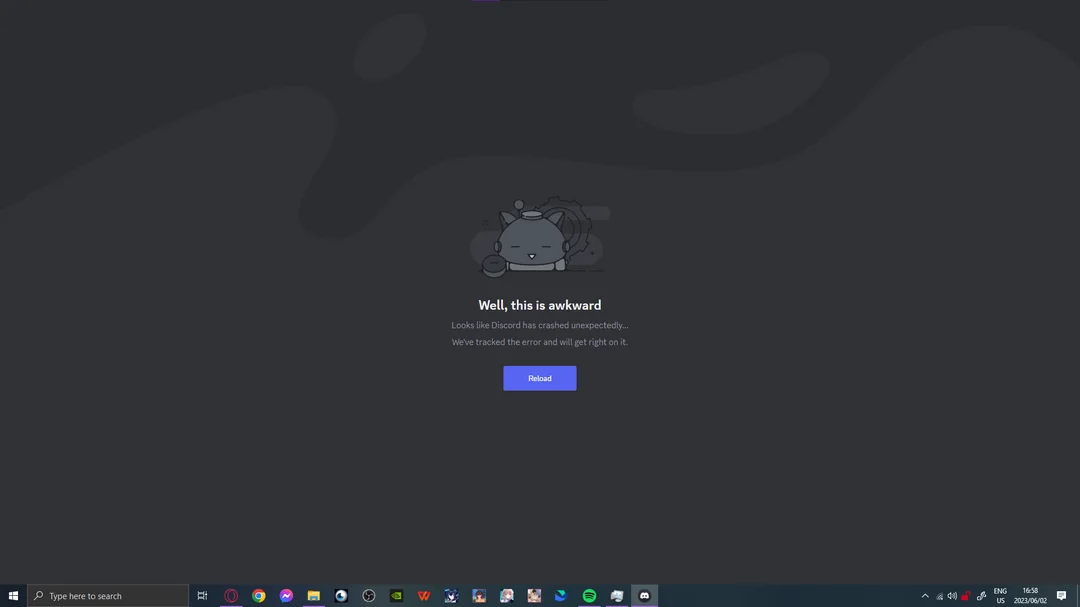
Credit: appuals.com
Less-obvious Causes Most People Miss
Some Discord startup problems are easy to miss, even for advanced users.
- Multiple user sessions: If you have more than one user logged in (Windows “Switch user”), Discord might not start on the second session.
- Proxy or VPN settings: Discord sometimes fails to open if you use certain proxies or VPNs. Temporarily turn them off and try again.
- Corrupted Windows system files: Use `sfc /scannow` in Command Prompt (admin) to check and repair.
- Date and time out of sync: If your system clock is wrong, Discord might not connect to servers.
A small but real number of users face problems from these hidden issues.
How To Avoid Discord Not Opening In The Future
Prevention is easier than constant troubleshooting. Here’s how to reduce the chances of Discord not starting again:
- Keep Discord updated. Don’t ignore update prompts.
- Restart your computer weekly. This clears out stuck processes.
- Avoid forced shutdowns. Always close Discord before turning off your PC.
- Whitelist Discord in antivirus/firewall. Do this after every major update.
- Update your operating system. Outdated Windows or macOS can cause surprises.
- Check for conflicting apps. Tools like screen recorders, overlays, or game boosters can interfere.
- Back up important data. If you need to reinstall, you won’t lose files or settings.
Non-obvious tip: If you use Discord bots or advanced features, sometimes a bot’s bug can crash the app. Try disabling or removing bots if you notice problems after adding new ones.
Discord App Not Opening: Troubleshooting Summary Table
If you want a quick reference, use this table to match problems with solutions:
| Problem | Quick Solution | Advanced Solution |
|---|---|---|
| Discord doesn’t show up | End process in Task Manager | Clean install Discord |
| Blank screen | Disable hardware acceleration | Clear cache folders |
| App crashes on open | Run as administrator | Check antivirus/firewall settings |
| Error code 500/502 | Check internet | Reset network settings |
| Nothing happens on click | Restart computer | Try compatibility mode |
When To Contact Discord Support
If you’ve tried everything and Discord still won’t open, it’s time to reach out for help. Go to the [Discord Support page](https://support.discord.com/hc/en-us). Give them:
- Your operating system (Windows, Mac, Linux, iOS, Android)
- Any error messages you’ve seen
- What you’ve already tried (list the steps)
- Your Discord username and email
Discord’s team can check your account, review error logs, and sometimes provide special fixes.

Credit: www.reddit.com
Advanced Troubleshooting Steps
For users comfortable with deeper fixes, these steps can help with rare or stubborn issues.
Check Discord Logs
Discord keeps logs in its AppData folder. Reviewing these can reveal what’s wrong.
- Go to `%appdata%/discord/logs` (Windows).
- Look for recent log files (open with Notepad).
- Search for words like “error,” “fail,” or “crash.”
You might see clues about missing files, permission errors, or blocked connections.
Change Dns Settings
Sometimes DNS (domain name system) issues prevent Discord from reaching its servers.
- Open Network & Internet settings.
- Go to Change adapter options.
- Right-click your connection > Properties > Internet Protocol Version 4 (TCP/IPv4).
- Choose Use the following DNS server addresses.
- Preferred: 8.8.8.8
- Alternate: 8.8.4.4 (Google DNS)
- Save and restart.
This fix helps when Discord gets stuck connecting.
Check For System-wide App Conflicts
Some programs can block Discord without you knowing. Common offenders include:
- Overlay software (NVIDIA, AMD, Xbox Game Bar)
- Screen recorders (OBS, Fraps)
- Game boosters (Razer Cortex)
Try disabling these and see if Discord opens.
Use The Web App As A Backup
If the desktop app just won’t open, you can always use the Discord web app at [discord.com/app](https://discord.com/app). This gives you nearly full access while you troubleshoot.
Real-world Example: Discord Not Opening After Update
Let’s look at a real scenario:
Sarah, a university student, updated Windows 10 and Discord the same day. After that, Discord wouldn’t open—no error, just nothing happened. She tried restarting, but it didn’t help.
Here’s what fixed it:
- She opened Task Manager and ended all Discord processes.
- Cleared the `%appdata%/Discord` cache folders.
- Updated her graphics drivers.
- Ran Discord as administrator.
Discord started working again. The main issue was a combination of stuck background processes and outdated graphics drivers.
Insight: Updates can sometimes create multiple issues at once. Solving them in order is key.

Credit: www.youtube.com
Discord And System Requirements
Some users try to run Discord on old or low-spec machines. Make sure your device meets the minimum requirements:
| Platform | Minimum Requirements | Recommended |
|---|---|---|
| Windows | Windows 7, 2GB RAM, Intel/AMD CPU | Windows 10+, 4GB RAM, modern CPU |
| Mac | macOS 10.11+, 2GB RAM | macOS 10.15+, 4GB RAM |
| Linux | Debian-based, 2GB RAM | Ubuntu 20.04+, 4GB RAM |
| Mobile | Android 5.0+, iOS 11+ | Latest OS, 2GB+ RAM |
If your device is below these specs, Discord may not open or may run slowly.
What Makes Discord Startup Unique
Discord is built on Electron, a framework that lets web apps run on desktops. This gives Discord lots of features, but also means:
- It’s more sensitive to corrupt cache than some other apps.
- It can be affected by graphics driver updates.
- Startup problems may require web-style troubleshooting (like clearing cache or cookies).
Knowing this helps when comparing Discord’s problems to other apps.
If Discord Servers Are Down
Very rarely, the problem isn’t on your end. Discord’s servers sometimes go down for maintenance or technical issues. Check:
- [Discord Status](https: //discordstatus.com/): Shows if servers are up or down.
- Twitter (@discord): The official feed posts about outages.
If servers are down, you’ll have to wait. Don’t waste time fixing your device if the problem is with Discord’s servers.
Useful Resources For Further Help
If you want to dig deeper, check out:
- Discord Support Center
- Discord subreddit (r/discordapp) for community solutions
- Your device’s official support page for OS-specific fixes
Frequently Asked Questions
Why Does Discord Open In The Background But Not Show Up?
This usually means a stuck Discord process is running without displaying a window. Use Task Manager (Windows) or Activity Monitor (Mac) to end all Discord processes. Then restart the app.
Will I Lose My Servers Or Friends If I Reinstall Discord?
No. Your servers, friends, and messages are tied to your Discord account, not your device. Reinstalling only deletes local files; log in again and everything will be there.
What If Discord Won’t Open After A Windows Update?
Try running Discord as administrator, clearing cache folders, or reinstalling. Windows updates sometimes change app permissions. If nothing works, use compatibility mode or contact Discord support.
Can Antivirus Software Block Discord From Opening?
Yes. Some antivirus programs can falsely block Discord. Check your antivirus settings, whitelist Discord, and see if it opens. Remember to turn protection back on after testing.
Is There An Official Resource For Discord Troubleshooting?
Yes. The official Discord Support Center has up-to-date guides and contact options.
When Discord won’t open, it feels stressful—but most problems are fixable with the right steps. Try the easy solutions first, then move to advanced methods. Stay patient, and you’ll be back chatting with friends in no time. If all else fails, don’t hesitate to reach out to Discord’s official support for help.