Windows 11 is known for its modern look and improved features, but some users face a stubborn problem: the date and time not syncing correctly. This issue can be frustrating, especially when your clock shows the wrong time, and apps or websites stop working as they should. While it may seem like a small detail, having the correct date and time is crucial for everything from browsing securely to using calendar events and automatic updates. If your Windows 11 device keeps showing the wrong time or refuses to sync, you’re not alone—and there are practical solutions to fix it.
Let’s explore why this happens, what you can do about it, and how to keep your system running smoothly. Whether you’re a beginner or have some tech skills, you’ll find step-by-step guidance, practical examples, and expert tips to solve the Windows 11 date and time sync problem once and for all.
Why Is Date And Time Sync Important In Windows 11?
At first glance, the clock on your Windows 11 device may not seem critical. But the system clock is deeply connected to how your computer interacts with the internet, apps, and other devices. Here’s why accurate date and time matter:
- Security: Many secure websites and apps use certificates that check your device’s time. If the time is wrong, you might get security warnings or be blocked from accessing certain services.
- File Management: Files you save or modify use the system clock for timestamps. Wrong time can cause confusion, version problems, or backup errors.
- Synchronization: Services like OneDrive, Microsoft Teams, and email clients rely on your system clock to sync data correctly.
- Scheduled Tasks: Calendar reminders, updates, and automated tasks may fail or trigger at the wrong time if your clock is off.
Even a small time difference—just a few minutes—can break some important features. That’s why fixing date and time not syncing is more than just cosmetic; it keeps your digital life running smoothly.
Common Reasons For Date And Time Not Syncing In Windows 11
Understanding the root causes helps you solve the problem faster. Here are the most frequent reasons Windows 11 fails to sync date and time:
- Incorrect Time Zone: Your device may be set to the wrong time zone, causing the clock to show the wrong time.
- Disabled Automatic Sync: If automatic time sync is off, Windows won’t update the clock from the internet.
- Corrupt Windows Time Service: The background service that handles time sync may be stopped or malfunctioning.
- Network Issues: Poor or restricted internet access can block time servers.
- Outdated Windows: System bugs in older versions may prevent proper synchronization.
- Faulty CMOS Battery: On desktops and laptops, a weak or dead CMOS battery can cause the clock to reset when the device is off.
- Third-Party Software: Security tools or VPNs may interfere with time sync.
- Blocked Time Servers: Some networks, especially in offices or public places, may block access to Microsoft’s time servers.
Sometimes, more than one of these factors is at play. The good news is you can usually fix the issue with a few adjustments.
How To Check And Correct The Time Zone
One of the most common and overlooked causes of date and time errors is the wrong time zone. Even if your clock syncs perfectly, being set to a different zone will show the wrong local time.
To check and change your time zone in Windows 11:
- Click the Start button and open Settings.
- Select Time & language from the sidebar.
- Click Date & time.
- Under Time zone, make sure your correct region is selected. If not, choose the right one from the drop-down menu.
- For added accuracy, turn on Set time zone automatically if you travel often.
Pro tip: If you use a VPN that connects to servers in other countries, Windows may sometimes pick the VPN’s location as your time zone. Manually set the time zone if you notice frequent switches.
Enabling Automatic Date And Time Sync
Windows 11 can automatically sync your clock with internet time servers. If this feature is off, your clock may drift and fall out of sync.
Follow these steps to enable automatic date and time sync:
- Go to Settings > Time & language > Date & time.
- Turn on both Set time automatically and Set time zone automatically (if you want Windows to choose the zone for you).
- Scroll down and find the Additional settings section.
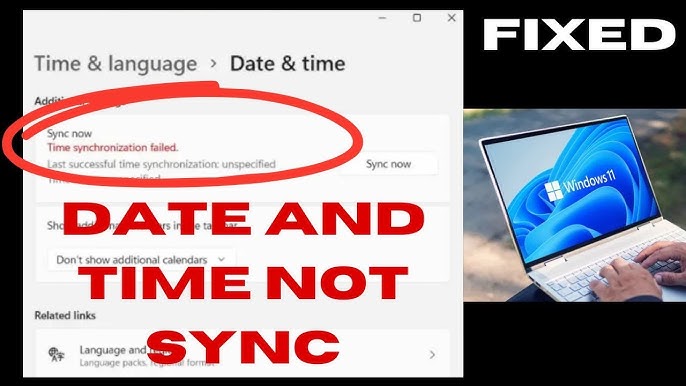
- Click Sync now under Synchronize your clock. This forces Windows to check for the correct time.
If you see an error message or the sync fails, there may be a deeper issue—read on for advanced fixes.

Credit: www.youtube.com
How To Manually Sync Date And Time In Windows 11
Sometimes, automatic sync doesn’t work due to temporary network issues or background service problems. You can manually trigger a sync:
- Open Settings > Time & language > Date & time.
- Under Additional settings, click Sync now.
- Wait for the confirmation message. If you get an error, note the code—it can help diagnose the problem.
If manual sync works, but the time drifts again later, your computer may have trouble keeping time (often due to a weak CMOS battery or disabled services).
Checking And Restarting The Windows Time Service
The Windows Time Service (W32Time) is a background process that keeps your clock in sync. If this service is stopped or not working, your time won’t update.
Here’s how to check and restart it:
- Press Windows + R to open the Run dialog.
- Type `services.msc` and hit Enter.
- Scroll down to Windows Time in the list.
- Right-click and select Properties.
- Make sure the Startup type is set to Automatic.
- If the service is not running, click Start.
- Click OK to save your changes.
Insight: Sometimes, after Windows updates or system changes, this service can be set to manual or disabled by mistake. Always set it to automatic for smooth syncing.
Changing The Internet Time Server
Windows 11 uses time servers (like time. windows. com) to sync your clock. If that server is down or blocked, you’ll need to switch to another.
To change your time server:
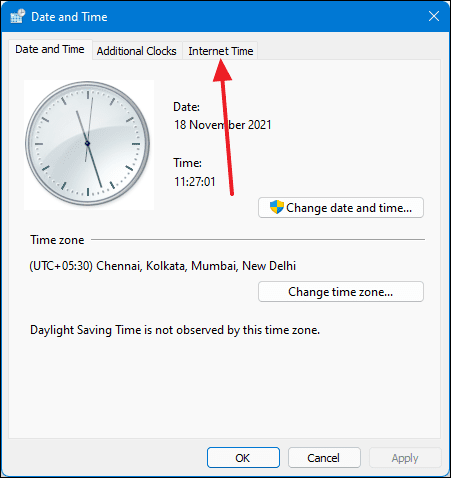
- Open Control Panel (search for it in the Start menu).
- Click Clock and Region > Date and Time.
- Go to the Internet Time tab.
- Click Change settings.
- Select a different server from the list (e.g., time.nist.gov).
- Click Update now, then OK.
Here’s a quick comparison of popular time servers:
| Time Server | Provider | Reliability | Notes |
|---|---|---|---|
| time.windows.com | Microsoft | High | Default for Windows |
| time.nist.gov | NIST (US) | Very High | Popular alternative |
| pool.ntp.org | Open NTP Pool | Variable | Large network, global |
If you’re on a company or school network, ask your IT department which server to use.
Troubleshooting Network And Firewall Issues
If your device can’t reach the time server, syncing will fail. This is often caused by network restrictions, misconfigured firewalls, or VPNs.
Steps to troubleshoot:
- Check your internet connection: Open a browser and visit a website to confirm you’re online.
- Disable VPNs: Temporarily turn off VPN services to see if they block time sync.
- Review firewall settings: Make sure your firewall isn’t blocking port 123 (used for NTP—Network Time Protocol).
- Try a different network: Connect to another Wi-Fi or mobile hotspot to test if the issue is with your usual network.
If syncing works on a different network, your main network may have restrictions. Contact your network admin for help if you’re in a managed environment.
Updating Windows 11 And Device Drivers
Outdated systems or drivers can cause many strange issues, including date and time not syncing. Keeping Windows 11 and your hardware drivers up to date is essential.
How to update:
- Go to Settings > Windows Update.
- Click Check for updates and install any available updates.
- For device drivers, open Device Manager (right-click Start button).
- Right-click each component (e.g., network adapters) and select Update driver.
Keeping your system current can solve hidden bugs and improve time sync reliability.
Checking And Replacing The Cmos Battery
On desktops and some laptops, the CMOS battery (a small coin cell inside the computer) maintains the clock when your PC is off. If your time resets after every shutdown, a weak battery could be the cause.
Symptoms of a failing CMOS battery:
- Time and date reset every time you boot up.
- BIOS/UEFI settings don’t save.
- Error messages about CMOS or BIOS settings.
What to do:
- Shut down your computer and unplug it.
- Open the case (if a desktop) or bottom cover (if a laptop model allows).
- Locate the round CMOS battery—usually a CR2032 type.
- Replace it with a new one (handle carefully to avoid static damage).
Not all laptops allow easy battery replacement, so check your device’s manual or seek professional help if unsure.
Advanced Troubleshooting: Command Line Solutions
If the usual fixes don’t work, the command line offers powerful tools. These steps are for users comfortable with basic commands.
Resyncing The Clock With Command Prompt
- Right-click the Start button and select Windows Terminal (Admin) or Command Prompt (Admin).
- Type the following commands one by one, pressing Enter after each:
net stop w32time
w32tm /unregister
w32tm /register
net start w32time
w32tm /resync
This process stops the time service, unregisters and registers it again, restarts it, and forces a resync.
Checking Sync Status
To see the current time sync status:
w32tm /query /status
Look for error messages or last sync time. If you see “The computer did not resync because no time data was available,” there’s still a server or network problem.
Registry Edit For Persistent Problems
Warning: Editing the Windows Registry is risky—make a backup first!
- Press Windows + R, type `regedit`, and hit Enter.
- Navigate to `HKEY_LOCAL_MACHINESYSTEMCurrentControlSetServicesW32TimeTimeProvidersNtpClient`.
- Double-click SpecialPollInterval and set it to a value in seconds (e.g., 3600 for 1 hour).
- Close Registry Editor and restart your PC.
This sets how often Windows checks for the correct time.
Comparing Automatic Vs. Manual Time Sync
Many users wonder if they should rely on Windows’ automatic sync or manually adjust the time. Here’s a direct comparison to help you decide:
| Method | Pros | Cons | Best For |
|---|---|---|---|
| Automatic Sync | Hands-free, stays accurate, minimal setup | Can fail if network or service has issues | Most users |
| Manual Sync | Immediate correction possible, works offline | Easy to forget, time can drift fast | Rare cases, troubleshooting |
Insight: For nearly all users, automatic sync is safer and more reliable. Manual sync is mainly for testing or rare offline needs.
Preventing Future Date And Time Sync Issues
Once you solve the problem, it’s wise to take steps that prevent it from coming back. Here’s how you can keep your Windows 11 clock accurate:
- Keep Windows Updated: Install updates regularly to get bug fixes.
- Use a Reliable Network: Avoid public Wi-Fi or unstable connections when syncing.
- Avoid Unnecessary Software: Extra firewalls or VPNs can interfere with time sync.
- Check Battery Health: If you have an older desktop or laptop, replace the CMOS battery every few years.
- Monitor for Errors: If you see frequent time sync errors, investigate promptly.
Non-obvious tip: Sometimes, Bluetooth or Wi-Fi adapters with outdated drivers can cause time sync to fail on laptops. Updating these drivers can fix odd sync problems.
When To Seek Professional Help
Most date and time syncing issues on Windows 11 can be fixed with the above steps. However, you should consider getting help if:
- The clock keeps resetting even after replacing the CMOS battery.
- Registry changes or service restarts don’t solve the problem.
- You’re on a work or school network with restricted permissions.
- You suspect malware or a system corruption.
In such cases, a trusted technician or IT department can check for hardware failures or deeper software issues.
Real-world Example: How Date And Time Sync Affects Applications
Let’s consider a practical scenario. Imagine you’re using Microsoft Teams for remote work. If your PC clock is just five minutes off, you may:
- Miss meeting notifications.
- Get errors joining calls.
- Experience failed file uploads.
In another case, online banking apps often refuse to connect if your date and time don’t match the server. This is a security feature to prevent fraud. Even gaming services like Xbox Live or Steam may block access if your clock is wrong.
These examples show that date and time sync is not just about the clock—it’s a core part of digital reliability.
Useful Resources
If you want to dive deeper into how Windows manages time, the official Microsoft documentation is a good place to start. For a broad overview of the Network Time Protocol, check out the Wikipedia entry on NTP.
Credit: techcommunity.microsoft.com
Frequently Asked Questions
1 What Causes The Date And Time To Keep Resetting In Windows 11?
A common cause is a failing CMOS battery—this small battery powers your motherboard’s clock when the device is off. If it’s weak, your PC forgets the time every time you shut it down. Other causes include disabled time sync settings, network problems, or system corruption.
Credit: www.youtube.com
2 Can I Use A Third-party Tool To Sync Time In Windows 11?
Yes, there are trusted apps like NetTime or Atomic Clock Sync. However, for most users, Windows’ built-in syncing is secure and reliable. Use third-party tools only if you need advanced features or your network blocks standard time servers.
3 Does Windows 11 Require Internet Access To Sync Time?
Internet is required for automatic sync with online servers. However, you can manually set the time offline. If your device is always offline, expect the clock to drift over days or weeks, especially on older hardware.
4 Why Does My Time Zone Keep Changing On Its Own?
This often happens if Set time zone automatically is enabled and you use a VPN or travel between regions. Windows detects your location and updates the zone. If this causes confusion, turn off auto time zone and set your preferred one manually.
5 Is It Safe To Edit The Registry To Fix Time Sync Problems?
Editing the Windows Registry can solve advanced sync problems, but it’s risky. Always back up your registry first. Mistakes can cause system errors or prevent Windows from booting. Only use this method if you’re comfortable with advanced troubleshooting.
If you follow these steps, you should be able to resolve date and time not syncing issues on Windows 11 and keep your system running reliably. Remember, small settings can have a big impact—don’t ignore your computer’s clock!