If you recently bought a Crossbeats smartwatch, you probably expected a seamless connection to your phone. But what if your new wearable just won’t connect? This is a common issue, but it can be frustrating—especially if you’re eager to track your health or notifications.
The good news is that most connection problems have clear solutions. In this guide, you’ll find practical steps, troubleshooting advice, and expert insights to help your Crossbeats smartwatch connect reliably to your phone.
Why Your Crossbeats Smartwatch Won’t Connect
Before diving into fixes, it helps to understand why connection issues happen. Crossbeats smartwatches connect via Bluetooth, which can sometimes be unstable due to:
- Software bugs in the phone or watch
- Outdated apps or firmware
- Bluetooth interference from other devices
- Incorrect pairing steps
- Phone settings that block Bluetooth
Many users miss small details, like permissions or background app restrictions. Let’s break down common causes so you can target the real problem.
Bluetooth Compatibility And Range
The Bluetooth version on your phone and watch must be compatible. Most Crossbeats watches require at least Bluetooth 4.0 or newer. Bluetooth typically works best within 10 meters (about 33 feet), but walls, other electronics, or even your body can block the signal.
App Permissions And Background Activity
The Crossbeats app needs permission to access Bluetooth, location, and notifications. On some phones, if the app is restricted in the background, it can disconnect frequently or fail to connect at all.
Software Updates
If your phone or smartwatch hasn’t been updated, connection issues can occur. Updates often fix bugs and improve pairing reliability.
Step-by-step Solutions To Connect Your Crossbeats Smartwatch
Let’s walk through the most effective solutions. Start with the basics and move to more advanced fixes if needed.
1. Check Device Compatibility
Not all Crossbeats models work with all smartphones. Check:
- Android: Most watches require Android 5.0 or newer.
- IOS: IPhones usually need iOS 9.0 or above.
Older phones may not support the required Bluetooth protocols or app versions.
2. Ensure Bluetooth Is Enabled
This sounds basic, but it’s a common oversight:
- On your phone, open Settings.
- Go to Bluetooth and turn it ON.
- Make sure your phone is discoverable (usually automatic when Bluetooth is on).
If Bluetooth won’t turn on, restart your phone.
3. Install And Update The Crossbeats App
Download the official Crossbeats app from the Google Play Store or Apple App Store. After installing:
- Open the app and sign in or create an account.
- Check for updates in the app store to ensure you have the latest version.
App updates often fix hidden bugs that block pairing.
4. Charge Both Devices
A low battery can disrupt Bluetooth. Make sure both your phone and smartwatch have at least 30% battery before pairing.
5. Reset Bluetooth Settings
If your phone’s Bluetooth has connected to many devices, it might get “confused.” To reset:
- Android: Go to Settings > System > Reset > Reset Wi-Fi, mobile & Bluetooth.
- IPhone: Go to Settings > General > Reset > Reset Network Settings.
This removes all Bluetooth pairings, so you’ll need to reconnect other devices later.
6. Restart Both Devices
Simple but effective—restart your phone and smartwatch. This clears temporary bugs.
7. Pair Devices Properly
Follow the official pairing process:
- Turn on your Crossbeats smartwatch.
- Open the Crossbeats app on your phone.
- Go to the “Add Device” or “Pair Device” section.
- Select your watch from the list.
- Confirm any pairing codes shown on both devices.
Do NOT pair directly from your phone’s Bluetooth settings unless the Crossbeats app instructs you. Most models require pairing from within the app.
8. Grant Necessary Permissions
When you open the Crossbeats app, it will ask for permissions. Allow:
- Bluetooth
- Location (needed for Bluetooth Low Energy)
- Notifications (if you want alerts on your watch)
- Background activity (allow the app to run in the background)
Denying these can block the connection.
9. Update Your Devices
Update both your phone’s software and your smartwatch’s firmware.
- Phone: Go to Settings > System > Software Update.
- Watch: Use the Crossbeats app to check for firmware updates (usually in “Device Settings” or “Firmware Upgrade”).
Firmware updates often fix connection bugs.
10. Remove Interference
Keep your phone and watch close during pairing. Move away from:
- Wi-Fi routers
- Other Bluetooth devices
- Microwaves or cordless phones
These can cause interference or signal drops.
Deeper Troubleshooting For Persistent Issues
If your Crossbeats smartwatch still won’t connect, try these advanced steps.
Unpair And Re-pair Devices
Sometimes, the initial pairing is corrupted. Unpair and try again:
- In the Crossbeats app, remove (forget) the device.
- On your phone’s Bluetooth list, tap the “i” or gear icon next to your watch and select “Forget.”
- Restart both devices and pair again using the app.
Clear App Cache And Data
App data can get corrupted, especially after updates.
- Android: Go to Settings > Apps > Crossbeats > Storage > Clear Cache/Clear Data.
- IPhone: Uninstall and reinstall the Crossbeats app.
Re-login and try pairing again.
Try A Different Phone
Test your Crossbeats watch with another phone (friend or family). If it works, the problem is likely with your original phone, not the watch.
Factory Reset The Smartwatch
If nothing works, perform a factory reset:
- On your Crossbeats watch, go to Settings.
- Find “Reset” or “Factory Reset.”
- Confirm the action (this erases all data on the watch).
After resetting, try pairing again. Only do this as a last resort.
Contact Support
If all else fails, contact Crossbeats support or visit their official support page. Sometimes, hardware issues require a replacement.
Common Mistakes That Prevent Connection
Even experienced users miss these details:
- Pairing from phone settings, not the app. Always use the Crossbeats app to pair.
- Skipping permissions. The app needs location for Bluetooth to work.
- Outdated firmware. New watches or phones may require a firmware update before first use.
- Too many paired devices. If your phone is paired with lots of gadgets, remove some old ones.

Credit: www.gadgetbridge.com
How Crossbeats Compares To Other Smartwatches
It’s natural to wonder if these issues are unique to Crossbeats. Here’s a quick look:
| Brand | Connection Reliability | Bluetooth Version | App Required |
|---|---|---|---|
| Crossbeats | Good (occasional issues) | 4.0+ | Yes (Crossbeats app) |
| Amazfit | Very Good | 5.0+ | Yes (Zepp app) |
| Noise | Good | 5.0+ | Yes (NoiseFit app) |
| Apple Watch | Excellent | 5.0+ | Yes (Watch app) |
Many affordable smartwatches face similar Bluetooth issues, especially with Android. Premium brands often have more seamless connections, but even they require proper setup.
Real User Experiences: What Actually Works
Reading forums and reviews, some patterns emerge:
- Restarting both devices solves many problems.
- Updating the Crossbeats app often helps after a new phone OS release.
- Granting location permission is a step many users miss, especially on Android 10+.
- Factory reset solves rare, deep problems, but erases watch data.
A surprising number of users find that removing other Bluetooth devices from their phone (like old earbuds or speakers) makes the connection more stable. This is because phones have a limit to how many devices they remember.
Preventing Future Connection Problems
Once your Crossbeats smartwatch is connected, you can avoid future headaches:
- Keep your app and firmware updated. Set your phone and watch to auto-update if possible.
- Restart your devices weekly. This clears background bugs.
- Don’t overload your Bluetooth. Unpair gadgets you don’t use.
- Allow background activity. If the Crossbeats app can’t run in the background, the watch may disconnect when your phone sleeps.
- Keep the watch and phone close. Bluetooth drops if you move too far away.
How To Optimize Your Phone’s Settings
Your phone’s settings can block or slow the connection. Here’s how to optimize:
Android Tips
- Go to Settings > Apps > Crossbeats > Battery and select Unrestricted or Allow background activity.
- Make sure Location is ON when pairing.
- Disable Battery Saver mode during pairing.
Iphone Tips
- Go to Settings > Crossbeats and enable Bluetooth, Location, and Notifications.
- Make sure Low Power Mode is OFF during setup.
App-specific Settings
Within the Crossbeats app, check:
- Device is “Connected” (not just “Paired”).
- Firmware update notifications.
- Data sync settings (to allow background updates).

Credit: www.hartmann-europe.com
Crossbeats Smartwatch Models And Known Issues
Different Crossbeats models may have unique quirks:
| Model | Typical Issue | Best Fix |
|---|---|---|
| Crossbeats Ignite S5 | Frequent disconnects | Enable background activity |
| Crossbeats Orbit X | Stuck at “Pairing” | Update firmware |
| Crossbeats Monarch | No notifications | Grant notification access |
| Crossbeats Ace | App won’t detect watch | Clear app cache, restart devices |
Always check your model’s official FAQ for the latest updates.
What Beginners Often Miss
Even after reading the manual, many people overlook:
- Bluetooth permissions are NOT just for pairing. They must stay enabled for the watch to sync steps, sleep, and heart data.
- Background restrictions. Many Androids limit background activity to save battery. This can silently break your connection hours after you pair.
If you suddenly stop getting notifications or your watch disconnects overnight, check these settings first.
When To Seek A Replacement
If your Crossbeats smartwatch:
- Won’t turn on even after charging
- Is not detected on any phone
- Shows “hardware error” messages
It may have a hardware defect. Contact Crossbeats support with your purchase details. Most new devices come with a one-year warranty.
Crossbeats App Vs. Direct Bluetooth Pairing
Some users try to pair their watch via phone Bluetooth settings instead of the app. This rarely works. Here’s why:
| Method | Success Rate | Features Supported |
|---|---|---|
| Crossbeats app pairing | 90%+ | All (sync, notifications, updates) |
| Phone Bluetooth settings | 10% (if at all) | Limited (often just time sync) |
For full features—like notifications, call alerts, and health sync—always use the app.
Why Location Permission Is Needed
Many users wonder why the Crossbeats app needs location access just to pair a watch. This is a requirement of Android and iOS for Bluetooth Low Energy (BLE) connections. Without it, the app cannot scan for or pair with the watch—even if Bluetooth is on.
Advanced Tips For Tech-savvy Users
If you’re comfortable with deeper settings:
- Use developer options on Android to reset Bluetooth (Settings > System > Developer options > Reset Bluetooth stack).
- Check for app conflicts—some fitness or smartwatch apps (like Fitbit, Mi Fit) can interfere with Crossbeats.
- On iPhone, make sure no other Bluetooth devices are actively connected during pairing.
Crossbeats And Third-party Apps
Want to sync your watch data with Google Fit or Apple Health? Most Crossbeats models allow this via the app’s settings. Make sure you grant permission for data sharing. Not all metrics (like SpO2 or stress tracking) may sync perfectly, but steps, sleep, and heart rate usually do.
Frequently Asked Questions
Why Does My Crossbeats Smartwatch Keep Disconnecting From My Phone?
Frequent disconnects are often caused by battery optimization settings or background restrictions on your phone. Make sure the Crossbeats app is allowed to run in the background and not restricted by battery saver modes.
Can I Pair My Crossbeats Smartwatch With Two Phones At Once?
No, most Crossbeats smartwatches support one active phone connection at a time. Pairing with a new phone will disconnect the old one and may erase data.
My Crossbeats Smartwatch Shows “pairing Failed.” What Should I Do?
Restart both devices, make sure the Crossbeats app is updated, and try pairing again. If it still fails, reset Bluetooth settings on your phone and factory reset the watch.
Do I Need To Keep Bluetooth On All The Time For My Crossbeats Smartwatch?
Yes, Bluetooth must stay on for continuous features like notifications and health data syncing. You can turn it off to save battery, but the watch will not sync until Bluetooth is back on.
Where Can I Get Official Help For Persistent Connection Issues?
Visit the official Crossbeats support page for warranty service, troubleshooting, and live chat.
If your Crossbeats smartwatch won’t connect to your phone, don’t worry—almost every problem can be solved with the right steps. Stay patient, follow the advice above, and you’ll have your watch synced and working in no time. With a reliable connection, you can enjoy everything your Crossbeats has to offer—from health tracking to instant notifications—without frustration.
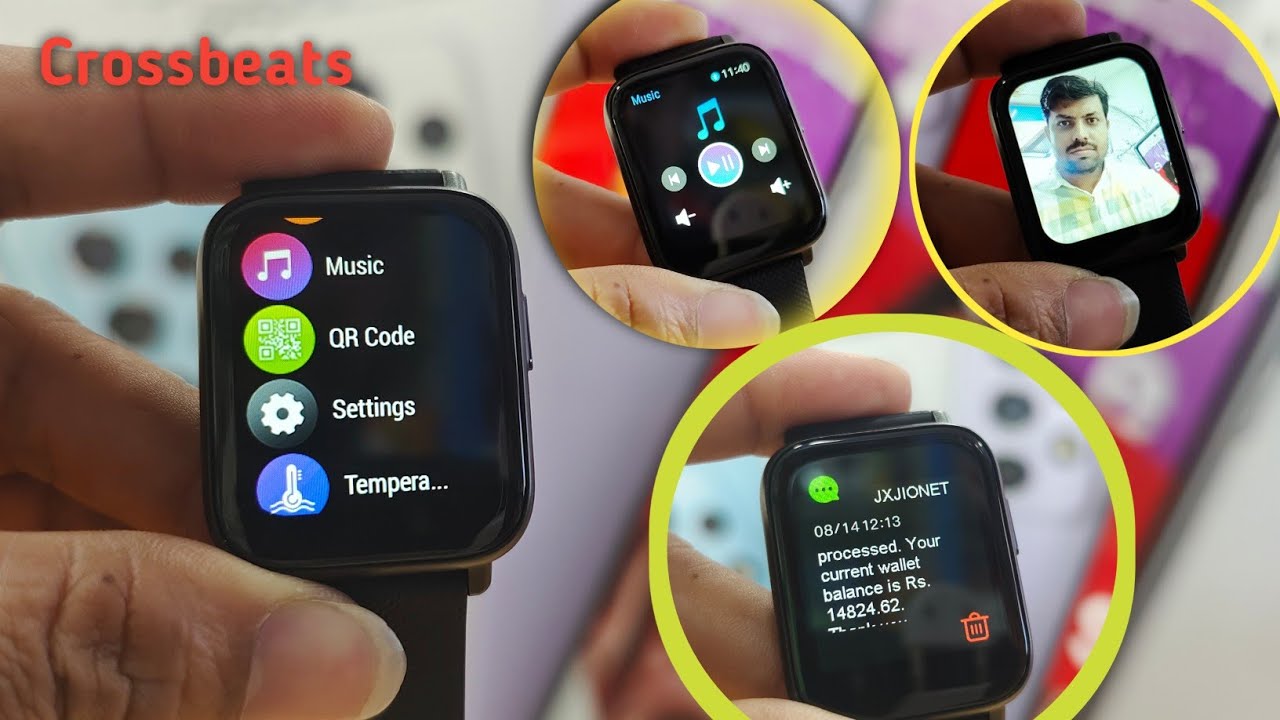
Credit: www.youtube.com