If you use Canva for presentations, videos, or social media, you know its recording feature can save a lot of time. But nothing is more frustrating than recording your voice or screen, then seeing the upload freeze, fail, or disappear entirely. Many users worldwide face the Canva recording not uploading issue, which can ruin productivity and delay projects. This article explains why this happens, how to fix it step by step, and what to do if nothing works. You’ll also discover tips most people miss, clear answers to common questions, and practical ways to avoid future headaches.
Why Canva Recording Fails To Upload
Understanding the main reasons behind recording upload errors helps you solve the problem faster. Canva is a cloud-based tool, so most issues relate to internet connection, file size, or browser settings. However, there are some less obvious causes too.
- Slow or Unstable Internet: Canva needs a steady connection to upload large recordings, especially for high-quality audio or video.
- Browser Compatibility: Outdated browsers or unsupported extensions can block uploads.
- File Size Limits: Canva limits the size of uploads—if your recording is too long or high resolution, it may stall or fail.
- Cache and Cookies: Corrupted browser data can interfere with Canva’s functionality.
- Temporary Service Outages: Sometimes, the problem is on Canva’s side, not yours.
- Device Storage: Low available storage on your device can affect in-browser recording and uploading.
- Account Permissions: Free Canva accounts have more restrictions compared to Pro or Teams.
Below is a quick comparison of common issues and their impacts:
| Problem | Impact on Upload | How to Check |
|---|---|---|
| Slow Internet | Stuck or failed uploads | Use speedtest.net or similar service |
| Old Browser | Recording may not save or upload | Check browser version in settings |
| Large Recording File | Error message or endless loading | Check recording length and resolution |
Quick Fixes For Canva Recording Not Uploading
You don’t always need technical skills to solve upload issues. Start with these easy fixes, working from the simplest to the more advanced.
1. Refresh Your Page
Sometimes, a simple refresh clears temporary glitches.
2. Check Your Internet Speed
Uploads need at least 5 Mbps for stable performance. Use a tool like Speedtest. Slow speeds can make even small files fail.
3. Update Your Browser
Canva recommends the latest versions of Chrome, Firefox, or Safari. If you use Edge or Opera, check for updates.
4. Clear Cache And Cookies
Old cache files can disrupt uploads. Clear them from your browser settings, then restart the browser.
5. Disable Browser Extensions
Ad blockers and privacy tools can block Canva’s upload scripts. Try uploading in Incognito/Private Mode.
6. Split Large Recordings
If your file is over 100MB or 30 minutes, split it into parts and upload separately.
7. Restart Your Device
Sometimes, a simple restart frees up memory or clears temporary file locks.

Credit: support.panopto.com
Advanced Troubleshooting Steps
If basic steps do not work, try these more technical solutions. These address deeper problems with your computer, browser, or Canva account.
Change Recording Method
If you record inside Canva and it stalls, try recording with another tool (like Loom, OBS, or your device’s built-in recorder), then upload the finished file to Canva. This helps bypass browser-related issues.
Check Canva Status
Visit Canva’s official status page or search “Canva status” online. If the site reports degraded performance or an outage, wait until the issue is resolved. You can also check social media for user reports.
Use A Different Device Or Network
Sometimes, the problem is with your laptop or Wi-Fi. Try uploading from a different device (phone, tablet, or another computer) or use a different network (switch from Wi-Fi to mobile data).
Log Out And Log In Again
Session errors can block uploads. Log out of Canva, close your browser, then log back in and retry.
Check Storage And Permissions
If you use a work or school account, check if there are restrictions on uploads. Free Canva accounts may have lower upload limits or file size caps.
Convert Recording Format
Canva supports MP4, MOV, and some other formats. If your video is in an uncommon format, convert it using a free tool like Handbrake or CloudConvert.
Here’s a comparison of recording file formats and their compatibility with Canva:
| File Format | Canva Compatible? | Notes |
|---|---|---|
| MP4 | Yes | Best for video uploads |
| MOV | Yes | Supported, but larger files |
| AVI | No | Convert before uploading |
Contact Canva Support
If nothing works, contact Canva’s support team. Include:
- Your browser and device details
- Type and size of recording
- Screenshots of error messages
Support may be able to reset your account or identify bugs.
Non-obvious Insights Most Users Miss
Many users try the basics but miss these important tips:
1. Background Processes:
Apps like Google Drive, Dropbox, or even video conferencing tools can slow down your device or internet, affecting uploads. Close all unnecessary apps and browser tabs before recording or uploading.
2. Temporary File Issues:
When you record directly in Canva, the file may be stored temporarily in your browser’s memory. If your device is low on RAM or storage, the file might never finish saving. Free up disk space or increase your browser’s memory allocation if possible.
3. Account Quotas:
If you share a Canva Teams account, someone else’s large uploads or storage use can push your team over the limit, silently blocking new uploads for all members.
Preventing Future Recording Upload Issues
Saving time now means fewer problems later. Here’s how to reduce the risk of upload failures:
- Keep Recordings Short: Aim for 5–10 minute segments. Short files upload more reliably, and you can join them together in Canva.
- Use Wired Internet: If possible, connect via Ethernet rather than Wi-Fi, especially for large uploads.
- Test Before Long Recordings: Record and upload a 1-minute test before investing time in a long session.
- Update Regularly: Keep your browser and device OS updated for best compatibility.
- Backup Originals: Always save a local copy of your recording before trying to upload. If Canva fails, you won’t lose your work.
Here’s a summary of proactive steps you can take:
| Action | Benefit |
|---|---|
| Record in small parts | Minimizes risk of upload failure |
| Use updated browser | Ensures compatibility with Canva |
| Check Canva status | Avoids wasted effort during outages |
When To Use An Alternative To Canva Recording
If you frequently face upload problems, it may be time to consider another tool for recording, then upload finished files to Canva for editing.
External recording tools (like Loom, Zoom, OBS, or your phone’s voice memo app) often provide better stability, advanced features, and more file format options. You can still import the final video or audio into Canva for editing, overlays, and publishing.
- Tip: If your workplace blocks third-party extensions or video tools, ask your IT team for approved alternatives.
Real-world Examples
Case 1: Slow Home Internet
Jane, a teacher, tried to upload a 20-minute lesson recorded directly in Canva. The upload kept freezing at 80%. After running a speed test, she found her upload speed was only 2 Mbps. She split the lesson into four 5-minute parts and connected her laptop to her router using a cable.
The uploads completed successfully.
Case 2: Browser Issue
Ahmed used an older version of Firefox, and his recording would not save or upload. After updating to the latest version, Canva’s recording tool worked perfectly.
Case 3: Team Storage Limit
Sofia worked on a shared Canva Teams account. Her uploads stopped working without any error. She checked with her team and found they had reached their storage limit. After deleting old files, she could upload again.
How Canva’s Upload Feature Compares To Other Tools
Many users ask if Canva’s recording and upload process is better or worse than other platforms. Here’s a quick comparison:
| Tool | Max Upload Size | Direct Recording? | Reliability |
|---|---|---|---|
| Canva | 100MB (free), higher for Pro | Yes | Good, but issues with slow networks |
| Loom | Up to 4GB | Yes | Very reliable |
| Google Slides | 2GB per video | No (must upload) | High, depends on Google Drive |
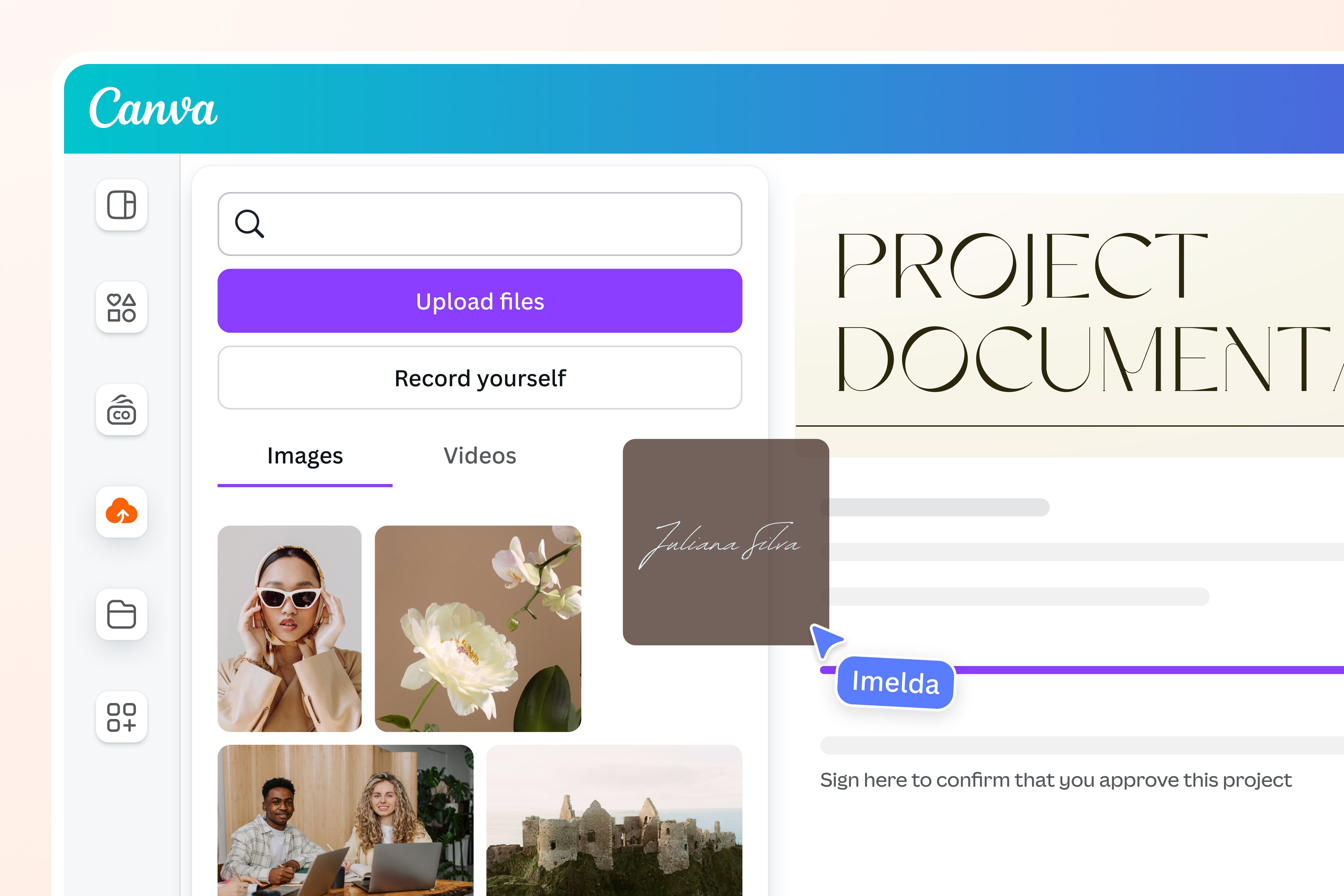
Credit: www.canva.com
Final Thoughts
Canva recording not uploading is a common issue, but rarely permanent. With a systematic approach—checking your internet, browser, file size, and account status—you can solve most problems in minutes. For creative professionals, educators, or anyone who relies on Canva, a few proactive habits (like shorter recordings, regular updates, and backups) can prevent future upload headaches. If all else fails, external tools and Canva’s support team are there to help. Remember, technology can be unpredictable, but your time and work are worth protecting.
For more details on compatible file formats and troubleshooting, you can visit the official Canva help center.
Frequently Asked Questions
Why Does My Canva Recording Keep Getting Stuck At 99%?
This usually means the file is too large, your internet connection is unstable, or your browser cache is full. Try splitting the recording, improving your connection, or clearing your cache.
Can I Recover A Failed Canva Recording Upload?
If you recorded outside Canva and have a saved file, yes. If you recorded directly in Canva and the upload failed before saving, recovery is unlikely. Always keep a backup before uploading.
What Is The Maximum Recording Length For Canva Uploads?
For free accounts, uploads are usually limited to 100MB or about 30 minutes of standard video. Canva Pro offers higher limits, but shorter recordings are always safer.
Does Canva Support All Video Formats?
No, Canva mainly supports MP4 and MOV. Other formats like AVI or WMV may not work and should be converted before uploading.
Should I Use Canva’s Built-in Recorder Or A Third-party Tool?
If reliability is important and you often face upload issues, record with a third-party tool and upload the finished file to Canva. This gives you more control and backup options. For quick, simple tasks, Canva’s recorder is usually enough.
Credit: otl.du.edu