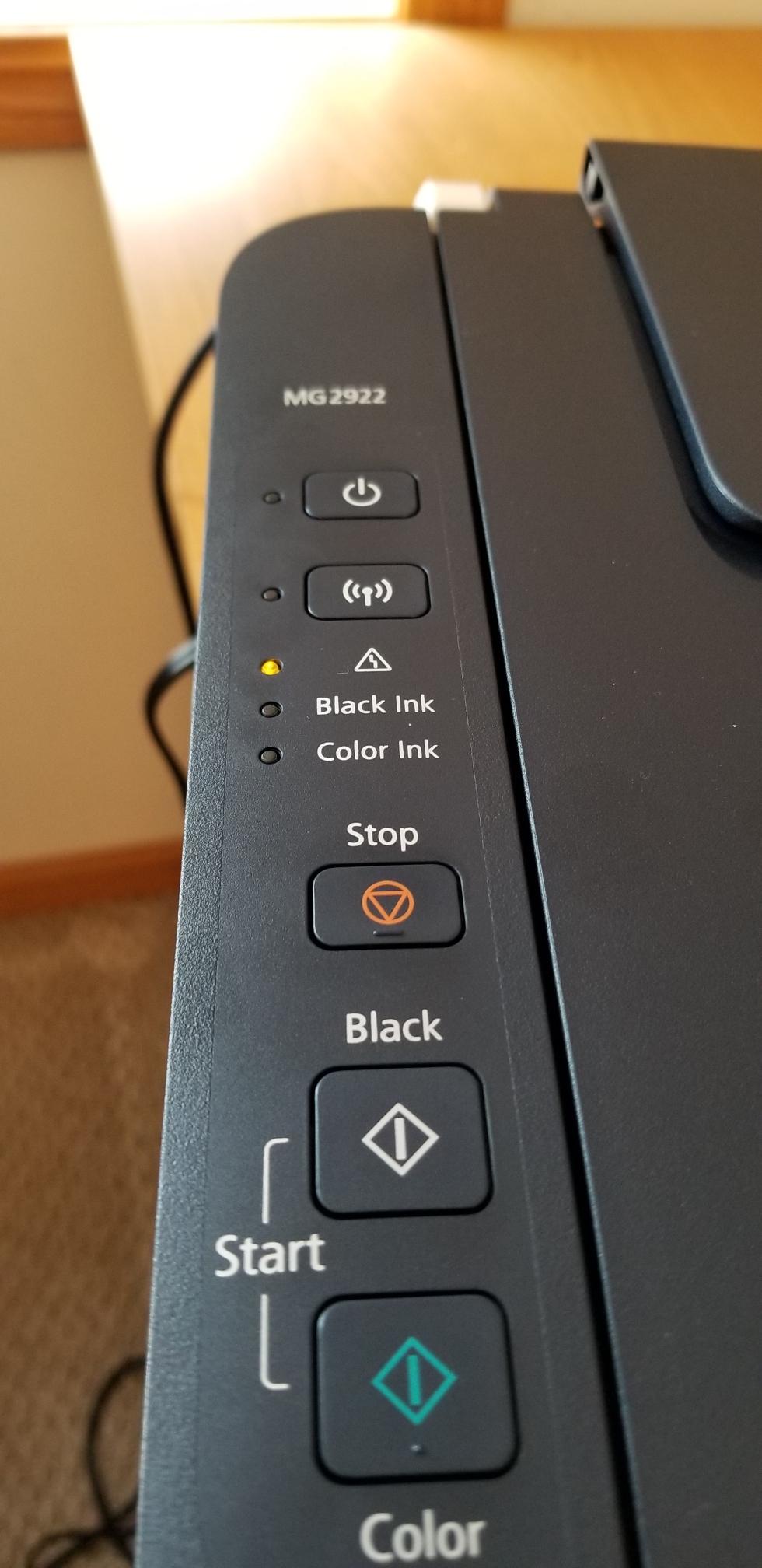
Canon printers are popular for home and office use, but a blinking error light can be confusing and frustrating. You may see a steady or blinking orange or amber light on your Canon printer, and often, the printer stops working until the issue is fixed.
This error light is the printer’s way of telling you something is wrong, but it doesn’t always tell you exactly what. Understanding what different blinking patterns mean, and how to fix them, can save you time and help you avoid unnecessary repair costs.
In this guide, you’ll learn what the Canon printer error light blinking means, how to identify specific error codes, and step-by-step solutions for the most common problems. We’ll also cover some deeper troubleshooting tips, how to avoid these errors in the future, and answer the most common questions users have about Canon printer error lights.
What Does The Canon Printer Error Light Blinking Mean?
Canon printers use lights to communicate errors. Usually, the error light is orange or amber and can blink in different patterns, such as a set number of flashes or a steady blink. Each pattern signals a different problem, from simple issues like low ink to more serious hardware problems.
For example:
- 2 blinks might mean the printer cover is open.
- 3 blinks could mean a paper jam.
- 7 blinks might point to a faulty printhead.
If you ignore these signals, your printer may stop working or even develop more serious faults. Understanding the meaning behind each pattern is the first step to getting your Canon printer back up and running.
Common Canon Printer Error Light Blink Patterns
Canon printers have a variety of error codes, but some are more common than others. Here are the blink patterns you might see and what they usually mean:
| Blink Pattern | Likely Cause | What to Check |
|---|---|---|
| 2 blinks | Printer cover open | Close the printer cover completely |
| 3 blinks | Paper jam or paper out | Check for paper jams, reload paper |
| 4 blinks | Ink tank not installed properly | Reinstall ink cartridges |
| 5 blinks | Print head not installed or defective | Reinstall or replace print head |
| 7 blinks | Faulty print head | Replace print head |
| 8 blinks | Ink absorber full | Contact service center |
| 9 blinks | High temperature or other hardware error | Turn off and cool down, check manual |
Canon’s official website provides a full list of error codes for each model. If your blink pattern is not listed here, refer to your printer manual or visit the Canon Support page.

Credit: www.youtube.com
Step-by-step Solutions For Common Error Lights
Let’s go through the most common blink patterns and how to fix them. Always unplug your printer before opening any panels or removing jammed paper for safety.
2 Blinks: Printer Cover Open
This is usually a simple fix:
- Gently press down on the printer’s cover until it clicks into place.
- Make sure nothing is blocking the cover from closing fully.
- Restart the printer.
If the light keeps blinking, check for broken latches or sensors inside the cover area.
3 Blinks: Paper Jam Or Paper Out
Paper jams are common, but can be solved with care:
- Remove all paper from the tray.
- Open the printer’s rear and front panels.
- Gently pull out any jammed paper. Do not tear the paper—pull slowly and evenly.
- Reload paper, making sure it’s flat and within the guides.
- Close all panels and restart the printer.
Tip: Always use the right paper type and do not overfill the tray.
4 Blinks: Ink Tank Not Installed Properly
Ink cartridges must be seated correctly:
- Open the printer cover.
- Remove and re-insert each ink cartridge.
- Make sure you hear a click when installing.
- Close the cover and wait for the printer to reset.
If the error continues, try cleaning the cartridge contacts with a lint-free cloth.
5 Or 7 Blinks: Print Head Issues
Print head problems can stop printing completely:
- Turn off the printer and unplug it.
- Open the cover and remove the ink cartridges.
- Gently lift the print head (if removable).
- Reinstall the print head and cartridges.
- Plug in and restart the printer.
If the error remains after these steps, the print head may be damaged and need replacement.
8 Blinks: Ink Absorber Full
Canon printers have an ink absorber pad that collects excess ink. When it’s full:
- The printer will not print, and the error light will blink 8 times.
- You cannot usually reset this at home.
- Contact a Canon service center for replacement.
Non-obvious insight: Some users try DIY resets found online, but this can cause ink leaks and is not recommended for beginners.
9 Blinks Or More: Hardware Error
Blink patterns above 9 usually mean a hardware problem:
- Turn the printer off, unplug it for 10 minutes, then restart.
- If the error continues, check the user manual or Canon Support for your specific error.
Less Obvious Causes Beginners Miss
Some Canon printer errors are not as obvious and often overlooked:
- Dirty or Blocked Sensors: Dust or tiny paper scraps can block sensors. Regularly clean inside the printer with a soft brush or compressed air.
- Firmware Glitches: Sometimes, a software update or glitch can trigger false error lights. Check for firmware updates on Canon’s website, and update if needed.
- Power Issues: Unstable power sources or using the wrong voltage can cause unexpected blinking. Use a surge protector and make sure your power outlet is stable.

Credit: www.reddit.com
Preventing Error Light Problems
Many error lights can be avoided with good habits and regular care:
- Always use genuine Canon ink cartridges. Off-brand inks can trigger errors or damage the print head.
- Keep your printer in a dust-free area. Cover when not in use.
- Do not force paper into the tray, and always align it properly.
- Clean the printer’s rollers and sensors every few months.
- Update printer software and drivers regularly.
Non-obvious insight: If you print rarely, run a small print job every few weeks. This keeps ink from drying in the print head, reducing errors.
When To Call For Professional Help
Some error codes mean your printer needs professional repair or replacement parts. If you see:
- 8 blinks (ink absorber full)
- Repeated print head errors after replacing cartridges
- Blinking patterns not listed in your manual
- Visible damage or burning smell
It’s best to contact Canon support or an authorized repair shop. Trying to fix complex hardware issues at home can make things worse and may void your warranty.
Comparing Canon Error Lights With Other Brands
It’s helpful to know how Canon’s error light system compares to other printer brands:
| Brand | Error Indicator | Common Error Signals |
|---|---|---|
| Canon | Blinking orange/amber light | Blink count codes for specific errors |
| HP | Blinking light + error message on display | Error code shown, plus printout with details |
| Epson | Blinking lights + beeps | Multiple lights blink in patterns |
| Brother | Blinking LEDs, often with display | Error code and sometimes audio alert |
Canon’s system is simple but requires you to count blinks and look up codes, while some competitors show more direct error messages on a screen. If you often have trouble with blink codes, consider a model with a display for easier troubleshooting.
Real-world Example: Fixing A 5-blink Error
Maria, a small business owner, noticed her Canon printer’s error light blinking 5 times. She checked the manual and saw it was a print head error. Following the steps:
- She turned off the printer and unplugged it.
- Removed and reinstalled the print head.
- Cleaned the contacts with a soft cloth.
- Restarted the printer.
The error disappeared, and the printer worked again. If Maria had ignored the error or tried to print, she could have damaged the print head, which is much more expensive to replace.
Credit: community.usa.canon.com
Canon Printer Error Light Blinking: Troubleshooting Summary
If your Canon printer’s error light is blinking:
- Count the number of blinks to identify the error.
- Check your printer’s manual or Canon’s support page for the specific code.
- Follow the step-by-step solution for your error.
- Avoid quick “reset” tricks unless you fully understand the risk.
- Keep your printer clean and updated to avoid future problems.
A little patience and the right steps can solve most Canon printer error light issues without professional help. But if you feel unsure, or the error keeps coming back, it’s better to reach out to Canon support before attempting risky repairs.
Frequently Asked Questions
What Should I Do If My Canon Printer Error Light Keeps Blinking After I Fix The Problem?
First, unplug the printer for 10 minutes, then plug it back in and restart. If the light is still blinking, double-check that everything is reinstalled correctly. Sometimes, lingering bits of paper or slightly misaligned cartridges can keep the error active.
If the problem continues, check for firmware updates or contact Canon support.
Can I Reset The Canon Printer Error Light Myself?
For minor errors like paper jams or open covers, the light will reset automatically after fixing the problem. For more serious errors, such as a full ink absorber, you should not try a DIY reset. Attempting to force a reset can cause ink leaks or hardware damage.
How Do I Know If My Canon Printer’s Ink Absorber Is Full?
When the ink absorber is full, the printer will usually blink the error light 8 times and stop printing. You may also see a message on your computer saying “Ink absorber is almost full. ” At this point, contact a service center to replace the pad.
Does Using Third-party Ink Cause Error Lights To Blink?
Yes, using non-genuine ink can trigger error lights. Canon printers are sensitive to cartridge chips and ink quality. Third-party inks may not be recognized, or may cause print head errors. For best results, use genuine Canon ink.
Where Can I Find The Full List Of Error Codes For My Canon Printer?
The full list of error codes is in your printer’s user manual or on the Canon Support website. Enter your model number to find detailed code explanations and solutions.
A blinking Canon printer error light doesn’t have to ruin your day. With a little troubleshooting, most problems can be fixed at home. Knowing what each blink means and how to respond saves time, money, and keeps your printer running smoothly.
If you ever feel stuck, don’t hesitate to ask for professional help—it’s better than risking further damage.