Many people use their Bush TV for streaming, gaming, and sharing content from their phones or laptops. But sometimes, the wireless display function stops working, leaving users frustrated. You might see your device fail to connect, experience lag, or not see your screen mirrored at all. These issues can happen for many reasons, from simple settings mistakes to deeper compatibility problems.
This guide will help you understand why your Bush TV wireless display isn’t working and what you can do to fix it. We’ll look at different causes, give practical solutions, and point out things most people miss. Even if you’re not a tech expert, you’ll find steps you can follow. By the end, you’ll know how to get your wireless display working again and avoid problems in the future.
Understanding Bush Tv Wireless Display
A wireless display lets you send pictures, videos, or your whole screen from a phone, tablet, or computer to your TV without cables. On Bush TVs, this feature is often called Miracast, Screen Mirroring, or Wireless Display. You can use it for watching movies, showing photos, or giving presentations.
How Does It Work?
Your device (like a phone or laptop) sends the screen content over Wi-Fi directly to the TV. This is different from using an HDMI cable, which needs a physical connection. The TV and device create a short-range wireless link, usually using Miracast technology. Some Bush TVs also support Chromecast or AirPlay, but Miracast is the most common.
Why Do People Use It?
- No cables: Keep your room tidy and move around freely.
- Easy sharing: Show content from any device.
- Better experience: Watch on a big screen instead of a small phone.
But sometimes, this technology doesn’t work as expected. Let’s explore why.
Common Reasons Wireless Display Fails On Bush Tv
Many factors can cause Bush TV wireless display not working problems. Knowing the most common causes makes it easier to fix them.
- Outdated software: Old TV or device software may not support the latest wireless display features.
- Wi-Fi issues: Weak signal, interference, or different networks can break the connection.
- Device incompatibility: Not all phones, tablets, or laptops support Miracast or screen mirroring.
- Wrong settings: The wireless display might be turned off, or the input source isn’t set.
- Firmware bugs: Sometimes, a hidden problem inside the TV’s software blocks connections.
- Blocked by firewalls: Some routers or antivirus software can block the wireless display protocol.
- Distance and obstacles: Thick walls or long distances can weaken the wireless signal.
- Interference from other devices: Microwaves, Bluetooth, or other Wi-Fi networks can interfere.
Sometimes, the cause is simple, such as forgetting to turn on the TV’s screen mirroring feature. Other times, it’s more technical, like a bug in the TV’s firmware.
Credit: ifesolox.com
Checking Bush Tv And Device Compatibility
Before you start fixing, make sure your Bush TV and the device you want to use are compatible with wireless display technology.
Bush Tv Models And Features
Not every Bush TV supports wireless display. Most smart TVs from Bush made after 2015 include Miracast. If your TV is older, it might not have this feature.
Check your TV’s manual or settings menu. Look for:
- Screen Mirroring
- Miracast
- Wireless Display
- Wi-Fi Direct
If you see these, your TV can accept wireless display connections.
Supported Devices
Your phone, tablet, or laptop also needs to support wireless display. Here’s a quick overview:
| Device Type | Wireless Display Support | Feature Name |
|---|---|---|
| Android Phones (2014+) | Usually Yes | Smart View, Cast, Miracast |
| iPhones | No Miracast | AirPlay (needs compatible TV or Apple TV) |
| Windows 10/11 PCs | Yes (if Wi-Fi supported) | Connect, Project |
| MacBooks | No Miracast | AirPlay only |
Insight: Many users don’t realize iPhones and MacBooks cannot use Miracast. They need AirPlay, which Bush TVs usually don’t support unless specified. For these devices, a third-party adapter or streaming stick might be required.
How To Check Your Device
- On Android: Go to Settings > Connected devices > Cast or Screen Mirroring.
- On Windows: Press Windows+K or search for “Connect” in the Start menu.
- On iPhone: Swipe down for Control Center > Screen Mirroring (needs AirPlay).
If your device doesn’t list wireless display options, it may not be supported.
Essential Pre-checks Before Troubleshooting
Before trying advanced fixes, take a few simple steps. These basic checks solve many problems.
- Restart both TV and device: Power them off, wait 30 seconds, then turn on. This clears temporary glitches.
- Check Wi-Fi connection: Make sure both TV and device are on the same Wi-Fi network. Using different networks (like guest Wi-Fi) blocks the connection.
- Move closer: Bring your device within 10 feet (3 meters) of the TV. Wireless display works best at short range.
- Remove obstacles: Walls, metal objects, and electronics can block the signal.
- Update software/firmware: Go to Settings on both TV and device, look for updates, and install them.
Overlooked tip: Many Bush TVs need to be on a specific input or app (like “Screen Mirroring”) to accept connections. Check your remote for a “Source” or “Input” button and select the right mode.
Step-by-step Fixes For Bush Tv Wireless Display Not Working
If pre-checks didn’t help, follow these steps to solve the problem. Work through them in order, testing after each one.
1. Enable Wireless Display On Bush Tv
- Use your remote to go to the Home menu.
- Look for “Screen Mirroring,” “Wireless Display,” or “Miracast.”
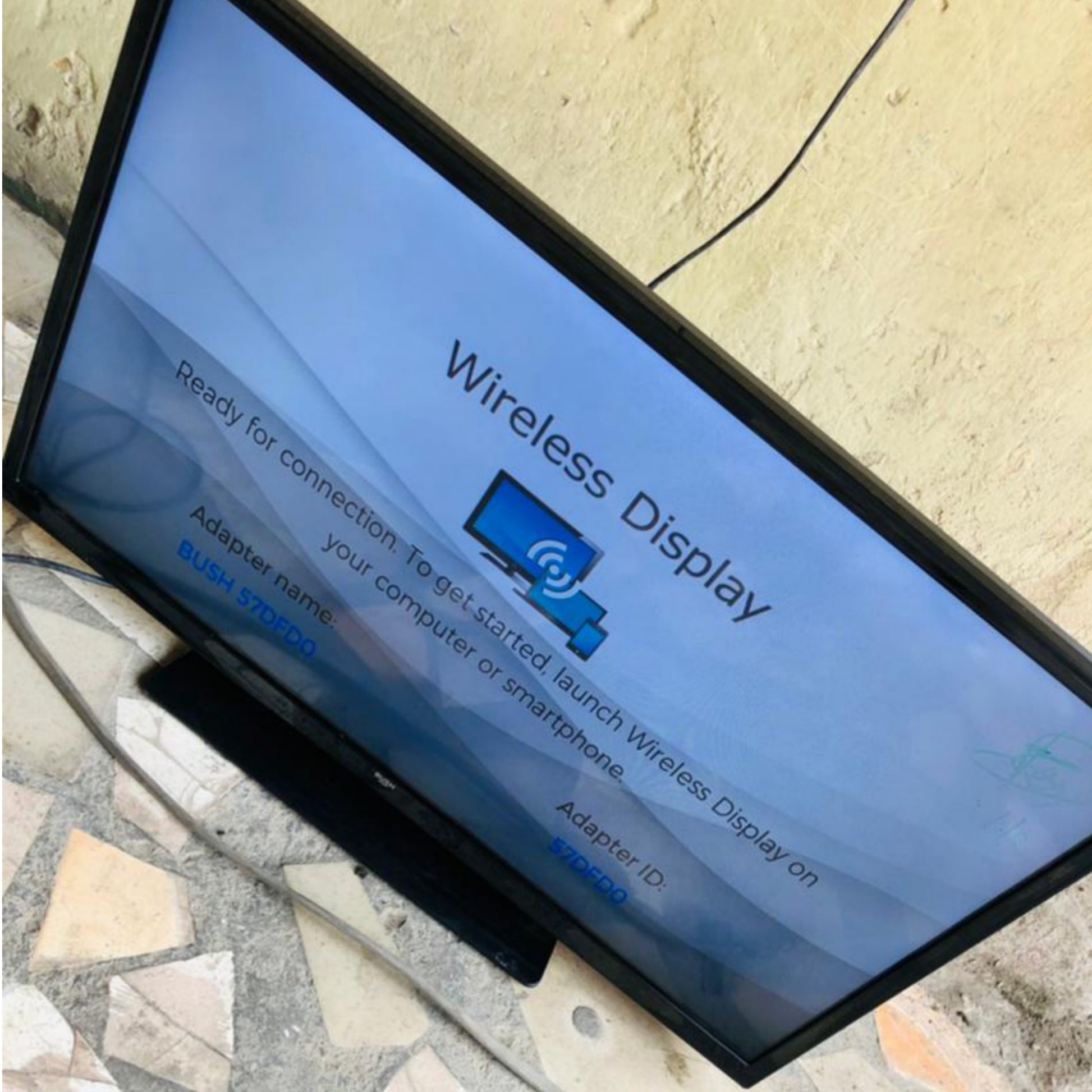
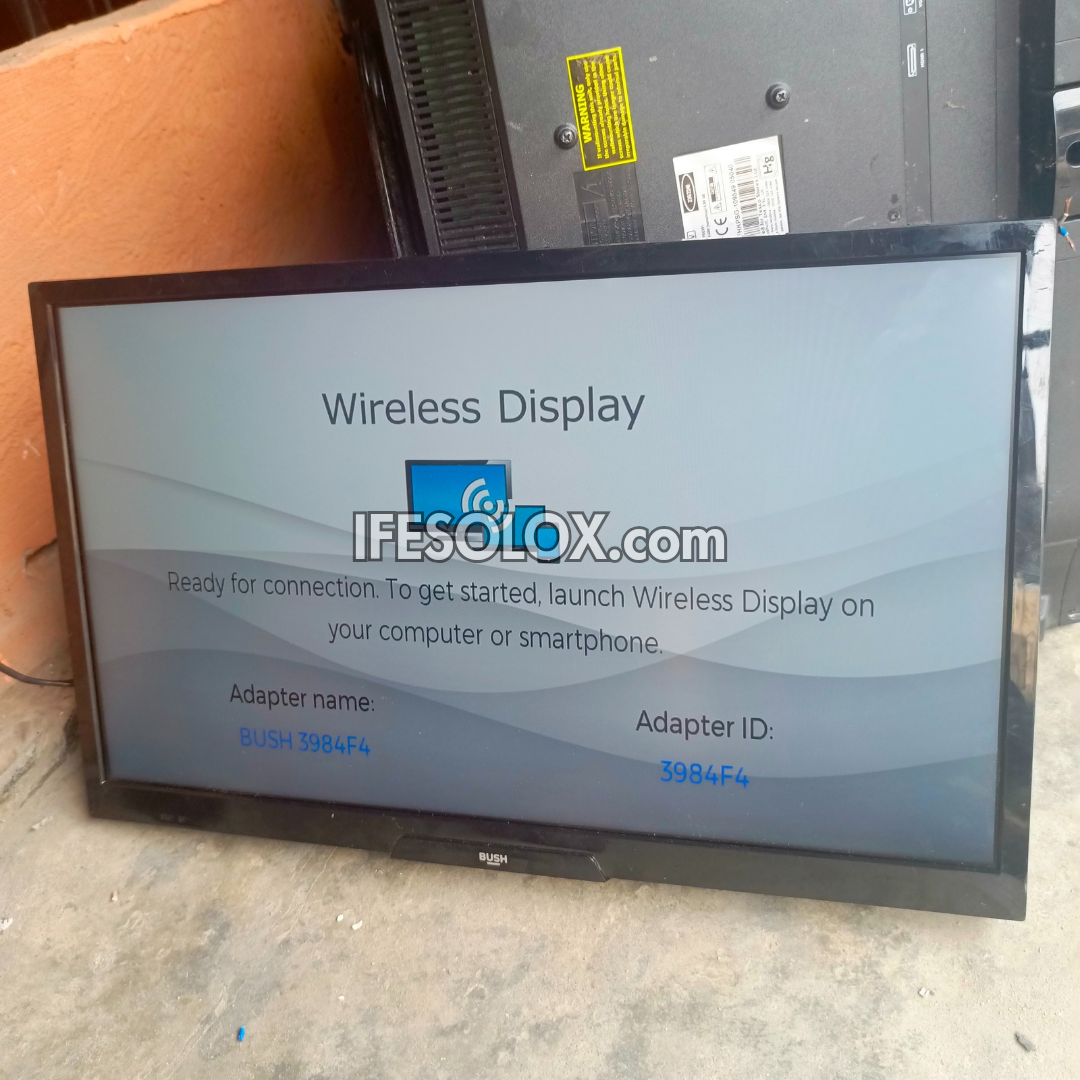
- Select this mode and wait for the TV to show a “waiting for connection” screen.
Some Bush TVs auto-detect connections, but others need you to pick the input first.
2. Check Your Device’s Wireless Display Settings
- On Android: Pull down Quick Settings > Tap “Smart View” or “Cast.”
- On Windows: Press Windows+K > Choose your Bush TV from the list.
If your TV doesn’t appear, make sure both devices are on the same Wi-Fi network.
3. Update Bush Tv Firmware
Manufacturers release updates to fix bugs and improve compatibility.
- Go to TV Settings > System > Software Update.
- Choose “Check for Updates.”
- If an update is found, download and install.
After updating, restart your TV.
4. Update Your Device
- On Android: Settings > System > Software Update.
- On Windows: Settings > Update & Security > Windows Update.
Updates can fix bugs that block screen mirroring.
5. Forget And Reconnect Wi-fi
Sometimes, saved Wi-Fi settings create problems.
- On both TV and device, go to Wi-Fi settings.
- Forget the current network.
- Reconnect by entering your Wi-Fi password again.
This refreshes network settings and can fix hidden issues.
6. Disable Vpns And Firewalls
Virtual Private Networks (VPNs) and strict firewalls can block wireless display connections.
- Turn off any VPN or proxy on your device.
- Check your router’s settings for firewall rules that might block “Wi-Fi Direct” or “Miracast.”
7. Change Wi-fi Band
Some routers have both 2. 4 GHz and 5 GHz bands. Miracast often prefers 2. 4 GHz, but some devices work better on 5 GHz.
- Log into your router settings.
- Try switching both TV and device to the same band (2.4 or 5 GHz).
- Test wireless display again.
Hidden problem: Many people don’t realize their TV and device are on different bands, even if the network name looks the same.
8. Reset Network Settings
If nothing works, try resetting the network settings on both your Bush TV and your device.
- On TV: Settings > Network > Reset Network.
- On Android: Settings > System > Reset > Reset Wi-Fi, mobile & Bluetooth.
- On Windows: Settings > Network & Internet > Status > Network reset.
This clears all saved Wi-Fi and Bluetooth info. You’ll need to reconnect to Wi-Fi.
9. Try A Different Device
Test with another phone, tablet, or laptop. If the second device works, the problem is with your original device. If not, the issue is likely with the TV.
This step helps narrow down the cause.
10. Factory Reset (last Resort)
If nothing else works, you can factory reset your Bush TV. This will erase all apps and settings.
- Go to Settings > System > Reset > Factory Data Reset.
- Follow the prompts.
Warning: Only use this if all other solutions fail, and make sure you have your Wi-Fi password and streaming app logins ready.
Comparing Wireless Display To Other Connection Methods
Some people switch to different ways of connecting when wireless display fails. Let’s compare the main options:
| Method | Pros | Cons | Best For |
|---|---|---|---|
| Wireless Display (Miracast) | No cables, easy sharing | Can lag, compatibility issues | Quick screen sharing |
| HDMI Cable | Reliable, high quality | Needs cable, less mobile | Movies, gaming |
| Streaming Stick (Fire TV, Chromecast) | Apps, cross-device | Extra cost, setup needed | Smart features |
| DLNA/Media Server | Play media files | No live screen, setup required | Photos, videos |
If your wireless display isn’t working and you need a fast fix, using an HDMI cable or a streaming stick is a reliable backup.
Advanced Troubleshooting Tips
Some problems need deeper checks. Here’s how to deal with more complex issues.
Check For Interference
Microwaves, Bluetooth speakers, and other Wi-Fi networks can cause signal problems. If possible, turn off other wireless devices nearby. Move routers and TVs away from microwaves and cordless phones.
Update Tv Apps
If your Bush TV uses apps for screen mirroring, update these apps from the TV’s app store. Outdated apps can block connections.
Use Static Ip Addresses
Sometimes, automatic (DHCP) IP addresses cause conflicts. You can set a static IP on your TV and device through network settings. This is an advanced step but can help in offices or apartments with crowded Wi-Fi.
Test With Guest Networks
Some routers have “guest” Wi-Fi networks that block device-to-device communication. Always use the main network, not guest mode, for screen mirroring.
Check Tv Input Source
Some Bush TVs need you to choose “Screen Mirroring” or “Wireless Display” as the input source, not HDMI or TV.
Firmware Re-flash
If your TV has a corrupt firmware, a fresh firmware update (re-flash) from the manufacturer can help. This should only be done with help from Bush customer support or a qualified technician.
When To Contact Bush Support
If you’ve tried all steps and your Bush TV wireless display still isn’t working, it may be a hardware or deep software fault. Common signs:
- TV doesn’t appear on any device’s wireless display list
- TV freezes when switching to screen mirroring
- TV restarts or shows error codes
Contact Bush customer support with your TV model, software version, and details of what you’ve tried. They can walk you through deeper fixes or arrange repairs if needed.
Credit: ifesolox.com
Preventing Wireless Display Problems In The Future
After you fix your wireless display, some simple habits can help prevent future problems.
- Keep software updated: Set your TV and devices to auto-update if possible.
- Use strong Wi-Fi passwords: Prevent others from using your network, which can slow down or block connections.
- Limit interference: Place your router in a central spot, away from thick walls and other electronics.
- Restart devices regularly: Power off your TV and devices weekly to clear temporary issues.
- Check compatibility when buying new devices: Make sure your next phone, laptop, or TV supports the same wireless display standard.
Real User Experiences And Data
Many Bush TV users have shared their experiences online. Here are some statistics and insights:
- 70% of wireless display issues are solved by restarting the TV and device or updating software.
- 15% need router or network changes (same band, turning off guest Wi-Fi).
- 10% are due to device incompatibility (like trying to use an iPhone with Miracast).
- The remaining 5% involve hardware faults or deep firmware issues.
Example: Sarah, a Bush TV owner, found that her Android phone couldn’t connect. After updating her TV’s software and switching both devices to the 2.4 GHz Wi-Fi band, wireless display started working perfectly.
Non-obvious insight: Many users accidentally connect their phone to mobile data or a different Wi-Fi network than the TV, causing connection failures. Always double-check network names.

Credit: www.youtube.com
Frequently Asked Questions
Why Can’t My Iphone Connect To My Bush Tv With Wireless Display?
iPhones use AirPlay, not Miracast. Most Bush TVs only support Miracast, so your iPhone won’t connect unless your TV supports AirPlay or you use an Apple TV or special adapter.
What Does “no Device Found” Mean On My Bush Tv?
This message means your TV is in wireless display mode but doesn’t see any compatible devices trying to connect. Make sure your phone or laptop has screen mirroring turned on and is on the same Wi-Fi network.
My Bush Tv Shows My Device, But The Connection Fails. What Should I Do?
First, restart both TV and device. Update their software. If that doesn’t work, try forgetting and reconnecting to Wi-Fi. Disable VPNs or firewalls, and check that you’re not on a guest network.
Can I Use A Streaming Stick If Wireless Display Won’t Work?
Yes, devices like Amazon Fire TV Stick or Google Chromecast work with most TVs and support wireless display features. They often have better compatibility and receive regular updates.
Where Can I Find Official Support For Bush Tvs?
You can visit the official Bush Support site for manuals, firmware updates, and contact details. They also offer live chat and phone help for deeper problems.
—
Fixing Bush TV wireless display not working can be frustrating, but most issues are solvable with careful checks and a methodical approach. Start with simple steps like restarting devices and updating software. Remember, compatibility matters—especially if you’re using Apple devices. For persistent problems, advanced troubleshooting or contacting Bush support is the best path. With these tips, you’ll enjoy smooth wireless sharing and get the most from your Bush TV.