If you use Safari across your Apple devices, syncing bookmarks should feel seamless. You add a site to your bookmarks on your iPhone, and it’s instantly available on your Mac or iPad. But what happens when bookmarks not syncing on Safari becomes your reality? Suddenly, your organized web life turns chaotic. This issue is common, but it doesn’t have to be permanent. By understanding why Safari bookmark sync fails and how to fix it, you can get your digital life back in order.
This article explores the main causes of Safari bookmarks not syncing, step-by-step solutions, and advanced troubleshooting. You’ll find practical tips, real-world examples, and answers to questions most users overlook. Whether you use Safari for work, school, or personal browsing, this guide will help you solve syncing headaches efficiently.
Why Safari Bookmarks Stop Syncing
Before fixing the problem, it’s important to know why Safari bookmarks might not sync. Usually, it’s a simple issue, but sometimes, it’s a combination of factors. Here are the most common causes:
- ICloud Issues: If your iCloud account has trouble connecting or is disabled for Safari, bookmarks won’t sync.
- Software Updates: Outdated versions of iOS, iPadOS, or macOS can cause compatibility problems.
- Network Problems: Weak or unstable internet can interrupt the sync process.
- Device Settings: Incorrect settings on any device may block syncing.
- Account Conflicts: Using different Apple IDs on your devices leads to sync failures.
- Corrupted Data: Rarely, damaged bookmarks or iCloud data can prevent proper syncing.
Many users overlook that even a small mistake—like turning off iCloud for Safari on just one device—can break syncing across all devices. Also, syncing is not instant. Sometimes, it takes a few minutes for changes to appear.
How Safari Bookmark Syncing Works
Safari uses iCloud to store and sync bookmarks between your Apple devices. When you add, delete, or edit a bookmark, iCloud updates the change and pushes it to all devices using the same Apple ID.
This happens in the background, provided:
- All devices are signed into the same Apple ID.
- ICloud syncing for Safari is enabled.
- Devices have a stable internet connection.
Here’s a quick comparison of bookmark syncing features across Apple devices:
| Device | Supports Safari Sync? | Minimum OS Version |
|---|---|---|
| iPhone | Yes | iOS 8+ |
| iPad | Yes | iPadOS 13+ |
| Mac | Yes | OS X Yosemite+ |
| Windows (with iCloud app) | Partial | Windows 7+ |
Non-obvious insight: If you use Windows with iCloud for syncing, only bookmarks sync—not reading lists or tabs.

Credit: www.reddit.com
Step-by-step Solutions For Safari Bookmarks Not Syncing
If your bookmarks are not syncing, don’t panic. Start with basic checks before moving to advanced fixes.
1. Check Internet Connection
Syncing requires the internet. Test by loading a website on each device. If one device can’t connect, bookmarks won’t sync.
2. Confirm Apple Id Is The Same On All Devices
Many users accidentally use different Apple IDs. On each device:
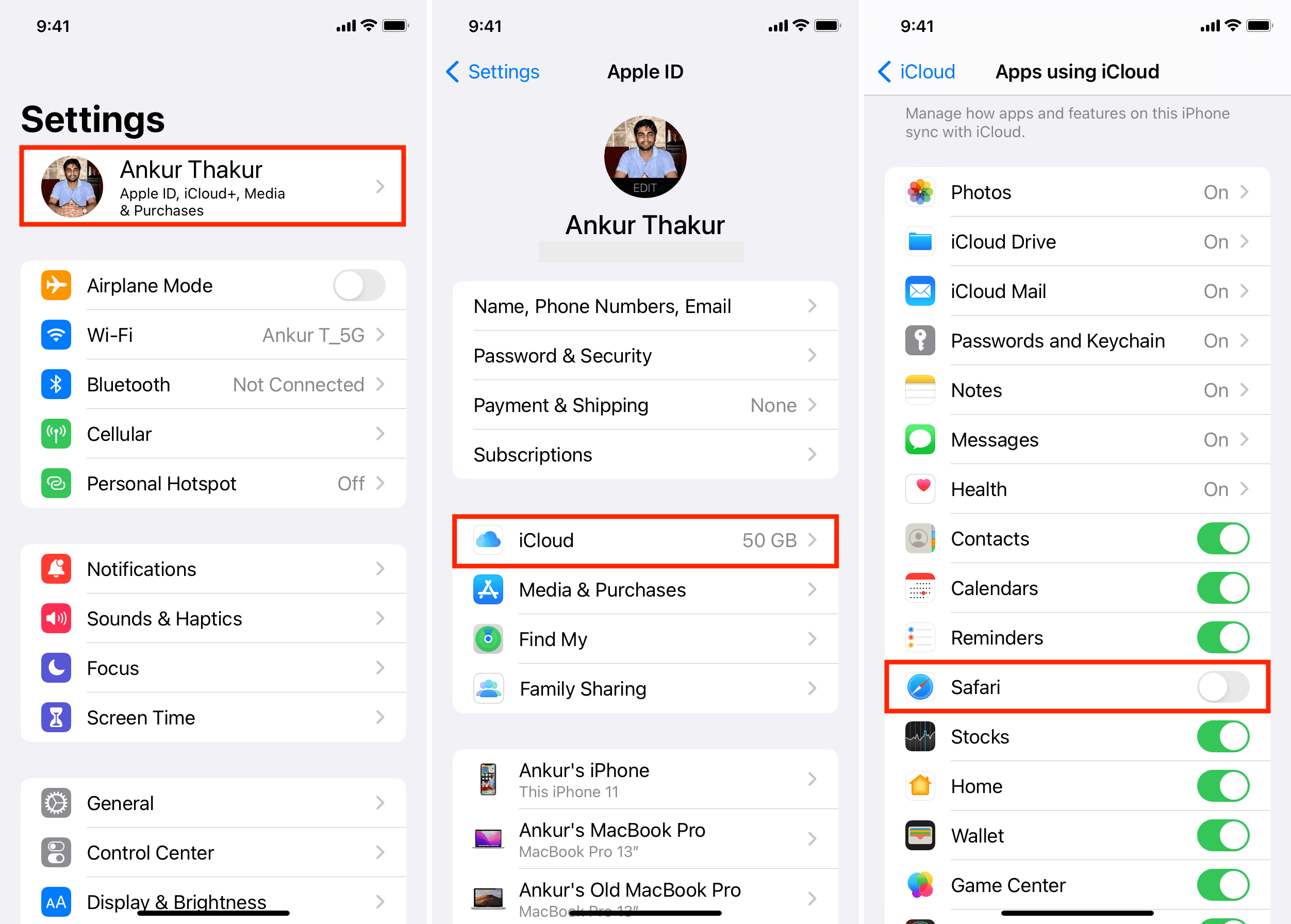
- Open Settings (iOS/iPadOS) or System Settings (macOS)
- Tap your name at the top
- Check the Apple ID email address
They must match on all devices.
3. Ensure Icloud Safari Sync Is Enabled
On each device:
- Go to Settings > [your name] > iCloud
- Make sure Safari is toggled ON
On Mac:
- Go to System Settings > Apple ID > iCloud
- Check Safari
Disabling this by mistake is a common cause of sync failure.
4. Restart Devices
Restarting can resolve minor software glitches.
- Power off and on your iPhone, iPad, and Mac.
5. Sign Out And Back In To Icloud
Sometimes, your iCloud session may become stale. Sign out, then back in:
- Go to Settings > [your name] > scroll down and tap Sign Out
- Sign in again
Caution: Signing out removes some iCloud data from the device, but not from iCloud itself.
6. Update All Devices
Software bugs can block syncing. Check for updates:
- On iOS/iPadOS: Settings > General > Software Update
- On Mac: System Settings > General > Software Update
Apple regularly fixes sync issues in updates.
7. Toggle Safari Sync Off And On
Turning Safari sync off and on can reset the connection.
- Go to Settings > [your name] > iCloud
- Turn Safari OFF (choose “Keep on My Device”)
- Wait 30 seconds
- Turn Safari ON
This often “nudges” syncing to resume.
8. Check Icloud Storage
Low iCloud storage can block new bookmark syncs.
- Go to Settings > [your name] > iCloud > Manage Storage
- If full, free up space or upgrade your plan
9. Reset Network Settings (ios/ipados Only)
If network issues persist, reset settings:
- Settings > General > Transfer or Reset iPhone > Reset > Reset Network Settings
This erases Wi-Fi passwords, so reconnect after.
10. Check For Restrictions (screen Time)
Screen Time restrictions can block Safari sync.
- Settings > Screen Time > Content & Privacy Restrictions
- Ensure Safari and iCloud are not restricted
11. Force Safari To Sync (mac)
On Mac, you can force a sync:
- Quit Safari
- In Finder, click Go > Go to Folder
- Type `~/Library/Safari/Bookmarks.plist`
- Move this file to your desktop (for backup)
- Restart Safari (it will rebuild the file)
This advanced step is rarely needed but can solve stubborn problems.
12. Wait And Be Patient
Sometimes, iCloud servers are slow. It can take up to 10 minutes for bookmarks to sync, especially after major changes.
Tip: Add a unique bookmark (like “Test123”) to see if new changes sync faster.
Advanced Troubleshooting
If basic steps didn’t help, these advanced techniques might solve the issue.
Check Icloud System Status
Apple’s iCloud services may be down. Visit the Apple System Status page to check if iCloud Bookmarks is running.
Delete Problematic Bookmarks
Corrupted bookmarks can block syncing. Delete any bookmarks with odd characters, very long names, or unsupported symbols.
Use Only One Sync Service
If you use a third-party service (like Chrome Sync, Firefox Sync, or Xmarks), it may conflict with iCloud. For smooth syncing, use only one sync service for bookmarks.
Rebuild Bookmark Data On Mac
If your bookmarks file is corrupt:
- Quit Safari.
- In Finder, open Go > Go to Folder.
- Enter `~/Library/Safari/Bookmarks.plist`.
- Move the file to your desktop (backup).
- Open Safari (a new bookmarks file is created).
- Check if syncing resumes.
Restore Bookmarks From Icloud.com
If bookmarks disappeared, you can restore them:
- Visit iCloud.com and sign in.
- Click Account Settings.
- Scroll to Advanced > Restore Bookmarks.
- Choose an archive to restore.
Note: This overwrites all current bookmarks on all devices.
Check Date & Time
If your device has the wrong date or time, iCloud may not sync.
- Set all devices to Set Automatically for date and time.
Test With A New User Account (mac)
Sometimes, user profile problems block syncing.
- On your Mac, create a new user account.
- Set up iCloud and Safari.
- See if bookmarks sync in the new account.
If yes, your main user profile has deeper issues.
Credit: osxdaily.com
Real-world Example: Diagnosing A Sync Failure
Imagine Maria, who uses a MacBook and iPhone. She notices bookmarks added on her iPhone do not appear on her Mac. After basic steps, she finds:
- Both devices use the same Apple ID.
- ICloud for Safari is enabled.
- Internet works fine.
- Her iPhone has plenty of iCloud storage, but the Mac is nearly full.
She frees space on her Mac and restarts both devices. Within minutes, bookmarks sync correctly. The non-obvious insight: not just iCloud storage, but also local device storage can affect syncing, especially on Mac.
How To Prevent Future Safari Syncing Issues
Prevention is easier than constant troubleshooting. Here’s how to keep Safari bookmarks syncing smoothly:
- Update Devices Regularly: New updates fix bugs and improve syncing.
- Use the Same Apple ID: Double-check when you get a new device.
- Keep iCloud for Safari Enabled: Don’t turn it off unless you understand the consequences.
- Maintain Good Internet: Use reliable Wi-Fi or cellular data.
- Avoid Third-Party Sync Tools: Stick to iCloud for Apple devices.
- Check Storage Often: Don’t let iCloud or device storage fill up.
- Restart Devices Occasionally: A simple restart can prevent minor glitches.
Common Mistakes That Cause Bookmark Sync Issues
Sync problems are often caused by small, easy-to-miss mistakes:
- Mixing Apple IDs: Using different accounts on each device.
- Disabling iCloud for Safari: Accidentally turning off sync.
- Ignoring Updates: Running old iOS, iPadOS, or macOS versions.
- Forgetting to Check Restrictions: Screen Time or parental controls blocking Safari.
- Using Weak Wi-Fi: Trying to sync over a poor connection.
- Not Waiting Long Enough: Expecting instant sync after changes.
Remember, even tech-savvy users sometimes overlook these basics.
When To Contact Apple Support
If you try all the steps above and your Safari bookmarks still won’t sync, it’s time to get help. Contact Apple Support when:
- Bookmarks sync for some devices but not all, even after resets.
- Bookmarks repeatedly disappear or duplicate.
- You see strange error messages about iCloud.
- Syncing works for everything except bookmarks.
Apple can check your account for rare problems like server-side corruption or account limits.
Comparing Safari Syncing With Other Browsers
Safari’s bookmark syncing works well if you stay in the Apple ecosystem. But how does it compare with Chrome or Firefox? Here’s a quick look:
| Feature | Safari (iCloud) | Chrome (Google Sync) | Firefox (Firefox Sync) |
|---|---|---|---|
| Cross-Platform | Apple devices only | All major platforms | All major platforms |
| Bookmark Sync | Yes | Yes | Yes |
| Open Tabs Sync | Yes | Yes | Yes |
| Password Sync | Yes (iCloud Keychain) | Yes | Yes |
| Extensions Sync | No | Yes | Yes |
Key takeaway: Safari sync is best for those fully invested in Apple devices, but Chrome and Firefox offer broader compatibility.
How Long Does Safari Bookmark Sync Take?
Most users expect instant syncing, but that’s not always the case. Typically:
- Minor changes (one or two bookmarks): Sync in seconds to a minute.
- Large changes (hundreds of bookmarks): May take up to 10 minutes.
- After device setup or reset: May take longer, depending on network speed and iCloud server load.
If syncing takes longer, check your internet connection and iCloud system status.
Credit: www.idownloadblog.com
Tips For Managing Large Numbers Of Bookmarks
If you have hundreds or thousands of bookmarks, syncing can slow down or fail. Here’s how to keep things running smoothly:
- Organize Into Folders: Fewer top-level bookmarks sync faster.
- Delete Old/Unused Bookmarks: Clean up regularly.
- Avoid Special Characters: Some symbols can cause errors.
- Don’t Import Huge Lists at Once: Break imports into smaller batches.
- Keep Bookmarks Under 5,000: Apple does not publish a hard limit, but anecdotal evidence suggests large collections sync less reliably.
What If Bookmarks Sync, But Are Out Of Order?
Sometimes bookmarks appear on all devices but in a different order. This usually happens after:
- Importing bookmarks from another browser
- Restoring from an iCloud backup
- Adding bookmarks quickly on multiple devices
To fix:
- Manually reorder bookmarks on one device (preferably Mac).
- Wait for iCloud to sync the new order.
- Avoid making changes on other devices during this time.
Pro tip: Bookmark order may take longer to sync than bookmark content.
Security And Privacy Of Synced Bookmarks
Some users worry about privacy. Apple uses end-to-end encryption for Safari bookmarks stored in iCloud. Only devices signed into your Apple ID can access them. Apple cannot read or use your bookmarks for advertising.
For more details, see Apple’s official iCloud security overview.
Frequently Asked Questions
Why Are My Safari Bookmarks Not Syncing Between Iphone And Mac?
This usually happens due to one of these reasons:
- Devices are using different Apple IDs
- ICloud for Safari is turned off on one device
- Poor internet connection
- Outdated software
- ICloud storage is full
Double-check all settings on both devices and ensure both are online.
Can I Sync Safari Bookmarks With Windows?
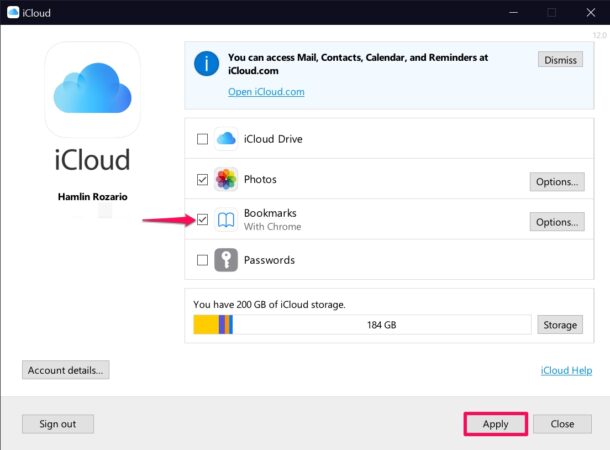
Yes. Download the iCloud app for Windows. Enable Bookmarks syncing, and choose your preferred browser (usually Internet Explorer or Chrome). Note that only bookmarks sync—not reading lists or open tabs.
Will Deleting A Bookmark On One Device Remove It Everywhere?
Yes. If iCloud for Safari is enabled on all devices, deleting a bookmark on one will remove it on all others. Sometimes there’s a short delay, but changes do sync across.
How Do I Restore Deleted Safari Bookmarks?
Go to iCloud.com > Account Settings > Advanced > Restore Bookmarks. Pick an archive from before the deletion. Restored bookmarks will appear on all devices.
Is There A Limit To How Many Bookmarks I Can Sync With Icloud?
Apple does not officially publish a number, but users report problems when syncing more than 5,000 bookmarks. For best results, keep your collection organized and under this amount.
If your Safari bookmarks not syncing issue has been a source of frustration, the steps above should help you solve it. With a clear understanding of how syncing works and what can go wrong, you’ll be ready to keep your bookmarks organized and available everywhere you browse. Regular maintenance and simple checks prevent most problems, so you can enjoy a smoother Safari experience across all your Apple devices.