When you buy an Asus ROG keyboard, you expect strong performance, cool lighting effects, and smooth typing. But sometimes, the backlight stops working. Suddenly, the keys go dark, and the RGB magic disappears. For gamers and professionals, this can be annoying. You may miss key presses in low light, or lose the style that makes ROG keyboards unique. This problem isn’t rare, and it can happen for many reasons. If your Asus ROG keyboard backlight is not working, this guide will help you fix it step by step.
You’ll learn how to check hardware, update software, use troubleshooting tools, and avoid mistakes. Whether you use a laptop or a desktop keyboard, the solutions here are practical. With clear explanations, real examples, and non-obvious tips, you can get your backlight shining again.
Why Asus Rog Keyboard Backlight Fails
Backlight problems can seem mysterious. But most issues have clear causes. Understanding them helps you fix faster.
Hardware Issues
- Loose connection: If you use a wired Asus ROG keyboard, a loose USB cable can break the backlight circuit. Even a tiny wiggle might turn the lights off. Sometimes, the USB connector might look fine but is not making good contact inside the port. This can happen if you often move your keyboard or use a laptop on the go.
- Damaged LED strips: The tiny lights under the keys can fail from shock, spills, or age. For example, if the keyboard is dropped or something heavy falls on it, the LEDs or the circuits that power them may break. Some users notice certain keys lose lighting before the whole keyboard goes dark. This is a clue that individual LEDs are failing before a total hardware problem occurs.
- Power supply: For wireless keyboards, low battery can cause backlight to dim or shut off. If your keyboard uses replaceable batteries, even slightly low power can make the lights flicker or behave oddly.
Software Problems
- Missing drivers: If Windows or your device can’t find the right driver, the backlight won’t turn on. Sometimes, after a major OS update, drivers are lost or replaced with generic versions that do not support lighting controls.
- Outdated firmware: Some Asus ROG keyboards need special firmware to control lighting. If it’s old, the lights may stop working. Firmware bugs can also cause lighting effects to freeze or not match what you set in software.
- Software conflicts: Programs like ROG Armoury Crate, Aura Sync, or third-party lighting tools might fight with each other. Running multiple lighting software can confuse the keyboard, making the backlight unresponsive or inconsistent.
User Settings
- Manual brightness: Sometimes, the backlight is set to zero by accident. Check your brightness keys or software sliders. Even a slip of a finger can turn off the lights if you hit the wrong key combo.
- Sleep mode: When your computer sleeps, it often turns off keyboard lights to save power. Some laptops or desktops do not automatically turn the lights back on after waking up, which can make it look like the backlight is broken.
Environmental Factors
- High humidity: Moisture can cause short circuits or corrosion inside the keyboard. If you live in a humid area or spill water on your keyboard, the backlight can become unreliable or stop working completely over time.
- Extreme temperatures: Very hot or cold rooms can affect electronic parts, including backlights. Electronics are designed for certain temperature ranges, and straying outside these can cause temporary or permanent failure.
Non-obvious insight: If your keyboard is exposed to sunlight for long periods (like near a window), UV light and heat can damage the plastic and the LEDs underneath, causing fading or early failure.
Common Asus Rog Keyboard Models And Their Backlight Features
Different Asus ROG keyboards have different lighting systems. Some use single-color LEDs, others use multi-zone RGB. Knowing your model helps you troubleshoot better.
| Model | Backlight Type | Control Software | Typical Issues |
|---|---|---|---|
| ROG Strix Scope | RGB (per-key) | Armoury Crate | Software conflicts |
| ROG Claymore II | RGB (per-zone) | Aura Sync | Loose cable, firmware |
| ROG Falchion | RGB (wireless) | Armoury Crate | Battery drain |
| ROG Strix Flare | RGB (per-key) | Aura Sync | Driver issues |
| ROG Cetra | Single color | None | Hardware failure |
If you don’t know your model, check the bottom label or visit Asus’s official site. Also, some keyboards have unique features like detachable numpads or side panels, so compare your keyboard’s design with online pictures to be sure.
Non-obvious tip: The software listed for your model matters. Installing the wrong control software, or an older version, can cause lighting to stop working. Always match the software to your exact keyboard model.
Quick Checks Before Troubleshooting
Before diving deep, try these simple steps. Many times, the fix is easy.
- Reconnect the keyboard: Unplug and plug back in. For wireless, turn off and on. A quick reconnect can fix glitches caused by static electricity or sudden power drops.
- Restart your computer: Sometimes, a fresh boot restores lighting. This resets any software conflicts that may have appeared while the computer was running.
- Check brightness keys: On most ROG keyboards, you can adjust brightness with Fn + F4/F5 or similar keys. Press these keys a few times to be sure you’re not at minimum brightness.
- Test on another computer: If possible, connect your keyboard to a different PC. If the backlight works there, your original computer has a software issue. This step rules out hardware failure quickly.
- Check battery level: For wireless models, low battery disables backlight. Even if the keyboard still types, the lights need more power and may turn off first.
Non-obvious insight: If your keyboard uses a USB hub or extension cable, plug it directly into the computer instead. Some hubs do not provide enough power for lighting features.
Step-by-step Solutions For Asus Rog Keyboard Backlight Not Working
If the quick checks don’t help, follow these steps for deeper troubleshooting.
Step 1: Inspect Physical Connections
- Remove the keyboard and check the USB port for dust or damage. Use a flashlight to look inside the port for bent pins or debris.
- Try a different USB port. Ports on the back of desktops often have more stable power than front ports.
- For laptops, check if the built-in keyboard’s ribbon cable is loose (this needs professional help).
Non-obvious insight: Some USB ports don’t supply enough power for RGB keyboards. Use a USB 3.0 port if possible. On some motherboards, only certain ports are designed for high-power devices.
Step 2: Check For Physical Damage
- Look for cracks, missing keys, or water stains. Even a small crack near the connector can cause problems.
- Shine a flashlight under the keys to see if the LED strips look burnt or broken. Discoloration or dark spots may signal a failed component.
- For wireless keyboards, check the charging port and battery compartment. Loose or corroded battery contacts can interrupt power to the lights.
If you see damage, repair may be needed. Many ROG keyboards have a 2-year warranty. Keep your proof of purchase for easier support claims.
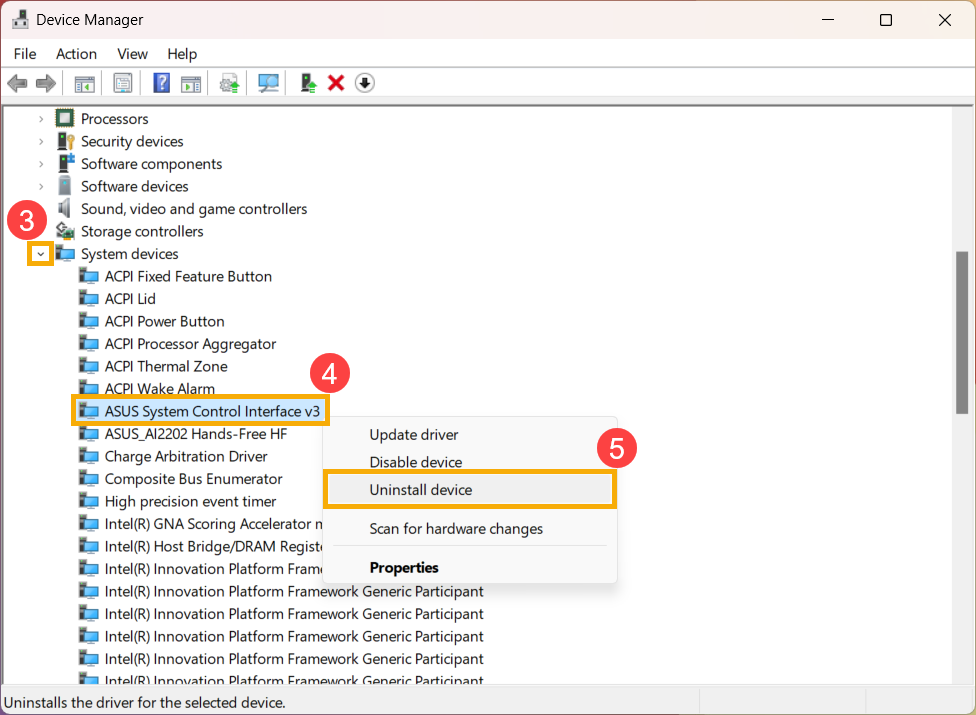
Step 3: Update Drivers
- Open Device Manager on Windows.
- Find your keyboard under “Keyboards.”
- Right-click and choose “Update driver.”
- Let Windows search and install updates.
For Asus laptops, visit their support page for latest drivers. Outdated drivers are a common cause for backlight failure.
Non-obvious tip: Sometimes, Windows installs a “Standard HID Keyboard” driver, which does not support lighting. Make sure your device is listed with the correct model name.
Step 4: Update Firmware
- Download Armoury Crate or Aura Sync from Asus.
- Open the software and check for firmware updates.
- Click “Update” if a new version is available.
Non-obvious tip: Firmware updates sometimes reset lighting profiles. Reapply your favorite effects after updating. Also, keep your keyboard plugged directly into the computer during firmware updates to avoid problems.
Step 5: Reinstall Control Software
- Uninstall Armoury Crate/Aura Sync.
- Restart your computer.
- Download the latest version from Asus’s official site.
- Install and check if the backlight works.
Software conflicts can cause backlight to freeze or turn off.
Non-obvious insight: Always remove old versions before installing new control software. Leftover files can cause bugs or block updates.
Step 6: Adjust Software Settings
- Open Armoury Crate or Aura Sync.
- Check the lighting tab. Make sure brightness is not set to 0%.
- Try switching between different lighting effects (Static, Breathing, Rainbow).
- Save your profile.
Sometimes, profiles get corrupted and need to be reset. If your keyboard supports multiple profiles, switch to another one and see if the lights return.
Step 7: Check Power Management Settings
- Go to Windows Control Panel > Power Options.
- Find your keyboard device and check if “Allow the computer to turn off this device to save power” is enabled.
- Disable it.
Non-obvious insight: Some laptops automatically dim keyboard backlights when battery is low, even if plugged in. Check your manufacturer’s battery settings for hidden power-saving features.
Step 8: Check For Operating System Updates
- Windows updates sometimes include keyboard fixes.
- Go to Settings > Update & Security > Windows Update.
- Click “Check for updates.”
- Install all pending updates.
Non-obvious tip: After major Windows updates, revisit your device settings. Sometimes, updates reset hardware profiles or power settings, which can affect keyboard lighting.
Step 9: Test In Bios/uefi
- Restart your computer and enter BIOS/UEFI (usually by pressing F2 or DEL).
- If the backlight works here, the hardware is fine. The problem is in Windows.
- If it doesn’t work, hardware may be faulty.
Testing in BIOS is a powerful way to separate software from hardware issues.
Step 10: Factory Reset Keyboard
Some Asus ROG keyboards allow a factory reset. The steps vary:
- Hold Fn + Esc for 10 seconds (common for Claymore and Strix models).
- Lights will blink to show reset.
- Reconnect the keyboard.
Check your manual for the exact reset combo. Factory reset will erase custom lighting profiles, so make a note of your settings first.
Step 11: Try Safe Mode
- Restart your computer in Safe Mode.
- If the backlight works, third-party software is causing the problem.
- Remove any new programs or tools.
Non-obvious insight: Some antivirus or system optimization tools block lighting control software. Disable or uninstall these temporarily to test.
Step 12: Contact Asus Support
If none of these steps work, reach out to Asus support. Describe your problem, steps tried, and your keyboard’s serial number.
Non-obvious tip: Take photos of your keyboard, packaging, and any visible damage before contacting support. These can speed up warranty claims.
Comparing Common Causes And Fixes
To help you see which fixes are most effective, here’s a comparison:
| Cause | Easy Fix | Advanced Fix | Success Rate |
|---|---|---|---|
| Loose USB connection | Reconnect/Change port | Replace cable | High |
| Outdated driver | Update driver | Reinstall OS | Medium |
| Software conflict | Restart/Uninstall tools | Clean install | Medium |
| Hardware damage | Check for warranty | Replace keyboard | Low |
| Power issue | Charge battery | Replace battery | High |
Hardware fixes are less successful without professional help. Software and connection fixes solve most cases. If your keyboard is under warranty, always try to get official support before opening or repairing it yourself.
How To Use Asus Armoury Crate And Aura Sync
These programs control lighting and settings for many Asus ROG keyboards.
Armoury Crate
- Download from Asus’s site.
- Open the app. Click on your keyboard model.
- Go to “Lighting” settings.
- Choose your effect (Static, Rainbow, etc. ).
- Adjust brightness and color.
- Click “Apply.”
Armoury Crate also allows you to save different profiles for gaming, work, or night use. You can link lighting effects to certain games or apps for extra style.
Aura Sync
- Used for syncing multiple devices.
- Open Aura Sync.
- Select your keyboard.
- Set lighting mode and color.
- Sync with other devices like mouse, headset, or motherboard.
Non-obvious insight: If you use both Armoury Crate and Aura Sync, use only one at a time. Running both can cause lighting errors. Also, Aura Sync works best when all your devices support it—if one device is not compatible, sync may not work as expected.

Credit: www.systweak.com
Troubleshooting Asus Rog Laptop Keyboard Backlight
For ROG laptops (like Strix, Zephyrus, Flow), keyboard backlight can fail for special reasons.
Common Laptop-specific Issues
- Function keys not working: The Fn key combo may break after a Windows update. If the function row (F1–F12) doesn’t control brightness, the software that manages these keys could be missing or out of date.
- ATK Package missing: Asus laptops use a special package for keyboard lighting. If it’s missing, backlight won’t work. The ATK Package controls both hotkeys and lighting functions.
- Eco mode: Some ROG laptops have eco mode to save battery. This disables keyboard backlight. Sometimes, this mode is enabled by default after updates or when the battery is low.
Fixes For Laptop Keyboard Backlight
- Download the latest ATK Package from Asus’s support site.
- Check Fn + F4/F5 keys for brightness.
- Exit eco mode (often in the battery or performance settings).
- Update BIOS.
Non-obvious tip: On some laptops, keyboard backlight is only available when plugged in. Battery use disables it. Check your power plan settings to see if there is an option to keep the backlight on while on battery.
How To Prevent Backlight Problems
After fixing your backlight, prevent future issues with these habits:
- Keep drivers updated: Check for updates monthly. Set a reminder to download the latest software from Asus.
- Don’t use third-party lighting tools: Stick to Armoury Crate or Aura Sync. Unofficial tools may offer extra features but can break lighting control.
- Clean keyboard regularly: Dust can block connections and damage LEDs. Use compressed air and a soft brush for best results.
- Avoid spills: Liquids kill keyboard lights fast. Consider a keyboard cover if you often eat or drink near your computer.
- Use USB 3.0 ports: They provide more power. On desktops, rear ports usually offer the most stable connection.
- Check battery health: For wireless models, replace batteries every 1–2 years. If the battery is not user-replaceable, check with support before opening the case.
Non-obvious tip: If you travel with your laptop or keyboard, use a padded case. Drops and bumps can loosen connections inside, leading to backlight issues over time.
Real-world Examples
Example 1: Gamer’s Desk Setup
Tom bought a ROG Strix Scope. After a Windows update, his RGB backlight stopped working. He unplugged the keyboard, but nothing changed. He updated the driver and firmware, and restarted his computer. The lights came back. The problem was an outdated driver.
Tom also noticed that using a USB hub caused the backlight to flicker sometimes. After switching to a direct connection, the issue stopped for good.
Example 2: Office Laptop
Maria uses a ROG Zephyrus laptop. Suddenly, her keyboard lights turned off. She tried Fn + F4, but nothing happened. She downloaded the latest ATK Package from Asus and installed it. The backlight worked again. ATK Package was missing after her last OS update.
Maria learned to always check the Asus website after big Windows updates. She now keeps a copy of the ATK installer on a USB drive for quick fixes.
Example 3: Wireless Keyboard
Alex uses a ROG Falchion. The RGB backlight faded and stopped. He checked Armoury Crate, but brightness was high. He charged the battery fully, and the lights returned. The problem was low battery.
Later, Alex noticed that letting the battery run too low too often made the backlight fail more quickly. He now charges his keyboard before it drops below 20% to keep the LEDs healthy.
When To Repair Or Replace Your Keyboard
If you try all fixes and the backlight still won’t work, your keyboard may need repair or replacement.
- Warranty: Most ROG keyboards come with a 2-year warranty. If hardware fails, contact Asus for a replacement.
- Repair shops: Local repair shops can sometimes fix LED strips, but this is risky and may void your warranty.
- Replacement: If your keyboard is old or heavily used, buying a new one is often cheaper than repair.
Non-obvious insight: Some repair shops use generic LED strips, which may not match the original color or brightness. Always ask about parts quality before agreeing to a repair.
If you decide to buy a new keyboard, consider models with easier access to internal parts. Some ROG keyboards are easier to open and service than others.
Credit: www.asus.com
Comparing Asus Rog Keyboard Backlight To Other Brands
How Does Asus Rog Keyboard Backlight Reliability Compare To Others?
| Brand | Backlight Type | Reliability | Common Issues |
|---|---|---|---|
| Asus ROG | RGB (per-key) | High | Driver, software |
| Razer | RGB (per-key) | Medium | Synapse conflicts |
| Corsair | RGB (multi-zone) | High | Firmware issues |
| Logitech | RGB (per-key) | Medium | Software bugs |
| SteelSeries | RGB (per-zone) | Medium | Cable damage |
Asus ROG keyboards are reliable, but software and driver issues are more frequent compared to hardware failures. Other brands may have different problems—Razer, for example, often faces conflicts with Synapse software, while Corsair users report firmware headaches.
Non-obvious insight: The type of USB port and the quality of your computer’s power supply can affect all brands. Using a low-quality extension cable can create problems, no matter which keyboard you choose.
Common Mistakes When Troubleshooting
- Ignoring software updates: Many users focus on hardware, but software causes most backlight problems.
- Using third-party tools: These often conflict with Armoury Crate/Aura Sync.
- Not checking battery: Wireless keyboards need a healthy battery for full lighting.
- Skipping BIOS check: If the backlight works in BIOS, hardware is fine.
- Trying random fixes: Follow systematic steps for faster results.
Non-obvious tip: Avoid resetting your keyboard or reinstalling software multiple times in a row. Too many resets in a short time can confuse the firmware and make issues harder to diagnose.

Credit: www.youtube.com
Frequently Asked Questions
What Should I Do If My Asus Rog Keyboard Backlight Won’t Turn On After A Windows Update?
Try updating your keyboard driver and firmware using Armoury Crate or Asus’s support site. Windows updates often change hardware settings, so you may need to reinstall control software. If this doesn’t help, restore your system to a previous point.
Can I Fix Asus Rog Keyboard Backlight Problems Without Professional Help?
Yes, most backlight issues are caused by software, drivers, or simple hardware problems. Follow the step-by-step solutions above. If you see physical damage, professional repair is needed.
Is It Safe To Use Third-party Rgb Tools With Asus Rog Keyboards?
No. Third-party RGB programs often cause conflicts with Armoury Crate or Aura Sync. Stick to official Asus tools for best results.
Why Does My Asus Rog Wireless Keyboard’s Backlight Turn Off When I Unplug It?
Wireless models save battery by turning off the backlight when not charging. Make sure your battery is charged, and check power settings in Armoury Crate.
Where Can I Find Official Asus Rog Keyboard Drivers And Firmware?
Visit the official Asus support site or download Armoury Crate from ROG Asus Support. Avoid downloading drivers from unofficial sources.
Solving the Asus ROG keyboard backlight not working issue can be simple or complex. It often starts with software updates or basic checks, and rarely needs hardware repair. By following the steps in this guide, you can bring your keyboard’s lighting back to life, enjoy gaming or work in style, and avoid future problems. Remember, careful troubleshooting saves time and keeps your ROG keyboard shining for years.