Many people rely on the Apple Watch to track their daily activity and fitness progress. From counting steps to monitoring workouts, this small device can motivate us to stay healthy. But what happens when your Apple Watch stops recording activity? Suddenly, your steps, calories, and exercise minutes are missing or incorrect. This can be frustrating, especially if you are working toward specific goals or sharing results with friends.
You are not alone if you face this issue. Many Apple Watch users report problems with activity tracking at some point. The good news is that most problems have simple solutions. This guide will help you understand why your Apple Watch is not recording activity, how to fix it, and what to do if nothing works.
You will also learn some surprising insights that many users overlook.
Why Your Apple Watch Is Not Recording Activity
Several reasons can cause your Apple Watch to stop tracking activity. Understanding these reasons helps you find a quick solution.
Software Glitches
Sometimes, software bugs affect the watch’s ability to record activity. Updates may not install correctly, or an app could interfere with the tracking process.
Incorrect Settings
If settings like Wrist Detection or Location Services are off, the watch may not detect movement or track workouts properly.
Sensor Issues
The Apple Watch uses sensors to detect motion, heart rate, and more. If these sensors are blocked or malfunctioning, activity data may be missing or incorrect.
Syncing Problems
Your Apple Watch and iPhone must communicate smoothly. If syncing fails, your phone may show outdated or missing activity data, even if the watch recorded it.
Outdated Software
Both the watch and iPhone need the latest watchOS and iOS versions. Old software can cause compatibility problems and affect activity tracking.
Common User Mistakes
Sometimes, the problem is simple, like wearing the watch too loosely, turning off critical settings by mistake, or not starting a workout properly.
Quick Checks: The Basics Most People Miss
Before making big changes, check these basics. Many users skip these steps and miss an easy fix.
1. Is The Watch Snug?
The sensors need contact with your skin. If the watch is loose, slide it up your wrist a bit and fasten it firmly but comfortably.
2. Is The Watch Charged?
Low battery can disable some features to save power. Make sure the battery is above 10%.
3. Are You Wearing It On Your Preferred Wrist?
Set your preferred wrist in the Watch app under “General” > “Watch Orientation. ” This improves motion detection.
4. Are You Logged Into Icloud?
Activity data syncs using your Apple ID. Check on your iPhone in Settings.
Credit: www.androidauthority.com
Step-by-step Fixes For Apple Watch Not Recording Activity
If the basics do not help, try these steps. Follow them in order for best results.
1. Check Activity Settings
- Open the Watch app on your iPhone.
- Go to “Privacy.”
- Make sure Fitness Tracking and Heart Rate are both ON.
2. Enable Location Services
- On your iPhone, open Settings > Privacy & Security > Location Services.
- Make sure it is ON.
- Scroll to “Apple Watch Workout” and set it to “While Using the App.”
3. Turn On Wrist Detection
- On your iPhone, open the Watch app.
- Go to “Passcode.”
- Make sure Wrist Detection is ON.
4. Restart Both Devices
Restarting often fixes temporary glitches.
- To restart Apple Watch: Hold the side button until “Power Off” appears, then drag the slider.
- To restart iPhone: Press and hold the side and volume buttons, then drag the slider.
5. Update Software
- On your iPhone, go to Settings > General > Software Update.
- On your Apple Watch, check in the Watch app under “General” > “Software Update.”
- Install any available updates.
6. Recalibrate Your Watch
If your activity tracking is still off, recalibrate:
- On your iPhone, go to Settings > Privacy & Security > Location Services > System Services.
- Make sure Motion Calibration & Distance is ON.
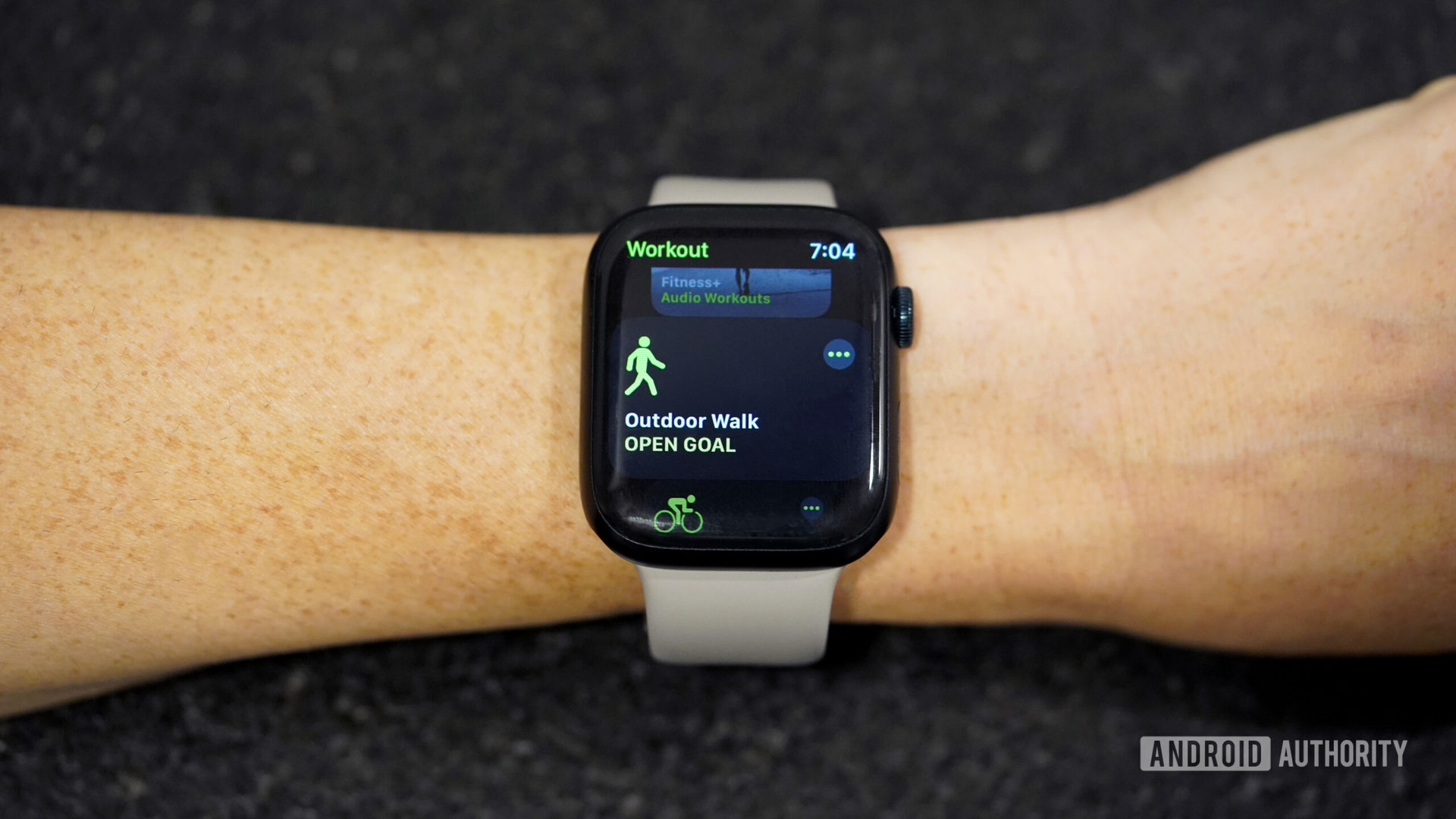
- Go outdoors to a flat, open area. Open the Workout app, select “Outdoor Walk” or “Outdoor Run,” and walk or run for 20 minutes at your normal pace.
7. Unpair And Re-pair Apple Watch
Unpairing resets many settings and often solves hidden problems.
- Open the Watch app on your iPhone.
- Tap “All Watches” at the top.
- Tap the “i” next to your watch, then “Unpair Apple Watch.”
- Follow the prompts to re-pair.
8. Reset Fitness Calibration Data
- In the Watch app, go to “Privacy.”
- Tap Reset Fitness Calibration Data.
Note: This erases previous calibration but does not delete activity history.
9. Contact Apple Support
If nothing works, your watch may have a hardware issue. Contact Apple Support or visit an Apple Store for help.
Comparison: Common Issues Vs. Less Common Causes
Some problems happen frequently, while others are rare but possible. The table below highlights the differences.
| Common Issues | Less Common Causes |
|---|---|
| Loose wrist strap | Damaged sensors |
| Wrist Detection off | Corrupted calibration data |
| Outdated software | Physical damage to watch |
| Location Services off | Water damage inside device |
How To Know If Your Apple Watch Is Recording Activity Correctly
After trying the steps above, you need to check if your Apple Watch is working as expected. Here’s how:
- Open the Activity app on your watch. You should see the rings filling as you move, exercise, or stand.
- In the iPhone Fitness app, your daily activity should sync and match what you see on the watch.
Testing With A Simple Walk
Start a short walk and watch the activity rings. If they fill as you walk, tracking is working. If not, check the settings again.
Comparing Data
You can compare your Apple Watch data with another device or a manual step count. If the numbers are close, your watch is accurate. If not, continue troubleshooting.
Surprising Insights Most Users Don’t Know
1. Activity Rings Need More Than Steps
Many users think only steps matter, but the Move, Exercise, and Stand rings use different sensors and data:
- Move Ring: Counts active calories, not just steps. You must move with enough intensity.
- Exercise Ring: Fills when your heart rate and movement reach a brisk level.
- Stand Ring: Requires standing and moving for at least one minute each hour.
A slow walk or gentle movement may not fill all rings.
2. Background App Refresh Matters
If you disable Background App Refresh for the Watch or Fitness app, syncing and tracking may stop. Keep this setting enabled in your iPhone under Settings > General > Background App Refresh.
3. Not All Workouts Are Detected Automatically
While the Apple Watch can auto-detect some workouts, it does not catch every activity. For best results, start workouts manually using the Workout app.
4. Environmental Factors Affect Sensors
Sweat, water, or lotion on your skin can block the sensors. Clean the back of your watch and your wrist for best accuracy.
Credit: www.macobserver.com
Tracking Problems By Apple Watch Model
Some older Apple Watch models have different hardware and software limitations. Here’s a quick comparison.
| Model | Tracking Accuracy | Supported Features |
|---|---|---|
| Series 3 and earlier | Lower | Basic activity, no ECG |
| Series 4–6 | Medium | Improved sensors, ECG |
| Series 7 and later | High | Advanced tracking, blood oxygen |
How To Prevent Future Tracking Problems
Once you fix the problem, you want to avoid it in the future. Here are some proven tips:
- Update software regularly.
- Wear your Apple Watch snugly during workouts.
- Clean the sensors and your wrist before exercise.
- Check app permissions after every iOS or watchOS update.
- Restart both devices every few weeks to prevent glitches.
- Do not overload your Apple Watch with too many third-party fitness apps.

Credit: www.youtube.com
Should You Reset Or Restore Your Apple Watch?
If problems continue, you might consider resetting or restoring your Apple Watch. But which is best?
| Action | What It Does | When to Use |
|---|---|---|
| Reset Fitness Calibration Data | Clears only calibration data | When activity tracking is inaccurate |
| Unpair & Re-pair | Resets all settings, keeps health data | When troubleshooting fails |
| Erase All Content & Settings | Full factory reset | Before selling or as last resort |
When To Seek Professional Help
If your Apple Watch still does not record activity after all steps, you may have a hardware issue. This could include:
- Damaged sensors
- Water damage
- Battery problems
Contact Apple Support or visit an authorized service center. Most Apple Watch models have a one-year warranty, and AppleCare+ can extend this coverage.
For more details, see the official Apple Support guide.
Frequently Asked Questions
Why Did My Apple Watch Stop Recording Steps Suddenly?
This often happens if the watch is too loose, sensors are blocked, or a setting like Fitness Tracking or Wrist Detection is off. Check these settings and wear the watch snugly.
Can Third-party Apps Interfere With Activity Tracking?
Yes. Some third-party fitness apps may conflict with the Apple Watch’s sensors or data syncing. Try disabling or deleting these apps and see if tracking improves.
Does The Apple Watch Count Activity If I Am Pushing A Stroller Or Shopping Cart?
Not always. The watch uses arm movement and heart rate. If your arm is still, activity may not register. For best results, manually start a workout in the Workout app.
Will Resetting My Apple Watch Delete My Activity History?
No. Unpairing and re-pairing your Apple Watch keeps your Health and Activity data, as long as you back up your iPhone. A full factory reset will erase all data unless you restore from a backup.
How Do I Know If My Apple Watch Sensors Are Working?
You can test by starting a workout and checking if your heart rate, steps, and calories update in real time. If not, clean the sensors and try again. If there is still no data, contact Apple Support.
Keeping your Apple Watch recording activity reliably helps you stay motivated and informed about your health. By following these steps, you can solve most issues quickly and confidently. If you ever feel stuck, remember that support is available, and you are not alone in facing these common tech challenges.