If your Apple Watch refuses to download an app, you’re not alone. Many users face this problem, which can be both confusing and frustrating. You might see the app stuck on the loading screen, an endless spinning wheel, or even a message saying “Unable to Download App.” With the growing importance of wearable technology for daily tasks, not being able to install apps on your Apple Watch can hold you back from making the most of your device.
But why does this happen? The reasons range from simple settings issues to more complex software bugs. Some problems can be fixed in seconds, while others require a deeper look at your devices and accounts. This article will guide you through all the possible causes and solutions, using clear language and practical steps.
Whether you’re a new Apple Watch user or have had your watch for years, you’ll find answers here to get your apps downloading again.
Why Apple Watch Apps May Not Download
Before jumping into fixes, it helps to know what might be causing the problem. Here are the main reasons why apps may not download on your Apple Watch:
- Network problems – Weak or unstable Wi-Fi or Bluetooth connections can block downloads.
- Software bugs – Outdated or buggy watchOS or iOS software can cause issues.
- Account issues – Problems with your Apple ID or App Store account may prevent downloads.
- Storage space – If your Apple Watch is full, there may not be enough room for new apps.
- Settings errors – Incorrect settings on the Watch or iPhone can block app installation.
- App compatibility – Some apps don’t support certain watch models or watchOS versions.
- Sync issues – If your iPhone and Apple Watch aren’t syncing properly, apps may get stuck.
- App Store problems – Rarely, server-side issues at Apple’s end can block downloads.
Understanding these causes helps you solve the problem faster, since you can check each one step by step.
Quick Checks Before Troubleshooting
Before you start changing settings or resetting devices, run these quick checks. Many users fix the problem with one of these simple steps.
- Check Your Internet Connection: Both your iPhone and Apple Watch need a stable Wi-Fi or cellular connection for app downloads. If you’re in an area with weak signal, move closer to your router.
- Restart Both Devices: Turn your iPhone and Apple Watch off and on. This simple step can fix many small software glitches.
- Check App Compatibility: Make sure the app you want supports your Apple Watch model and current watchOS version. You can check this in the App Store description.
- Update Software: Make sure your iPhone and Apple Watch are running the latest versions of iOS and watchOS.
- Sign in to Apple ID: Go to your iPhone’s Settings > [your name] and confirm you’re signed in to your Apple ID.
- Check Apple’s System Status: Rarely, there may be an outage. You can check Apple’s official system status page for problems.
If you still can’t download the app after these checks, follow the in-depth troubleshooting steps below.

Credit: www.youtube.com
Step-by-step Solutions For App Not Downloading On Apple Watch
Solving this problem often means working through several possible issues. Start with the easiest fixes and move to more advanced steps only if needed.
1. Ensure Proper Iphone-apple Watch Connection
For most users, apps are installed on the Apple Watch via the iPhone. If the connection between both devices is weak or broken, app downloads can get stuck.
How To Check Connection
- Open the Watch app on your iPhone. If you see your watch listed and connected, the link is active.
- Swipe up on your Apple Watch face to open Control Center. Look for the green phone icon – this means your watch is connected to your iPhone.
How To Fix Connection Issues
- Make sure Bluetooth is ON on your iPhone (Settings > Bluetooth).
- Keep both devices close (within 10 meters/33 feet).
- If you have Wi-Fi-only Apple Watch, make sure both devices are on the same network.
- Restart both devices if the connection seems unstable.
2. Check For Software Updates
Outdated software can block apps from downloading or syncing.
Updating Iphone And Apple Watch
- On iPhone: Go to Settings > General > Software Update.
- On Apple Watch: Open Settings > General > Software Update (or use the Watch app on iPhone).
Install any available updates. After updating, try downloading the app again.
3. Free Up Storage Space
If your Apple Watch is full, there’s no room for new apps. Many users overlook this, especially on watches with 8GB or 16GB storage.
How To Check Storage
On your iPhone:
- Open the Watch app.
- Go to General > Usage.
Or on Apple Watch:
- Open Settings > General > Usage.
How To Free Up Space
- Delete unused apps: Press and hold the app on your watch until the icons jiggle, then tap the “x”.
- Remove music, podcasts, or photos you don’t need.
- Clear old messages or data-heavy apps.
Common Mistake
Many users think deleting an app on the iPhone will also remove it from the watch, but sometimes the app remains. Make sure to remove it directly from the Watch app if needed.
4. Reinstall The App
Sometimes, the app install gets stuck. Deleting and reinstalling can fix this.
Steps
- On your iPhone, open the Watch app.
- Scroll to “Installed on Apple Watch.”
- Tap the app you want to remove, then toggle off “Show App on Apple Watch.”
- Wait a few seconds, then toggle it ON again to reinstall.
This process forces the app to reinstall and often solves stuck downloads.
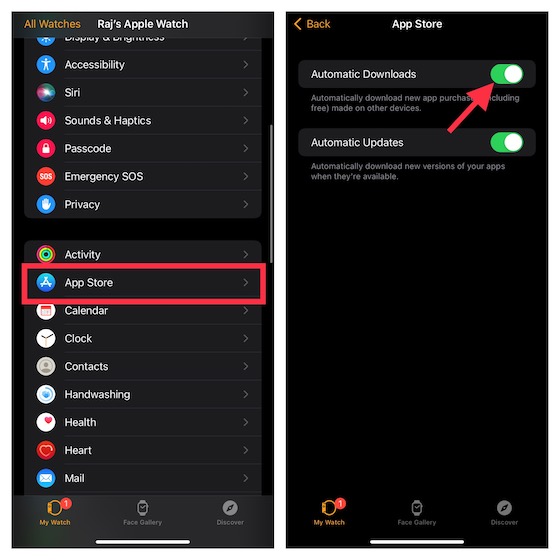
5. Check Automatic App Install Settings
By default, new apps with Apple Watch support are installed automatically. If this setting is off, you’ll need to install apps manually.
How To Check
- Open the Watch app on iPhone.
- Go to General > App Install.
- Make sure “Automatic App Install” is turned ON.
If you prefer to manage apps manually, you can install only the ones you need.
6. Sign Out And Back Into Apple Id
Sometimes, authentication errors block downloads. Signing out and back in can refresh your account.
How To Do This
- On iPhone: Go to Settings > [your name] > Scroll down and tap “Sign Out.”
- Restart the device, then sign back in.
- Try downloading the app again.
Note: Signing out will log you out of iCloud and other Apple services. Make sure you know your password.
7. Unpair And Re-pair Apple Watch
If the above steps fail, unpairing and re-pairing your Apple Watch will reset the connection and fix many hidden bugs.
Steps
- Open the Watch app on iPhone.
- Tap “All Watches” at the top left.
- Tap the “i” next to your watch.
- Select “Unpair Apple Watch.”
- After the process, pair your watch again and restore from backup.
Warning: This step takes time but often fixes stubborn problems.
8. Reset Network Settings
Network issues can block app downloads. Resetting network settings often solves these problems.
How To Reset
- On iPhone: Go to Settings > General > Transfer or Reset iPhone > Reset > Reset Network Settings.
- You’ll need to re-enter Wi-Fi passwords after this step.
9. Try Downloading From The Apple Watch App Store
Since watchOS 6, Apple Watch has its own App Store. If you have a newer model, try downloading the app directly on the watch.
Steps
- On your Apple Watch, open the App Store app.
- Search for the app and tap “Get” or the download button.
This method bypasses iPhone syncing and sometimes works when other methods fail.
10. Check For Apple Server Issues
Very rarely, the problem may be on Apple’s end.
- Visit Apple’s System Status page to see if there are known outages.
- If the App Store or Apple ID service is down, you’ll need to wait for Apple to fix the issue.
How Apple Watch And Iphone Work Together For App Installation
To understand why app downloads can fail, it helps to know how your Apple Watch and iPhone work together.
When you download an app with watch support on your iPhone, the app is sent to your Apple Watch using Bluetooth (for small files) or Wi-Fi (for larger files). If the connection is lost or weak, the transfer may fail or get stuck. With newer watchOS versions, some apps can now be downloaded directly from the watch, reducing the need for constant iPhone syncing.
Here’s a simple comparison of how app installation works before and after watchOS 6:
| Before watchOS 6 | After watchOS 6 |
|---|---|
| Apps installed only via iPhone | Apps can be installed directly from Apple Watch App Store |
| Requires iPhone for all app management | Apple Watch can manage apps independently |
| Limited app selection | Wider app selection directly on watch |
If you have an older watch, you’ll need your iPhone for most app management tasks. With newer models, you can do more right from your wrist.

Credit: www.reddit.com
Advanced Solutions For Persistent Problems
If you’ve tried all the steps above and your Apple Watch still won’t download apps, there are a few advanced solutions to consider. These steps are more technical and should be used if basic methods fail.
A. Reset Apple Watch To Factory Settings
Resetting your Apple Watch erases all content and settings, returning it to its original state. This step can clear up deep software glitches but should be used as a last resort.
Steps
- On your Apple Watch, open Settings > General > Reset.
- Tap “Erase All Content and Settings.”
- Confirm your choice.
- After reset, pair the watch with your iPhone again.
Tip: Always back up your data before performing a factory reset.
B. Check For App Store Restrictions
Sometimes, restrictions or parental controls can block app downloads.
How To Check
- On your iPhone, go to Settings > Screen Time > Content & Privacy Restrictions.
- Make sure “Installing Apps” is allowed.
- On your Apple Watch, check for similar restrictions in Settings if available.
C. Update Or Reinstall The Watch App
Some apps may need to be updated on your iPhone before they can install on the watch.
- Open the App Store on your iPhone.
- Search for the app and update it if an update is available.
- Try reinstalling on your watch.
D. Test With A Different Apple Id
If you suspect an issue with your account, try logging in with a different Apple ID.
- Sign out of your current Apple ID on both iPhone and Apple Watch.
- Sign in with a different account and try downloading the app.
This step isn’t common but can help identify account-specific problems.
Real-world Examples: Common Scenarios And Fixes
Let’s look at some real-world examples to see how these solutions work in practice.
Example 1: App Stuck On “installing”
Problem: A user tries to install a fitness app, but it’s stuck on “Installing” for hours.
Solution: The user restarts both devices, checks storage (plenty of space), and then uninstalls and reinstalls the app from the Watch app on iPhone. The app installs successfully.
Key insight: Restarting and reinstalling often fixes stuck installations caused by minor glitches.
Example 2: App Not Showing On Watch
Problem: The app appears installed on the iPhone but not on the watch.
Solution: The user opens the Watch app, toggles off “Show App on Apple Watch” for the missing app, waits, and toggles it back on. The app then appears on the watch.
Key insight: App visibility is controlled by the Watch app’s settings, not just the iPhone home screen.
Example 3: “cannot Download App” Error
Problem: An error message appears when trying to download an app.
Solution: The user checks the Apple System Status page and finds there’s an App Store outage. Waiting until the issue is resolved allows the app to download.
Key insight: Not all problems are on your end; sometimes, waiting is the only solution.
Credit: beebom.com
Table: Common Reasons Vs. Fixes
Here’s a quick reference showing common reasons for app download failures and their matching solutions:
| Problem | Quick Fix | Advanced Fix |
|---|---|---|
| Weak Bluetooth/Wi-Fi | Move devices closer, restart both | Reset network settings |
| Outdated software | Update iOS/watchOS | Factory reset watch |
| Storage full | Delete unused apps/data | Erase all content and settings |
| App Store restrictions | Check Screen Time settings | Test with different Apple ID |
| Apple server issues | Check system status | Wait for resolution |
Tips To Prevent Future App Download Problems
Once you’ve fixed the issue, you probably want to avoid it in the future. Here are some simple tips:
- Keep your software updated – Install the latest versions of iOS and watchOS as soon as they’re available.
- Regularly restart your devices – This clears minor bugs before they become big problems.
- Check storage monthly – Delete apps, music, and data you don’t need to keep space free.
- Review app compatibility – Before downloading, make sure the app supports your watch model and OS version.
- Avoid beta software – Unless you’re a developer, stick to official releases for better stability.
- Use strong Wi-Fi – For large apps, a stable connection speeds up downloads and reduces errors.
- Manage accounts carefully – Don’t change Apple IDs often, as this can confuse app syncing.
By following these tips, you’ll have fewer problems and a smoother experience with your Apple Watch.
Frequently Asked Questions
Why Does My Apple Watch Say “waiting To Download” For An App?
This message usually means your watch is trying to download the app but is waiting for a strong connection or for your iPhone to complete the transfer. Check that both devices are close together, Bluetooth and Wi-Fi are enabled, and your iPhone is unlocked and connected to the internet.
Can I Download Apps On Apple Watch Without My Iphone?
Yes, if you have watchOS 6 or later and a compatible Apple Watch. You can use the App Store app directly on your watch to download apps, as long as your watch is connected to Wi-Fi or cellular data.
What If My Apple Watch Storage Is Full?
When storage is full, new apps won’t download. Free up space by deleting unused apps, music, or podcasts. You can check storage in Settings > General > Usage on both the Watch and the Watch app on your iPhone.
Do All Iphone Apps Have Apple Watch Versions?
No, not every iPhone app supports Apple Watch. Check the App Store description for “Offers Apple Watch App” or look for the Apple Watch icon. If an app doesn’t support the watch, it won’t appear in the Watch app’s list.
Will Unpairing My Apple Watch Delete All My Apps And Data?
Unpairing your Apple Watch erases its content and settings, but your iPhone will create a backup during the process. When you re-pair the watch, you can restore from this backup and recover your apps and data.
If you need more technical details about how Apple’s app download process works, you can find official information at Apple Support.
Getting an app to download on your Apple Watch shouldn’t be a mystery. By following these steps, checking your connection, and understanding how your devices work together, you can solve most problems quickly. And with a few simple habits, you’ll keep your Apple Watch running smoothly so you can focus on what matters—using your favorite apps on your wrist, anytime you need them.