Sometimes, you try to delete an app from your iPhone, but it just won’t go away. You press and hold, tap the “X” or “Remove App,” but nothing happens—or the app reappears after a restart. This simple task can turn frustrating fast. You may wonder if your phone is broken or if there’s some hidden setting blocking you. The truth is, there are several reasons why an app not deleting from iPhone is a common issue. Understanding why this happens, and how to solve it, can save you time and stress.
This guide will walk you through every cause and solution. You’ll learn step-by-step how to fix stubborn apps, prevent future problems, and understand what’s really happening behind the scenes. Whether you’re a beginner or an experienced iPhone user, you’ll find practical advice here—no technical jargon, just clear explanations.
By the end, you’ll know exactly how to remove any app and keep your device tidy.
Why Can’t You Delete Apps From Your Iphone?
The problem of app not deleting from iPhone happens for several reasons. Some are obvious, others are hidden in settings or system restrictions. Let’s break down the most common causes.
1. Parental Controls Or Restrictions
Apple includes built-in controls to help parents limit what children can do on their devices. If these settings are turned on, deleting apps is blocked. You’ll usually see apps wiggle, but there’s no “X” or “Remove App” option.
Key signs:
- No “Remove App” or “Delete App” button.
- You can’t move or rearrange the app.
A lot of parents set up these restrictions without realizing it might block even themselves from deleting apps later. Even if you set up Screen Time controls a long time ago and forgot, they stay active until you turn them off.
If you share your device with family, someone else may have set these restrictions without telling you.
2. Device Management Profiles
Some iPhones, especially work or school phones, have Device Management or MDM profiles. These profiles control which apps can be removed. For example, a company might require certain apps for security.
Key signs:
- App says “Managed by organization.”
- Settings show “Profiles & Device Management.”
Schools and companies often use these profiles to keep important apps from being deleted by accident or on purpose. Even after you think you removed the app, the profile may reinstall it automatically during the next sync. Sometimes, the restrictions from a profile are so strict that even the “Delete App” option doesn’t show up at all.
3. Built-in Apple Apps
Not all Apple apps can be deleted. Some, like Messages, Phone, or Settings, are permanent. Others, like Mail or Maps, can be removed.
Key signs:
- App is a default Apple app.
- “Delete App” option is missing.
It’s easy to forget which built-in apps are removable, especially as Apple changes this list with new iOS versions. For example, in iOS 12 and later, you can remove more Apple apps than before, but core apps like Phone and Messages are still permanent.
Trying to delete them will only waste time.
4. Storage Issues Or Glitches
Low storage or system glitches can prevent app deletion. Sometimes, the phone freezes or doesn’t register your tap. Restarting usually helps.
Key signs:
- Phone feels slow or unresponsive.
- App reappears after deletion.
When your iPhone is almost full, it can act strangely. The system may not have enough space to finish deleting the app’s data, so the icon stays or comes back after a restart. Regularly clearing unused apps and files helps avoid this kind of problem.
5. App Is Updating Or Downloading
If an app is updating, downloading, or stuck, you can’t delete it. Wait until the update finishes.
Key signs:
- App icon is gray with a progress bar.
- “Waiting” message under the app.
Sometimes, a weak Wi-Fi connection leaves apps in a “waiting” state for a long time. If you try to delete during this, it won’t work. Canceling the update and then trying again usually solves it. If you see the app icon stuck for days, it’s usually a sign of a failed update.
6. Home Screen Layout Restrictions
Some organizations lock the home screen layout. You can’t move or delete apps in this mode.
Key signs:
- Apps can’t be rearranged.
- “Remove App” option is missing.
This is another tool used by schools and businesses to keep devices consistent. Even if you’re using your own device, leftover settings from a previous job or school can sometimes stick around and cause confusion.
7. Ios Bugs And Software Errors
Rarely, a bug in iOS stops you from deleting apps. Updating iOS or restarting can fix this.
Key signs:
- Random app behavior.
- Deletion works after iOS update.
Software bugs can happen after a big update or when something goes wrong during installation. If you notice other odd behavior, like missing icons or frozen screens, it’s a sign you may need to update or reset your iPhone.
Extra tip: Sometimes, a software glitch can make the app look deleted, but it’s still in your storage. Always check iPhone Storage in Settings to make sure the app and its data are truly gone.
How To Delete Apps: Step-by-step Guide
Deleting apps is usually simple, but if you’re facing trouble, follow these steps. Each method works in different situations.
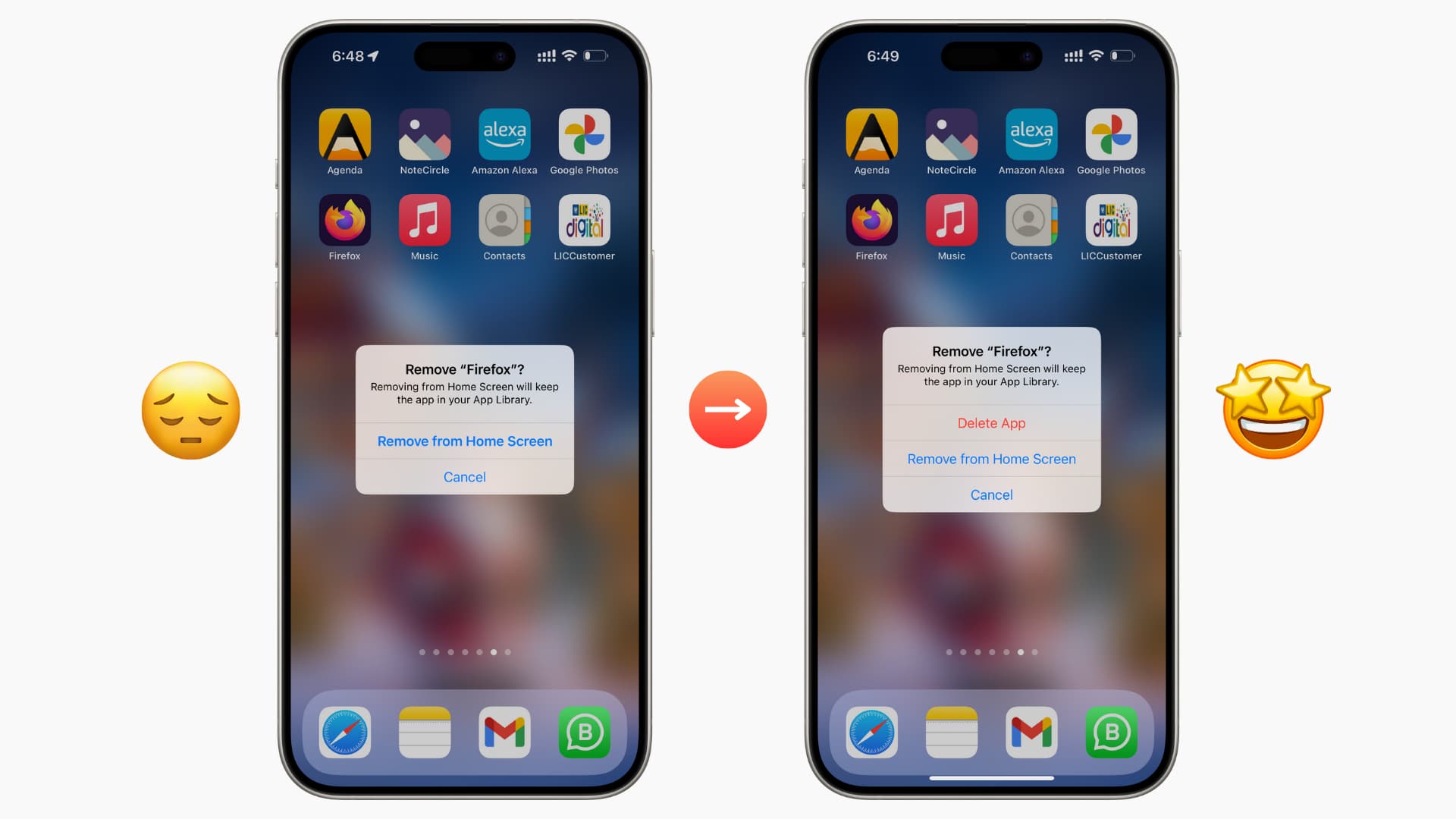
Method 1: Delete From Home Screen
- Tap and hold the app icon until the apps start to jiggle.
- Tap the minus sign (-) or “Remove App”.
- Select “Delete App”.
- Confirm the deletion.
Tip: If you only see “Remove from Home Screen,” the app is hidden, not deleted.
Some users don’t realize that simply removing an app from the Home Screen doesn’t free up space or remove its data. If you want the app gone for good, look for the actual “Delete App” button. On some older iOS versions, you’ll see an “X” instead of a minus sign.
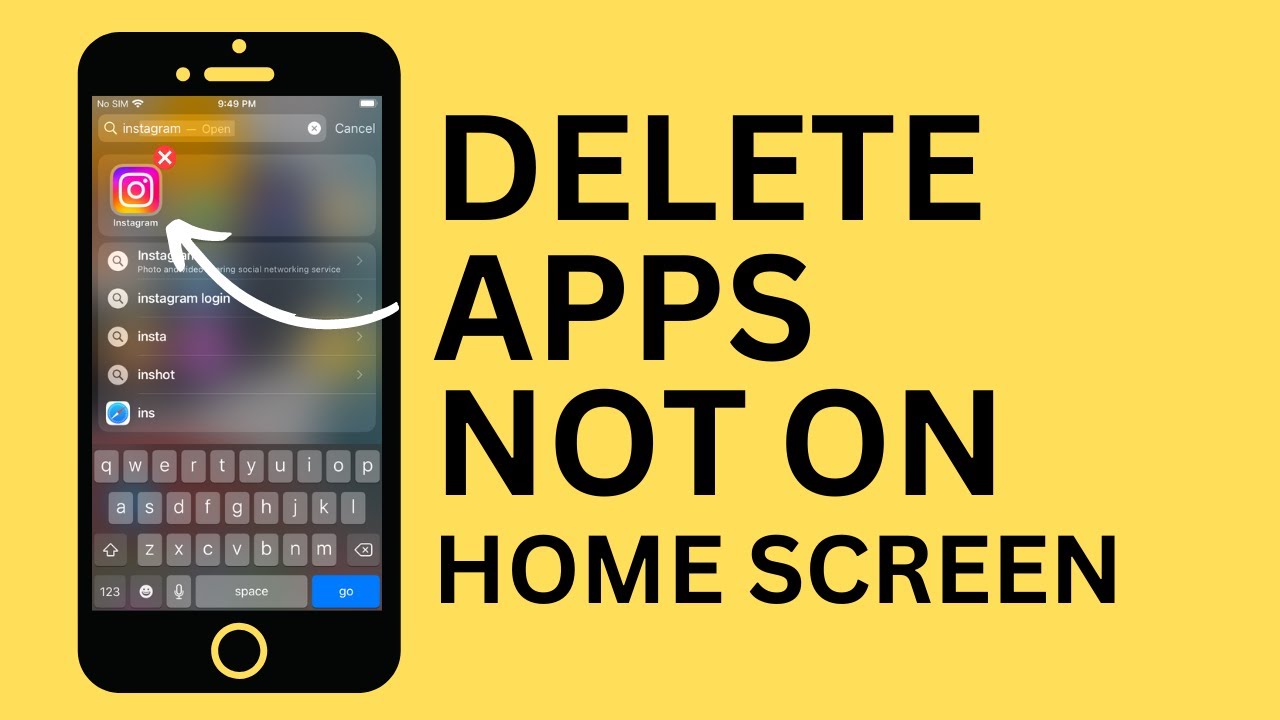
Method 2: Delete From Settings
- Open Settings.
- Tap General.
- Tap iPhone Storage.
- Scroll to find the app.
- Tap the app, then tap “Delete App”.
- Confirm.
Why use this? This method is useful if the app is hidden or doesn’t appear on your home screen.
This method also shows how much space each app uses—including its data. It’s helpful for finding large apps that might be slowing your phone. If you see an app here but not on your Home Screen, it’s likely hidden in the App Library or restricted by a setting.
Method 3: Use App Store (for Updates Stuck)
- Open App Store.
- Tap your profile in the top right.
- Scroll to Updates.
- If an app is stuck updating, tap Cancel, then try deleting.
If you see an app stuck in “waiting” or “loading,” this is the fastest way to reset the update. After canceling, sometimes the app disappears on its own—if not, you can now delete it normally.
Method 4: Restart And Try Again
Sometimes, glitches prevent deletion. Restart your iPhone:
- Press and hold the side button and volume button.
- Swipe to turn off.
- Wait a few seconds, then turn it back on.
- Try deleting again.
Restarting clears out temporary bugs and refreshes your phone’s memory. Many users find that stubborn apps can be deleted after a simple restart, so never skip this step.
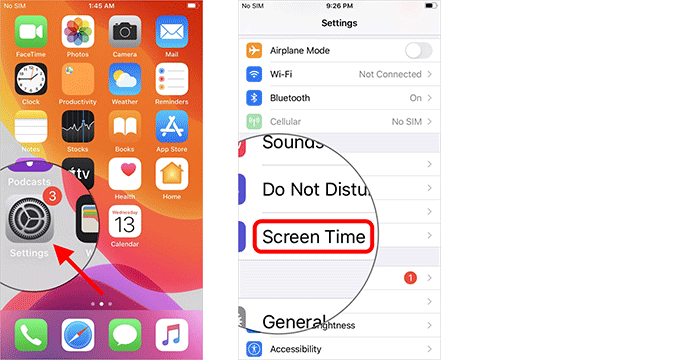
Method 5: Remove Restrictions
If parental controls or device restrictions block deletion:
- Open Settings.
- Tap Screen Time.
- Tap Content & Privacy Restrictions.
- Tap iTunes & App Store Purchases.
- Tap Deleting Apps and set to Allow.
Note: You’ll need a Screen Time passcode.
If you forgot your Screen Time passcode, you can reset it by following Apple’s official guide or by using your Apple ID. Be aware that changing these settings will affect all users on the device if you have Family Sharing enabled.
Method 6: Remove Device Management Profile
For managed devices:
- Open Settings.
- Tap General.
- Tap Profiles & Device Management.
- Select the profile and tap Remove Profile.
Warning: Removing a profile may affect work or school apps.
Before removing a profile, ask your IT department if it’s safe. Some companies require device profiles for email, calendar, or VPN access, and removing it might break important functions.
Method 7: Update Ios
If a bug is causing the issue:
- Open Settings.
- Tap General.
- Tap Software Update.
- Install any updates.
- Try deleting the app again.
Keeping iOS up to date prevents many problems, including deletion issues. New updates also improve security and fix hidden bugs you might not even know about.
Extra insight: When deleting apps after a major iOS update, wait until the device finishes all background tasks. Sometimes, system processes running in the background can temporarily block deletions.
Credit: www.isumsoft.com
Comparison: Deleting Apps Vs. Offloading Apps
Some users confuse deleting with offloading. Offloading keeps the app’s data but removes the app itself.
| Feature | Delete App | Offload App |
|---|---|---|
| Removes app icon | Yes | Yes |
| Frees up storage | Yes | Yes |
| Keeps app data | No | Yes |
| Can reinstall easily | No (must download again) | Yes (just tap icon) |
| Removes all traces | Yes | No |
Tip: Offloading is good if you want to save space but might use the app later.
Extra example: If you’re traveling and need to free up space for photos, offload games or big apps you won’t use for a while. When you’re home, tap the app icon to reinstall, and all your saved data comes back.
Common Mistakes When Deleting Apps
Many users make simple mistakes that block app deletion. Here are a few to avoid:
- Trying to delete built-in apps that can’t be removed.
- Not checking for restrictions in Screen Time.
- Deleting from Home Screen only, forgetting apps hidden in folders.
- Forgetting to restart after a failed deletion.
- Confusing offloading with deletion.
Bonus Insight: Sometimes, deleting a “ghost app” (an app that appears stuck or grayed out) requires a restart or update.
Another common mistake: If you use iCloud backups, restoring your iPhone from an old backup can bring back deleted apps. Check your backup settings if apps keep returning after deletion.
Credit: www.idownloadblog.com
Hidden Reasons Apps Stay After Deletion
Even after deleting, some apps come back or remain in your device’s storage. Why does this happen?
Icloud Sync
If you use iCloud, some app data may sync back. For example, if you delete an app on one device, but it’s still on another, it may reappear.
This is especially true for apps that share data across devices, like Notes or Photos. If you want an app completely gone, delete it from all devices using the same Apple ID.
App Re-downloads
Apps you bought or downloaded before can be re-downloaded automatically if your phone is reset or restored from backup.
Tip: To stop automatic app downloads on new devices, go to Settings > App Store and turn off “Apps” under Automatic Downloads.
Managed Apps
Work or school devices may reinstall apps automatically. The device management profile controls this.
Extra detail: If your device is managed, even if you manage to delete an app, it will often return after the next sync with your organization’s server.
System Cache
Sometimes, app icons remain due to system cache. Restarting usually clears this.
If the icon doesn’t disappear after a restart, try updating iOS or using the iPhone Storage method to check for leftover data.
Data Table: Built-in Apple Apps—which Can Be Deleted?
Not all Apple apps are removable. Here’s a quick reference.
| App Name | Can Delete? | Notes |
|---|---|---|
| Yes | Reinstall via App Store | |
| Messages | No | Permanent |
| Calendar | Yes | Reinstall via App Store |
| Phone | No | Permanent |
| Maps | Yes | Reinstall via App Store |
| Settings | No | Permanent |
| Music | Yes | Reinstall via App Store |
| Safari | No | Permanent |
| Camera | No | Permanent |
Insight: Even if you delete a removable app, its data may stay until you clear it in Settings.
Pro Tip: If you delete an Apple app and reinstall it, you may need to reset its permissions in Settings (like access to contacts or location).
Credit: www.youtube.com
What To Do If Nothing Works
Sometimes, no method above works. If you’ve tried everything, here’s what to do:
Contact Apple Support
If your phone has a serious issue, Apple Support can help. They can guide you through advanced fixes or software resets.
You can reach Apple Support online or by visiting an Apple Store. They have special tools to check for hidden software problems that you can’t fix at home.
Factory Reset (last Resort)
If your device is totally unresponsive, a factory reset wipes all data and starts fresh:
- Open Settings.
- Tap General.
- Tap Reset or Transfer or Reset iPhone.
- Tap Erase All Content and Settings.
Warning: This deletes everything. Backup your data first.
Factory reset should only be used when nothing else works. Restoring from a backup after the reset can sometimes bring the problem back, so try setting up your device as new if you want a completely clean start.
Visit An Apple Store
If you suspect a hardware problem, visit an Apple Store. Technicians can diagnose and repair your device.
They can also check for water damage, battery issues, or other hardware faults that might cause strange app behavior.
Extra Tips For Managing Apps
Keep your iPhone organized and avoid future issues with these tips.
Organize Apps Into Folders
Grouping apps makes it easier to see what you have and spot unused apps.
For example, put all your social media apps in one folder. This not only helps you find them faster but also makes it obvious if you have apps you never use.
Regularly Check Iphone Storage
Go to Settings > General > iPhone Storage. Delete apps you don’t use.
This also helps you spot apps that are using a lot of hidden data, like music or video apps.
Use Screen Time Reports
Screen Time shows which apps you use most. Remove apps you rarely use.
This is especially helpful if you want to cut down on distractions or free up space.
Update Ios Frequently
Many bugs are fixed in new iOS versions. Keep your phone updated.
Set your device to update automatically overnight to avoid interruptions.
Avoid Unnecessary App Downloads
Only download apps you need. Too many apps can slow your phone and make it harder to manage.
Before downloading a new app, ask yourself if you really need it or if you already have something similar.
Monitor Device Profiles
If your device is managed, check profiles regularly. Remove old or unnecessary profiles.
Profiles left over from previous jobs or schools can cause unexpected problems, even years later.
Extra insight: If you share your Apple ID with family, deleting an app on your device can sometimes affect other devices signed in with the same ID.
Real-world Examples
Let’s look at two examples of the app not deleting from iPhone problem.
Example 1: Parental Controls Block Deletion
Sarah, a mother, gives her child an iPhone. She sets up Screen Time to control app access. Later, she tries to delete an app, but the option is missing. She checks Screen Time settings and finds “Deleting Apps” is set to “Don’t Allow.
” Changing it to “Allow” solves the problem.
Extra detail: Sarah also learns that Screen Time can block some settings even if restrictions were set a long time ago, so it’s good to check these controls every few months.
Example 2: Work Profile Reinstalls Apps
John uses a company phone. He deletes a work app, but it comes back after a restart. The device has an MDM profile that auto-installs required apps. He contacts IT, and they explain the policy. John learns he can’t remove certain apps without removing the profile.
Extra detail: John also discovers that his email and calendar stop working when the profile is removed, so he has to choose between app freedom and keeping work tools.
Data Table: Common Reasons Apps Won’t Delete
Here’s a quick overview of why apps won’t delete.
| Reason | How to Fix | Common Signs |
|---|---|---|
| Parental Controls | Adjust Screen Time settings | No delete option |
| Device Management | Remove management profile | “Managed by organization” label |
| Built-In Apps | Cannot delete | Missing delete option |
| App Updating | Wait for update to finish | Gray icon, progress bar |
| iOS Bug | Update or restart device | Random behavior |
Extra tip: If you see the same problem on more than one device, check if both are using the same Apple ID or managed by the same organization.
Preventing App Deletion Problems In The Future
A few simple habits can stop these issues from happening again.
- Keep iOS updated. Most bugs are fixed with software updates.
- Review Screen Time and device management settings after every update.
- Delete unused apps regularly, not just when storage is low.
- If using a work or school phone, ask IT about app policies.
- Avoid downloading unknown apps, which sometimes cause glitches.
Non-obvious insight: Some apps, like security or VPN apps, may be required by device profiles. Removing these can break connections or block access to company resources.
Another insight: Apps that manage notifications or background services (like device cleaners or health trackers) may leave data behind even after deletion. Check for leftover profiles or settings in your iPhone after deleting these types of apps.
Impact Of App Deletion Issues
App deletion problems affect more than just storage. They can cause:
- Privacy risks: Unwanted apps may access personal data.
- Security risks: Outdated apps can be a target for malware.
- Performance issues: Too many apps slow your phone.
- Frustration: Wasted time and confusion.
According to Apple’s support forums, app deletion issues are among the top 10 most reported iOS problems. Over 15% of users report trouble deleting apps at least once per year.
Extra note: Some users report that persistent app icons can make them think their iPhone is hacked or broken, causing unnecessary stress. In almost all cases, the cause is a simple setting or system glitch.
Frequently Asked Questions
Why Can’t I Delete Some Apps From My Iphone?
Some apps are built-in Apple apps or managed by device profiles. Restrictions or parental controls also block deletion. Check your settings to see which applies.
How Do I Remove An App That’s Stuck Updating Or Downloading?
Wait for the update to finish. If the app is stuck, restart your phone. If needed, cancel the update in the App Store and try deleting again.
Will Deleting An App Remove All Its Data?
Deleting removes the app and its data. Offloading keeps the app’s data but removes the app itself. Check iPhone Storage for leftover files.
Can I Delete Apps On A Managed Device?
Managed devices often block deletion of required apps. You’ll need to remove the management profile or ask IT for help.
Is There A Way To Delete Built-in Apps?
Some built-in apps, like Mail or Maps, can be deleted and reinstalled. Others, like Messages or Settings, are permanent. See Apple’s official list for details: Apple Support.
Deleting apps from your iPhone should be simple, but sometimes hidden settings or system rules get in the way. By following the steps above, checking for restrictions, and staying organized, you can keep your device running smoothly. If you run into persistent issues, don’t hesitate to contact Apple or visit a store.
Managing your apps well will protect your privacy, keep your phone fast, and make life easier.