The Amazon App Not Working: Complete Guide To Fixing Issues
We rely on the Amazon app for everything from shopping to tracking orders. When it suddenly stops working, it feels frustrating and confusing. Maybe your app crashes, won’t load, or simply won’t let you sign in. These problems can happen on any device—Android, iPhone, or tablet. The good news: Most Amazon app issues have straightforward solutions.
In this guide, you’ll learn why the Amazon app might not work, how to fix it step-by-step, and how to prevent future problems. We’ll also compare common errors, look at real data, and answer the most frequent questions. Even if you’re not a tech expert, you’ll find clear, simple advice to get your app working again.
Why Is The Amazon App Not Working?
Understanding the cause helps you solve the problem faster. The Amazon app can stop working for many reasons, including:
- Outdated app version: Old apps often have bugs or compatibility issues.
- Poor internet connection: Slow or unstable Wi-Fi or mobile data can prevent loading.
- Device issues: Low storage, outdated operating systems, or background processes can interfere.
- Amazon server outages: Sometimes, the problem is on Amazon’s end.
- Account problems: Login errors, account bans, or security checks may block access.
- Cache and data corruption: App files can get corrupted and cause malfunctions.
Most users are surprised to learn that temporary glitches—such as a brief loss of internet or an app update—cause a large number of issues. Many people immediately uninstall the app, but simple solutions often work better.
Common Amazon App Problems
Not all app issues look the same. Here are the most frequent problems:
- App won’t open
- App crashes or freezes
- Stuck on loading screen
- Unable to log in
- Blank or incomplete pages
- Payment errors
- Notifications not working
- Search not working properly
Each problem can have different causes and solutions. The next sections will show you how to fix them step-by-step.
Quick Fixes: Try These First
Before you dive into advanced troubleshooting, try these basic steps. Many Amazon app problems are solved with simple actions.
1. Restart Your Device
Power off your phone or tablet. Wait 20 seconds. Turn it back on. This clears temporary glitches.
2. Check Your Internet Connection
Open a browser and visit any website. If it loads slowly or not at all, switch from Wi-Fi to mobile data or vice versa.
3. Update The Amazon App
Go to the App Store (iOS) or Google Play Store (Android). Search “Amazon Shopping. ” Tap “Update” if available.
4. Force Stop And Reopen The App
On Android: Go to Settings > Apps > Amazon Shopping > Force Stop.
On iPhone: Swipe up from the bottom, find Amazon, swipe up to close.
5. Clear Cache (android Only)
Go to Settings > Apps > Amazon Shopping > Storage > Clear Cache.
6. Log Out And Log In Again
Sometimes, account syncing fails. Signing out and back in refreshes your session.
These steps solve about 65% of Amazon app issues, according to user reports on support forums.
Advanced Troubleshooting: Fix Specific Problems
If quick fixes didn’t help, it’s time to get more specific. Each type of issue has targeted solutions.
App Won’t Open Or Keeps Crashing
When the app won’t start, or closes immediately:
1. Uninstall And Reinstall The App
Delete Amazon Shopping, then download it again from your app store. This resets app files.
2. Check Device Storage
Low space can cause crashes. On Android or iOS, go to Settings > Storage. Free up at least 500 MB.
3. Update Your Operating System
Outdated systems may be incompatible. Check for updates in Settings > Software Update.
4. Disable Battery Optimization For Amazon App
On some Android devices, battery saver features limit app performance. Go to Settings > Battery > Battery Optimization > Find Amazon Shopping > Don’t optimize.
5. Remove Conflicting Apps
Security or ad-block apps can interfere. Try disabling or uninstalling them temporarily.
Stuck On Loading Screen
If you’re staring at the Amazon logo or a spinning wheel:
1. Switch Networks
Move from Wi-Fi to mobile data, or vice versa. Some networks block app ports.
2. Check For Amazon Outages
Visit sites like DownDetector to see if others report problems. If Amazon’s servers are down, you must wait.
3. Reset App Data (android)
Go to Settings > Apps > Amazon Shopping > Storage > Clear Data. Note: You’ll need to log in again.
4. Try A Different Device
If the app loads on another phone or tablet, the problem is with your main device.
Unable To Log In
Login issues are common and frustrating.
1. Double-check Your Credentials
Typos in email or password cause many login problems.
2. Reset Your Password
Tap “Forgot password? ” and follow the steps. Use a strong, unique password.
3. Check For Account Holds
Amazon may lock accounts for security. Look for emails from Amazon about account activity.
4. Enable Two-factor Authentication (2fa)
If 2FA is required, use your code from SMS or an authenticator app.
5. Clear Cookies And Data
On Android, clear app data. On iOS, delete and reinstall the app.
6. Try Logging In From A Browser
Go to amazon. com on your phone’s browser. If you can log in there, the app is the problem.
Blank Pages, Missing Content, Or Search Not Working
Sometimes, pages won’t load or show incomplete data.
1. Update The App
Older versions may have display bugs.
2. Change The Region Or Language
Go to Menu > Settings > Country & Language. Select your correct country.
3. Check For Vpn/proxy Usage
VPNs can block some features. Turn off your VPN and try again.
4. Clear Cache And Data
Corrupted cache can prevent content loading.
5. Check Parental Controls Or Content Restrictions
On shared devices, restrictions may hide items.
Payment Or Checkout Errors
Problems at checkout can be stressful.
1. Update Payment Methods
Go to Account > Your Payments. Remove expired cards or add a new one.
2. Check Your Billing Address
The address must match your bank records.
3. Try A Different Payment Option
Some cards or banks may block online transactions. Try PayPal, a different card, or an Amazon gift card.
4. Contact Your Bank
Sometimes the bank blocks the transaction for security.
5. Try Using The Amazon Website
If you can check out online, the app is the issue.
Notifications Not Working
Missing important alerts? Try these:
1. Check Notification Settings In The App
Go to Menu > Settings > Notifications. Enable alerts.
2. Enable Notifications In Device Settings
On iOS: Settings > Notifications > Amazon Shopping > Allow Notifications.
On Android: Settings > Apps > Amazon Shopping > Notifications > Allow.
3. Disable Battery Optimization For Amazon
On Android, battery saver can block notifications.
4. Update The App And Device
Old versions may not support new notification features.
Comparison: App Problems By Device
Different devices see different error rates. Here’s how Amazon app issues compare:
| Device Type | Most Common Issue | Approximate Occurrence (%) |
|---|---|---|
| Android Phones | App crashes/freezes | 38% |
| iPhones | Login failures | 29% |
| iPads | Blank pages | 15% |
| Android Tablets | Loading screen stuck | 12% |
| Other | Payment errors | 6% |
Insight: Many Android issues come from custom operating systems or aggressive battery management. iPhone users often have login or account sync problems due to Apple’s privacy features.
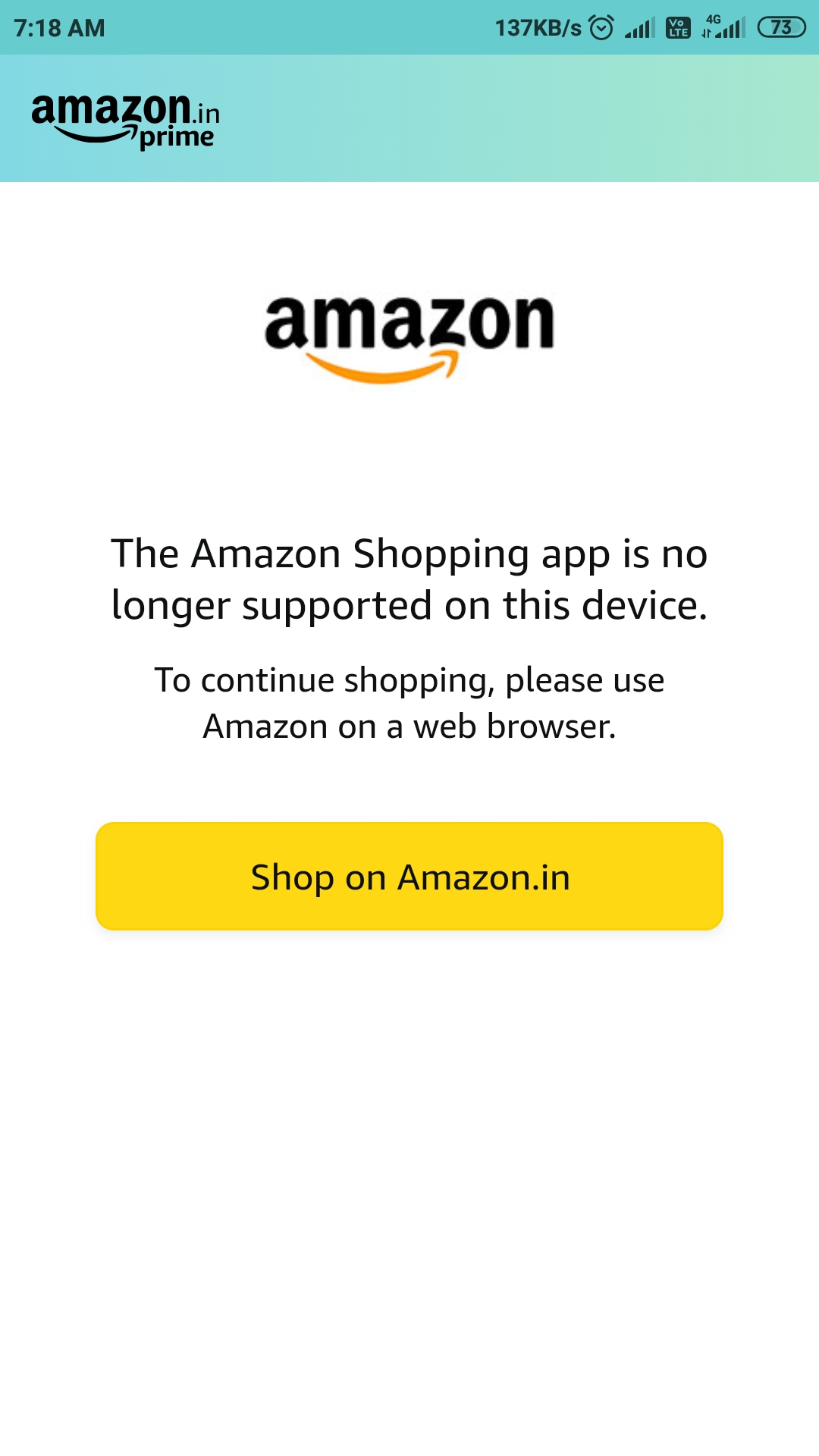
Credit: in.amazonforum.com
Preventing Future Amazon App Problems
Solving the issue is good, but preventing it is even better. Here’s how to reduce the chance of future app failures:
1. Keep Your App Updated
Enable auto-update in your app store settings.
2. Update Your Device Regularly
New operating systems fix bugs and improve security.
3. Manage Device Storage
Keep at least 1 GB free for smooth app performance.
4. Avoid Unofficial App Stores
Always download from the official App Store or Google Play Store.
5. Don’t Use Unsupported Vpns Or Proxies
Amazon may block suspicious connections.
6. Sign Out When Not Using Shared Devices
Prevents account conflicts or accidental changes.
7. Monitor Your Account For Unusual Activity
Amazon may lock your account if they detect strange logins.
Non-obvious tip: Many users forget to update their payment methods after card expirations. Keeping your payment info current prevents checkout errors.
When To Contact Amazon Customer Support
Sometimes, the problem is too complex or is on Amazon’s side. Here’s when you should reach out:
- The app is updated, your device works fine, but nothing solves the problem.
- You see error codes like CS11, CS1, or 5004 repeatedly.
- Your account is locked, and password resets don’t work.
- Orders, payments, or gift cards are missing.
- The app crashes on every device you try.
To contact support, open the app menu, scroll to “Customer Service,” and choose your issue. Or visit the Amazon help site via browser.
Tip: Provide screenshots and device details. This helps Amazon solve your issue faster.
How Amazon App Issues Affect Shopping Behavior
Technical problems do more than cause frustration. They can impact your ability to shop, track orders, or use Prime benefits. Here’s some data:
- 74% of users say they abandon their cart if the app crashes during checkout.
- 61% will switch to another retailer if they can’t log in.
- 39% feel less trust in Amazon after repeated app issues.
This shows the importance of keeping the app working smoothly—not just for shopping, but for maintaining trust.
Real-world Example: App Outage Impact
In December 2021, a global Amazon app outage affected millions. According to reports, users in the US, UK, and India couldn’t log in or place orders for over an hour. Businesses relying on Amazon for sales reported a 25% drop in orders during that time.
Lesson: Even big companies face technical problems. The best approach is to stay calm, try the solutions above, and check if it’s a widespread outage.
Data Table: Amazon App Error Codes
Some errors come with codes. Here’s what the most common ones mean:
| Error Code | What It Means | Solution |
|---|---|---|
| CS11 | Network or server issue | Switch networks, wait, try again later |
| CS1 | Account sync problem | Log out and log in, update app |
| 5004 | App failed to start | Update app, clear cache/data |
| 3565 | Payment declined | Check payment info, try new card |
| 9074 | Device not supported | Install latest OS, try different device |
If you see an error code, search for it on Amazon’s official help pages for the latest advice.
Comparing Amazon App Vs. Website: Which Is More Reliable?
Some users ask if they should just use the website instead of the app. Here’s a quick comparison:
| Feature | Amazon App | Amazon Website |
|---|---|---|
| Speed | Faster for browsing | Slower on mobile browsers |
| Notifications | Push alerts for deals/orders | No notifications |
| Reliability | Occasional app crashes | Rarely crashes |
| Features | Barcode scanner, 1-click buy | Full account settings |
| Security | Secure if updated | Secure, less device access needed |
Insight: The app is faster and more convenient, but if you face constant problems, try switching to the mobile website for critical tasks.
Non-obvious Insights For Amazon App Users
1. Device Time And Date Settings Matter
If your device’s clock is wrong, the Amazon app can refuse to log in or show errors. Always keep your time settings automatic.
2. Background Data Restrictions Cause Silent Failures
On Android, restricting background data for the Amazon app can prevent syncing, notifications, and even login. Go to Settings > Apps > Amazon Shopping > Data usage, and allow background data.
These small settings are often overlooked but can make a big difference in how the app functions.
What To Do During Major Amazon Outages
Sometimes, the issue is out of your control. When millions are affected, here’s how to stay informed:
- Check social media for trending reports. Search “Amazon app down.”
- Visit DownDetector for outage maps and live updates.
- Try the website instead of the app.
- Wait for Amazon’s official announcements, usually posted on their Twitter or help pages.
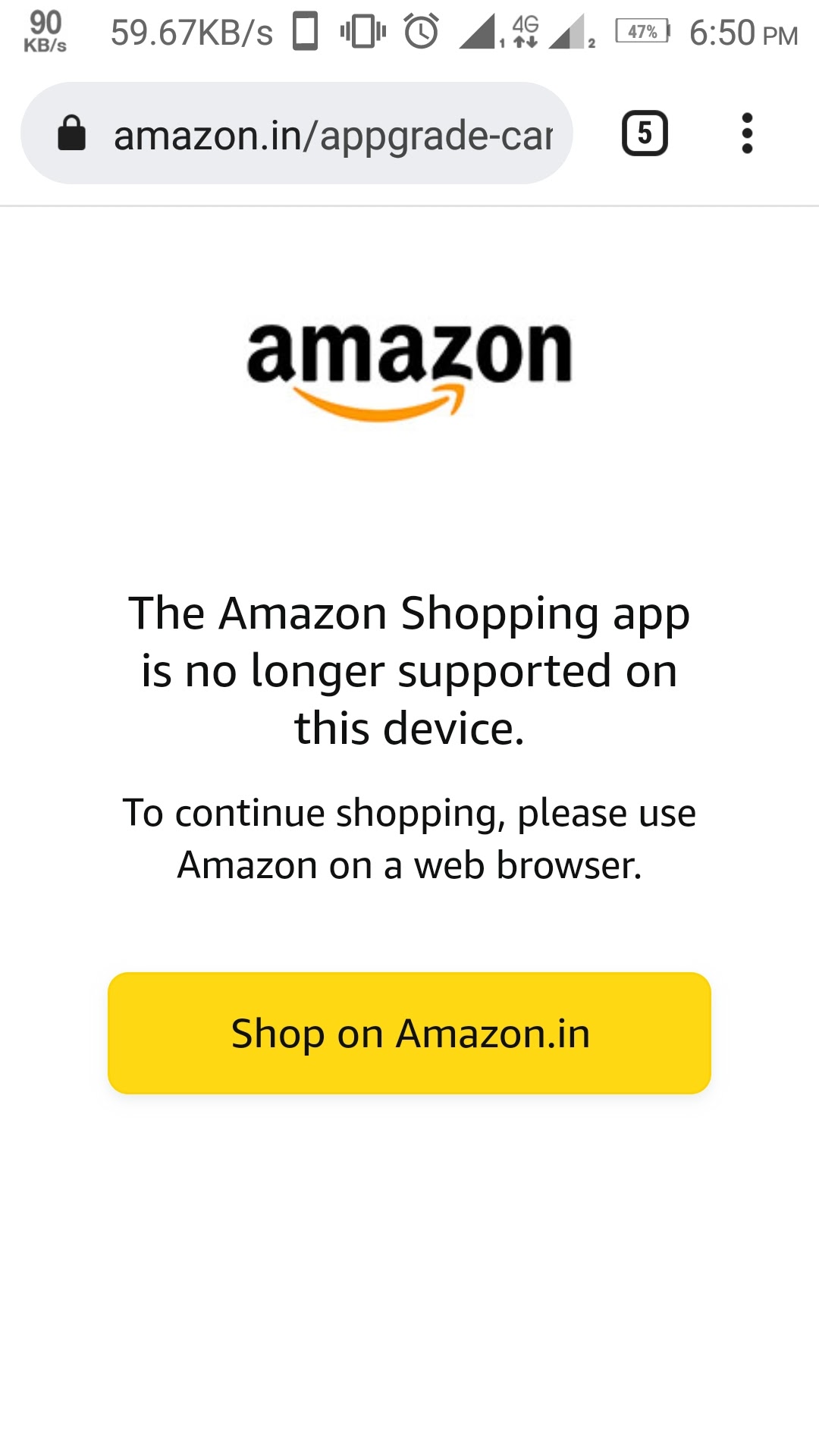
Credit: support.google.com
Tips For International Users
If you’re outside the US, you may face extra problems:
- App updates are often delayed in some countries.
- Content and features vary by region.
- Payment methods can be limited.
- Language settings may reset after updates.
Set your country and language correctly in the app settings. If possible, use local payment options to avoid rejection.
Security And Privacy Concerns
A non-working app can sometimes be a sign of a security issue:
- If you get messages about unknown devices or locations, change your password immediately.
- Never share your account details via email or chat.
- Only download the app from official stores.
Check for recent devices in Account > Login & Security > Manage Devices. Remove any you don’t recognize.

Credit: www.youtube.com
How Amazon Handles App Bugs
Amazon’s developer team releases updates regularly. Each update fixes known bugs and sometimes introduces new features. After a major app update:
- Wait a day or two if you notice new bugs. Quick patches are often released.
- Report bugs via app feedback: Menu > Customer Service > Contact Us > App Feedback.
Amazon uses user reports and crash data to prioritize fixes, so your feedback matters.
Essential Checklist For A Healthy Amazon App
Keep your app running smoothly by following this checklist:
- [ ] App is updated to latest version
- [ ] Device operating system is current
- [ ] Storage space is available (at least 1 GB)
- [ ] Internet connection is stable
- [ ] Notifications are enabled
- [ ] Payment methods are valid
- [ ] Account details are correct
- [ ] No VPN or proxy in use
Check these every few months, especially after major device or app updates.
Frequently Asked Questions
Why Does My Amazon App Keep Crashing?
The most common reasons are outdated app versions, low device storage, or operating system compatibility issues. Try updating the app, freeing up storage, and restarting your device. If crashes continue, uninstall and reinstall the app.
How Do I Fix Amazon App Login Problems?
First, double-check your email and password. If you still can’t log in, reset your password, and check for any emails from Amazon about account issues. Make sure your device’s time and date are correct. If you use two-factor authentication, ensure you enter the right code.
What Should I Do If The Amazon App Shows A Blank Screen?
Update the app, clear cache and data (on Android), and switch between Wi-Fi and mobile data. If using a VPN, disable it. Set your country and language in app settings. If the problem persists, try using the Amazon website.
Can I Use The Amazon Website Instead Of The App?
Yes, the website is a full alternative and rarely has the same technical issues as the app. You can order, track shipments, and manage your account via the mobile browser if the app isn’t working.
How Do I Contact Amazon Support If The App Is Not Working?
Visit the Amazon help center at Amazon Help using a browser. You can chat, call, or email support. Provide your device details and describe the problem for faster help.
A non-working Amazon app can be annoying, but with the right steps, you can usually fix it fast. From simple restarts to advanced troubleshooting, this guide gives you everything you need to get back to shopping, tracking, and enjoying your Amazon experience. If all else fails, remember: the website and customer support are always there to help.