Skullcandy wireless headphones offer impressive sound, cool designs, and the freedom to move without wires. But even the best headphones sometimes need a reset. Maybe your music cuts out, the Bluetooth won’t connect, or the LED light won’t turn off.
Don’t worry—these problems are common, and knowing how to reset Skullcandy wireless headphones can save you a lot of frustration.
Many users believe a reset is only for fixing major issues. In fact, a reset can solve small glitches before they become bigger problems. It’s a simple process, but each Skullcandy model is a bit different. Some people try random button presses and hope for the best, but that rarely works.
If you want to keep your headphones working well, learning the proper reset steps is essential.
This guide will walk you through everything you need to know about resetting Skullcandy wireless headphones. You’ll learn why resets matter, how to reset different models, what to do if the reset fails, and tips for avoiding problems in the future.
Real examples, data, and clear instructions will help you solve issues—no tech degree required.
Why Resetting Skullcandy Wireless Headphones Matters
Resetting your headphones isn’t just about fixing things when they’re broken. It’s also a smart way to keep your device running smoothly. Most wireless headphones, including Skullcandy, use small computers inside to manage Bluetooth, controls, and sound. Like any computer, they sometimes get stuck or confused.
Here are the main reasons users need to reset Skullcandy headphones:
- Bluetooth connection problems. Your headphones won’t pair or stay connected.
- Audio cutting out. Sound drops or skips, even with a full battery.
- Buttons not working. The volume or power buttons are unresponsive.
- LED lights acting strange. The light stays on, flashes, or won’t turn off.
- Stuck in pairing mode. Headphones can’t exit pairing mode.
A reset clears the memory that stores current connections and settings. This brings your headphones back to their default state, which often solves many problems in one step.
When Should You Reset?
- After updating your device’s operating system (iOS, Android, Windows)
- If you connect to a new phone or computer
- When you notice new problems after charging
- Before selling or giving away your headphones
Resetting is safe. It does not delete permanent features or break your headphones. It simply erases temporary data like old Bluetooth pairings.
Common Skullcandy Wireless Headphone Models
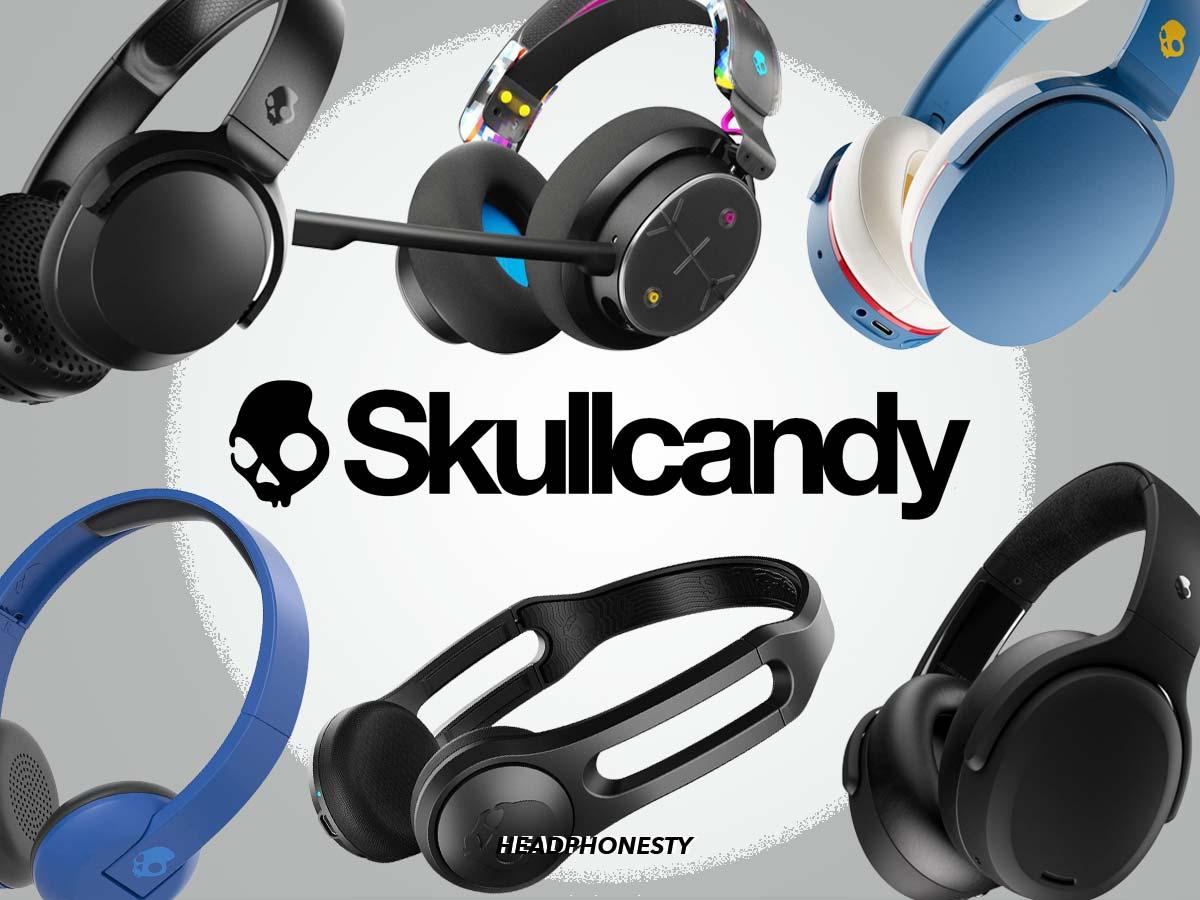
Skullcandy offers a variety of wireless headphones, each with unique features and controls. Understanding your specific model helps you follow the right reset steps.
Here’s a look at the most popular Skullcandy wireless headphone models:
| Model | Type | Main Features |
|---|---|---|
| Crusher Evo | Over-ear | Adjustable bass, long battery life |
| Hesh ANC | Over-ear | Active noise canceling, rapid charge |
| Venue | Over-ear | Noise canceling, Tile tracker |
| Crusher Wireless | Over-ear | Haptic bass, 40-hour battery |
| Riff Wireless | On-ear | Lightweight, quick charge |
| Uproar Wireless | On-ear | Simple controls, affordable |
Each model’s reset process is a bit different, especially for headphones with extra features like noise canceling or adjustable bass.
Over-ear Vs. On-ear Vs. In-ear
- Over-ear models cover your whole ear. They usually have more buttons and features.
- On-ear models rest on your ear. They’re lighter but have fewer controls.
- In-ear (earbuds) fit inside the ear canal. They often use touch controls.
Knowing your model type helps you find the right reset instructions. If you’re not sure, check the product name on the headband or look at your original packaging.

Credit: angradoheroismo.pt
How To Reset Skullcandy Wireless Headphones: Step-by-step
Resetting your headphones is simple if you follow the correct steps for your model. Below are the most common reset methods for popular Skullcandy wireless headphones.
1. Resetting Skullcandy Crusher Evo
The Crusher Evo is one of Skullcandy’s top-selling models. It features adjustable bass sliders and long battery life. Users often report Bluetooth issues or the headset not turning off.
Steps to reset:
- Turn off the headphones.
- Press and hold the Volume Up and Volume Down buttons together.
- Continue holding both buttons for about 4 seconds.
- The LED light will blink, and you’ll hear a tone. This means the reset is complete.
- Turn the headphones on and pair with your device again.
This method clears all paired devices and resets the controls to default.
2. Resetting Skullcandy Hesh Anc
The Hesh ANC is known for its active noise canceling. Sometimes, users have trouble switching between devices or with the noise canceling function.
Steps to reset:
- Power off the headphones completely.
- Press and hold the Power and Volume Up buttons for 10 seconds.
- Release the buttons when the LED flashes red and blue.
- The headphones are now reset and ready to pair again.
If the headphones don’t reset, make sure they are fully charged before trying again.
3. Resetting Skullcandy Venue
The Venue model includes both noise canceling and a Tile tracker. Resetting can solve pairing or tracking issues.
Steps to reset:
- Turn the headphones off.
- Hold down the Power button and the ANC (Active Noise Canceling) button together for 10 seconds.
- Watch for the LED to blink, signaling a reset.
- Release the buttons and power on the headphones.
After resetting, you’ll need to reconnect your Bluetooth devices and re-enable Tile tracking if needed.
4. Resetting Skullcandy Crusher Wireless
The Crusher Wireless is another fan favorite, especially for bass lovers.
Steps to reset:
- Turn off the headphones.
- Press and hold the Volume Up and Volume Down buttons for 5 seconds.
- The LED will flash, confirming the reset.
- Power on and re-pair with your device.
5. Resetting Skullcandy Riff Wireless
The Riff Wireless is lightweight and simple. Problems usually involve pairing or charging.
Steps to reset:
- Power off the headphones.
- Hold the Power button for 10 seconds.
- Release when the LED flashes.
- The headphones are now reset.
6. Resetting Skullcandy Uproar Wireless
The Uproar Wireless is affordable and has straightforward controls.
Steps to reset:
- Power off the headphones.
- Press and hold the Volume Up and Volume Down buttons at the same time for 5 seconds.
- Watch for a blinking light to confirm reset.
- Pair with your device again.
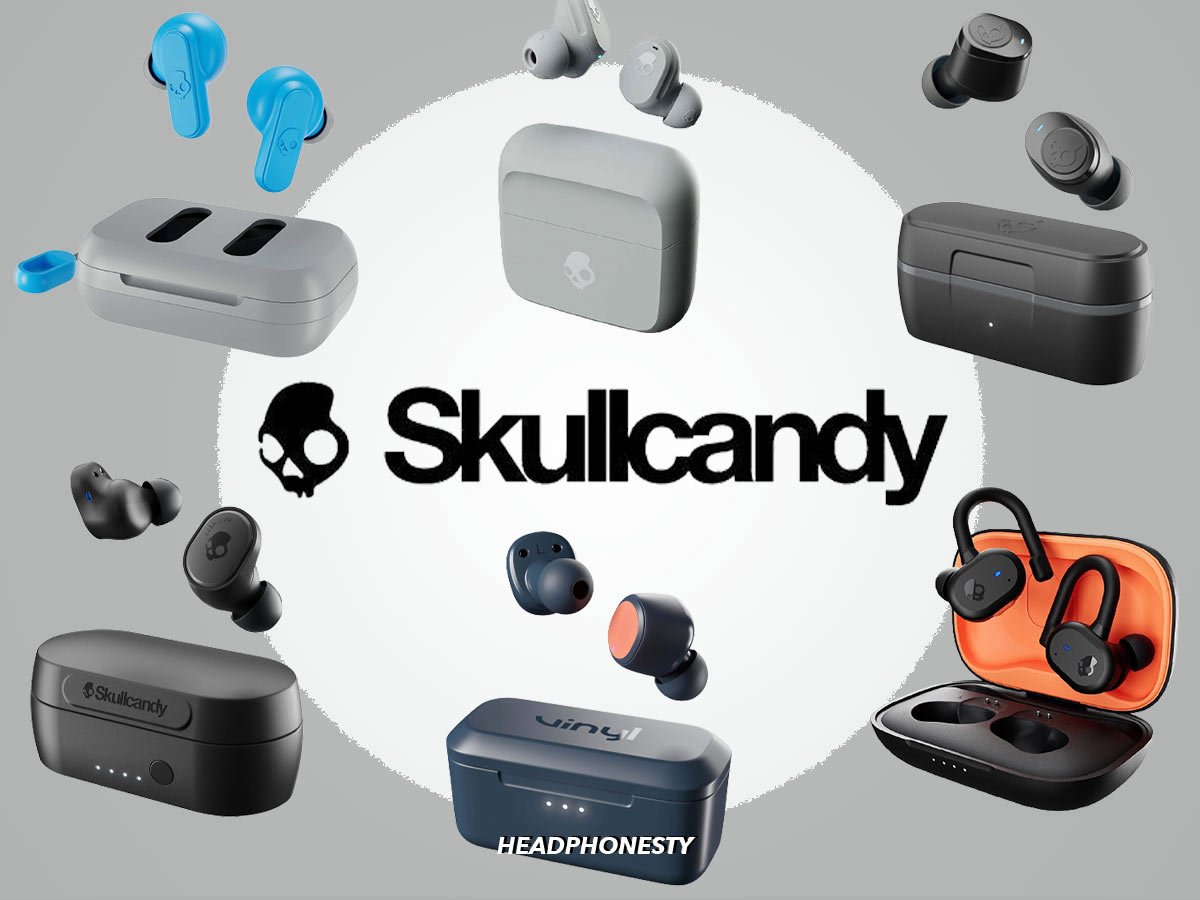
7. Resetting Skullcandy Indy And Push Earbuds
While this guide focuses on headphones, many people also use Skullcandy’s wireless earbuds. The reset process is similar but involves the charging case.
General steps:
- Remove both earbuds from the case.
- Turn off the earbuds manually (hold the power button or touch surface).
- Press and hold both earbuds’ buttons for 10 seconds.
- Return the earbuds to the charging case.
- Remove and pair with your device again.
Non-obvious insight: For Skullcandy earbuds, make sure your phone’s Bluetooth is off during the reset. This prevents the earbuds from automatically reconnecting and interfering with the reset process.
Table: Quick Reset Reference For Popular Models
For fast troubleshooting, here’s a summary of reset methods for the most-used Skullcandy wireless headphones.
| Model | Reset Button(s) | Hold Time | LED Response |
|---|---|---|---|
| Crusher Evo | Volume Up + Volume Down | 4 sec | Blinks, tone |
| Hesh ANC | Power + Volume Up | 10 sec | Red/blue flash |
| Venue | Power + ANC | 10 sec | Blinks |
| Crusher Wireless | Volume Up + Volume Down | 5 sec | Flashes |
| Riff Wireless | Power | 10 sec | Flashes |
| Uproar Wireless | Volume Up + Volume Down | 5 sec | Blinks |
Refer to your model’s manual or the Skullcandy support website if you don’t see your device here.
Credit: www.headphonesty.com
What To Do If Resetting Doesn’t Work
Sometimes, a reset won’t solve the problem. If your Skullcandy headphones still won’t connect or power on after a reset, try these steps:
1. Charge Fully
A low battery can stop the reset process. Make sure your headphones are charged for at least 30 minutes before trying again.
2. Remove Old Pairings
Go to your phone or computer’s Bluetooth settings and “forget” or remove the headphones from the device list. Then try pairing again after the reset.
3. Update Firmware
Some models allow firmware updates through the Skullcandy app or website. Updating can fix bugs that a reset won’t solve.
4. Clean The Buttons
Dirt or sweat can block buttons, stopping the reset. Wipe your headphones with a dry cloth, especially around the controls.
5. Check For Physical Damage
If your headphones have been dropped or got wet, internal damage might prevent a reset. In this case, contact Skullcandy support.
Pro tip: Always reset your headphones away from other Bluetooth devices to avoid interference. This is a common mistake—if your headphones keep trying to pair with an old device nearby, the reset might not work as planned.
How To Avoid Needing Frequent Resets
While resetting is easy, it’s better not to need it often. Here’s how to keep your Skullcandy headphones working smoothly:
- Keep firmware updated. Check for updates every few months.
- Charge regularly. Avoid letting the battery drop to 0% often.
- Disconnect properly. Turn off Bluetooth on your device when not in use.
- Store safely. Use a case and keep headphones dry.
- Clean gently. Remove sweat and dust from buttons and ear pads.
Regular care helps prevent software glitches and keeps your headphones lasting longer.
Advanced Troubleshooting: Common Problems And Solutions
Sometimes, you need more than a simple reset. Here are some common problems users face, and what you can do:
Bluetooth Won’t Connect
- Make sure Bluetooth is enabled on your device.
- Move closer to your device (less than 10 feet is best).
- Turn both your headphones and device off, then on again.
- Remove other paired devices nearby.
One Side Not Working
This is often a hardware issue, but try resetting and cleaning the jack or charging port. For wireless earbuds, make sure both are properly seated in the charging case.
Audio Delay Or Lag
Wireless headphones can have a slight delay, especially with videos. Resetting won’t fix this, but updating your device’s Bluetooth drivers can help.
Headphones Not Charging
- Use the original charging cable if possible.
- Clean the charging port gently.
- Try a different USB charger or port.
Buttons Stuck Or Not Responding
- Check for debris or sticky residue.
- Reset the headphones.
- If the problem continues, contact support.
Table: Comparison Of Skullcandy Reset Methods Vs. Other Brands
Skullcandy’s reset process is simple compared to many other wireless headphone brands. Here’s how it stacks up:
| Brand | Typical Reset Method | Average Time | Special Tools Needed? |
|---|---|---|---|
| Skullcandy | Button press combination | 5-10 sec | No |
| Sony | Power + Volume Down | 10 sec | No |
| Bose | Slide switch, wait 30 sec | 30 sec | No |
| Beats | Hold Power + Volume Down | 10 sec | No |
| JBL | Power + Volume Up | 15 sec | No |
Skullcandy’s resets are among the fastest and most user-friendly. No special tools or apps are needed.
Resetting Wireless Earbuds Vs. Headphones: Key Differences
Wireless earbuds, like the Skullcandy Indy or Push series, are reset differently from over-ear or on-ear headphones.
Earbuds often require:
- Using the charging case for resets
- Touch controls instead of physical buttons
- Both earbuds to be reset together
Headphones typically use:
- Button combinations on the ear cups
- No need for a charging case
If you own both types, remember that the reset steps are not interchangeable. Always check your model’s manual or the official Skullcandy website for details.
Non-obvious insight: If you use earbuds and only one side is working, reset both earbuds—even if only one seems broken. Pairing problems often affect both sides.
How To Know If Your Reset Worked
After resetting, your Skullcandy headphones should show clear signs:
- LED light blinks or flashes in a new pattern.
- Headphones say “Pairing” or “Ready to Pair.”
- All previous devices are forgotten—you’ll need to pair again.
- Buttons respond normally.
If you don’t see these signs, try the reset again. If it still doesn’t work, check the troubleshooting tips above.
Credit: www.headphonesty.com
When To Contact Skullcandy Support
If your headphones are still not working after several reset attempts and troubleshooting, it may be time for expert help. Skullcandy offers a warranty (usually 1–2 years) and supports most issues, including:
- Headphones not powering on
- Damaged charging ports
- Persistent connection problems
- Faulty buttons or controls
You’ll need your product’s serial number and proof of purchase for warranty claims. Visit the official Skullcandy Support page for detailed instructions.
Real-life Examples: Reset Success Stories
1. Bluetooth Refuses To Connect
Sarah had used her Skullcandy Crusher Evo for months without a problem. Suddenly, the headphones wouldn’t connect to her laptop. She tried restarting, but nothing worked. After following the reset steps (holding Volume Up and Down for 4 seconds), the headphones paired instantly.
2. Stuck In Pairing Mode
John’s Hesh ANC kept flashing blue and red, never connecting to his phone. He performed the reset by holding Power and Volume Up for 10 seconds. The lights returned to normal, and he could finally listen to music again.
3. One Side Not Working
Maria’s Indy earbuds only played sound on the right side. She reset both earbuds together using the charging case method, and the problem disappeared.
Pro tip: If a reset solves your problem, remember to re-pair your headphones with every device you use—phones, laptops, tablets—since all old connections are erased.
Myths And Mistakes About Resetting Skullcandy Headphones
Many people believe that resetting headphones is risky or will erase everything. Here are some common myths:
- Myth: Resets delete all settings.
Truth: Only temporary Bluetooth pairings are erased. Permanent features and firmware remain.
- Myth: You must use the app to reset.
Truth: Most resets use button combinations. The app is only needed for firmware updates.
- Myth: Resetting harms the battery.
Truth: Resets don’t affect battery life or charging.
- Mistake: Holding the wrong buttons.
Tip: Always double-check your model’s reset method.
- Mistake: Trying to reset with headphones plugged in.
Tip: Reset with the charging cable unplugged for best results.
If you’re ever unsure, look up your model on the Skullcandy website or contact support for the right instructions.
The Future Of Wireless Headphone Resets
Wireless technology is always improving. In the future, resets might be done using smartphone apps, voice commands, or even automatic self-healing software. For now, manual button combinations are still the safest and most reliable option.
Some brands are developing “smart resets” that detect problems and offer guided solutions. Until these features are standard, knowing how to reset your Skullcandy headphones gives you control and peace of mind.
Final Thoughts
Learning how to reset Skullcandy wireless headphones is a simple but powerful skill. It can fix most problems—like Bluetooth issues, unresponsive buttons, and strange LED lights—without needing tech support. The key is knowing your exact model and following the right steps.
If a reset doesn’t work, proper troubleshooting and care usually solve the rest. And if you ever need more help, Skullcandy’s support is easy to reach.
With regular updates, gentle cleaning, and proper storage, you’ll avoid most common problems. But when glitches do happen, a quick reset is often all it takes to get back to your music, podcasts, or calls—fast.
Frequently Asked Questions
How Do I Know When My Skullcandy Headphones Need To Be Reset?
Common signs are Bluetooth not connecting, buttons not responding, or the LED light acting strange. If your headphones suddenly stop working like they used to, a reset is a good first step.
Will Resetting My Skullcandy Headphones Delete My Saved Settings?
No, a reset only erases temporary Bluetooth pairings and minor glitches. Your volume preferences, firmware, and main features will stay the same.
Can I Reset My Skullcandy Headphones Using The Skullcandy App?
Most resets are done with button combinations on the headphones themselves. The app is only needed for firmware updates or advanced features, not for standard resets.
What Should I Do If My Headphones Still Don’t Work After A Reset?
Try charging fully, removing old Bluetooth pairings from your device, and cleaning the buttons. If these steps don’t help, contact Skullcandy support for further help.
Is It Safe To Reset My Headphones Often?
Yes, resetting is safe and does not harm your headphones. If you need to reset very often, however, it may signal a bigger issue—consider checking for updates or contacting support.
For more details on Bluetooth and wireless technology, you can check the Wikipedia page on wireless headphones.
With this guide, you’re ready to keep your Skullcandy wireless headphones working their best—no matter what problems come your way.