Every parent or digital wellbeing enthusiast knows the mixed emotions of managing screen time on iPhones or iPads. You set up Screen Time hoping for peace of mind. You expect certain apps to be blocked at bedtime or after the daily limit. But sometimes, an app slips through. Your child is still scrolling through social media, or you find yourself binge-watching videos late at night, even though you thought you set strict app limits. Why does this happen? Is it a bug, a loophole, or just a misconfiguration? This article digs deep into why an app is not blocked by Screen Time, how the system works, and what you can do to fix it for good.
How Screen Time Works: The Basics
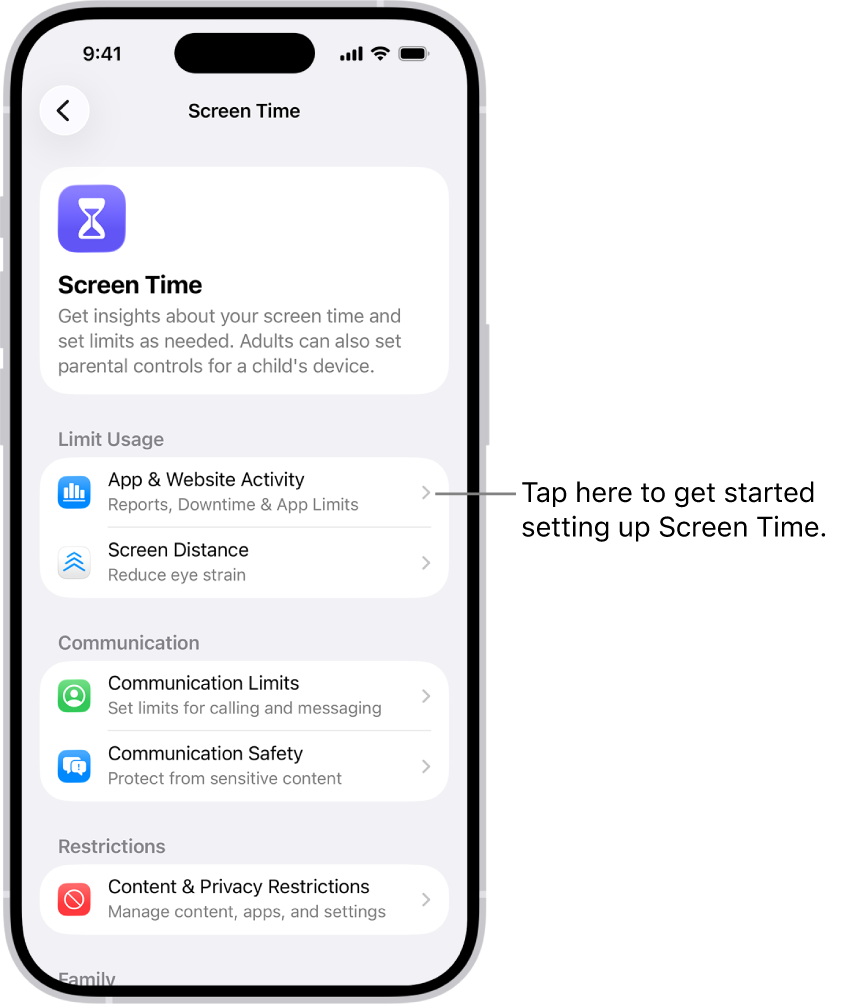
Screen Time is Apple’s built-in tool for managing device usage. Available on iPhones, iPads, and Macs, it lets users set daily app limits, downtime schedules, content restrictions, and monitor usage statistics. Parents use it to protect children. Adults use it to boost productivity or reduce distractions.
When you set a limit, Screen Time tracks how long you use a specific app or category. Once you reach your limit, the app icon turns gray, and a message appears: “You’ve reached your limit on [App Name].” But sometimes, the block does not work as expected. Understanding the foundation is key before troubleshooting.
Key Features Of Screen Time
- App Limits: Set daily usage limits for specific apps or app categories (e.g., social, games).
- Downtime: Schedule periods when only selected apps (e.g., Phone, Messages) are available.
- Always Allowed: Choose apps that can be used even during Downtime or after app limits are reached.
- Content & Privacy Restrictions: Restrict explicit content, purchases, and privacy settings.
Screen Time works by monitoring app launches, tracking time, and enforcing restrictions based on your settings.
Common Reasons Apps Are Not Blocked
If you notice that an app is not blocked by Screen Time as expected, several reasons might be at play. Let’s break down the most frequent causes.
1. App Is In Always Allowed List
The Always Allowed list is a special Screen Time setting. Any app included here remains available, even during Downtime or after reaching an app limit. By default, apps like Phone and Messages are always allowed. Parents sometimes add other apps for convenience, like educational tools or emergency contacts.
Example: If YouTube is in the Always Allowed list, it will not be blocked even if you set a daily limit or enable Downtime.
What to do: Check your Always Allowed settings and remove apps that should be blocked.
2. App Belongs To Multiple Categories
Screen Time lets you set limits by category (e.g., Social Networking, Games) or by individual app. Some apps fit into more than one category or may appear under different names.
Example: Facebook Messenger might appear under both Social Networking and Productivity, depending on how the app is classified.
What to do: Set limits both by category and by individual app to be sure the restriction applies.
3. App Name Or Icon Changes
Some apps update frequently. If the developer changes the app’s name or bundle identifier, Screen Time may not track it as the same app.
Example: TikTok rebrands or launches a separate app for a specific region. The new app version may bypass previous Screen Time rules.
What to do: After app updates, check your Screen Time settings and re-add any apps that should be blocked.
4. App Is A Web Shortcut
Websites added to the Home Screen look like apps but are actually Safari shortcuts. Screen Time sometimes misses these because it tracks apps, not bookmarks.
Example: A child adds YouTube.com to the Home Screen. The shortcut opens in Safari, not the official YouTube app, and skips app limits.
What to do: Use Content & Privacy Restrictions to block access to certain websites and the Safari browser if needed.
5. System Or App Bugs
Rarely, a bug in iOS or the app itself might let usage slip past Screen Time controls. For example, some older iOS versions allowed users to bypass limits with certain actions.
Example: Quitting and relaunching an app, or changing the device clock, might reset the usage counter (though Apple has fixed most of these loopholes).
What to do: Keep your device updated to the latest iOS version, and report issues to Apple if you spot a persistent bug.
6. Device Syncing And Shared Screen Time
Families often use multiple devices with one Apple ID, or Family Sharing. If Screen Time is not set up correctly across all devices, limits might not sync.
Example: A child uses an iPad and an iPhone. Only the iPhone has app limits. They use the iPad to bypass restrictions.
What to do: Set up Screen Time with Family Sharing and make sure all devices are configured to share settings.
7. Incorrect Time Zone Or Clock Settings
Screen Time uses the device clock to track limits and Downtime. If the time zone is wrong or the clock is changed, limits may not activate at the right time.
Example: Changing the time zone to a region several hours earlier can effectively “reset” Downtime or app limits.
What to do: Set the clock to update automatically and restrict time/date changes in Content & Privacy Restrictions.
Credit: support.apple.com
How To Check Which Apps Are Not Blocked
If you suspect an app is not blocked by Screen Time, you need a systematic way to check. Here’s a step-by-step guide.
- Review Screen Time Reports: Open Settings > Screen Time > See All Activity. Look for apps with high usage that should be limited.
- Test Downtime and App Limits: Set a very short limit (e.g., 1 minute) for a target app. Try to open it after reaching the limit.
- Check Always Allowed List: Go to Settings > Screen Time > Always Allowed. Remove any app that should be blocked.
- Review All Devices: If you use Family Sharing, check Screen Time settings on every device.
- Look for Web Shortcuts: Check if any app-like icons on the Home Screen are really web bookmarks.
This process helps you spot loopholes or misconfigurations.
Real-world Examples And Case Studies
To make these issues more concrete, here are a few anonymized real-life scenarios.
Case 1: The Snapchat Loophole
A parent set a 15-minute daily limit for Snapchat. But her teenager still used the app for hours. After digging, she found Snapchat was in the Always Allowed list, added months earlier for a family emergency. Once removed, the limit worked.
Case 2: The Safari Shortcut Trick
A middle school student wanted unlimited TikTok. He created a Home Screen shortcut to TikTok.com, bypassing the app’s Screen Time limit. His parent blocked the official app, but forgot about Safari access. The fix: block TikTok.com and restrict Safari during Downtime.
Case 3: Limit Not Syncing Across Devices
A family with three iPads and one iPhone set Screen Time for the iPhone only. The child switched to an iPad to keep playing games. Solution: set up Family Sharing and match Screen Time settings on all devices.
These stories show how easy it is to miss a detail that gives apps a pass through Screen Time.
How To Fix Apps Not Blocked By Screen Time
If you find that an app is not blocked by Screen Time, follow these steps for a thorough fix.
1. Remove The App From Always Allowed
Go to Settings > Screen Time > Always Allowed. Tap the minus sign next to any app you want blocked. Only keep essential apps here.
2. Set Individual App Limits
Some apps are tricky to catch with category limits. Set individual limits by:
- Going to Screen Time > App Limits > Add Limit
- Selecting the specific app
- Choosing a daily limit
This ensures the app is always tracked, no matter the category.
3. Block Web Shortcuts And Websites
If someone uses a web shortcut, block the site:
- Settings > Screen Time > Content & Privacy Restrictions
- Content Restrictions > Web Content > Limit Adult Websites
- Under “Never Allow,” add the website URL
You can also block Safari completely during Downtime.
4. Update Ios And Apps
New iOS versions patch Screen Time loopholes and bugs. Go to Settings > General > Software Update and install the latest version.
5. Restrict Time And Date Changes
Stop anyone from resetting the clock:
- Settings > Screen Time > Content & Privacy Restrictions > Allow Changes > Passcode Changes
- Restrict “Date & Time” changes
Set “Set Automatically” for time and time zone.
6. Set Up Family Sharing
If your child uses multiple devices, use Family Sharing for Screen Time:
- Go to Settings > [Your Name] > Family Sharing > Screen Time
- Assign Screen Time controls for each child’s device
This syncs limits across all their devices.
7. Test Your Settings Regularly
Children and tech-savvy users can find new tricks. Periodically test your Screen Time setup by:
- Trying to access blocked apps and websites
- Checking Screen Time reports for unexpected usage
Stay one step ahead with regular reviews.
Comparison: Screen Time Vs Third-party Parental Controls
Many parents wonder if Apple’s Screen Time is enough, or if third-party apps are better. Here’s a simple comparison.
| Feature | Screen Time | Third-Party Apps |
|---|---|---|
| Built-in to iOS | Yes | No |
| Can Block Web Shortcuts | Partial | Yes |
| App Usage Reports | Yes | Yes, often more detailed |
| Custom Schedules | Basic | Advanced |
| Hard to Bypass | Good but not perfect | Often stronger |
| Monthly Cost | Free | Usually paid |
Screen Time is excellent for most families, but for advanced blocking and detailed reports, third-party tools like Qustodio or Net Nanny may help.

Credit: www.reddit.com
Unexpected Insights: What Most People Miss
Many users trust Screen Time completely after initial setup, but two less obvious issues can weaken its effectiveness.
1. App Updates Can Invalidate Limits: When an app updates with a new bundle ID or changes its category, Screen Time may lose track. Recheck limits after major app updates.
2. Cross-App Functionality Loopholes: Some services (like YouTube) work inside other apps (e.g., YouTube videos inside Safari or embedded in social apps). Blocking just one app might not stop all access. Consider broader web and app blocking when needed.
These “blind spots” explain why persistent users sometimes get around Screen Time.
Data: How Often Do Screen Time Blocks Fail?
Studies and surveys show that Screen Time is effective, but not perfect. According to a 2022 parental control survey by Common Sense Media:
- 73% of parents reported Screen Time worked well for basic app blocking.
- 27% found that their children bypassed limits at least once.
- The most common bypass methods were changing device time, using web shortcuts, and exploiting Always Allowed apps.
This data suggests most issues come from configuration errors or user tricks, not from technical faults.
Table: Most Common Screen Time Bypass Methods
Here is a summary of the most frequent ways users get around Screen Time app blocking:
| Bypass Method | How It Works | Prevention |
|---|---|---|
| Always Allowed List | App is added to Always Allowed | Review and remove non-essential apps |
| Web Shortcuts | Adding website shortcuts to Home Screen | Block websites and restrict Safari |
| Changing Device Time | Manual clock changes reset limits | Lock Date & Time settings |
| Untracked App Updates | App changes name or ID | Re-add app to Screen Time after updates |
| Multiple Devices | Switching devices with different settings | Enable Family Sharing for Screen Time |
Advanced Tips For Robust Screen Time Control
If you want to make Screen Time nearly foolproof, consider these advanced strategies.
Set A Strong Screen Time Passcode
Never share your Screen Time passcode with your child or anyone you do not trust. Use a unique, hard-to-guess code, not your device unlock PIN.
Restrict App Store And App Installation
If a child can install new apps, they may find untracked alternatives to blocked apps.
- Go to Settings > Screen Time > Content & Privacy Restrictions > iTunes & App Store Purchases
- Set “Installing Apps” to Don’t Allow
Hide Or Delete Problem Apps
If an app is not critical, delete it completely. Or, use App Library to hide it from the Home Screen.
Use Guided Access For Temporary Lockdown
Guided Access locks the device to a single app. Great for study time or when you want zero distractions.
- Triple-click the Home or Side button
- Select Guided Access
- Set a passcode to exit
Monitor Usage Reports Weekly
Set a reminder to review Screen Time reports every week. Look for unexpected usage spikes or new app installations.
Educate Your Child
Explain why limits are set. Kids are less likely to try bypasses if they understand the reason.
Backup And Audit Settings After Major Updates
IOS updates can reset or change Screen Time settings. After every major update, check all restrictions and limits.

Credit: www.reddit.com
When Screen Time Is Not Enough: Consider Alternatives
Screen Time is powerful but has limits. In some cases, especially with tech-savvy children or for business needs, you may need a stronger solution.
Third-party Parental Control Apps
Apps like Qustodio, Net Nanny, and Norton Family offer:
- App and website blocking
- Detailed usage history
- Location tracking
- Alerts and activity reports
These tools cost money but offer more control and are harder to bypass. For more information, see this Comprehensive Parental Controls Guide.
Router-based Controls
Your Wi-Fi router may allow device-level restrictions. You can block websites or apps for all devices on your network.
Device Management Systems (for Schools/businesses)
Organizations use Mobile Device Management (MDM) to lock down devices. This is overkill for most families, but useful for large groups.
Table: Apple Screen Time Vs Third-party Tools For Blocking Apps
Here’s a quick summary of how Screen Time compares to popular third-party solutions:
| Feature | Apple Screen Time | Qustodio | Net Nanny |
|---|---|---|---|
| Cost | Free | Paid | Paid |
| Blocks Apps | Yes | Yes | Yes |
| Blocks Web Shortcuts | Partial | Yes | Yes |
| Detailed Usage Reports | Basic | Advanced | Advanced |
| Cross-Device Sync | With Family Sharing | Yes | Yes |
| Bypass Resistance | Good | Very Strong | Very Strong |
For most families, Screen Time is enough if set up with care. For high-risk or tech-savvy users, third-party tools add extra layers.
What To Do If Nothing Works
If you have tried all these steps and an app is still not blocked by Screen Time, try these final measures:
- Restart your device to reset settings
- Reset all Screen Time settings and start fresh
- Contact Apple Support for technical help
- Try a third-party parental control app as a backup
Persistence is important. New iOS versions close loopholes, so stay up to date.
Key Takeaways
- Screen Time is powerful but not perfect. Most failures come from configuration gaps, not technical faults.
- Check Always Allowed, web shortcuts, device syncing, and time settings if an app is not blocked.
- Set individual app limits and use Family Sharing for multi-device households.
- Consider third-party tools if you need advanced blocking or reporting.
- Stay informed and review settings regularly to keep controls effective.
With careful setup and regular checks, you can trust Screen Time to block unwanted app use for yourself or your family.
Frequently Asked Questions
Why Is My Child’s App Not Blocked By Screen Time Even After Setting A Limit?
The most common reasons are the app being on the Always Allowed list, being accessed through a web shortcut, or settings not syncing across devices. Double-check all Screen Time settings and remove the app from Always Allowed.
Can Children Bypass Screen Time Limits Easily?
While Screen Time is strong, tech-savvy kids can sometimes bypass limits using tricks like changing the device clock, creating web shortcuts, or using another device. Regular monitoring and setting a passcode help prevent this.
Does Screen Time Block In-app Content Or Just The App Itself?
Screen Time blocks the app as a whole, not specific in-app features. For example, it can block the YouTube app, but not specific types of videos inside the app.
What Should I Do If Screen Time Is Not Working After An Ios Update?
Update your device to the latest iOS version, restart it, and review all Screen Time settings. IOS updates can reset or change some restrictions, so rechecking is important.
Are Third-party Parental Control Apps Better Than Screen Time?
Third-party apps offer more features and stronger blocking, especially for web content or advanced usage reports. But for most families, Screen Time is enough if set up carefully.
Managing digital life is an ongoing process. With the right strategy, Screen Time can be a reliable tool to protect your family or yourself from unwanted app distractions. If you stay alert for new loopholes and review your settings often, you will stay in control.