Struggling to Delete an App from Your iPad? Here’s How to Fix It
You try to remove an app from your iPad. You press and hold, expecting the familiar “x” to appear. But nothing happens. Or you tap delete, but the app remains stubbornly on your Home Screen. This issue is surprisingly common and can feel frustrating—especially if your iPad’s storage is almost full or you want to tidy up your device.
When an app won’t delete from your iPad, it’s rarely a sign of serious trouble. Most of the time, it’s due to simple settings, restrictions, or a minor software glitch. In this guide, you’ll learn why this happens, what steps you should take, and how to solve even the most stubborn cases. Whether you’re a parent managing a child’s device, a professional using a company iPad, or just cleaning up your apps, this article gives you clear, practical steps.
Let’s dive into the reasons your iPad might block app deletion, and more importantly, how to fix it.
Why Some Apps Won’t Delete From Your Ipad
You might wonder why deleting an app can sometimes be so hard. The answer depends on several factors, from device settings to app type.
App Restrictions And Parental Controls
One common cause is restrictions set on the device. Apple calls this Screen Time. If deleting apps is disabled here, you won’t see the delete option.
Built-in Or System Apps
Some apps come pre-installed with iOS or iPadOS. Examples include Safari, Messages, and Photos. Many of these cannot be removed, and some can only be removed in recent versions of iOS.
Device Management Profiles
If your iPad is managed by your school or company, it may have a Mobile Device Management (MDM) profile. These profiles can block app deletion or protect certain apps.
Software Glitches
Occasionally, a temporary glitch or update error can cause an app to stay stuck, even after you try to delete it.
App Is Still Downloading Or Updating
If an app is installing or updating, you cannot delete it until the process finishes or is interrupted.
Insufficient Permissions
If you’re not using an admin account on a shared iPad, you may not have permission to remove apps.
These are the main reasons. But don’t worry—almost all of them can be fixed with the right approach.
How Deleting Apps Works On The Ipad
Understanding how app deletion works can help you troubleshoot problems more easily.
When you delete an app on an iPad, you’re actually removing:
- The app itself
- All its data (unless it’s backed up in iCloud)
- Any related cache or temporary files
But you’re not deleting:
- The app from your Apple ID account (you can re-download it)
- Any purchases or subscriptions linked to the app
Here’s a quick overview of the normal process:
- Tap and hold the app icon until it jiggles.
- Tap the small “x” or “-“ in the upper corner.
- Tap Delete App to confirm.
If these steps fail, move to troubleshooting.
Quick Comparison: Deletable Vs Non-deletable Apps
To clarify which apps you can and cannot remove, here’s a comparison:
| App Type | Can Be Deleted? | Examples |
|---|---|---|
| Third-party Apps | Yes | Instagram, Netflix, Zoom |
| Most Apple Apps (iOS 12+) | Some | Mail, Music, Maps |
| Core System Apps | No | Settings, App Store, Safari* |
| MDM-Protected Apps | Depends | Company Portal, School Apps |
*Safari can be removed from Home Screen (iOS 16+), but not fully uninstalled.
Step-by-step Troubleshooting: App Not Deleting From Ipad
Let’s go through the solutions—from the simplest to the most advanced. Try them in order.
1. Make Sure You’re Deleting The Right Way
It may sound basic, but sometimes the process changes with iOS updates. Here’s how to delete an app correctly on most iPads:
- Tap and hold the app until a menu appears.
- Select Remove App.
- Tap Delete App to confirm.
If the app icon doesn’t jiggle or you don’t see the remove option, continue to the next steps.
2. Restart Your Ipad
A simple restart can clear temporary glitches.
- Hold the Top (Power) button until you see “slide to power off.”
- Slide to turn off.
- Wait 30 seconds, then turn back on.
Try deleting the app again.
3. Check For Downloading Or Updating Apps
If an app is waiting or loading, you can’t delete it until the process finishes or fails.
- Go to the App Store, tap your profile, and check for pending updates.
- If the app is stuck, tap to pause or cancel the download.
- Try deleting again.
4. Disable Restrictions (screen Time)
If you or someone else enabled restrictions, app deletion might be blocked.
- Go to Settings > Screen Time.
- Tap Content & Privacy Restrictions.
- Enter your Screen Time passcode if asked.
- Tap iTunes & App Store Purchases.
- Tap Deleting Apps and select Allow.
Try deleting the app now.
5. Remove Apps Via Settings
If you can’t delete from the Home Screen, try this method:
- Go to Settings > General > iPad Storage.
- Scroll to the app and tap it.
- Tap Delete App.
This removes the app and its data.
6. Check For Device Management Profiles
If your iPad is managed by your school or work, you may not be able to delete certain apps.
- Go to Settings > General > VPN & Device Management.
- Check for a profile under Device Management.
- If there’s a profile, it may restrict app deletion. Contact your IT administrator.
7. Update Ios/ipados
Sometimes, a software bug prevents app deletion. Update your device:
- Go to Settings > General > Software Update.
- Download and install any available updates.
- Try deleting the app again.
8. Sign Out And Back In To Apple Id
A rare glitch with your Apple ID can cause issues:
- Go to Settings > [your name] > Sign Out.
- Sign back in.
- Try deleting the app.
9. Reset Home Screen Layout
If the app icon is “ghosted” (gray and doesn’t respond), try resetting Home Screen layout:
- Go to Settings > General > Transfer or Reset iPad > Reset > Reset Home Screen Layout.
This won’t delete data but will rearrange app icons to default.
10. Force Delete With Storage Management Apps
Some third-party apps claim to help with stuck apps, but use caution. Apple doesn’t officially support these. When possible, stick with built-in tools.
Credit: www.idownloadblog.com
Common Scenarios And Their Fixes
Scenario: Can’t Delete A Built-in App
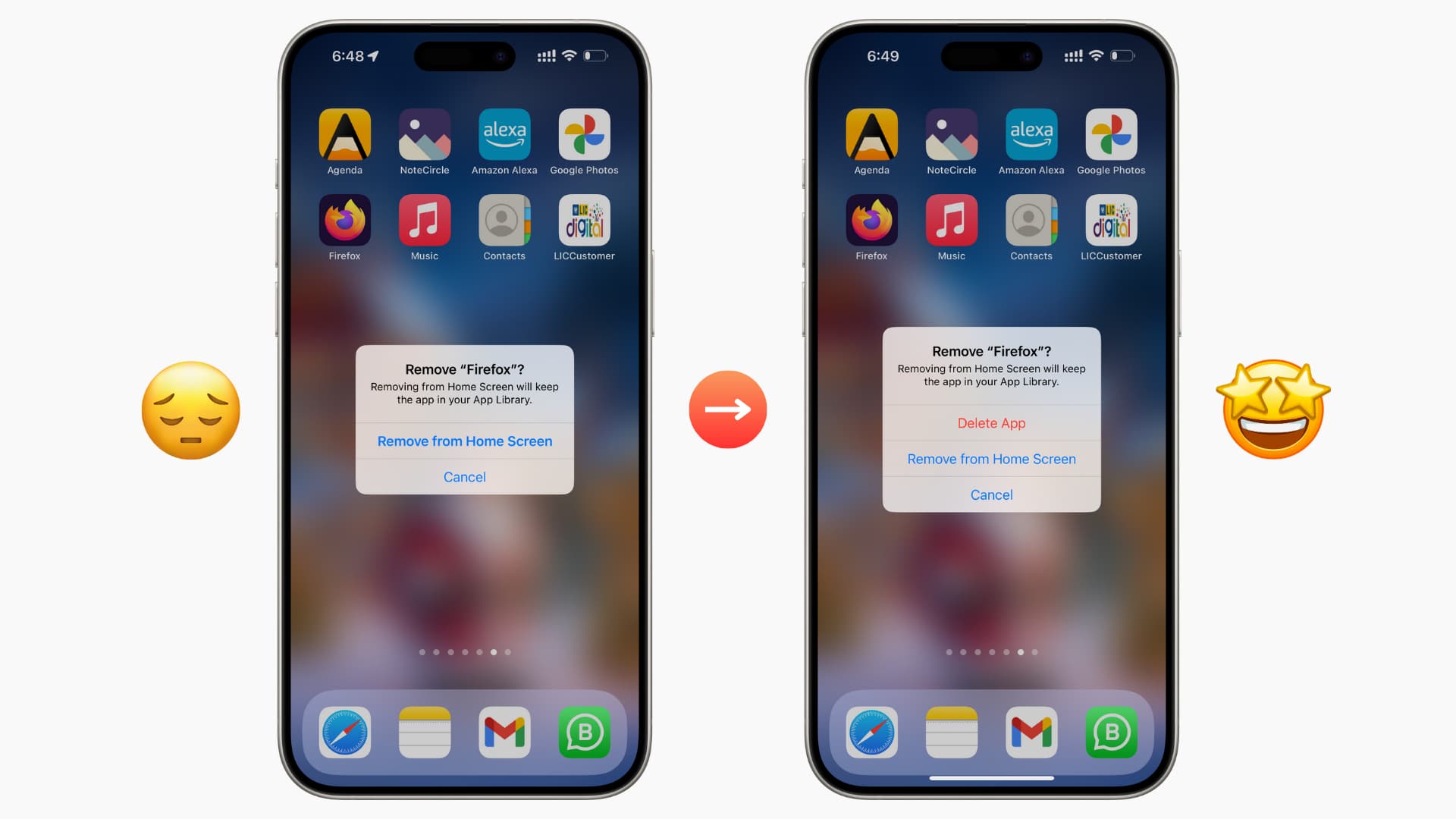
Many built-in apps (like Safari or Messages) are protected by the system. If you try to delete one and the option isn’t there, it’s normal. You can hide these from the Home Screen:
- Tap and hold the icon.
- Tap Remove App.
- Tap Remove from Home Screen.
The app is still on your device, but out of sight.
Scenario: App Is “stuck” (dimmed Or Waiting)
If an app is gray and says “Waiting,” it’s likely stuck during download or update. Try these steps:
- Make sure you’re connected to Wi-Fi.
- Tap the app to pause, then again to resume.
- If it doesn’t work, restart the iPad.
- Try deleting after the restart.
If it remains, go to Settings > General > iPad Storage and delete from there.
Scenario: Deleting Apps Is Grayed Out In Settings
If the delete option is grayed out in iPad Storage, you likely have restrictions or a device profile blocking the action. Check Screen Time and Device Management as described above.
Scenario: App Disappears But Comes Back
Sometimes, an app you delete reappears after restarting the iPad. This is usually a sign of:
- An MDM profile reinstalling the app automatically.
- ICloud backup restoring apps during a restore process.
Check for device management or recent restores.
Scenario: App Data Remains After Deletion
Normally, deleting an app removes its data. But if the app uses iCloud or another cloud service, data may remain linked to your account. To clear all data:
- Delete the app.
- Go to Settings > [your name] > iCloud > Manage Storage.
- Find the app and delete any leftover data.
Advanced Fixes For Stubborn Apps
If you’ve tried all the steps above and still can’t delete an app, here are more advanced solutions.
Offload Vs. Delete
iPadOS offers two options:
- Offload App: Removes the app, keeps data.
- Delete App: Removes app and data.
Go to Settings > General > iPad Storage, tap the app, and choose the option you want.
Reset All Settings
This won’t erase your data, but will reset Wi-Fi, layouts, and preferences.
- Go to Settings > General > Transfer or Reset iPad > Reset > Reset All Settings.
Try deleting the app after this step.
Erase All Content And Settings
This is the last resort. It erases everything and restores your iPad to factory condition. Make sure to backup important data first.
- Go to Settings > General > Transfer or Reset iPad > Erase All Content and Settings.
After setup, check if you can delete the app before restoring a backup.
Restore Ipad With Finder Or Itunes
If nothing else works, connect your iPad to a computer:
- Open Finder (Mac) or iTunes (Windows).
- Put your iPad into Recovery Mode.
- Choose Restore.
This wipes the device completely. Set it up as new to ensure no old profiles or settings remain.

Credit: discussions.apple.com
Real-world Examples And User Experiences
Many iPad users have faced the “app not deleting” issue. Here are some real scenarios and how they were resolved:
- A parent with Screen Time enabled: Their child’s iPad wouldn’t allow deleting games. The solution was to allow app deletion in Content & Privacy settings.
- A student with a school iPad: The school’s MDM profile kept reinstalling a test app. The IT department had to remove the restriction.
- A user with a stuck app after an update: The app was gray and wouldn’t open or delete. After updating iPadOS and restarting, the app could be deleted from Settings.
- Someone who tried a third-party cleaner app: It didn’t work and sometimes made things worse. Apple’s built-in tools were more reliable.
These examples show that most cases are solved with built-in settings—rarely does it require erasing your device.
How To Prevent App Deletion Problems In The Future
To avoid running into this issue again, here are some simple tips:
- Keep iPadOS updated: Each update fixes bugs and improves app management.
- Limit restrictions: Only use Screen Time restrictions when necessary, and remember the passcode.
- Monitor device profiles: If using a managed iPad, understand your IT department’s policies.
- Delete unused apps regularly: Don’t let unused apps pile up, which can make management harder.
When To Contact Apple Support
If you’ve tried everything and still can’t delete an app, it may be time to contact Apple Support. Signs you need help:
- Device acts unpredictably (apps open/close on their own).
- Multiple apps are stuck or won’t delete.
- You suspect a deeper hardware or software problem.
Apple can run diagnostics or, if needed, restore your device.
Statistics And Trends: App Deletion Issues
It’s more common than you think. According to a 2023 survey by Statista, over 12% of iPad users reported having trouble deleting apps at least once. Most cases were resolved with updates or adjusting settings.
Another study found that in schools and businesses, more than 35% of iPads used by students or employees had restrictions that could block app deletion. This is especially true for devices with MDM profiles.
Comparison: Built-in Vs Third-party Solution Effectiveness
Here’s how common solutions stack up:
| Solution | Success Rate | Notes |
|---|---|---|
| Restarting iPad | ~65% | Works for temporary glitches |
| Settings > iPad Storage | ~80% | Bypasses Home Screen issues |
| Updating iPadOS | ~70% | Fixes bugs and stuck apps |
| Third-Party Cleaner Apps | <10% | Often unreliable and risky |
| Factory Reset | 100% | Last resort, erases everything |
The data shows that built-in options are usually best.
Non-obvious Insights Most People Miss
- MDM Profiles Can Secretly Reinstall Apps: Even after you delete an app, if your device is managed (school or work), the profile can silently reinstall the app the next time your iPad checks in. Always check for profiles if an app keeps coming back.
- Screen Time Restrictions Can Linger: Sometimes, deleting Screen Time restrictions isn’t enough. If the restriction was enabled, you may need to restart your iPad or toggle the setting off and on again to fully restore app deletion ability.
- Deleting from Settings Is More Reliable: Many users only try deleting from the Home Screen, but deleting from Settings > iPad Storage works even when icons are glitched or unresponsive.
Practical Tips For Easier App Management
- Group Similar Apps: Place apps you rarely use in folders, so accidental deletion is less likely.
- Back Up Regularly: Use iCloud or your computer to back up your iPad before making major changes.
- Track App Usage: Go to Settings > Screen Time > See All Activity to identify unused apps you can safely remove.
- Keep Your Apple ID Secure: If someone else has your Apple ID, they could remotely install or block deletion of apps.
What To Avoid When Deleting Apps
- Don’t use random third-party cleaner apps: These can cause more harm than good. Some even steal data or install malware.
- Don’t force delete by jailbreaking: Jailbreaking your iPad to remove stubborn apps can break your device or make it insecure.
- Don’t erase all content unless absolutely necessary: This is a last resort and should only be done after backing up your data.
Useful Resources
If you need more details on app management, Apple’s official support page is a good place to start. For more advanced issues, check out the Apple Support site.
Frequently Asked Questions
Why Can’t I Delete Certain Apps From My Ipad?
Some apps are built-in system apps that Apple doesn’t allow you to remove. Others might be protected by Screen Time restrictions or MDM profiles. Check your device settings to see if deletion is allowed.
What Do I Do If The App Is Stuck On “waiting” Or “loading”?
This usually means the app is updating or downloading. Make sure you’re connected to Wi-Fi. Try restarting your iPad or deleting the app from Settings > iPad Storage.
Will Deleting An App Remove All Its Data?
Usually, yes. Deleting an app removes the app and its local data. However, if the app stores data in iCloud or another cloud service, some information may remain linked to your account. Check in Settings > [your name] > iCloud > Manage Storage to remove leftover data.
How Can I Delete An App Managed By My School Or Company?
If your iPad is managed, some apps are protected by an MDM profile. You’ll need to contact your IT administrator to get permission or have them remove the restriction.
Is It Safe To Use Third-party Apps To Delete Stubborn Apps?
No. Apple’s built-in tools are the safest way. Third-party cleaner or deletion apps can be unreliable and may even harm your device or privacy.
If you follow these steps and guidelines, you should be able to delete almost any app—or understand why it can’t be removed. Remember, most iPad app issues can be fixed with patience and the right tools. If problems persist, Apple Support is always there to help.

Credit: support.apple.com