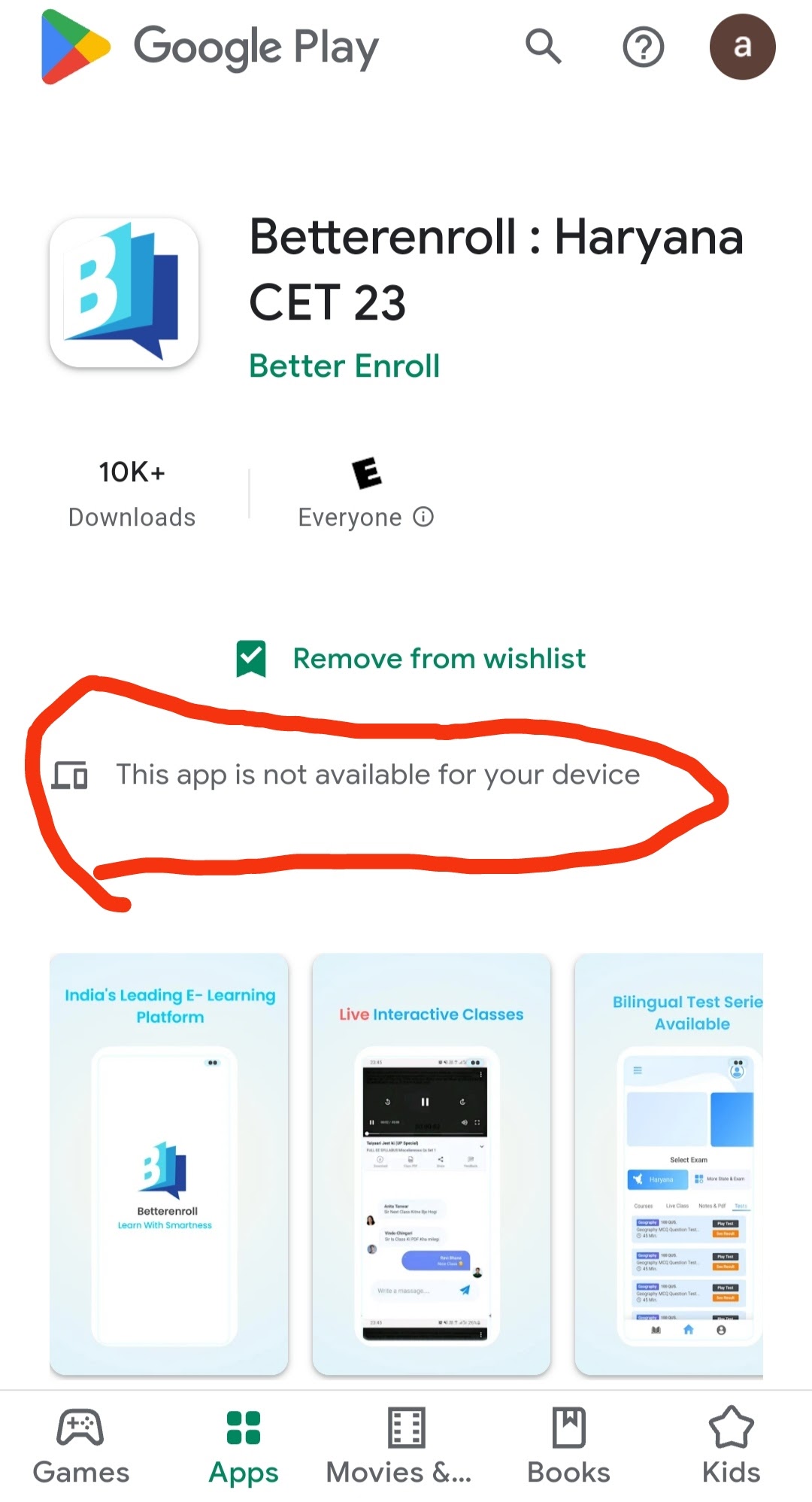
If you’ve ever tried to download an app and seen the message, “App Not Available for Your Device,” you’re not alone. This frustrating notice appears for millions of people every day, whether you’re using Android, iOS, or another platform. You may wonder why some apps work for your friends but not for you, or why your favorite new game only runs on certain phones.
This problem can block you from using important services, joining popular trends, or even doing your job.
Let’s look at what this message really means, the many reasons behind it, and how you can overcome the issue. You’ll discover why device models, software versions, geographic location, and more can stop you from installing apps. This article dives deep into practical solutions, expert insights, and non-obvious tips to help you fix or work around these restrictions.
What Does “app Not Available For Your Device” Mean?
This message usually appears when you try to install an app from the Google Play Store, Apple App Store, or other platforms. You might see different versions of the error, such as:
- “This app is incompatible with your device.”
- “This item isn’t available in your country.”
- “App not supported on this device.”
- “Your device isn’t compatible with this version.”
While the wording changes, the core issue is the same: the app developer or the app store has blocked your device from installing the app. This restriction is not always about your phone being “old” or “bad”—many factors can be involved.
Common Reasons Why Apps Are Not Available For Your Device
Understanding the root causes makes it easier to find a solution. Here are the main reasons:
1. Device Model Limitations
Some apps require specific hardware features. For example, a 3D game might need a powerful graphics chip, while a health app may require certain sensors like a heart rate monitor.
- High-end apps may not support budget phones.
- Some apps are developed only for certain manufacturers (e.g., Samsung-only features).
2. Outdated Operating System
Apps often need the latest version of Android, iOS, or other operating systems. If your device runs an older version, you may be blocked.
- Many apps require at least Android 8.0 or iOS 13.
- Security updates can also affect compatibility.
3. Geographic Restrictions
Some apps are only released in specific countries due to laws, content licensing, or testing purposes.
- Streaming apps often have regional limits.
- Banking or government apps may work only in their home countries.
4. Carrier Restrictions
Sometimes, your mobile carrier (like Verizon, AT&T, Vodafone) blocks certain apps, or the app is only available on specific networks.
5. App Store Policies
The Google Play Store and Apple App Store both have rules. If an app breaks these rules, it may be removed or blocked for some devices.
6. App Version And Architecture
Apps are built for certain processor types—like ARM, x86, or 64-bit. If your device uses a different architecture, the app may not run.
7. Developer Choices
Sometimes, developers simply choose to support only a few devices to reduce support costs or focus on quality.
8. Device Certification
Some apps (like Google’s own apps or Netflix) require your device to be “certified” by the manufacturer. Uncertified or “rooted” devices may be blocked.
9. Device Rooting Or Jailbreaking
If you have rooted your Android phone or jailbroken your iPhone, you may lose access to certain apps for security reasons.
10. Beta Or Testing Status
Apps in beta or testing may allow only specific users or devices.

Credit: www.youtube.com
How To Check Why An App Is Not Available
Before you can fix the problem, you need to know why your device is blocked.
Check App Store Error Messages
Read the error message carefully. Some stores provide details, such as “requires iOS 14 or later. ”
Compare Device And App Requirements
Most apps list their requirements in the app store description. Check:
- Minimum OS version
- Required hardware features (like Bluetooth, GPS)
- Supported countries
- Device model list (sometimes included)
Use Compatibility Checkers
Some third-party sites and tools can check if an app works for your device. For example:
- APKMirror for Android
- Device info apps like CPU-Z or Device Info HW
Ask In Forums And Support Groups
Other users with your device may have found solutions. Try forums like Reddit, XDA Developers, or the official app support page.
Solutions For “app Not Available For Your Device”
Now that you know the common reasons, let’s explore proven ways to fix or work around the problem.
1. Update Your Device Software
The simplest fix is often the best—make sure your device is running the latest software.
How To Update (android):
- Open Settings.
- Go to System > System Update.
- Download and install any available updates.
How To Update (ios):
- Open Settings.
- Tap General > Software Update.
- Download and install updates.
Non-obvious tip: Even minor security updates can restore app compatibility.
2. Try Alternative App Stores (android)
If the app is not available on the Google Play Store, you may find it on other trusted stores:
- Amazon Appstore
- Samsung Galaxy Store
- APKMirror (for APK downloads)
Warning: Only use well-known sources. Installing apps from unknown websites can expose your device to malware.
3. Install An Apk Directly (android Only)
If you trust the app and source, you can install the APK file manually.
How To Install Apk:
- Download the APK from a trusted site.
- Enable Install from Unknown Sources in Settings > Security.
- Open the APK to install.
Practical insight: Some APKs have different versions for different processors. Use a tool like CPU-Z to check your device’s chip before downloading.
4. Change Your Device Region
If the app is limited by country, you can try changing your region.
On Android:
- Use a VPN app to switch your IP address to a supported country.
- In Google Play Store, go to Account > Country and profiles and switch countries (you may need a payment method in that country).
On Ios:
- Go to Settings > Apple ID > Media & Purchases > View Account.
- Change your country/region.
Note: Changing regions may affect your billing and other app availability.
5. Use App Cloning Or Parallel Apps
Some apps work only on specific devices, but you can try app cloning tools (like Parallel Space) to run a different version.
- Useful for running dual WhatsApp, Facebook, etc.
6. Unroot Or Un-jailbreak Your Device
If you have rooted or jailbroken your device, consider restoring it to factory settings. Many banking and streaming apps block rooted devices for security.
7. Contact The Developer
If you believe your device should be supported, contact the app developer through their support email or website. Sometimes, they can whitelist your device or explain why it’s blocked.
8. Buy A Compatible Device
If the app is essential and no workaround exists, you may need to upgrade to a newer device that meets all requirements.
9. Use The Web Version
Many apps (like YouTube, Facebook, and Gmail) offer a web version that works in your browser, even when the app doesn’t.
10. Join Beta Programs
Some apps offer beta testing with more device support. Look for “Join Beta” in the Play Store or App Store.
Examples Of Popular Apps With Device Restrictions
Device limitations affect not only small developers but also global brands. Here are real-life examples:
- Google Camera (GCam): Only available for Google Pixel phones, but modded APKs work on other devices with compatible hardware.
- Apple Fitness+: Requires an iPhone or iPad with iOS 14.3 or later. Not available for Android.
- Netflix: Blocks uncertified or rooted Android devices.
- Disney+: Not available in some countries, and older smart TVs may not support the app.
- Clubhouse: First launched only for iOS, later expanded to Android, but still requires recent OS versions.
How Device Compatibility Works Behind The Scenes
Understanding how app stores decide compatibility can help you troubleshoot.
The Role Of The Manifest File
Every app includes a manifest file that tells the store:
- Supported OS versions
- Required hardware features (camera, sensors, etc.)
- Supported device models
- Supported screen sizes
App Store Algorithms
The Google Play Store and Apple App Store use algorithms to match your device’s specs with the app’s requirements. If your device doesn’t match, the app is hidden or blocked.
Manufacturer Certification
Some apps require your device to be Google Play certified or MFi (Made for iPhone) certified. Cheap or “cloned” devices often fail this test.
Security Checks
Apps that handle sensitive data (like banking) check for root/jailbreak status and block devices that may be insecure.

Credit: www.youtube.com
The Impact Of Device Incompatibility
Missing out on apps can be more than a minor annoyance. For businesses, students, and families, it can mean:
- Missing work tools (like Microsoft Teams, Zoom)
- Losing access to banking or health services
- Being unable to join social trends or games
- Privacy and security risks from using unofficial workarounds
A Statista report shows that over 20% of app users worldwide have faced compatibility issues in the past year—a number that grows with each new OS update.
Data Comparison: Android Vs. Ios Device Compatibility
Let’s compare how Android and iOS handle app compatibility:
| Factor | Android | iOS |
|---|---|---|
| Device Models | Thousands (Samsung, Xiaomi, etc.) | Dozens (iPhone, iPad only) |
| OS Updates | Fragmented (many versions in use) | Unified (most use latest version) |
| App Testing | Hard to test all devices | Easier to test |
| Rooting/Jailbreaking Issues | Common | Less common |
| Regional Restrictions | Managed via Play Store | Managed via App Store |
Insight: Android users are more likely to face compatibility problems because of device variety and slower software updates.
Device Architecture And App Support
Apps are built for specific hardware:
| Processor Type | Common Devices | App Example |
|---|---|---|
| ARMv7 | Older Android phones | Many old games |
| ARM64 | Modern Android, iOS | Most new apps |
| x86 | Some tablets, emulators | PC ports |
If your device’s processor doesn’t match, the app won’t install.
Risks Of Bypassing Device Restrictions
While installing apps from other sources can solve your problem, it’s important to know the risks:
- Malware and viruses: Unofficial APKs may contain harmful software.
- Privacy leaks: Some apps may steal data or show more ads.
- Banned accounts: Some games and banking apps ban users who use modified APKs.
- Lack of updates: Manually installed apps won’t update automatically.
Tip: Always check reviews and the reputation of the site before downloading anything outside official stores.
Why Developers Block Some Devices
Developers don’t want to block users, but sometimes they must for these reasons:
- Performance: Old or weak devices can’t run the app smoothly, leading to crashes and bad reviews.
- Security: Devices without recent updates may have vulnerabilities.
- Testing limits: It’s impossible to test on every phone model, especially on Android.
- Exclusive partnerships: Some features are licensed only for certain brands or carriers.
- Legal reasons: Content laws differ by country.
Non-obvious insight: Sometimes, developers accidentally block devices by misconfiguring the manifest file. Reporting your problem can help them fix it.
What To Do If No Solution Works
If all troubleshooting fails, consider these options:
- Use a friend’s device for the app.
- Look for alternative apps with similar features.
- Access web versions whenever possible.
- Wait for updates: Many apps add support for more devices over time.
Real-world Stories
Case 1: A Student Needs A Learning App
Maria, a student in Brazil, tried to install a popular math app, but her phone showed “not compatible. ” After checking forums, she discovered her phone ran Android 7. 0, while the app needed Android 9. 0. She updated her phone but still had the problem.
By installing the APK from the developer’s website, she finally got it working.
Lesson: Sometimes, a direct APK from the official site is the key.
Case 2: A Traveler And A Banking App
John, traveling in Asia, couldn’t access his US bank’s app due to region blocking. By connecting his phone to a US VPN and switching his Play Store country, he installed the app and completed his banking.
Lesson: VPN and region switching can help, but may break other services.
Case 3: A Gamer And Hardware Limits
Ahmed wanted to play a new racing game, but his device was missing a gyroscope sensor. No workaround could fix this, so he borrowed a friend’s phone.
Lesson: Some hardware requirements can’t be bypassed.
How To Avoid Device Compatibility Issues In The Future
You can reduce the chance of seeing “App Not Available for Your Device” by following these steps:
- Buy mainstream devices: Stick to well-known brands (Samsung, Apple, Xiaomi, etc. ).
- Update your OS regularly: Enable auto-updates for both system and apps.
- Avoid rooting/jailbreaking unless you know the risks.
- Check app compatibility before buying a new device.
- Join app beta programs for early access and feedback.
Credit: support.google.com
The Future Of Device Compatibility
The problem may get better as cloud apps and web apps grow. Services like Progressive Web Apps (PWA) allow you to use apps through your browser, often without compatibility limits. App developers are also using smarter tools to support more devices.
However, as new hardware (foldable phones, AR glasses) appears, new compatibility challenges will also arise. Staying informed and understanding your device will always help.
Key Takeaways
- “App Not Available for Your Device” is common and has many causes—hardware, software, region, or developer choice.
- Updating your device and using official channels is safest.
- Alternative app stores and APK files work, but have risks.
- Device compatibility is more challenging on Android than on iOS.
- When stuck, web versions and alternative apps can help.
For more details on device compatibility and mobile app development, the official Android Developer Guide is an excellent resource.
Frequently Asked Questions
Why Do Some Apps Work On My Friend’s Phone But Not On Mine?
Your friend’s device may have a newer OS, different hardware, or be from a supported region. Even small differences in model or software version can block an app.
Is It Safe To Download Apks From Outside The Play Store?
Only if you use trusted sources like APKMirror or the official developer site. Unofficial APKs can contain viruses or steal your data.
Will Rooting Or Jailbreaking My Phone Help Me Install More Apps?
Sometimes, but it can also cause more apps (especially banking and streaming) to stop working for security reasons. You may also lose warranty support.
How Can I Check If My Device Is Certified?
On Android, open the Play Store, tap Settings > About, and look for “Play Protect certification.” On iOS, all devices sold by Apple are certified.
Can I Make An App Compatible By Editing The Apk?
Advanced users sometimes modify APKs to bypass restrictions, but this can be risky and often breaks features or security. It’s not recommended for most users.
Getting blocked by “App Not Available for Your Device” can be annoying, but with the right knowledge, you can often find a safe solution or workaround. Stay curious, keep your device updated, and explore all your options!