Have you ever spent hours editing photos in Adobe Lightroom, only to find that your work hasn’t synced across your devices? This issue is surprisingly common, and it can be frustrating, especially when you rely on Lightroom syncing for professional work or personal projects. Whether you use Lightroom Classic or Lightroom CC, synchronization problems can disrupt your workflow, cause data loss, and waste valuable time. But the good news is, most syncing problems can be solved with the right approach.
In this guide, you’ll learn why Lightroom sometimes fails to sync, how to diagnose the problem, and the best ways to fix it. You’ll also discover advanced tips, common mistakes, and real-world examples that make these solutions easy to understand—even if you’re not a tech expert.
By the end, you’ll know exactly what to do when Lightroom is not syncing.
What Does Lightroom Syncing Actually Do?
Before diving into troubleshooting, it’s important to understand what Lightroom syncing means. Adobe Lightroom offers two main versions: Lightroom Classic and Lightroom CC (often just called Lightroom). Each version handles syncing differently.
Lightroom CC is cloud-based. It automatically uploads your photos, edits, and metadata to Adobe’s cloud servers, making them available on other devices, including mobile phones, tablets, and web browsers. When you edit a photo on one device, those changes appear on all others.
Lightroom Classic, on the other hand, is desktop-focused. It can sync collections to the cloud, but it doesn’t sync your entire catalog. Only selected collections and images are uploaded, and syncing is often less automatic.
Knowing which version you use is the first step in solving syncing issues. Problems can look similar but have different solutions depending on the version.
Why Lightroom May Not Sync: Common Causes
Syncing problems can come from many sources. Here are the most frequent reasons:
- Internet Connection: Slow or unstable connections can interrupt the syncing process.
- Adobe Account Issues: If you’re not logged in, or your subscription has expired, syncing stops.
- Software Version Mismatch: Using outdated Lightroom or Creative Cloud apps can create conflicts.
- Storage Limits: Adobe cloud storage is limited. If you run out of space, syncing halts.
- Catalog Corruption: Damaged catalogs or collections can prevent proper syncing.
- File Type Restrictions: Some file types or very large files may not sync.
- Sync Settings: Incorrect preferences or toggles can pause syncing.
- Server Problems: Occasionally, Adobe’s servers experience outages or maintenance.
Understanding these causes helps you target the right solution, rather than guessing blindly.
Diagnosing Lightroom Not Syncing: Step-by-step
When Lightroom isn’t syncing, it’s tempting to just restart your computer. But smart troubleshooting can save time and prevent repeated errors. Here’s a practical checklist:
1. Check Sync Status
Look at the cloud icon in Lightroom CC or the sync status in Lightroom Classic. If it shows “Syncing,” “Paused,” or an error message, note it.
2. Test Internet Speed
Open a browser and run a speed test. Lightroom needs at least 1 Mbps upload/download speed for smooth syncing.
3. Verify Adobe Account
Go to Account settings. Make sure you’re logged in, and your subscription is active.
4. Update Software
Check for updates in Creative Cloud. Outdated apps often cause sync problems.
5. Inspect Storage
In Creative Cloud, see how much cloud storage you have. If you’re close to the limit (20GB for most plans), syncing may stop.
6. Review Sync Settings
In Lightroom Classic, check which collections are set to sync. In Lightroom CC, review preferences for sync and storage.
7. Look For Error Messages
Adobe often gives clues. For example, “Unable to sync” or “File type not supported. ” Write down these messages.
This diagnostic approach helps you pinpoint the problem before you start fixing things.
Fixing Lightroom Syncing Issues: Practical Solutions
Now let’s dive into actionable solutions. For each problem, here’s what to do:
Internet Connection
If your connection is slow or unstable:
- Switch to a wired connection if possible.
- Restart your router.
- Avoid syncing large files during peak hours.
Adobe Account Problems
If you’re logged out or your subscription expired:
- Log back into your Adobe account.
- Renew your subscription if necessary.
- Check for multiple accounts—sometimes people accidentally sync with different Adobe IDs on different devices.
Software Updates
Outdated software is a frequent cause:
- Open Creative Cloud and update Lightroom and Photoshop.
- Restart your computer after updating.
- Make sure all devices use the same app version.
Storage Limits
Adobe’s cloud storage fills up fast, especially with RAW files:
- Delete unnecessary photos from the cloud.
- Export and save backups locally.
- Upgrade your plan if you need more storage.
Catalog And Collection Problems
If your catalog is corrupted or collections won’t sync:
- In Lightroom Classic, use “Optimize Catalog” under File menu.
- Try creating a new collection and syncing it.
- Avoid using special characters in collection names, as these can cause problems.
File Type And Size Issues
Lightroom supports most formats, but some files won’t sync:
- Convert unsupported files to JPEG or DNG.
- Reduce file size if needed.
- Avoid syncing files larger than 2GB.
Sync Settings
Incorrect settings can pause syncing:
- In Lightroom Classic, enable “Sync with Lightroom.”
- In Lightroom CC, check preferences for sync and storage location.
- Click the cloud icon and confirm it’s not paused.
Server Outages
Sometimes, it’s not your fault:
- Visit Adobe’s status page to check for outages.
- Wait a few hours and try syncing again.

Credit: www.youtube.com
Advanced Troubleshooting For Persistent Problems
If basic fixes don’t work, try these advanced steps:
Clear Sync Data
Sometimes, old sync data causes conflicts. In Lightroom Classic:
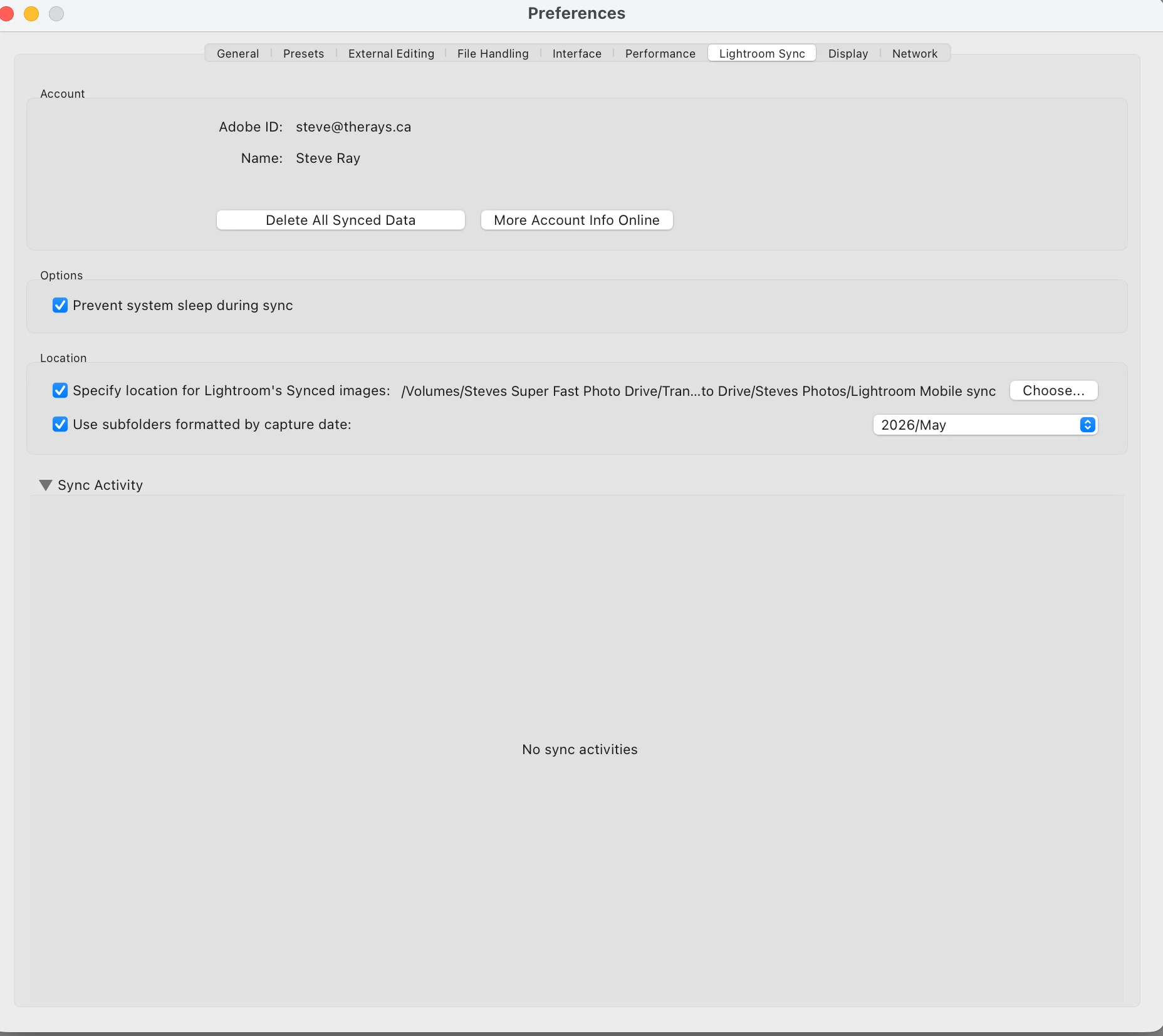
- Go to Preferences > Lightroom Sync.
- Click “Clear Cache.”
- Restart Lightroom.
Rebuild Catalog
A damaged catalog can block syncing:
- Back up your catalog.
- Create a new catalog and import your photos.
- Set up syncing from scratch.
Remove Problem Files
Some files get “stuck” and prevent other photos from syncing:
- Look for photos with sync errors.
- Remove them from the synced collection.
- Re-add them one by one to see which file causes the issue.
Reinstall Lightroom
When all else fails:
- Uninstall Lightroom and Creative Cloud.
- Restart your computer.
- Reinstall the apps and set up syncing again.
Use Diagnostic Logs
For expert users:
- Enable logging in Lightroom preferences.
- Read the logs for clues about the syncing process.
- Share logs with Adobe support if needed.
Real-world Examples: How Syncing Problems Affect Users
Let’s look at two typical scenarios:
Example 1: Wedding Photographer
Sarah, a wedding photographer, edits photos on her desktop and reviews them on her tablet. She notices that some edits don’t show up on her tablet. After checking, she finds that her Adobe account is logged in with a different email address on her tablet.
By logging in with the correct account, syncing resumes.
Example 2: Hobbyist With Limited Storage
John, an amateur photographer, fills up his 20GB Adobe cloud storage. New photos stop syncing, and he gets an error message. By deleting old photos and exporting them to an external drive, he frees up space and syncing continues.
These examples show that syncing issues are not always technical—they can be caused by simple oversights.
Credit: community.adobe.com
Comparing Lightroom Classic Vs Lightroom Cc Syncing
Syncing works differently in each version. Here’s a comparison:
| Feature | Lightroom Classic | Lightroom CC |
|---|---|---|
| Sync Scope | Selected collections only | Entire library |
| File Storage | Local, with cloud for synced collections | Cloud-based |
| Device Support | Desktop, limited mobile sync | Full desktop, mobile, web |
| RAW Support | Yes, for synced collections | Yes, for all images |
| Catalog Sync | No (catalog stays local) | Yes (library syncs across devices) |
Understanding these differences helps you set realistic expectations and avoid confusion.
Common Mistakes Beginners Make
Many Lightroom users make simple errors that cause syncing problems. Here are some to watch for:
- Mixing Accounts: Using different Adobe IDs on different devices.
- Ignoring Storage Limits: Not checking cloud storage usage.
- Skipping Updates: Forgetting to update Lightroom and Creative Cloud.
- Syncing Unsupported Files: Trying to sync large video files or unsupported formats.
- Misconfiguring Collections: Not setting collections to sync in Lightroom Classic.
- Assuming Full Catalog Sync in Classic: Lightroom Classic does not sync the whole catalog.
Avoiding these mistakes saves time and prevents frustration.

Credit: www.lightroomqueen.com
Tips To Prevent Lightroom Syncing Issues
Want to keep syncing smooth? Follow these practical tips:
- Always use the same Adobe ID on all devices.
- Keep Lightroom and Creative Cloud up to date.
- Regularly check your cloud storage usage.
- Use supported file types and reasonable file sizes.
- Set collections to sync in Lightroom Classic.
- Avoid special characters in collection names.
- Back up your catalog frequently.
- Don’t sync sensitive or private files you don’t want in the cloud.
- Check Adobe’s status page if you notice syncing delays.
These habits make your workflow more reliable.
How To Monitor Sync Progress Effectively
To track your syncing status, use these methods:
In Lightroom Cc
- Click the cloud icon (top right).
- View sync progress and error messages.
In Lightroom Classic
- Check “Sync Activity” in the top left.
- Review which collections are set to sync.
- Use Preferences > Lightroom Sync for more details.
On Mobile Devices
- Open Lightroom app.
- Tap the cloud icon to see sync progress.
Having a routine for monitoring sync helps you spot problems early.
Useful Data On Lightroom Syncing
Adobe doesn’t publish detailed statistics, but user surveys and forums provide insights. According to a 2022 survey, around 30% of Lightroom users experience syncing issues at least once a month. Most problems are caused by internet connection or storage limits.
Here’s a quick overview:
| Issue Type | Percentage of Users |
|---|---|
| Internet Connection | 35% |
| Storage Limit | 22% |
| Account Issues | 15% |
| Software Updates | 18% |
| Other (catalog, file type, server) | 10% |
Knowing these numbers helps you focus on the most common causes first.
When To Contact Adobe Support
Sometimes, your problem is unique or too complex for basic fixes. If you’ve tried everything and syncing still fails:
- Gather error messages and screenshots.
- Export your catalog for backup.
- Contact Adobe Support through their help center.
- Provide diagnostic logs if requested.
Adobe’s support team can handle deeper technical issues and escalate problems when needed. For more info, visit Adobe’s official troubleshooting page.
Frequently Asked Questions
What Should I Do If Lightroom Is Stuck On “syncing”?
First, check your internet connection and cloud storage. If both are fine, restart Lightroom. If the problem persists, try clearing the cache or updating the software.
Can I Sync My Entire Lightroom Classic Catalog?
No. Lightroom Classic only syncs selected collections, not the whole catalog. If you want full library syncing, use Lightroom CC.
Why Do Some Photos Fail To Sync While Others Work?
Usually, the problem is file type, size, or corruption. Unsupported files or very large images won’t sync. Remove problem files and re-add them to see which causes the issue.
How Can I Check My Adobe Cloud Storage Usage?
Open Creative Cloud or Lightroom CC, go to account settings, and look for storage information. Delete unnecessary files or upgrade your plan if you’re near the limit.
Does Lightroom Syncing Use A Lot Of Internet Data?
Yes, especially for RAW files and large libraries. Syncing can use several gigabytes of data. Use Wi-Fi instead of mobile data to avoid extra charges.
Lightroom syncing issues don’t have to ruin your workflow. By understanding the causes, diagnosing problems, and following practical solutions, you can keep your photos safe and accessible on all your devices. Remember to check your settings, update your software, and monitor your storage.
With these tips, your Lightroom experience will be smoother and more reliable.